

Why Is AirPlay Not Working? 8 Real Reasons and Fixes

Why is AirPlay not working when it worked fine yesterday? Almost always because something between your iPhone and the TV changed quietly: a VPN switched itself on, the phone hopped to a different Wi-Fi band, a TV update reset its AirPlay setting, or an app lost its permission to see devices on your network. AirPlay itself is rarely broken. It's fussy about a handful of conditions, and when one of them slips, the TV either vanishes from the list or refuses to connect.
Quick answer: The most common reasons AirPlay stops working are (1) the iPhone and TV aren't on the exact same Wi-Fi network, (2) a VPN or iCloud Private Relay is blocking local traffic, (3) AirPlay is switched off or restricted on the TV, Apple TV, or Mac, (4) an app has lost its Local Network permission, and (5) outdated software on either end. Check those five, in that order, and restart both devices.
Key takeaways:
- AirPlay finds devices over your local network, so anything that splits or hides that network (guest Wi-Fi, separate 2.4GHz and 5GHz names, a VPN) makes the TV disappear.
- Every receiver has an AirPlay on/off switch and an access setting. A TV update or a new Apple TV owner can change either one.
- iPhone apps need Local Network permission to find AirPlay devices. Turning it off for an app hides your TV inside that app only.
- If the Apple TV or speaker is set up in the Apple Home app, Home's own access setting can block guests.
- A black screen in one streaming app is usually copy protection, not a fault. Use the app's own AirPlay button or the TV's app.
Prefer an interactive walkthrough? Try our AirPlay Diagnosis Helper →
Looking for a symptom-by-symptom fix list instead? AirPlay Not Working? Here's How to Fix It is organized around what you're seeing on screen. This guide is organized around why it's happening, with a quick test for each cause.
Start Here: What Is AirPlay Actually Doing Wrong?
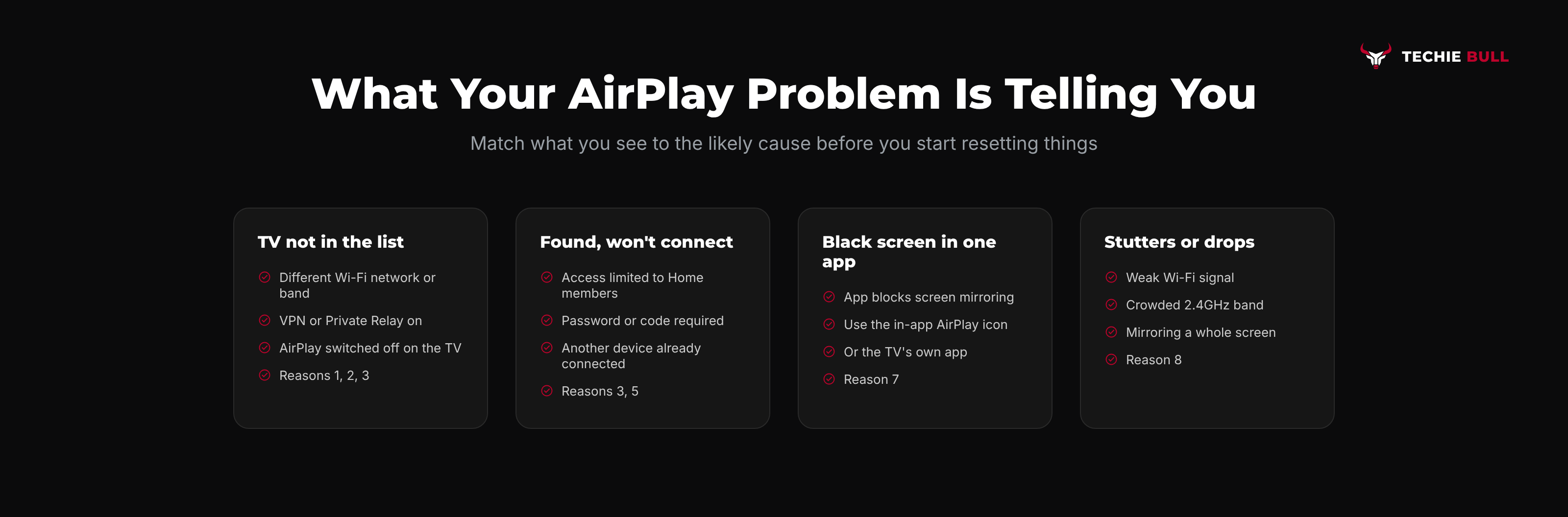
| What you see | Most likely reason | Jump to |
|---|---|---|
| The TV or Apple TV isn't in the AirPlay list at all | Network mismatch, VPN, or AirPlay switched off | Reasons 1, 2, 3 |
| It shows up in Control Center but not inside one app | That app's Local Network permission is off | Reason 4 |
| It appears, but tapping it fails or asks for a password | Access restrictions on the receiver or in Home | Reasons 3, 5 |
| It worked until a software update | Settings reset, or an update still pending on one device | Reason 6 |
| Connects, but one app shows a black screen | Copy protection in that app | Reason 7 |
| Connects, then stutters or drops | Weak Wi-Fi or interference | Reason 8 |
Reason 1: Your Devices Aren't on the Same Network
AirPlay discovers devices using local network traffic that generally doesn't cross between separate networks. Apple's own troubleshooting article lists "same Wi-Fi network" as a first check, and it's the cause I run into most.
Quick test: On the iPhone, open Settings > Wi-Fi and note the exact network name. Then check the TV's or Apple TV's network settings. They must match character for character.
Fixes:
- Join both to the same network. If your router broadcasts separate 2.4GHz and 5GHz names, put both on the same one.
- Don't use a guest network for either device. Many guest networks deliberately stop devices from seeing each other.
- On a mesh or business router, look for a setting called client isolation or AP isolation and turn it off on your home network.
- Hotel, school, and office Wi-Fi often block AirPlay on purpose. There's usually no fix on your side.
Reason 2: A VPN or iCloud Private Relay Is in the Way
A VPN that sends all traffic through its tunnel can hide your local network from the iPhone, and with it the TV. This is the cause that catches people out most, because many VPN apps reconnect on their own after a restart.
Quick test: Turn the VPN off in the VPN app or under Settings > VPN, then try AirPlay again.
Fixes:
- If AirPlay works with the VPN off, look in the VPN app for split tunneling or allow local network access and turn it on, so local traffic bypasses the tunnel.
- Try turning off iCloud Private Relay under Settings > [your name] > iCloud > Private Relay to rule it out.
- Work-managed VPNs often block local network access by policy. Disconnect while you AirPlay, or ask your IT team.
Reason 3: AirPlay Is Off or Restricted on the Receiver
Every AirPlay receiver has its own switch, and most have an access rule. A software update, a factory reset, or another person in the house can change either.
Where to check:
- Apple TV: Settings > AirPlay and Apple Home (older tvOS: AirPlay and HomeKit). Make sure AirPlay is on, and check Allow Access. To test, set it to Everyone, then tighten it later.
- Mac as a receiver: System Settings > General > AirDrop & Handoff, then the AirPlay Receiver toggle and Allow AirPlay for option.
- Roku: Settings > Apple AirPlay and HomeKit.
- Fire TV Omni and 4-Series: Settings > Display & Sounds > AirPlay & HomeKit. Most Fire TV Sticks don't support AirPlay at all.
- Samsung, LG, Sony, Vizio: each TV has its own AirPlay settings page. The wording changes by year, but it always has "AirPlay" in the name.
Also confirm the device supports AirPlay in the first place. Smart TVs from around 2018 onward mostly do, older ones mostly don't, and no update will add it.
Reason 4: An App Lost Its Local Network Permission
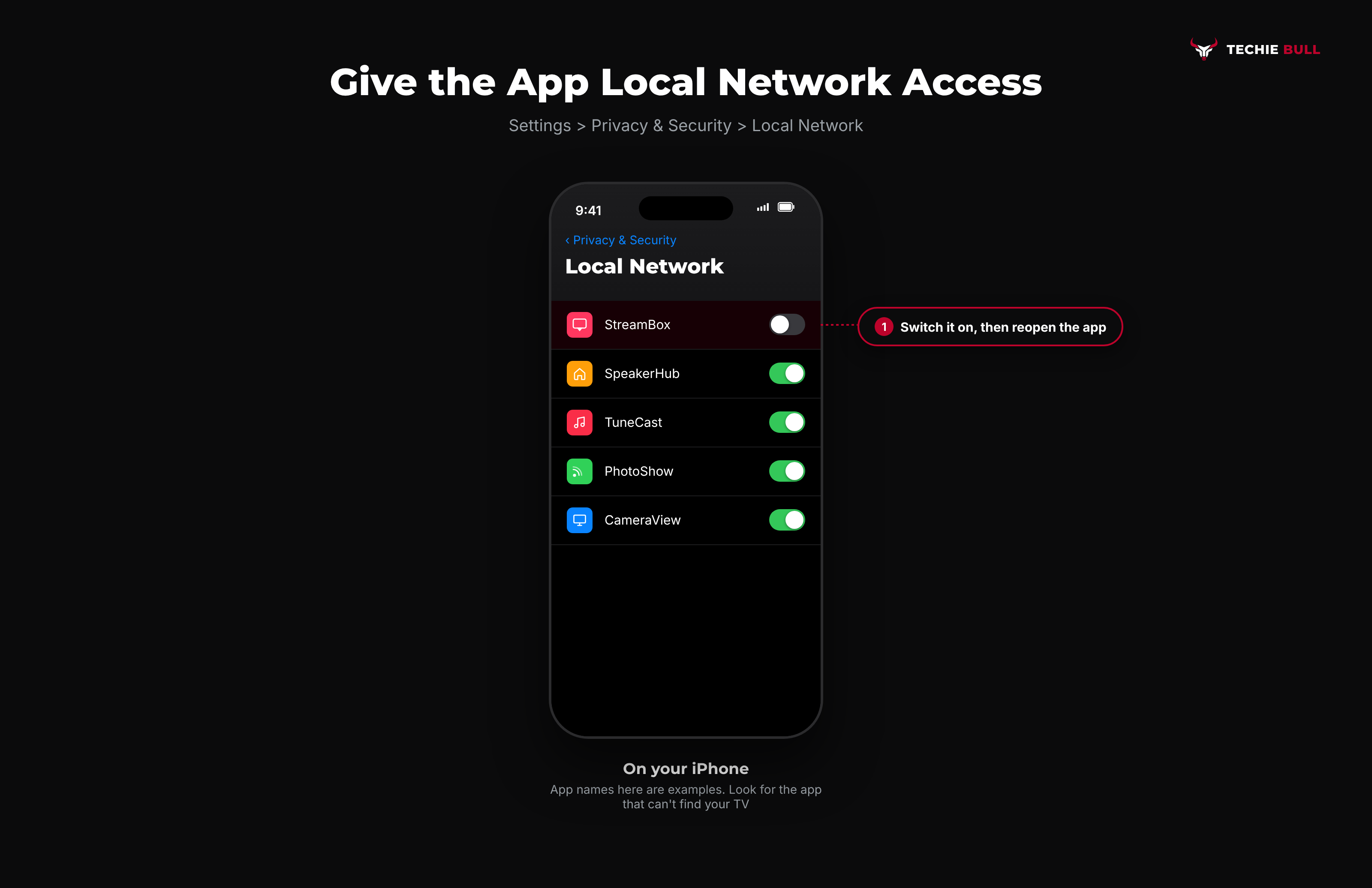
Since iOS 14, apps have to ask before they can look for devices on your home network. If you tapped Don't Allow at some point, that app can't see your TV, even though Control Center can. This explains the classic "AirPlay works from Photos but not from this one app" complaint.
Quick test: Open Settings > Privacy & Security > Local Network.
Fix: Find the app in the list and switch it on. Close the app fully and reopen it. Apps that use AirPlay through Apple's standard player may not appear here, but streaming, camera, and smart-home apps usually do.
Reason 5: The Apple Home App Is Restricting Access
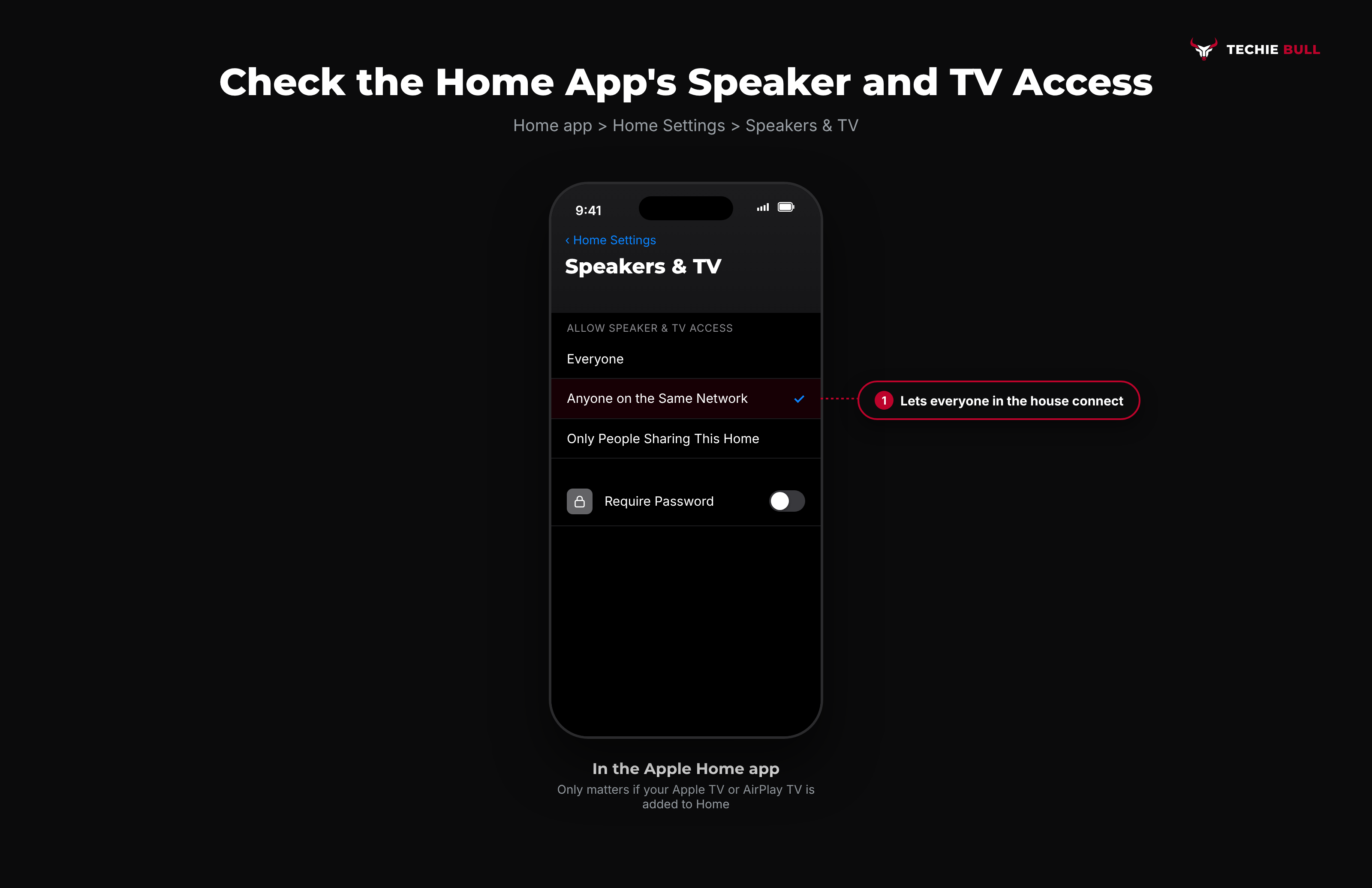
If your Apple TV, HomePod, or AirPlay TV is set up in the Apple Home app, Home has its own rule about who can stream to it. Apple's troubleshooting article calls this out for devices added to Home. Family members and guests who aren't part of the home can be blocked here even though the TV's own settings look fine.
Where to check: In the Home app, open Home Settings for your home, then Speakers & TV. Look at who's allowed access. Choosing Anyone on the Same Network usually lets everyone in the house connect, while Only People Sharing This Home blocks anyone not invited to your Home. You can also require a password here.
I spent a confusing afternoon on this one when a visiting relative couldn't AirPlay holiday photos to our living room TV. Everything on the TV said yes. Home said no, because they weren't in our Home.
Reason 6: Outdated or Freshly Updated Software
Apple's guidance is to keep every AirPlay device updated, and in practice the trouble usually starts when one device has updated and the other hasn't.
Fixes:
- Update the iPhone or iPad under Settings > General > Software Update.
- Update the TV, Apple TV, Roku, or Fire TV from its own system update menu.
- After any update, recheck Reason 3. A TV update can quietly reset AirPlay to off.
Reason 7: The App Is Blocking Mirroring (Black Screen)
If AirPlay connects and you see the app's interface but the video area is black, that app is protecting its content from screen mirroring. Nothing's broken.
Fix: Stop mirroring and use the AirPlay icon inside the app's video player instead, if it has one. If it doesn't, the app doesn't allow AirPlay at all, so open the same service's app on the TV.
Reason 8: Weak Wi-Fi or a Busy Network
When AirPlay connects but stutters, freezes, or drops after a few minutes, the cause is usually signal quality rather than settings.
Fixes:
- Move closer to the router, or move the router into the open.
- Use the 5GHz band if your router has one, and the same band on both devices.
- Connect the Apple TV or TV by Ethernet if it has a port. That alone fixes most dropouts.
- Stream a video with the in-app AirPlay icon instead of mirroring your whole screen, which is less demanding.
The Restart Order That Actually Helps
When nothing obvious stands out, restart in this order: the router first, then the TV or Apple TV, then the iPhone. Give the router a couple of minutes to come fully back before switching anything else on. Restarting in the wrong order can leave the TV holding an old network address that the iPhone can't reach.
Still Not Working?
If you've matched the networks, ruled out a VPN, checked the receiver and Home access settings, and updated everything, use Apple's AirPlay troubleshooting article for the official checklist, or contact Apple Support. If the problem only happens with one TV brand, that TV maker's support site is the better place, since the AirPlay settings live in their menus. For Windows PCs, which don't support AirPlay natively, see AirPlay Receiver for Windows.
Frequently Asked Questions
Why is my TV not showing up in AirPlay?
Usually because the iPhone and TV are on different networks or bands, a VPN is active, or AirPlay is switched off in the TV's settings. Check the Wi-Fi names match exactly, turn the VPN off, and confirm AirPlay is on in the TV's menu.
Why does AirPlay work from Control Center but not inside an app?
That app probably doesn't have Local Network permission. Go to Settings > Privacy & Security > Local Network and switch it on for that app.
Why does AirPlay ask for a password or code?
The receiver's access setting requires it, or it's the first time you're connecting. Enter the code shown on the TV. If it asks every time, check the access setting on the Apple TV or in the Home app.
Can a VPN stop AirPlay from working?
Yes. A VPN that routes all traffic through its tunnel can hide your local network, so the TV disappears from the list. Turn on split tunneling or local network access in the VPN app, or disconnect while you AirPlay.
Why does AirPlay show a black screen?
Most often because the app blocks screen mirroring of copyrighted video. Use the app's own AirPlay button, or the TV's version of the app.
Quick Summary
AirPlay rarely breaks on its own. It stops working when its conditions slip: the devices end up on different networks, a VPN or Private Relay hides the local network, AirPlay gets switched off or restricted on the receiver, an app loses Local Network permission, the Home app blocks guests, or one device is out of date. Check those in order, restart the router then the TV then the iPhone, and remember that a black screen in one app is copy protection, not a fault.
Related Articles
How to AirPlay to TV From iPhone, iPad, or Mac (Step by Step)
How to AirPlay to a TV from an iPhone, iPad, or Mac: stream one video with the AirPlay button, mirror your whole screen, or use a TV as a second Mac display.
How to Use AirPlay on Windows (Send and Receive, Explained)
How to use AirPlay on Windows: stream music to AirPlay speakers from iTunes, mirror a PC to an Apple TV with a sender app, or receive AirPlay from an iPhone.
How to Mirror iPhone to TV (AirPlay & Alternatives)
How to mirror an iPhone or iPad to a TV, whether you've got an Apple TV, a Roku, a Fire TV, a random AirPlay-compatible smart TV, or nothing Apple-made in the house at all.