

AirPlay Receiver for Windows: Setup Guide

An AirPlay receiver for Windows is third-party software that makes a PC pretend to be an Apple TV, since Windows has no AirPlay support of its own and never will unless you install something. I get why people expect otherwise: AirPlay feels like it should just work the way Bluetooth does, but Apple only ever built the receiving side into its own hardware, and a Windows machine simply doesn't exist as an option on your iPhone's screen mirroring list until you give it one.
Quick answer: install a dedicated AirPlay receiver app (AirServer is the most reliable paid option, 5KPlayer is a solid free one) on the PC you want to stream to, put both devices on the same Wi-Fi network, allow the app through Windows Defender Firewall when prompted, then open Control Center on your iPhone or Mac and pick your PC from the Screen Mirroring list like you would an Apple TV.
Key takeaways:
- Windows has zero native AirPlay support. Every option here runs through a third-party receiver app, there's no hidden setting to turn on.
- AirServer is the most polished, most reliable pick if you're willing to pay, with a genuine 30-day free trial to test it first.
- 5KPlayer covers the basics (mirroring, audio, video casting) for free, but it's rougher around the edges and needs an extra Bonjour install on some PCs.
- The single most common setup failure isn't the app itself, it's Windows Defender Firewall silently blocking the first connection attempt.
Prefer an interactive walkthrough? Try our AirPlay Receiver Setup Helper →
If AirPlay is already installed and just refuses to connect, or you're getting a black screen, lag, or drops after it's already working, this article isn't the one you want. That's covered symptom by symptom in AirPlay Not Working? Here's How to Fix It. This one is specifically about getting a Windows PC set up as an AirPlay destination in the first place. And if what you actually want is to mirror your iPhone to an actual television rather than a computer, How to Mirror iPhone to TV (AirPlay & Alternatives) covers Apple TV, Roku, Fire TV, and smart TVs instead.
Which AirPlay Receiver Should You Actually Use?
There are really three worth considering, and they're not interchangeable. I'd start with AirServer if the price doesn't bother you, since it's the one that's given me the fewest surprises, but 5KPlayer is a genuinely fine choice if you just want something working today for nothing.
| App | Cost | Best for | Notable limits |
|---|---|---|---|
| AirServer | $19.99 one-time (consumer license), 30-day free trial | Reliability, hardware-accelerated 60fps mirroring, multiple simultaneous devices | Paid after the trial, Microsoft Store distribution can feel slower to update |
| 5KPlayer | Free | Basic screen mirroring, audio casting, occasional video playback | Needs Apple's Bonjour service installed separately on some PCs, interface feels dated |
| X-Mirage | Paid (price set at checkout) | Recording mirrored sessions with audio, password-protecting the receiver, multi-device support | Windows version has historically lagged behind the Mac version in feature parity |
AirServer also happens to double as a Google Cast and Miracast receiver on the same install, which is worth knowing if you've got a mixed household of iPhones and Android phones and don't want three separate apps cluttering the taskbar. 5KPlayer is the one to reach for if you just need something free for an occasional mirror session and don't mind a slightly clunkier setup. X-Mirage earns its keep specifically if recording the mirrored session (a demo, a walkthrough, a game clip) matters to you, since neither of the other two builds that in as cleanly.
Before You Install Anything
Three things to check first save you from chasing a problem that isn't actually about the receiver app at all.
Same Wi-Fi network, not just the same building. AirPlay's discovery method relies on both devices being on the same local network and subnet. If your router splits 2.4GHz and 5GHz into two separate network names, or you've got a guest network active, put your iPhone or Mac and your Windows PC on the identical one.
A Windows version that isn't ancient. AirServer's Windows Desktop Edition officially supports Windows 10 build 1709 or later, with build 1809 or later recommended, and wants at minimum an Intel Core i3 with 2GB of RAM (4GB recommended). If your PC is running something older than that, expect a rockier experience regardless of which app you pick.
A Bluetooth adapter, if you have one. AirServer specifically calls out a Bluetooth 4 adapter or newer as helpful for AirPlay discovery, on top of Wi-Fi. It's not required, but it's one more way for your PC to get found if Wi-Fi discovery is being flaky.
Method 1: Set Up AirServer (Best Overall)
AirServer is a Universal Windows Platform app distributed through the Microsoft Store, and it's the one I'd point most people toward first, especially if you're setting this up as a permanent fixture rather than a one-off.
Step 1: Install It
Get it from the Microsoft Store or directly from airserver.com. Either way you're getting the same 30-day fully-featured free trial, so there's no reason to commit to a license before you've actually tested it on your own network.
Step 2: Launch It and Let It Run
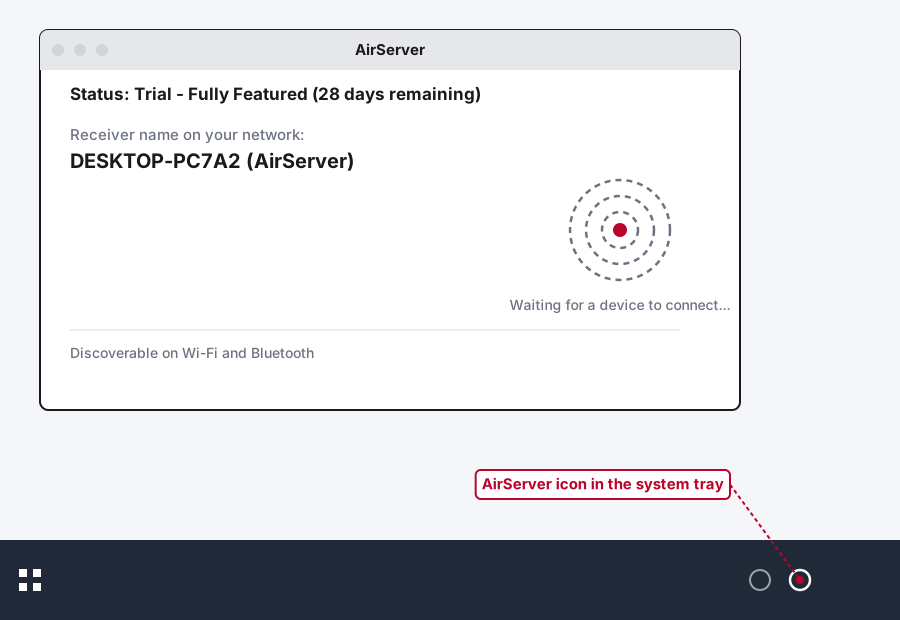
Open AirServer once it's installed. It sits quietly and listens for AirPlay connections, showing an icon in the system tray. You don't need to click through any setup wizard, it starts advertising itself on the network the moment it's running.
Step 3: Allow It Through Windows Defender Firewall
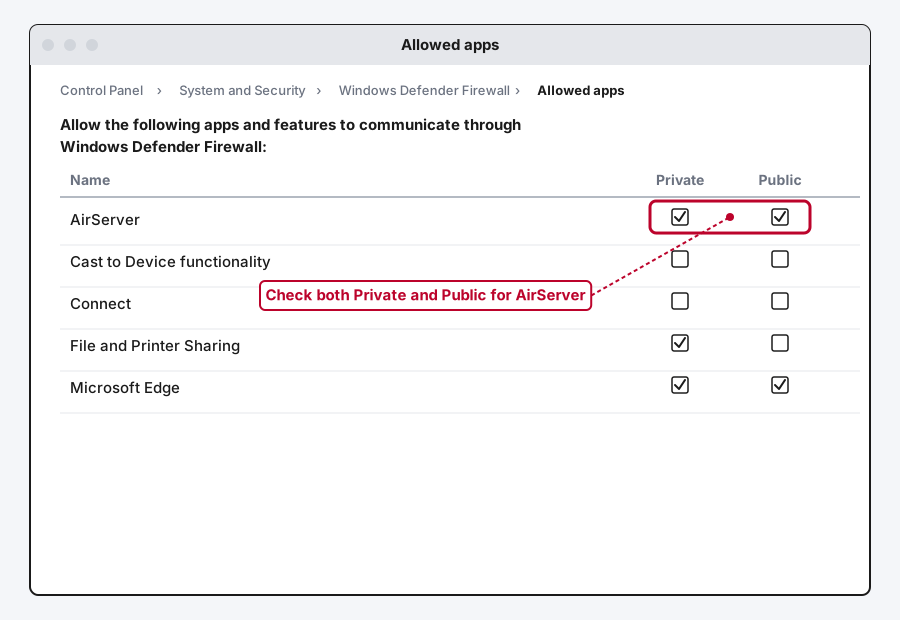
The first time AirServer tries to receive a connection, Windows will usually prompt you to allow it through the firewall. Check both Private networks and Public networks in that prompt. If you don't see a prompt and nothing connects, add it manually: open Control Panel > System and Security > Windows Defender Firewall, click Allow an app or feature through Windows Defender Firewall in the left sidebar, click Change settings, find AirServer in the list, and check both the Private and Public columns next to it.
Step 4: Connect From Your iPhone or Mac
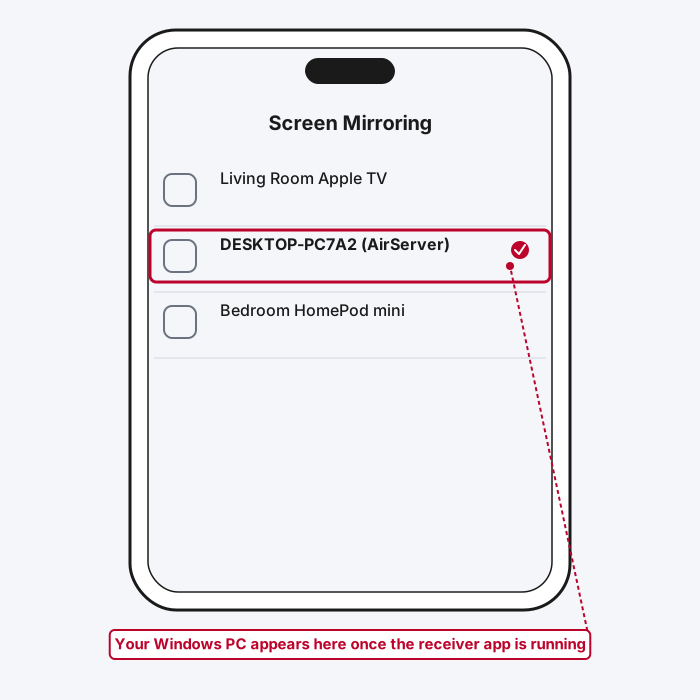
Open Control Center on your iPhone or iPad and tap Screen Mirroring, or click the Screen Mirroring icon in your Mac's menu bar. Your Windows PC should show up in the list, named after whatever your computer is called on the network.
Step 5: Buy or Let the Trial Run Out
If you're happy with it after testing on your own setup, a consumer license runs $19.99 as a one-time purchase, with education pricing available for students and teachers, and a business tier at $39.99 for workplace use.
Method 2: Set Up 5KPlayer (Free Option)
5KPlayer is the one to reach for if you want to try this today without spending anything, and it covers screen mirroring, audio streaming, and video casting from an iPhone or iPad.
Step 1: Download and Install
Get it from 5kplayer.com. It's a full media player app, not just an AirPlay receiver, so the install is a bit larger than AirServer's.
Step 2: Open the DLNA/AirPlay Panel
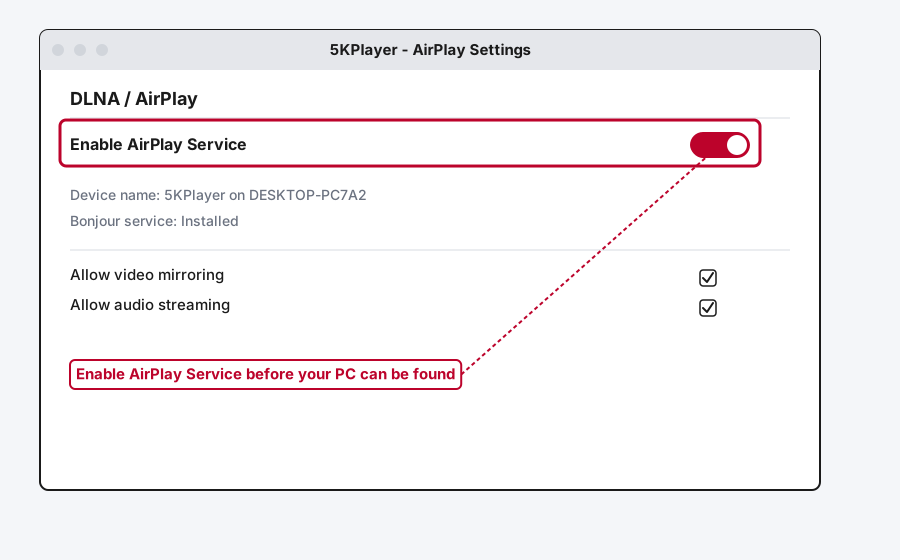
Launch 5KPlayer and click the DLNA AirPlay icon to open its AirPlay Settings panel.
Step 3: Turn On the AirPlay Service
Switch on Enable AirPlay Service. If the app prompts you to install Apple's Bonjour service and it isn't already on your PC, let it, since Bonjour handles the network discovery AirPlay depends on and 5KPlayer won't be found without it.
Step 4: Connect and Mirror
With both devices on the same Wi-Fi network, open Control Center on your iPhone or iPad, tap Screen Mirroring, and choose your PC (it'll usually show up labeled with 5KPlayer or your computer's name). The mirrored screen should appear in 5KPlayer's window within a few seconds.
A fair warning based on actually using it: 5KPlayer's mirroring quality and reliability aren't in the same league as AirServer's, and its interface looks like it hasn't been redesigned in a while. For an occasional mirror session it does the job. For something you're relying on regularly, especially for anything involving audio sync, it's worth trying AirServer's trial side by side before deciding.
Method 3: Set Up X-Mirage (Best for Recording)
X-Mirage is worth a specific mention if what you actually want isn't just mirroring, it's capturing what's mirrored, whether that's a tutorial, an app demo, or footage of a mobile game.
Step 1: Download and Install
Get the Windows build from x-mirage.com. Like the other two, it needs to be installed and running before your phone will see it as a destination.
Step 2: Name Your Computer (Optional but Useful)
If you've got more than one PC or receiver app running on your network, give the computer a distinct name inside X-Mirage's settings so you're not guessing which one to pick from your iPhone's list.
Step 3: Connect and Mirror
Same pattern as the other two: same Wi-Fi network, allow it through Windows Defender Firewall if prompted, then pick it from Control Center's Screen Mirroring list on your iPhone.
Step 4: Use the Recording and Password Features If You Need Them
X-Mirage's one-click recording captures the mirrored session with audio, and it supports adding a password so random devices on the same network can't connect without your say-so, useful if you're on a shared or office Wi-Fi network rather than a home one.
Common First-Time Setup Problems
A few issues show up specifically during initial setup, separate from the deeper troubleshooting covered in the full AirPlay guide.
The PC never shows up in the Screen Mirroring list at all. This is almost always the firewall step from Method 1 above, whichever app you're using. Go back and confirm it's allowed through Windows Defender Firewall for both Private and Public networks, not just one.
5KPlayer specifically doesn't get found, but AirServer works fine on the same PC. This points at the Bonjour service. If you skipped installing it when 5KPlayer prompted you, go back and install it, since without it Windows has no way to advertise the AirPlay service on the network at all.
Video mirrors but there's no audio, or the reverse. Check that the app itself isn't muted in its own settings (each of these three has its own volume control separate from Windows' system volume), and that your iPhone or Mac's actual output isn't set to a different device like a pair of Bluetooth headphones.
It connects, then drops a few seconds later. This is rarely a setup mistake and usually points to a VPN or iCloud Private Relay running on the sending device, or a second app or antivirus firewall (not just Windows Defender) also blocking the connection. The full troubleshooting breakdown for this exact symptom is in the AirPlay Not Working guide.
Getting the Best Mirroring Quality
A few things make a real difference once the basic connection is working:
Keep the receiving PC on a wired Ethernet connection if you can, or the same 5GHz Wi-Fi band as your phone if not. AirPlay is streaming live video in real time, and a 2.4GHz connection or a PC sharing Wi-Fi with a dozen other devices is the most common cause of stutter that has nothing to do with the receiver app itself. Keep the PC reasonably close to the router too, since walls and distance degrade a live video stream fast.
If you're using AirServer specifically, its hardware-accelerated 60fps mirroring genuinely benefits from a PC that isn't already under load. Close anything else that's chewing through CPU or GPU while you're mirroring something that needs to stay smooth.
Still Not Working?
If you've installed one of these three, allowed it through the firewall, and your PC still won't show up or won't hold a connection, work through the full symptom-by-symptom breakdown in AirPlay Not Working? Here's How to Fix It, which covers discovery failures, connection drops, and lag in more depth than a setup guide can. Apple's own AirPlay support page is also worth a look if the problem seems to be on the iPhone or Mac side rather than the PC.
Frequently Asked Questions
Is there a truly free way to get AirPlay on Windows?
Yes, 5KPlayer is free and covers basic screen mirroring, audio streaming, and video casting. It's not as polished or reliable as a paid option like AirServer, but it costs nothing and works for occasional use.
Do I need to buy AirServer to try it?
No, it comes with a genuine 30-day fully-featured free trial, not a limited demo. Test it properly before deciding whether the $19.99 consumer license is worth it for how often you'll actually use it.
Why does my PC show up but the connection fails?
This is almost always Windows Defender Firewall (or a third-party antivirus firewall) blocking the app after it's been discovered but before it can actually connect. Check that the receiver app is allowed through for both Private and Public networks.
Can I use one of these apps to cast Android or Chromebook screens too, not just iPhone?
AirServer can, since it doubles as a Google Cast and Miracast receiver on top of AirPlay, all from the same install. 5KPlayer and X-Mirage are built specifically around Apple's AirPlay protocol.
Will installing an AirPlay receiver slow down my PC?
Not noticeably while it's just sitting idle waiting for a connection. AirServer specifically is built to use under 10% CPU thanks to hardware acceleration, though any of these apps will use more resources while actively mirroring a live video stream.
Quick Summary
Windows doesn't do AirPlay on its own, so the whole process comes down to picking a receiver app, putting both devices on the same Wi-Fi network, and getting it past Windows Defender Firewall on the first connection attempt. AirServer is the most reliable choice if you're fine paying after a real 30-day trial, 5KPlayer covers the basics for free if you don't mind a rougher interface and an extra Bonjour install, and X-Mirage is worth it specifically if recording the mirrored session matters to you. Once one of these is installed, running, and allowed through the firewall, your PC shows up on an iPhone or Mac's Screen Mirroring list exactly like an Apple TV would.
Related Articles
How to Mirror iPhone to TV (AirPlay & Alternatives)
How to mirror an iPhone or iPad to a TV, whether you've got an Apple TV, a Roku, a Fire TV, a random AirPlay-compatible smart TV, or nothing Apple-made in the house at all.

AirPlay Not Working? Here's How to Fix It
AirPlay not working between your iPhone, Mac, and Apple TV? Here's why it happens and the exact fixes for every symptom, from a device that won't show up to a laggy stream.