

How to Mirror iPhone to TV (AirPlay & Alternatives)

How to mirror an iPhone to a TV depends less on your iPhone than most guides let on, and more on what's actually plugged into your TV. If you've got an Apple TV, this is a two-tap job. If you've got a Roku, a Fire TV, or a smart TV from Samsung or LG, it's usually just as easy, but the setting lives in a different menu than you'd expect. And if your TV has nothing Apple-friendly about it at all, the honest answer is that a full iPhone screen mirror isn't really built for that, and I'll walk through what actually works instead rather than pretending otherwise.
Quick answer: Open Control Center on your iPhone or iPad, tap Screen Mirroring, and pick your TV from the list. That works out of the box for an Apple TV, and for most Roku, Fire TV, Samsung, LG, Sony, and Vizio TVs from about 2018 onward, since they all speak AirPlay natively now. If your TV isn't one of those, you're either casting individual apps (YouTube, Netflix, and similar already have their own Cast button) or installing a receiver app, not doing a true full-screen mirror.
Key takeaways:
- AirPlay is built into far more TVs than people realize now. It's not just an Apple TV thing anymore, most 2018-and-newer smart TVs and several Roku and Fire TV models support it directly.
- The exact menu name to look for varies by brand: it's under Settings on Roku and Fire TV, but it's always some version of "AirPlay" or "AirPlay and HomeKit."
- iPhones can't do a true full-screen mirror to a Chromecast or Google TV. You're limited to apps with their own Cast button, or a third-party workaround app.
- Both devices need to be on the same Wi-Fi network. This one fact causes more "it's not finding my TV" moments than anything actually broken.
Prefer an interactive walkthrough? Try our iPhone to TV Mirroring Helper →
If AirPlay is already set up and connects but then misbehaves (black screen, lag, drops, or it just won't connect at all), that's a different problem than this article covers. The full symptom-by-symptom breakdown is in AirPlay Not Working? Here's How to Fix It. And if the TV you're mirroring to is actually a Windows PC, not a television, AirPlay Receiver for Windows: Setup Guide is the one you want instead. This article is specifically about getting a normal mirror going, on a real TV, for the first time.
Which Method Should You Use?
| Your setup | Method | Native or needs an app? |
|---|---|---|
| Apple TV | AirPlay via Control Center | Native, no setup beyond Wi-Fi |
| Roku (select 4K models, 2019+) | AirPlay via Control Center | Native, one settings toggle first |
| Fire TV Omni Series or Fire TV 4-Series | AirPlay via Control Center | Native, one settings toggle first |
| Samsung, LG, Sony, or Vizio smart TV (2018+) | AirPlay via Control Center | Native on most models, one settings toggle first |
| Chromecast or Google TV | Per-app Cast button, or a third-party mirroring app | Not a true full mirror without an extra app |
| Windows PC | Third-party AirPlay receiver app | Needs an app, no native support at all |
| Older Roku, Fire TV Stick (non-4K), or a TV from before ~2018 | Third-party receiver app, or HDMI cable | No native AirPlay support |
I'd check your TV's actual settings menu before assuming it's in the "needs an app" row. AirPlay support has quietly spread to a lot of hardware in the last few years, and it's easy to assume you need extra software when your TV's had the option sitting in its settings the whole time.
Before You Start
Two things matter more than which TV brand you own.
Same Wi-Fi network, the exact same one. Not just the same building, not just a network with a similar name. If your router splits 2.4GHz and 5GHz into two separate network names, or you've got a guest network active, put your iPhone or iPad and your TV on the identical one. This single mismatch is responsible for most "my TV isn't showing up" reports I've seen, more than any actual hardware or software problem.
A reasonably current iPhone or iPad. Apple's own screen mirroring requirements point to iOS 12.3 or later for most of what's below, and some TV-side AirPlay 2 features want iOS 12.4. If your device is genuinely old, some newer AirPlay features on the TV side (like HomeKit-based multi-room audio) might not show up, though basic mirroring itself is unlikely to be the sticking point.
Mirroring to an Apple TV
This is AirPlay at its simplest, since both ends are Apple hardware built for exactly this.
Step 1: Open Control Center
Swipe down from the upper-right corner of the screen on an iPhone X or later, or any recent iPad. On an iPhone 8 or earlier, swipe up from the bottom edge instead.
Step 2: Tap Screen Mirroring
Look for the icon that looks like a rectangle overlapping a smaller rectangle. Tapping it opens a list of nearby AirPlay devices.
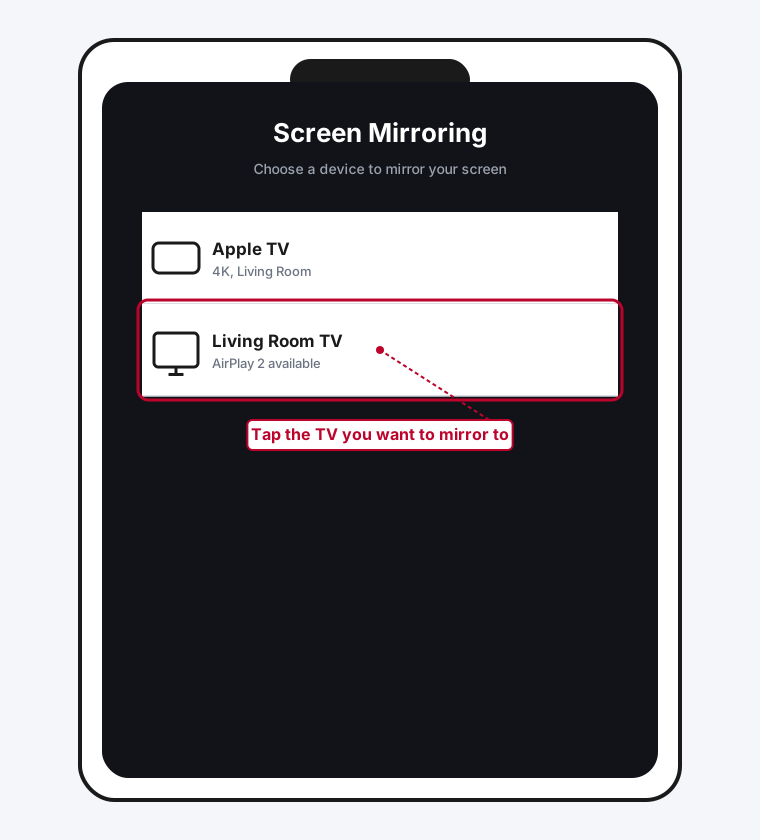
Step 3: Pick Your Apple TV From the List
Tap it. If it's the only AirPlay device on your network, this takes a couple of seconds.
Step 4: Enter the Passcode, If One Shows Up
Sometimes the Apple TV displays a four-digit code on screen. Type it into your iPhone or iPad when prompted. This mostly happens the first time you connect two specific devices to each other, not every single time.
Your whole screen should now be mirrored on the TV. To stop, open Control Center, tap Screen Mirroring again, and choose Stop Mirroring, or just press the Menu button on the Apple TV remote.
Mirroring to a Roku
Roku added real AirPlay 2 and HomeKit support to select 4K streaming players and Roku TVs a few years back, and it works essentially the same as an Apple TV once it's turned on.
Step 1: Confirm Your Roku Actually Supports It
Not every Roku does. Go to Settings > System > About on the Roku itself and check the model. Roku's Select and Plus Series TVs support AirPlay regardless of software version; most other models need Roku OS 9.4 or later. A base Roku Express is one of the models that doesn't support it at all, AirPlay or otherwise, so don't spend time chasing a setting that isn't there.
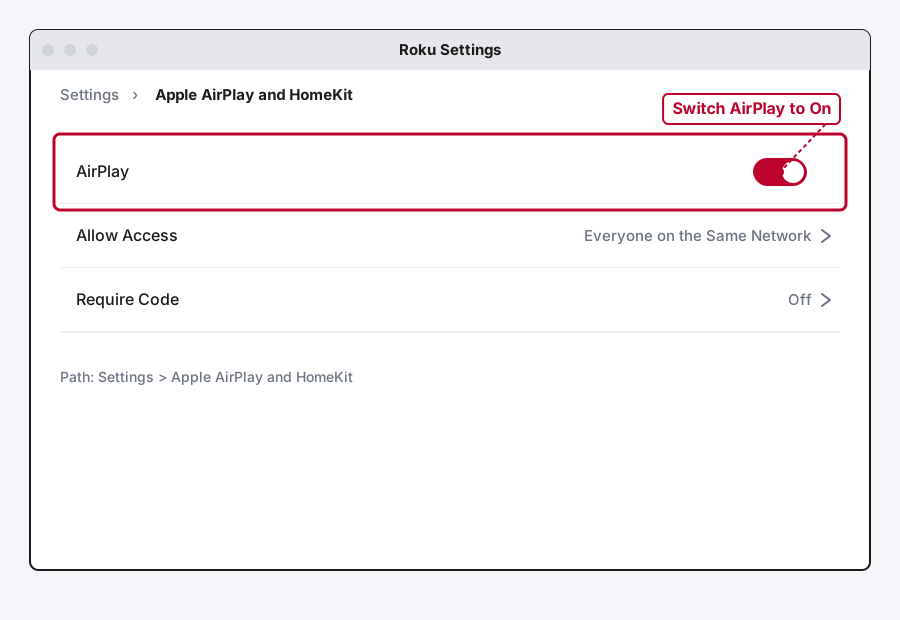
Step 2: Turn AirPlay On in Roku's Settings
Go to Settings > Apple AirPlay and HomeKit on the Roku, and make sure AirPlay is switched to On.
Step 3: Mirror From Control Center
Same as the Apple TV steps above: Control Center, Screen Mirroring, pick the Roku from the list, enter a passcode if one appears.
One thing worth knowing: Roku's AirPlay setup page is really built around streaming specific content (tapping the AirPlay icon inside a video or music app) rather than a general full-screen mirror, though full mirroring does work through the same Control Center method described above once AirPlay is turned on.
Mirroring to a Fire TV
Amazon added native AirPlay support to specific Fire TV hardware, not the whole lineup, so check your model before assuming it's missing something.
Step 1: Check If Your Fire TV Supports It
The Fire TV Omni Series and the Fire TV 4-Series (2021 or later) both support AirPlay natively. Most Fire TV Stick models, including the 4K and 4K Max sticks, don't have built-in AirPlay support at all.
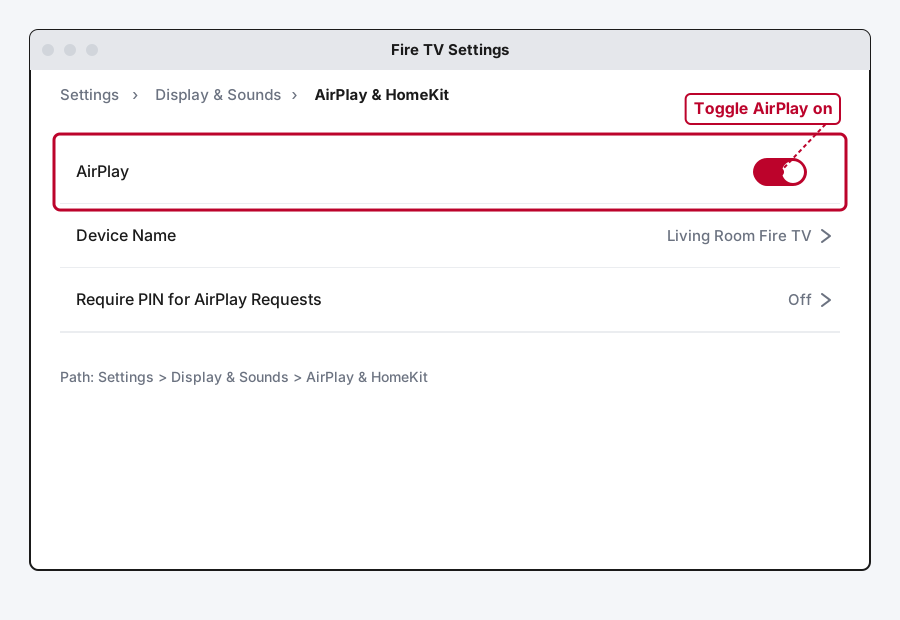
Step 2: Turn AirPlay On
On a supported Fire TV, go to Settings > Display & Sounds > AirPlay & HomeKit and toggle AirPlay on.
Step 3: Mirror From Your iPhone
Same Control Center, Screen Mirroring, pick-your-device process as above.
If your Fire TV Stick doesn't have the AirPlay & HomeKit option in its settings at all, that's not a bug, it genuinely doesn't have native AirPlay, and a third-party receiver app from the Amazon Appstore is your only real path to mirroring on that specific device.
Mirroring to a Samsung, LG, Sony, or Vizio Smart TV
Most smart TVs from these brands made from around 2018 onward support AirPlay 2 natively, no extra hardware or app involved. The exact menu path is different per brand, but the shape of it is the same everywhere: look inside your TV's Settings for something with "AirPlay" in the name.
On LG's newer webOS TVs, for example, the path is Home Dashboard > AirPlay > AirPlay and HomeKit Settings, with a toggle to switch AirPlay on. LG's own coverage starts broadly with 2018-and-newer OLED and UHD lines, with select 2018 to 2020 models and full coverage across the lineup from 2021 onward.
Samsung, Sony, and Vizio all have their own equivalent settings screen, usually reachable from the TV's General settings menu, though the exact wording shifts by model year. If you can't find it by browsing, search your specific TV model plus "AirPlay settings" rather than assuming your TV doesn't have it, since this feature has spread quietly into a lot of hardware that doesn't advertise it loudly on the box.
Once it's switched on, the mirroring steps are identical to the Apple TV and Roku instructions above: Control Center, Screen Mirroring, pick your TV, done.
What If You Don't Have an AirPlay TV? (Chromecast, Google TV, and Everything Else)
Here's the part most guides gloss over, and I'd rather tell you straight: if your TV setup is a Chromecast, a Google TV device, or genuinely doesn't support AirPlay at all, there's no built-in way to mirror your entire iPhone screen to it the way AirPlay does. That's an Apple-side limitation, not something your TV is failing at.
What actually works: casting individual apps
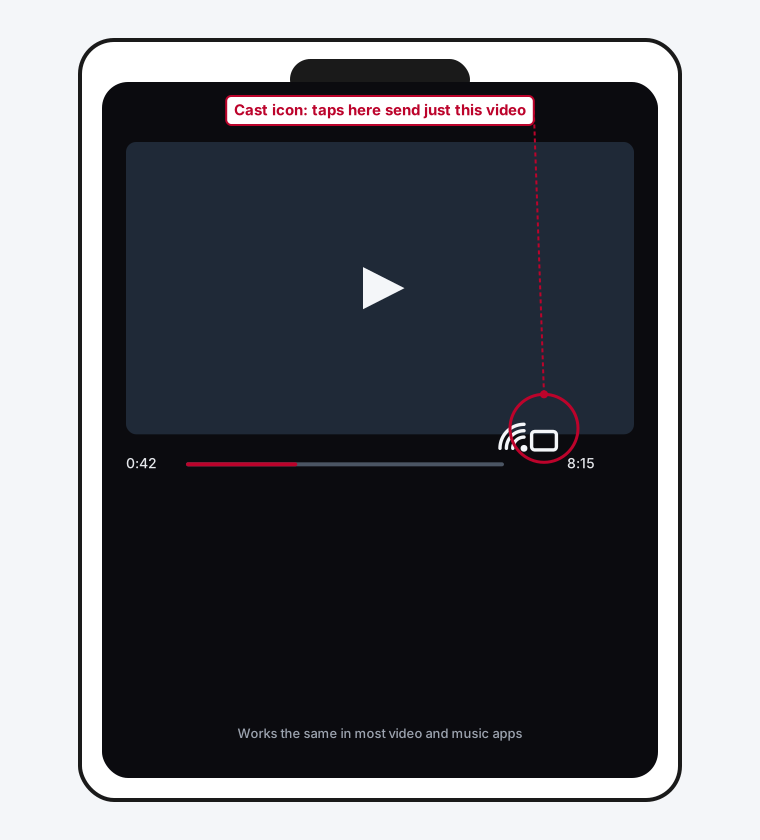
Apps that support Google Cast, YouTube, Netflix, Spotify, and plenty of others, have their own Cast icon inside the app itself, usually near the video controls or in the top corner. Tapping it sends just that app's content to your Chromecast or Google TV, which is genuinely reliable since it's the app doing the casting, not your whole phone screen. This covers the vast majority of "I want to watch something from my phone on the TV" situations without needing a full mirror at all.
What sort of works: a third-party mirroring app
If you genuinely need your whole screen up there, a photo slideshow, a presentation, a game, there are third-party apps built specifically to broadcast an iPhone's screen to a Chromecast or Google TV. They work by having the app itself capture your screen and stream it out, since iOS doesn't hand that capability to Google's own casting protocol directly. Quality and reliability vary between these apps more than with a native AirPlay connection, so treat this as the workaround it is rather than expecting the same rock-solid experience as mirroring to an Apple TV.
The other honest option: a receiver dongle or an actual AirPlay-capable device
If you're mirroring to a non-AirPlay TV regularly enough that the app-casting limitation is genuinely annoying, it's worth considering a small AirPlay-capable streaming device (an actual Apple TV, or a newer Roku or Fire TV model from the compatibility notes above) plugged into that same TV's other HDMI input. That sidesteps the whole Chromecast limitation permanently rather than fighting it session by session.
Mirroring to a Windows PC Instead of a TV
If what you're actually trying to do is get your iPhone's screen onto a computer monitor rather than a television, that's a different setup entirely, since Windows has no AirPlay support built in at all, television or otherwise. I've written a full setup walkthrough covering the three real receiver app options (AirServer, 5KPlayer, and X-Mirage) in AirPlay Receiver for Windows: Setup Guide.
Common First-Time Problems
A handful of issues show up specifically the first time someone sets this up, separate from the deeper troubleshooting in the main AirPlay guide.
The TV doesn't show up in the Screen Mirroring list at all. Almost always a Wi-Fi mismatch, or the TV's own AirPlay setting is still switched off. Double check both before assuming something's broken.
It shows up, but tapping it does nothing. Give it a few extra seconds. On some Roku and Fire TV models, the first connection takes a moment longer than every one after it while the two devices exchange information.
Only some apps mirror properly. Streaming apps like Netflix and Disney+ deliberately block full-screen mirroring of their video due to copy protection, even though the connection itself is working fine. Use that app's own dedicated Cast or AirPlay icon inside the player instead of relying on the full mirror for those specific apps.
Still Not Working?
If you've confirmed your TV supports AirPlay, turned it on in the TV's settings, and it still won't connect or mirror properly, the deeper symptom-by-symptom breakdown in AirPlay Not Working? Here's How to Fix It covers discovery failures, connection drops, and lag in a lot more depth than a getting-started guide can. Apple's own AirPlay support page is also worth a look if the issue seems to be on the iPhone or iPad side specifically.
Frequently Asked Questions
Can I mirror my iPhone to any smart TV?
Not a full screen mirror, no. You need a TV with native AirPlay support (most 2018-and-newer Samsung, LG, Sony, and Vizio sets, plus select Roku and Fire TV models), an actual Apple TV, or a receiver app installed on the TV or a connected device. A Chromecast or Google TV without an AirPlay-capable app installed can only receive individual apps' Cast streams, not a full mirror.
Why can't I mirror my whole iPhone screen to my Chromecast?
Apple's AirPlay and Google's Cast protocol are different technologies that don't talk to each other. iOS doesn't offer a built-in way to hand your entire screen to a Chromecast the way it does with AirPlay, so you're limited to apps with their own Cast button or a third-party app built specifically to work around that gap.
Does mirroring to a TV use up my mobile data?
No, both AirPlay and Cast rely on your local Wi-Fi network, not cellular data, so this works the same whether you're on an unlimited plan or watching your data closely.
Why does my TV need a settings toggle instead of just working automatically?
AirPlay being turned off by default on most TVs is mostly a design choice, since a TV automatically discoverable by every AirPlay device within range wouldn't be great for privacy in a shared or public space like an apartment building or office. Turning it on once is a small trade-off for exactly that reason.
Is there a wired way to mirror an iPhone to a TV instead?
Yes, Apple sells a Lightning or USB-C Digital AV Adapter that connects to an HDMI cable, which mirrors your screen over a physical cable rather than Wi-Fi. It's a solid fallback if your network is unreliable or your TV has no wireless mirroring option at all, though it means being tethered to the TV rather than moving freely around the room.
Quick Summary
Mirroring an iPhone to a TV comes down almost entirely to what's on the other end. An Apple TV, a supported Roku, a supported Fire TV, or most 2018-and-newer smart TVs all handle it the same way once AirPlay is switched on in the TV's own settings: Control Center, Screen Mirroring, pick the device, done. A Chromecast or Google TV is the real exception, since iPhones can only cast individual supported apps to it rather than a true full-screen mirror, without help from a third-party app. Get both devices on the same Wi-Fi network first, and most of what looks like a broken TV turns out to be exactly that one thing.
Related Articles
AirPlay Receiver for Windows: Setup Guide
Windows has no built-in AirPlay support, so here's exactly how to turn a Windows PC into a real AirPlay receiver, which app to pick, and how to set it up right the first time.
AirPlay Not Working? Here's How to Fix It
AirPlay not working between your iPhone, Mac, and Apple TV? Here's why it happens and the exact fixes for every symptom, from a device that won't show up to a laggy stream.