

How to Use AirPlay on Windows (Send and Receive, Explained)

How to use AirPlay on Windows starts with an uncomfortable fact: Windows doesn't support AirPlay. There's no AirPlay switch in Windows Settings and no AirPlay button in the taskbar. What you can do depends on which direction you're going. Sending music from a PC to a HomePod or Apple TV works with Apple's own free iTunes app. Mirroring a PC's screen to an Apple TV needs a third-party app. And receiving AirPlay from an iPhone on your PC needs a receiver app. I'll take each direction in turn, starting with the one that's free and built by Apple.
Quick answer: To play music from Windows to an AirPlay speaker, HomePod, or Apple TV, open iTunes for Windows, click the AirPlay button next to the volume slider, and tick the speaker. To mirror your PC's screen to an Apple TV, you'll need a third-party AirPlay sender app or an HDMI cable, since Windows' own Cast panel (Windows key + K) can't see an Apple TV. To show an iPhone's screen on your PC, install an AirPlay receiver app.
Key takeaways:
- Windows has no built-in AirPlay. Everything here relies on an app.
- iTunes for Windows is Apple's documented way to AirPlay audio from a PC to AirPlay speakers, HomePod, and Apple TV.
- Apple's newer Apple Music app for Windows has mixed reports on AirPlay. Some people see an AirPlay option, others don't, so iTunes is the safer bet for now.
- An Apple TV doesn't support Miracast, so Windows key + K will never find it. Mirroring a PC to an Apple TV needs a sender app such as AirParrot, or a cable.
- Receiving AirPlay on a PC (iPhone to Windows) is a different job, done with a receiver app.
Prefer an interactive walkthrough? Try our AirPlay on Windows Helper →
Which Direction Are You Going?
| What you want | Direction | What you need | Cost |
|---|---|---|---|
| Play music from your PC on a HomePod, AirPlay speaker, or Apple TV | Windows to AirPlay device | iTunes for Windows | Free |
| Show your PC's whole screen on an Apple TV | Windows to AirPlay device | A third-party AirPlay sender app, or an HDMI cable | Sender apps are usually paid |
| Show your iPhone or iPad screen on your PC | AirPlay device to Windows | A third-party AirPlay receiver app | Free and paid options |
| Show your PC on a non-Apple smart TV | Not AirPlay at all | Windows key + K (Miracast) or Chrome's Cast | Free |
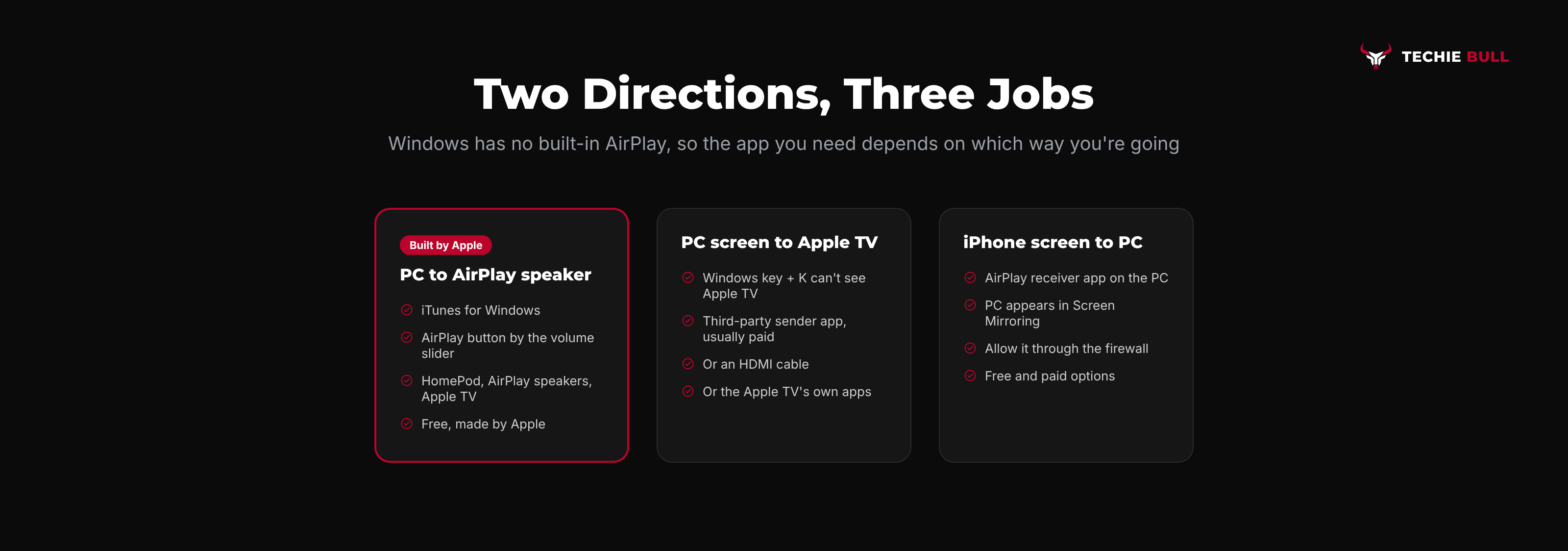
That last row matters more than people expect. If your goal is just to get a Windows laptop onto a Samsung, LG, Roku, or Fire TV, you don't need AirPlay at all, since those support Windows' own casting. How to Cast Your Laptop to a TV covers that.
Method 1: AirPlay Music From Windows With iTunes
This is the one genuinely Apple-supported way to AirPlay from a PC, and it's free. iTunes for Windows gained AirPlay 2 support back in version 12.8, so it can send to several speakers at once.
Step 1: Install iTunes for Windows
Get iTunes from the Microsoft Store (or Apple's website) and sign in if you want your Apple Music library.
Step 2: Check Both Devices Are on the Same Network
The PC and the AirPlay speaker, HomePod, or Apple TV must be on the same home network. A PC on Ethernet is fine as long as it's plugged into the same router the speaker uses.
Step 3: Click the AirPlay Button
Start playing a song, then click the AirPlay button (a rectangle with a triangle) next to the volume slider at the top of the iTunes window.
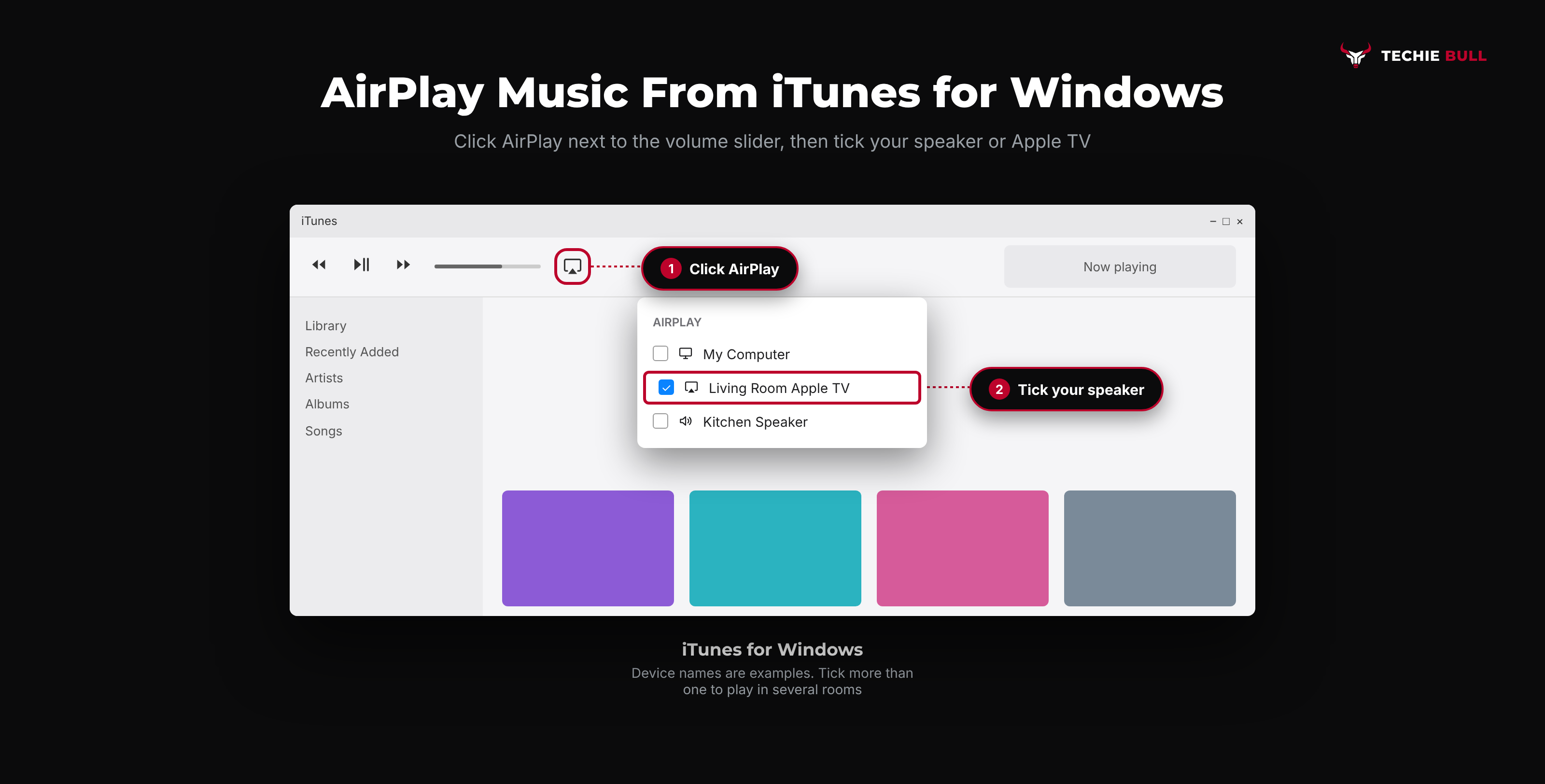
Step 4: Choose Your Speakers
Tick the AirPlay speakers or Apple TV you want to play to. You can tick more than one, and adjust each one's volume separately. Untick My Computer if you don't want sound from the PC as well.
Step 5: Allow iTunes Through the Firewall If Asked
The first time, Windows may ask whether iTunes can communicate on your network. Allow it on Private networks. If your network is set to Public in Windows, devices often won't appear: change it under Settings > Network & internet, select your connection, and set the network profile to Private.
What About the Apple Music App for Windows?
Apple now offers separate Apple Music, Apple TV, and Apple Devices apps for Windows. Reports in Apple's own support community are mixed on AirPlay in the Apple Music app: some users stream to AirPlay speakers from it, others can't find the option or hit errors with certain speakers. If you don't see AirPlay in Apple Music, iTunes still works.
Method 2: Mirror Your Windows Screen to an Apple TV
This is the one people most want, and Windows can't do it on its own. Here's why: Windows' built-in wireless display feature (Windows key + K) uses Miracast. An Apple TV only speaks AirPlay. They'll never see each other.
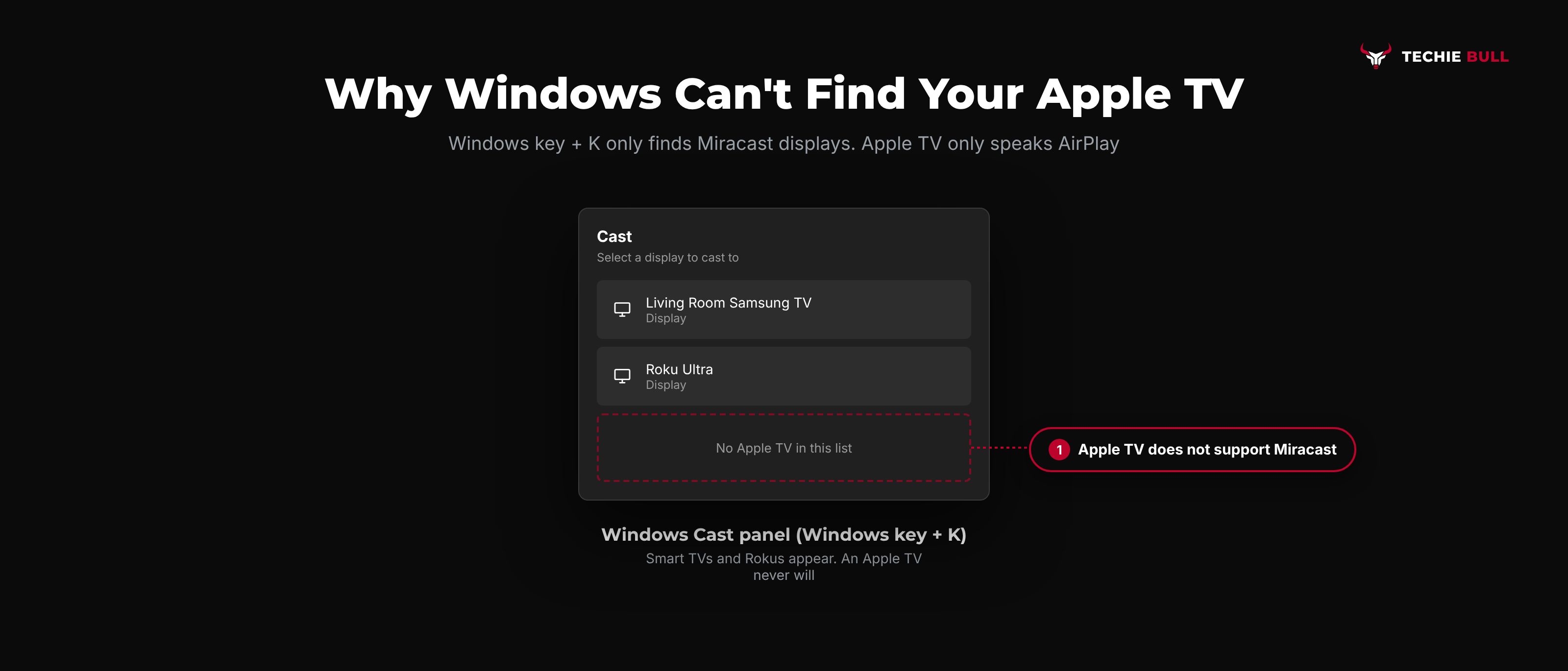
You have three real options:
- A third-party AirPlay sender app. Apps such as AirParrot add AirPlay sending to Windows, so you can mirror your desktop, extend it, or send a video file to an Apple TV or AirPlay smart TV. Most are paid, often with a free trial. Install it, make sure the PC and Apple TV are on the same network, allow it through the firewall, and pick the Apple TV from the app's device list.
- An HDMI cable. If the PC is in the same room as the TV, plugging straight into the TV's HDMI port skips AirPlay entirely, with no lag and no software.
- Use the Apple TV's own apps. If you just want to watch something, the same streaming app on the Apple TV often does the job better than mirroring a laptop to it.
Honestly, for a one-off, I'd use a cable. A sender app is worth paying for only if you regularly present from a Windows laptop in a room with an Apple TV.
Method 3: Receive AirPlay on Your Windows PC
Going the other way, so your iPhone, iPad, or Mac can mirror to your PC's screen, needs an AirPlay receiver app on the PC. Once it's running, your PC appears in the iPhone's Screen Mirroring list like an Apple TV.
The general steps are the same for every receiver app:
- Install the receiver app on the PC and open it.
- Allow it through Windows Defender Firewall on Private networks when prompted.
- Put the iPhone and PC on the same Wi-Fi network.
- On the iPhone, open Control Center, tap Screen Mirroring, and choose the PC.
We compare the main receiver apps, with full setup steps for each, in AirPlay Receiver for Windows.
Common Problems
The AirPlay speaker or Apple TV doesn't show in iTunes. Check both are on the same network, the Windows network profile is set to Private, and iTunes is allowed through the firewall. Restart the speaker and iTunes.
Windows key + K can't find my Apple TV. That's expected. Apple TV doesn't support Miracast. Use a sender app or a cable.
Music skips or drops out. Wi-Fi strength between the PC and the speaker is usually the cause. Connect the PC by Ethernet if you can, or move closer to the router.
A VPN is running on the PC. VPNs can hide your local network, so AirPlay devices disappear. Turn it off, or enable local network access in the VPN app.
Still Not Working?
If iTunes still can't see your AirPlay speakers on a Private network with the firewall allowing it, Apple's AirPlay troubleshooting page covers the receiver side, and Apple Support can help with iTunes for Windows. For third-party sender or receiver apps, each developer's support site is the right place. And if your real goal is simply getting a PC onto a TV, How to Cast Your Laptop to a TV covers the built-in Windows options that skip AirPlay altogether.
Frequently Asked Questions
Does Windows 11 have AirPlay?
No. Neither Windows 10 nor Windows 11 has built-in AirPlay. You need iTunes to send audio to AirPlay speakers, a third-party sender app to mirror to an Apple TV, or a receiver app to accept AirPlay from an iPhone.
Can I AirPlay from my PC to an Apple TV for free?
For music, yes, with iTunes for Windows. For mirroring your whole screen, the dependable free option is an HDMI cable. Sender apps that mirror over AirPlay are mostly paid.
Why can't Windows find my Apple TV with Windows key + K?
Because that panel only finds Miracast devices, and Apple TV only uses AirPlay. It's not a fault on your PC.
Can I mirror my iPhone to my Windows laptop?
Yes, with an AirPlay receiver app installed on the laptop. Your PC then appears in the iPhone's Screen Mirroring list. Our AirPlay Receiver for Windows guide compares the options.
Does the Apple Music app on Windows support AirPlay?
Reports are mixed. Some users can AirPlay from it, others can't see the option. iTunes for Windows is the route Apple documents for AirPlay speakers.
Quick Summary
Windows has no AirPlay of its own, so how you use AirPlay on Windows depends on direction. To send music to AirPlay speakers, HomePod, or Apple TV, use iTunes for Windows and its AirPlay button by the volume slider, with your network set to Private. To mirror a PC to an Apple TV, use a third-party sender app or an HDMI cable, because Windows key + K can't find an Apple TV. To show an iPhone on your PC, install an AirPlay receiver app and pick the PC from Screen Mirroring.
Related Articles
How to AirPlay to TV From iPhone, iPad, or Mac (Step by Step)
How to AirPlay to a TV from an iPhone, iPad, or Mac: stream one video with the AirPlay button, mirror your whole screen, or use a TV as a second Mac display.

Why Is AirPlay Not Working? 8 Real Reasons and Fixes
Why is AirPlay not working? The eight real causes, from a VPN or Local Network permission to a TV's AirPlay setting, each with a quick test and a fix.
How to Mirror iPhone to TV (AirPlay & Alternatives)
How to mirror an iPhone or iPad to a TV, whether you've got an Apple TV, a Roku, a Fire TV, a random AirPlay-compatible smart TV, or nothing Apple-made in the house at all.