

AirPlay Not Working? Here's How to Fix It

AirPlay not working usually comes down to one of a handful of specific things going wrong behind the scenes, not a broken feature. I've had it fail on me for reasons that had nothing to do with Wi-Fi at all, including once where the actual problem was a VPN I'd forgotten was still running. The fix depends entirely on which way it's failing, so this guide is split by symptom rather than one long list of things to try in order.
Quick answer: Most AirPlay failures come down to the source and receiving device not being on the exact same Wi-Fi network, an AirPlay Receiver setting that's been switched off or restricted, or a VPN/Private Relay quietly blocking the connection. Work through the section below that matches what you're actually seeing, not the whole article top to bottom.
Key takeaways:
- AirPlay needs both devices on the same Wi-Fi network for its main discovery method to work, but it can also find a receiver over Bluetooth alone in some cases.
- A black screen with working audio during video apps like Netflix is usually copy protection, not a bug.
- VPNs and iCloud Private Relay are common, easy-to-miss causes of connections that drop right after they start.
- Windows PCs have no built-in AirPlay support at all and need a separate receiver app installed first.
Prefer an interactive walkthrough? Try our AirPlay Troubleshooter →
If you have not actually gotten mirroring working even once yet, rather than something that connected before and is now misbehaving, the setup steps in How to Mirror iPhone to TV (AirPlay & Alternatives) are the better starting point.
Why AirPlay Actually Fails (The Part Most Guides Skip)
AirPlay finds a device to stream to using a technology called Bonjour, which broadcasts multicast traffic across your local network so nearby Apple devices can spot each other. The catch is that multicast traffic generally doesn't cross between separate networks or subnets, and a lot of routers, guest networks, and mesh Wi-Fi systems block it between devices on purpose as a security measure. That's the real reason "same Wi-Fi, still can't find it" is such a common complaint: you can be on the same network name and still have the router quietly keeping your devices from seeing each other.
There's a second discovery method worth knowing about, because almost nobody does: an Apple TV also advertises itself over Bluetooth Low Energy, completely separate from Wi-Fi, and can even connect using a temporary peer-to-peer Wi-Fi link that doesn't need an existing network at all. This is why turning Bluetooth on, on both ends, sometimes fixes a "can't find it" problem that has nothing to do with Bluetooth on the surface.
Before You Start
Two quick checks save a lot of wasted troubleshooting:
- Compatibility. AirPlay needs a reasonably recent device on both ends. If you're trying to stream from an old iPad or to a TV that only claims "AirPlay-adjacent" screen mirroring, check Apple's own supported-devices list before assuming something is broken.
- Only one stream at a time. Most AirPlay receivers accept a single active connection. If someone else in the house is already streaming to that Apple TV, yours will fail or refuse to connect until theirs ends.
Fix 1: It Can't Find Any AirPlay Device at All
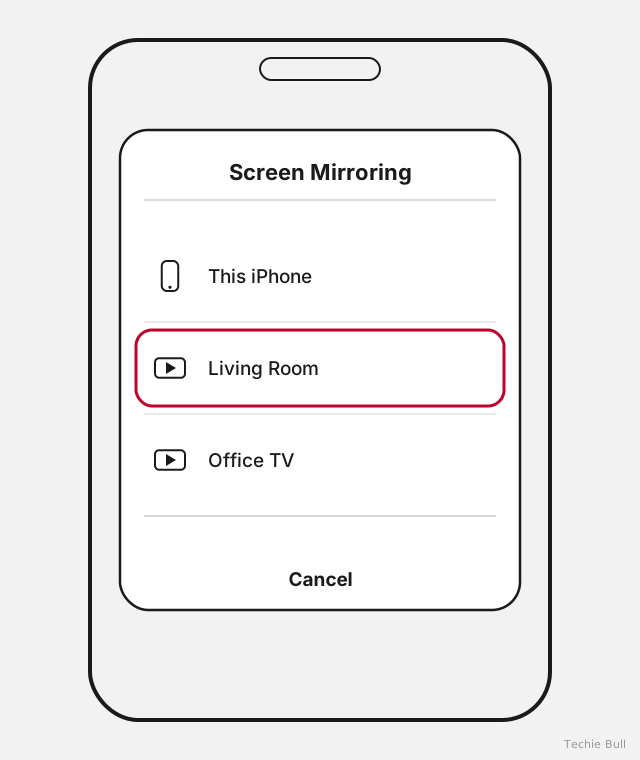
Start with the basics: open Control Center on your iPhone or iPad, tap Screen Mirroring, and see whether anything shows up in the list. If it's empty, work through this in order.
Check you're really on the same network
Open Settings > Wi-Fi on your iPhone or iPad, and System Settings > Wi-Fi on your Mac, and compare the exact network name against whatever the Apple TV or receiver is connected to. It's easy to be on a different band or a guest network without realizing it, especially on routers that split 2.4GHz and 5GHz into separate network names.
Turn off guest network or client isolation settings
If your router has a "Guest Network," "AP Isolation," or "Client Isolation" option turned on, switch it off. These settings exist specifically to stop devices on the same Wi-Fi from seeing each other, which is exactly the multicast traffic AirPlay depends on for discovery. This is one of the most common causes of "definitely the same network, still invisible."
Turn Bluetooth on, on both ends
Since Apple TV can also broadcast itself over Bluetooth Low Energy, leaving Bluetooth off on your iPhone, iPad, or Mac removes one of AirPlay's two ways of finding a receiver. Turn it on even if you don't plan to use Bluetooth for anything else.
Rename your Apple TV if you have more than one
Go to Settings > General > About > Name on the Apple TV and give it something specific. Identical default names across multiple Apple TVs make it look like discovery is broken when you're actually just picking the wrong one, or the same one over and over.
Restart the router, then both devices
Boring, but it's the single most reliable fix here. Unplug the router for 30 seconds, then restart your iPhone/Mac and the Apple TV once it's back online.
Fix 2: It Finds the Device, But Won't Connect
This is a different problem from not finding it at all, and it usually points at permissions or another device already using the connection.
Confirm AirPlay Receiver is actually turned on
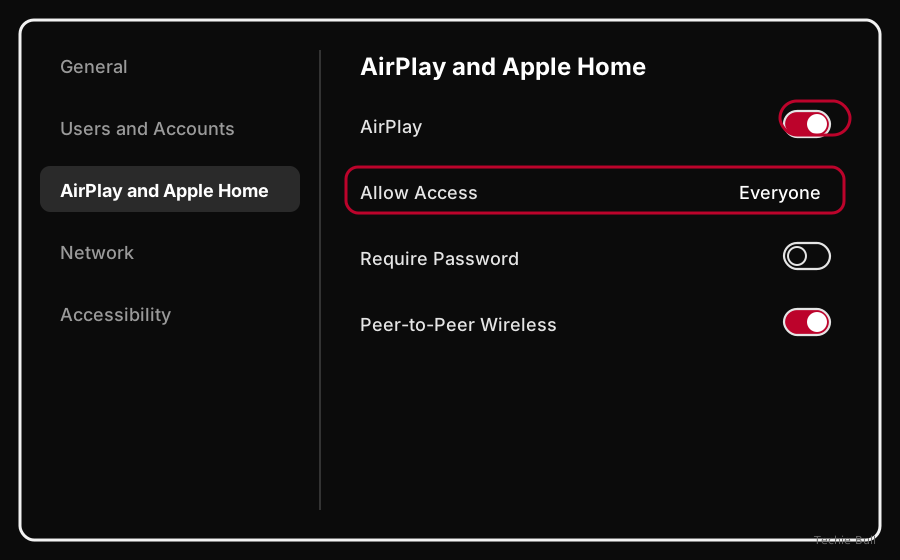
- Apple TV: Settings > AirPlay and Apple Home, and check AirPlay is switched on.
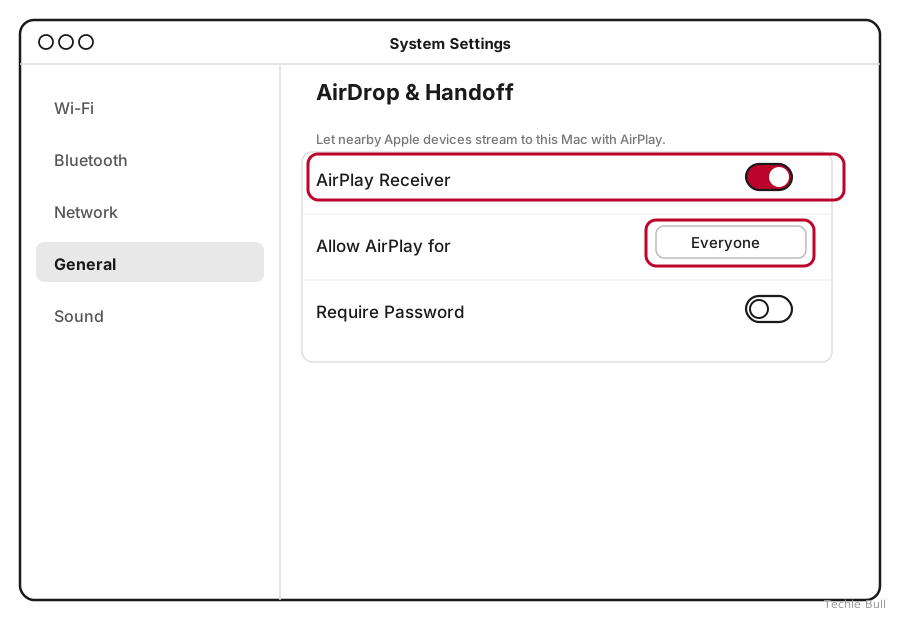
- Mac: System Settings > General > AirDrop & Handoff, and check the AirPlay Receiver toggle.
Loosen who's allowed to connect
Right next to that toggle is an access setting. On Apple TV it's called Allow Access, with options for Everyone, Anyone on the Same Network, Only People Sharing This Home, and Require Password. On a Mac it's the Allow AirPlay For dropdown, with Current User, Anyone on the Same Network, and Everyone. If either one is set to anything narrower than Everyone, a device outside that specific rule will fail to connect even though the receiver itself is switched on. Set it to Everyone to test, then tighten it back up once you've confirmed that was the issue.
Rule out a connection that connects, then immediately drops
If the tap succeeds for a second and then fails, the cause is usually different from a flat refusal:
- Turn off any active VPN on the device you're streaming from. VPNs commonly block the multicast and local-network traffic AirPlay needs to keep the connection alive after the initial handshake.
- Turn off iCloud Private Relay temporarily, under Settings > [your name] > iCloud > Private Relay. It's a known, if under-reported, cause of AirPlay connections that start and then die.
- On a Mac, check System Settings > Network > Firewall and make sure "Block all incoming connections" isn't switched on.
- If this is a work, school, or hotel network, there's a real chance IT has deliberately blocked the exact traffic AirPlay relies on. There's often no fix on your end beyond asking whoever manages the network.
Fix 3: Black Screen or No Video After Connecting
Whether this is a real bug depends entirely on what you were trying to stream.
If it's a specific streaming app (Netflix, Disney+, and similar)
This one isn't actually broken. Streaming services use copy protection that deliberately blocks screen-mirroring-style AirPlay from showing their video, while audio can keep playing normally. Instead of mirroring your whole screen, look for the app's own AirPlay or cast icon inside the video player itself, usually near the volume controls. That direct method is built to work around the restriction and plays the video properly. If the app has no such button, it likely doesn't support AirPlay for video at all on that platform.
If it's happening with everything, including plain screen mirroring
This is a genuine glitch rather than intentional protection. End the AirPlay session completely rather than waiting for it to recover, then start a fresh one. Restart the receiving device, and double check the TV or receiver's input hasn't drifted to a different HDMI source mid-session. Outdated software on either end is a common root cause here too, so check for updates on both.
Fix 4: Laggy, Stuttering, or Dropping the Connection
AirPlay is streaming live video over your Wi-Fi network in real time, so this category is almost always a bandwidth or interference problem rather than a settings issue.
If it's laggy but stays connected, move closer to the router or the receiver, get other bandwidth-heavy devices off the network temporarily, and prefer the 5GHz band over 2.4GHz on both ends if your router supports it. If it's dropping and reconnecting repeatedly rather than just stuttering, restart the router first since a router struggling to juggle multicast traffic under load is a more common culprit than either device itself. Turn off VPN and Private Relay here too, since both are known to interrupt an already-running session, not just the initial connection. If you're on a mesh Wi-Fi system, try keeping both devices connected to the same physical access point instead of letting them roam between nodes mid-stream, since a hand-off between nodes can be enough to break the connection outright.
AirPlay Not Working on a Windows PC? Here's Why
If you're trying to AirPlay from an iPhone or Mac to a Windows computer and nothing shows up at all, this isn't a bug you can fix with a setting. Apple never built AirPlay support into Windows, so a PC simply doesn't exist as an AirPlay destination until you install something that makes it pretend to be one. For a full walkthrough of picking a receiver app and setting it up step by step, see AirPlay Receiver for Windows: Setup Guide.
You'll need a third-party AirPlay receiver app such as AirServer, X-Mirage, or a free option like AirConnect, installed and actually running before your phone or Mac will ever see the PC as a target. A few things trip people up even after installing one:
- The app usually needs to be open and running, not just installed. Check it's actually active, often shown by an icon in the system tray.
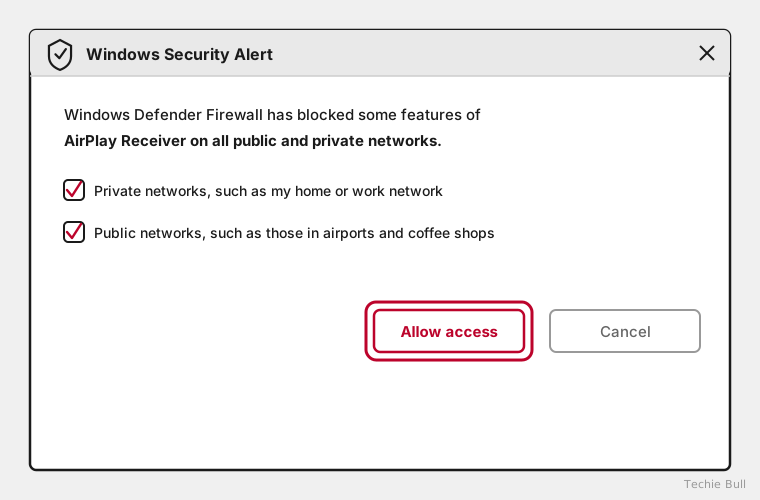
- Windows Defender Firewall blocks new network apps by default the first time they run. Allow the receiver app through the firewall for both private and public networks when prompted.
- Keep the receiver app updated. Apple tweaks the AirPlay protocol from time to time, and third-party Windows receivers need their own updates to keep pace.
Once one of these is installed, running, and allowed through the firewall, your PC should appear in the AirPlay list on your iPhone or Mac exactly like an Apple TV would.
Still Not Working?
If you've worked through the section that matches your symptom and it's still not connecting, Apple's own support team can dig into device-specific logs that aren't visible from the settings menus covered here. Visit Apple Support or book a session at an Apple Store, especially if this only started after a specific software update, which can point to a bug on Apple's end rather than anything in your setup.
Frequently Asked Questions
Does AirPlay need Wi-Fi to work at all?
Mostly, yes. Its main discovery and streaming method relies on your local Wi-Fi network. There's a narrower peer-to-peer mode using Bluetooth that can connect an iPhone directly to a compatible Apple TV without a shared network, but it's a fallback, not the primary way AirPlay is designed to work.
Why does AirPlay work for some apps but not others?
Usually copy protection. Apps streaming licensed video, particularly major streaming services, intentionally block full-screen mirroring of that content while allowing their own dedicated AirPlay button to keep working, since that method is built to comply with the content's protection rules.
Can I use AirPlay on a Windows PC?
Not natively. Windows has no built-in AirPlay support, so you need a third-party receiver app such as AirServer or X-Mirage installed and running before a PC will show up as an AirPlay option on your iPhone or Mac.
Will turning off my VPN really fix AirPlay?
Often, yes, specifically for connections that start and then drop almost immediately. VPNs frequently block the multicast and local-network traffic AirPlay needs to maintain a session, even when they don't affect anything else you're doing on the device.
Why does only one device work with AirPlay at a time?
Most AirPlay receivers, including Apple TV, only accept one active stream at once by design. If someone else on your network is already using it, your device won't be able to connect until that session ends.
Quick Summary
AirPlay problems fall into a small number of real categories: discovery failures caused by network isolation settings or Bluetooth being off, connection failures caused by receiver permissions or a stray VPN, black screens caused by intentional DRM on streaming video, and lag or drops caused by ordinary Wi-Fi bandwidth issues. Windows adds one more wrinkle on top of all of this, since it needs a receiver app before AirPlay exists there at all. Match your specific symptom to the section above rather than working through every fix in order, and most AirPlay issues clear up in a couple of minutes.
Related Articles
How to Mirror iPhone to TV (AirPlay & Alternatives)
How to mirror an iPhone or iPad to a TV, whether you've got an Apple TV, a Roku, a Fire TV, a random AirPlay-compatible smart TV, or nothing Apple-made in the house at all.
AirPlay Receiver for Windows: Setup Guide
Windows has no built-in AirPlay support, so here's exactly how to turn a Windows PC into a real AirPlay receiver, which app to pick, and how to set it up right the first time.