

How to AirPlay to TV From iPhone, iPad, or Mac (Step by Step)

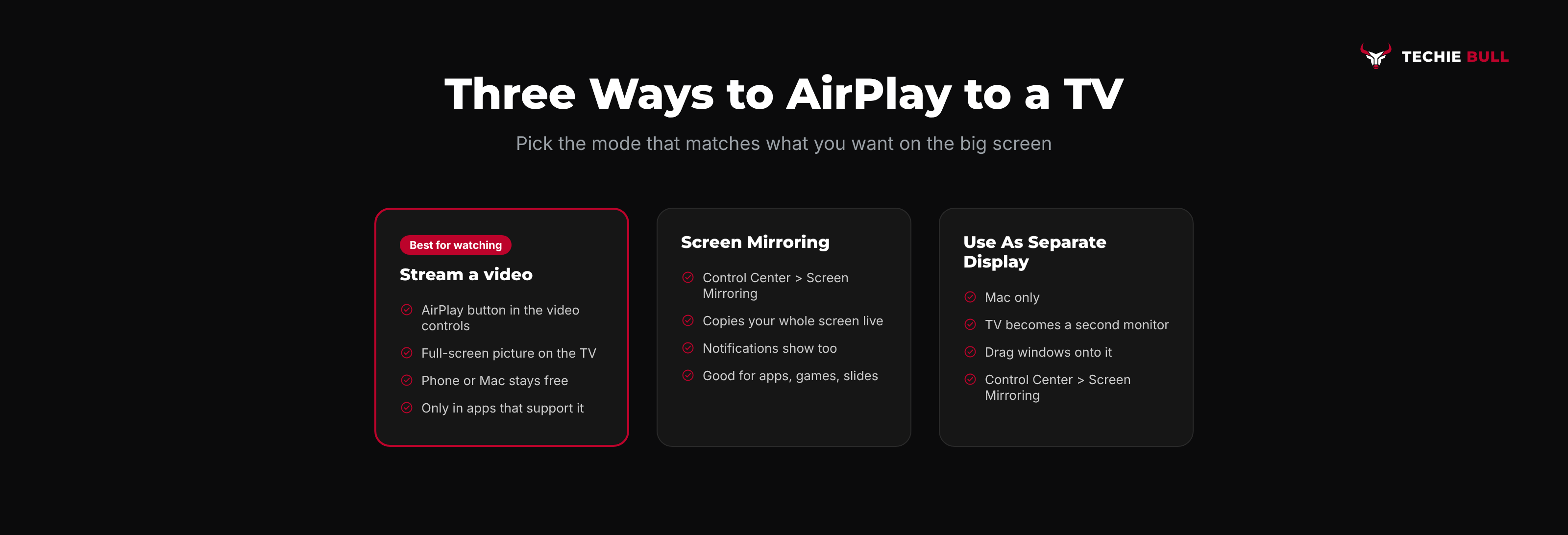
How to AirPlay to a TV depends less on which TV you own and more on what you're trying to put on it. AirPlay does two different jobs. It can stream a single video, song, or photo to the TV, handing the playback over so your device is free. Or it can mirror your whole screen, copying everything as it happens. On a Mac there's a third trick: using the TV as an extra monitor. Each one is started from a different button, and picking the right one makes the difference between a crisp full-screen film and a letterboxed copy of your phone.
Quick answer: To stream a video, tap the screen while it plays, tap the AirPlay button (a rectangle with a triangle at the bottom), and pick your TV. To mirror your whole screen, open Control Center, tap Screen Mirroring, and choose the TV. On a Mac, click Control Center in the menu bar, then Screen Mirroring, and pick the TV. Your device and the TV must be on the same Wi-Fi network.
Key takeaways:
- AirPlay works with an Apple TV, AirPlay-enabled Roku and Fire TV models, and most Samsung, LG, Sony, and Vizio TVs from 2018 onward once AirPlay is switched on in the TV's settings.
- Streaming with the in-app AirPlay button gives the best picture and frees up your device. Mirroring shows everything, including notifications.
- On iPhone, the AirPlay button appears in the video controls during playback. Not every app supports it.
- A Mac can mirror its screen or Use As Separate Display, turning the TV into a second monitor.
- To stop, tap the AirPlay button again and choose your own device, or pick Stop Mirroring in Control Center.
Prefer an interactive walkthrough? Try our AirPlay to TV Helper →
Stream or Mirror? Pick the Right AirPlay Mode
| You want to | Use | Started from | Your device during playback |
|---|---|---|---|
| Watch a film, show, or YouTube video on the TV | AirPlay streaming | The AirPlay button in the app's video controls | Free to use, can be locked |
| Show photos to a room | AirPlay streaming | The AirPlay or share button in Photos | Acts as the remote |
| Show an app, a game, or a presentation exactly as it looks | Screen Mirroring | Control Center | Must stay on screen, notifications show too |
| Use the TV as a big second monitor for a Mac | Use As Separate Display | Control Center > Screen Mirroring on the Mac | Mac keeps its own screen |
Before You Start: Make Sure Your TV Can Receive AirPlay
You need an AirPlay receiver plugged into or built into the TV, and both devices on the same Wi-Fi network.
- Apple TV: works out of the box. Check Settings > AirPlay and Apple Home that AirPlay is on.
- Roku: turn it on at Settings > Apple AirPlay and HomeKit. Not every Roku model supports it.
- Fire TV Omni Series and 4-Series: Settings > Display & Sounds > AirPlay & HomeKit. Most Fire TV Sticks don't have AirPlay.
- Samsung, LG, Sony, Vizio (mostly 2018 and newer): switch on AirPlay in the TV's own settings. On a Samsung it's Apple AirPlay Settings, under Connection on 2022 and newer models.
If your TV doesn't appear in any AirPlay list, start with Why Is AirPlay Not Working?, which goes cause by cause.
Method 1: AirPlay a Video From iPhone or iPad
This is the mode I use most, and the one I'd recommend for anything you're actually watching.
Step 1: Start Playing the Video
Open the video in an app that supports AirPlay, such as the Apple TV app, YouTube, or Photos, and start it playing.
Step 2: Tap the Screen to Show the Controls
Apple's guide notes you may need to tap the screen first to bring up the playback controls.
Step 3: Tap the AirPlay Button
Look for the AirPlay button, a rectangle with a small triangle at the bottom. On iPhone it usually sits in the lower-right corner of the video controls. In some apps it's at the top instead.
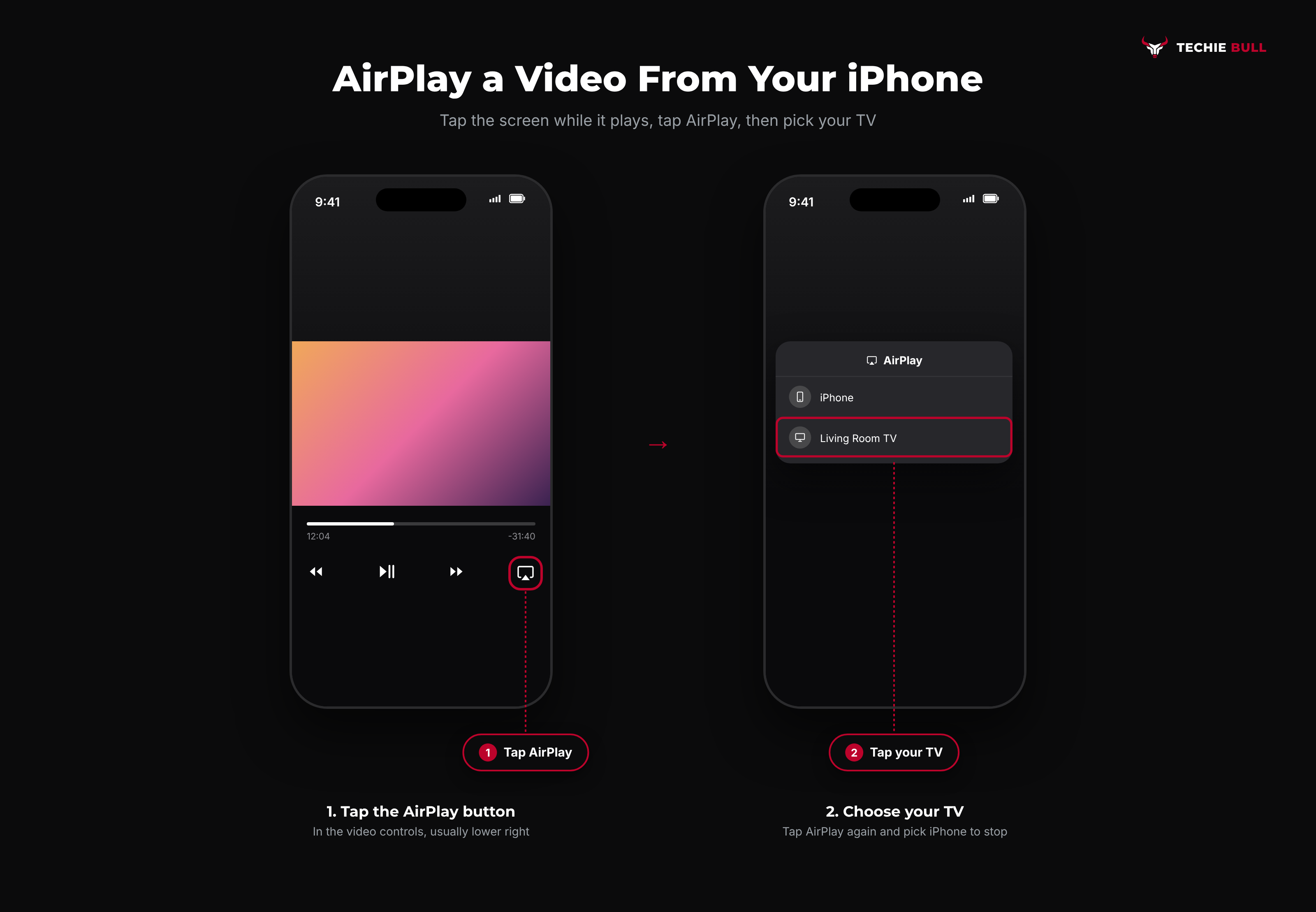
Step 4: Choose Your TV
A list of speakers and TVs appears. Tap your TV. The video moves to the TV and your iPhone becomes a remote with play, pause, and scrub controls.
Stopping
Go back to the app, tap the AirPlay button again, and choose your iPhone or iPad from the list. The video picks up on your device where it left off.
If an app has no AirPlay button, it doesn't support AirPlay streaming. Some services block it for licensing reasons. Use Screen Mirroring (Method 2), or the same app on the TV itself.
Method 2: Mirror Your iPhone or iPad Screen
Screen Mirroring copies whatever is on your screen to the TV, live. It's the right choice for showing off an app, a game, or a slideshow you're scrolling through yourself.
Step 1: Open Control Center
On an iPhone with Face ID, or any iPad, swipe down from the top-right corner. On an iPhone with a Home button, swipe up from the bottom edge.
Step 2: Tap Screen Mirroring
It's the icon of two overlapping rectangles.
Step 3: Choose Your TV and Enter the Code
Pick your TV from the list. If a passcode appears on the TV, type it on your device. Your screen now appears on the TV. Turn your iPhone sideways for videos and photos so they fill more of the screen.
To stop, open Control Center, tap Screen Mirroring, then Stop Mirroring.
Method 3: AirPlay From a Mac
A Mac can mirror its screen to a TV or use the TV as a second display. Both start from the same place.
Step 1: Open Control Center on the Mac
Click the Control Center icon (two small toggle switches) in the menu bar at the top-right of the screen.
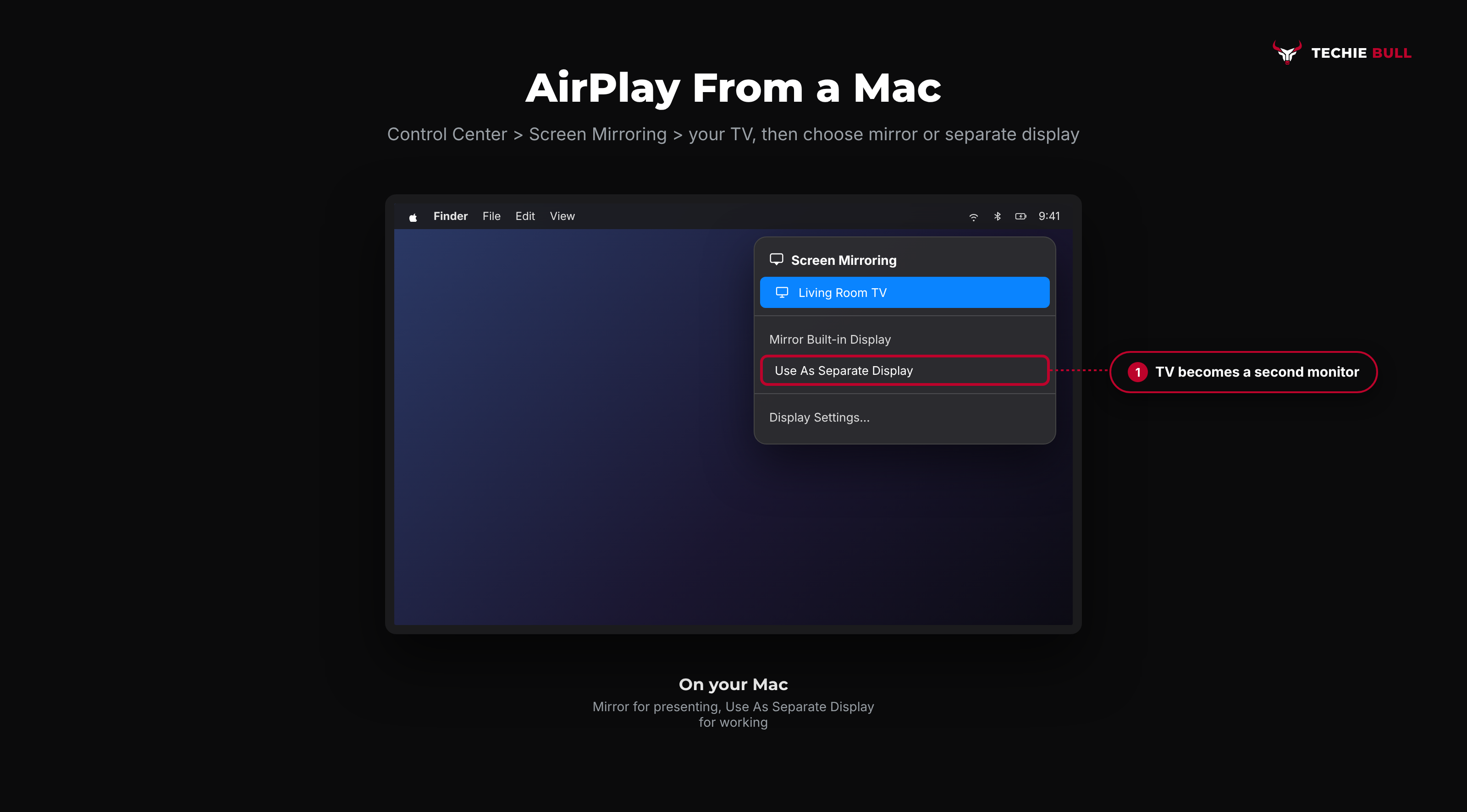
Step 2: Click Screen Mirroring and Pick the TV
Click Screen Mirroring, then choose your Apple TV or AirPlay TV. Enter the code from the TV if asked.
Step 3: Choose Mirror or Separate Display
Once connected, open Screen Mirroring again and choose how you want to use the TV:
- Mirror Built-in Display: the TV shows exactly what's on your Mac's screen. Best for presenting.
- Use As Separate Display: the TV becomes an extra monitor you can drag windows onto. Best for working.
On newer versions of macOS you can also change this in System Settings > Displays, where the AirPlay display has a Use as option.
To stop, click Control Center > Screen Mirroring and click the TV again to disconnect, or press Menu or Back on the Apple TV Remote.
Streaming Video From a Mac
In Safari, the Apple TV app, and other players that support it, click the AirPlay button in the video controls and choose your TV. As on iPhone, the TV plays the video full-screen while you carry on using the Mac.
Tips for a Better AirPlay Picture
- Use streaming over mirroring for video. It sends the video at the TV's full shape and resolution instead of a copy of your screen.
- Put both devices on 5GHz Wi-Fi if your router has it, and keep the Apple TV close to the router or on Ethernet.
- Silence notifications with a Focus mode before mirroring in front of people. Everything on your screen goes to the TV.
- Turn off any VPN on your iPhone or Mac. It can hide your TV from the AirPlay list.
Still Not Working?
If your TV doesn't show up, or connects and then fails, check AirPlay is switched on in the TV's settings, both devices share a Wi-Fi network, and nothing is running a VPN. Apple's own article, Use AirPlay to stream video or mirror the screen of your iPhone or iPad, covers the basics, and Apple's AirPlay troubleshooting page lists the official checks. For per-brand TV settings, see How to Mirror iPhone to TV, and for a deeper fix list, AirPlay Not Working.
Frequently Asked Questions
What's the difference between AirPlay streaming and Screen Mirroring?
Streaming sends one video, song, or photo to the TV and lets the TV play it, so your device stays free. Screen Mirroring copies your entire screen to the TV live, including notifications. Use streaming for watching, mirroring for showing.
Where is the AirPlay button on my iPhone?
In the video player's controls while something is playing. Tap the screen to show the controls, then look for a rectangle with a triangle at the bottom, usually in the lower-right corner. If it isn't there, that app doesn't support AirPlay.
Can I AirPlay to a TV that isn't an Apple TV?
Yes, if the TV or the streaming box plugged into it supports AirPlay. That includes many Roku devices, Fire TV Omni and 4-Series TVs, and most Samsung, LG, Sony, and Vizio TVs from 2018 onward, once AirPlay is turned on in their settings.
Can I use my TV as a second monitor for my Mac?
Yes. Connect through Control Center > Screen Mirroring, then choose Use As Separate Display. The TV works like an extra screen.
Does AirPlay use my mobile data?
No. AirPlay works over your Wi-Fi network. When streaming, the TV or receiver fetches the video over its own internet connection.
Quick Summary
AirPlay to a TV in whichever mode fits. To watch something, tap the AirPlay button in the app's video controls and pick the TV. To show your whole screen, use Control Center > Screen Mirroring. On a Mac, Control Center > Screen Mirroring connects the TV, then lets you mirror or Use As Separate Display. Make sure the TV supports AirPlay and has it switched on, keep both devices on the same Wi-Fi, and stop by tapping AirPlay again or choosing Stop Mirroring.
Related Articles
How to Use AirPlay on Windows (Send and Receive, Explained)
How to use AirPlay on Windows: stream music to AirPlay speakers from iTunes, mirror a PC to an Apple TV with a sender app, or receive AirPlay from an iPhone.

Why Is AirPlay Not Working? 8 Real Reasons and Fixes
Why is AirPlay not working? The eight real causes, from a VPN or Local Network permission to a TV's AirPlay setting, each with a quick test and a fix.
How to Mirror iPhone to TV (AirPlay & Alternatives)
How to mirror an iPhone or iPad to a TV, whether you've got an Apple TV, a Roku, a Fire TV, a random AirPlay-compatible smart TV, or nothing Apple-made in the house at all.