

Smart TV Won't Connect to Wi-Fi? How to Fix It

A smart TV that won't connect to Wi-Fi is almost never actually broken. It's usually one of a short list of things: a router or modem stuck in a bad state, a saved network profile on the TV that's holding onto an old password, a weak signal from being too far from the router, or (on some models) a TV trying to connect on a Wi-Fi band your router isn't broadcasting cleanly. None of that requires a new TV or a service call.
I've had a TV sit there insisting it "can't find network" for a full ten minutes, only to have it connect instantly the moment I restarted the router instead of touching a single TV setting. It's easy to assume the TV is the problem when the actual fix was never on the TV at all.
Quick answer: restart your router and modem first, in the right order (modem, then router, then TV), since that alone clears up a huge share of "smart TV won't connect" cases. If that doesn't do it, forget the saved network on the TV and reconnect from scratch, since a saved network with an outdated password is the second most common cause across every brand.
Key takeaways:
- A surprising number of "my TV won't connect to Wi-Fi" cases are really a router or modem problem, not a TV problem, and a proper restart in the right order fixes them.
- Smart TVs store network profiles the same way phones do, and a saved profile with an old or changed password will keep failing silently until you forget it and reconnect.
- Some TVs, especially older or budget models, can only see your router's 2.4GHz band, not 5GHz, and if your router is broadcasting a 5GHz-only or combined network name, the TV may simply never see it.
- Every major smart TV platform (Samsung Tizen, LG webOS, Roku, Fire TV) has its own exact menu wording for network settings, and the steps below cover the brand-specific paths so you're not hunting through menus blind.
Prefer an interactive walkthrough? Try our Smart TV Troubleshooter →
Haven't set up Wi-Fi on your Samsung TV at all yet? Our Samsung TV Wi-Fi setup guide walks through the exact menu path for your model, since it's genuinely different depending on whether your TV is 2022 or newer.
Same goes for LG. Our LG TV Wi-Fi setup guide covers the exact menu path for your webOS version, since LG has reshuffled that menu more than once over the years.
Quick Diagnostic: What's Actually Going Wrong?
| What you're seeing | Likely cause | Try this first |
|---|---|---|
| TV can't find your network at all in the Wi-Fi list | Router issue, or TV can't see the band you're broadcasting on | Method 1 or Method 3 |
| Network shows up, but it says wrong password or won't connect | Saved network profile with an outdated password | Method 2 |
| Connects, then drops out repeatedly | Weak signal or interference | Method 3 |
| Worked before, now nothing happens at all | Network settings need a full reset | Method 4 |
| Connects to Wi-Fi but apps won't load or say "no internet" | DNS or IP configuration issue | Method 5 |
| None of the above, or it stopped after a recent update | Outdated software, or a factory reset is worth trying | Method 6 |
Why "Won't Connect to Wi-Fi" Usually Isn't the TV's Fault
A smart TV's Wi-Fi radio is a fairly simple, low-power component, and TV manufacturers don't touch it much between models. What actually varies, and breaks, is everything around it: your router's own uptime and settings, a stored password that's gone stale, or a band your specific TV's radio doesn't support well. That's why the fixes below start outside the TV, with your network itself, before getting into the TV's own settings menus.
It also explains why the exact same TV can work perfectly at a friend's house and refuse to connect at yours. The TV hasn't changed. The network has.
Method 1: Restart Everything, in the Right Order
This single step resolves more of these cases than anything else on this list, and it takes about two minutes.
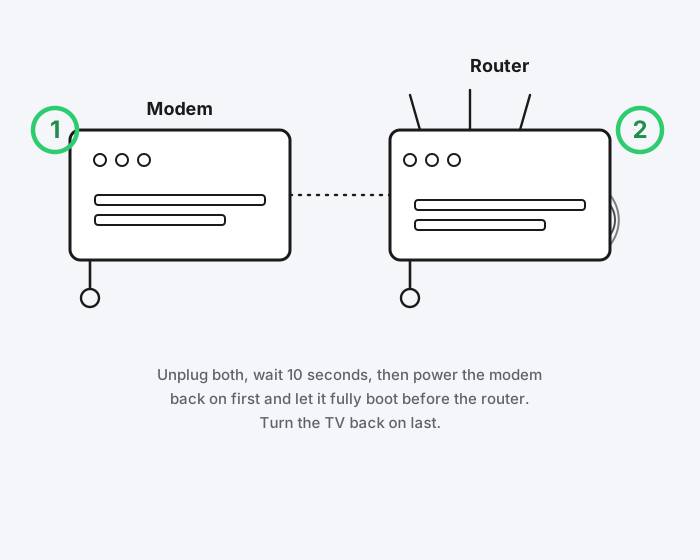
Step 1: Unplug the Modem First
Unplug your modem's power cable (not just the TV) and wait about 10 seconds. If you have a combined modem-router gateway, this is the one device to unplug.
Step 2: Unplug the Router Too
If you have a separate router, unplug it at the same time. Wait the same 10 seconds.
Step 3: Power Everything Back On in Order
Plug the modem back in first and give it a minute or two to fully come back online (the lights on it will settle into a steady pattern rather than blinking). Then plug the router back in and let it finish booting. Only then turn your attention to the TV.
Step 4: Restart the TV Itself
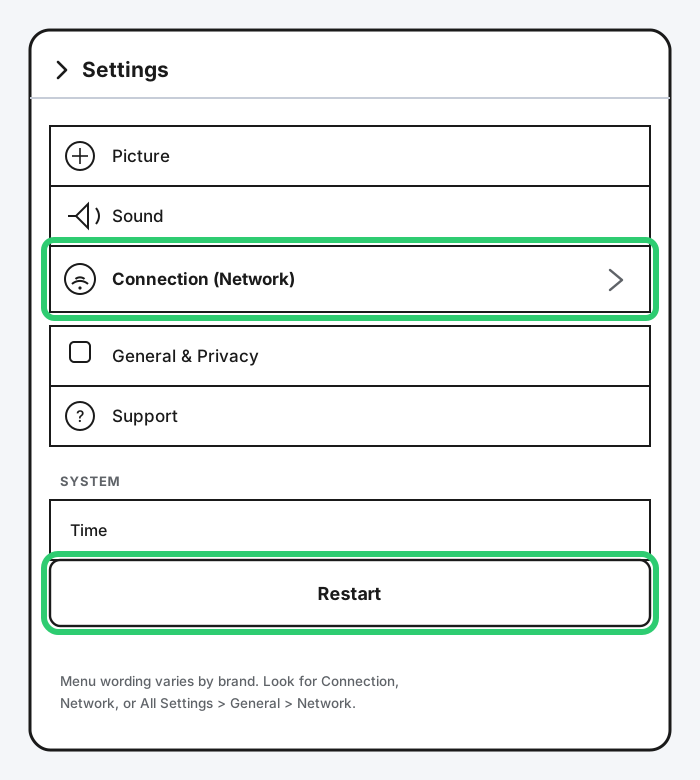
Most smart TVs have a restart option buried in their system settings, separate from just turning the TV off. On Samsung, it's under All Settings > General & Privacy (or Support on older models); on LG it's under All Settings > General > Restart; on Roku it's Settings > System > Power > System Restart. If you can't find a dedicated restart option, unplugging the TV itself for 30 seconds does the same thing.
Method 2: Forget the Saved Network and Reconnect
If restarting didn't fix it, or the TV specifically says the password is wrong even though you know it's right, the TV's stored network profile is the likely culprit. Smart TVs remember Wi-Fi networks by name and password the same way a phone does, and if you've ever changed your Wi-Fi password (a lot of ISP-provided routers reset it during a firmware update), the TV keeps quietly retrying the old one.
Step 1: Find Your TV's Network Settings
The exact path depends on your TV, and it's worth knowing your specific brand's wording since TV menus are not standardized the way phone settings mostly are:
| Brand | Menu path |
|---|---|
| Samsung (Tizen) | All Settings > Connection > Network |
| LG (webOS, 2021+) | Settings > All Settings > General > Network > Internet Connection |
| Roku | Settings > Network |
| Fire TV | Settings > Network |
Step 2: Forget or Remove the Saved Network
Look for an option along the lines of "Manage saved networks," "Forget this network," or simply select your network from the list and choose Disconnect or Remove. Not every TV makes this obvious. If your TV genuinely has no forget option, a full network reset (Method 4) accomplishes the same thing.
Step 3: Reconnect From Scratch
Select your network from the fresh scan and type the password carefully. Autocorrect isn't the issue here, but a mistyped character on a TV remote's on-screen keyboard is a very easy, very common mistake, especially with a password that mixes numbers and symbols. Double-check it before confirming.
Method 3: Fix a Weak or Missing Signal
If your network shows up but keeps dropping, or doesn't show up in the list at all, this is usually about distance, obstructions, or which Wi-Fi band you're on, not a setting to change.
Step 1: Check Which Band Your Router Is Broadcasting
Some routers broadcast one combined network name for both 2.4GHz and 5GHz, and some split them into two separate names. Older or budget smart TVs sometimes only support 2.4GHz, and if your router's 2.4GHz band is hidden, disabled, or bundled invisibly into a 5GHz-only setup, the TV may never see a network to connect to at all. Check your router's admin page (usually reachable by typing its IP address into a browser) to confirm 2.4GHz is broadcasting as its own visible network.
Step 2: Check Signal Strength on the TV
Most TVs show a signal strength reading somewhere in their network status screen, usually as a bar meter or a Poor/Fair/Good/Excellent rating.
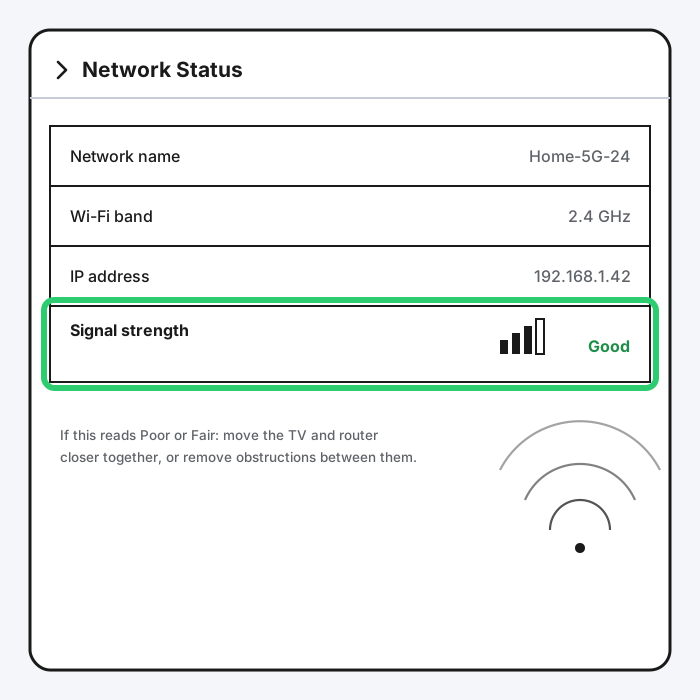
If it reads Poor or Fair, move the TV or the router closer together, or remove obstructions between them, thick walls, metal cabinets, and large mirrors are common, easy-to-miss signal blockers.
Step 3: Reduce Interference From Other Devices
Cordless phones, microwaves, and baby monitors can all interfere with 2.4GHz Wi-Fi specifically. If your TV has to sit near one of these, try switching your router to a less crowded channel, most router admin pages let you set this manually rather than relying on automatic channel selection.
Method 4: Reset the TV's Network Settings
If nothing above has worked, resetting the network settings clears out anything corrupted in how the TV stores its connection data, without wiping the whole TV back to factory settings.
Step 1: Find the Reset Network Option
On Samsung: All Settings > Connection > Network > Reset Network. On LG: Settings > All Settings > General > Network, then look for a reset option, exact wording varies by model year. On Roku and Fire TV, there's typically no separate "network reset," forgetting the network under Method 2 accomplishes the same thing.
Step 2: Confirm the Reset
This clears saved Wi-Fi networks and any manual IP or DNS settings you've configured, but doesn't touch installed apps or your TV's other settings.
Step 3: Set Up the Connection Again
Go back through the normal Wi-Fi setup as if the TV were new, selecting your network and entering the password fresh.
Method 5: Manually Set DNS if Wi-Fi Connects but Apps Won't Load
This is a different symptom from the rest of this list: the TV shows a successful Wi-Fi connection, maybe even a checkmark or "Connected," but streaming apps time out, spin forever, or say there's no internet. That points to a DNS problem rather than a Wi-Fi problem, the TV can reach your router just fine, but something between your router and the wider internet isn't resolving properly.
Step 1: Find the IP Settings Screen
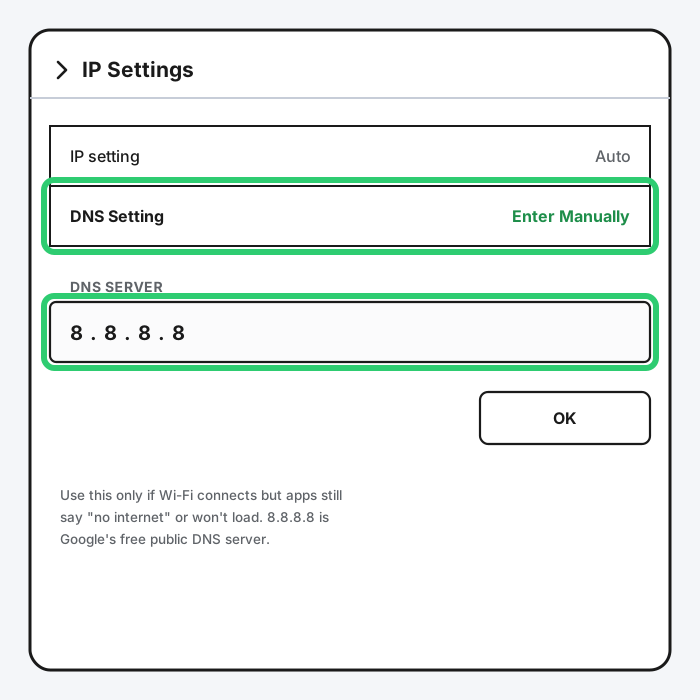
On Samsung: All Settings > Connection > Network > Network Status > IP Settings. Other brands bury this in a similar spot under their own network status or advanced settings screen.
Step 2: Switch DNS to Manual
Set DNS Setting to Enter Manually, then enter a public DNS server instead of whatever your ISP assigned automatically. Google's public DNS (8.8.8.8) and Cloudflare's (1.1.1.1) are both free and reliable.
Step 3: Save and Restart the App
You shouldn't need to reboot the whole TV, just back out of settings and try opening the app that was failing again.
Method 6: Check for a Software Update, or Try a Factory Reset
If you've worked through everything above and it's still not connecting, two things are worth trying before assuming it's a hardware fault.
Step 1: Check for a Pending Software Update
Once the TV manages to connect even briefly, check its settings for a pending system update, an outdated software build is a real, if less common, cause of connectivity bugs that a specific update was released to fix. If the TV can't connect at all to check for an update over Wi-Fi, some models let you check via a wired Ethernet connection instead, worth trying if your TV has a port for it and you have a cable handy.
Step 2: Factory Reset as a Last Resort
A full factory reset (different from the network-only reset in Method 4) wipes everything, including installed apps and personalized settings, back to out-of-the-box defaults. It's a genuinely last resort, but it does clear out any deeper corrupted setting a network reset alone doesn't reach. On Samsung, this needs your TV's PIN, the default is usually 0000 unless you've changed it.
Still Not Working?
If you've tried all of this and your TV still won't connect, it's worth checking your TV manufacturer's own support page for anything specific to your exact model: Samsung's Wi-Fi troubleshooting page, LG's internet connection guide, Roku's Wi-Fi issues article, or Amazon's Fire TV Wi-Fi support pages if you're on a Fire TV. It's also worth confirming another device, a phone or a laptop, can connect to the same network normally. If nothing else on your network can connect either, the problem is your router or your internet service, not the TV, and that's a call to your ISP, not more TV troubleshooting.
Frequently Asked Questions
Why does my smart TV connect to Wi-Fi but say there's no internet?
This usually points to a DNS issue rather than a true Wi-Fi problem. The TV can reach your router, but something isn't resolving addresses correctly past that point. Try Method 5 and manually set DNS to a public server like 8.8.8.8.
Why did my TV stop connecting after I changed my Wi-Fi password?
The TV's saved network profile still has the old password stored and keeps retrying it silently, often without a clear error telling you that's what's happening. Forget the saved network (Method 2) and reconnect with the new password.
Does my smart TV need 5GHz Wi-Fi, or is 2.4GHz fine?
Either works for streaming in most cases, and 2.4GHz actually has better range through walls. The real issue is when your TV only supports 2.4GHz but your router's 2.4GHz band is hidden or bundled invisibly into a combined network name, since then the TV simply can't see anything to connect to.
Will a factory reset delete my installed apps and logins?
Yes, a full factory reset wipes the TV back to out-of-the-box defaults, including every app and saved login. A network reset (Method 4) is a smaller, less destructive step that only clears saved Wi-Fi and IP settings, try that first.
Why does my TV work fine with Wi-Fi but other devices on the same network don't have issues?
This points specifically at the TV's saved network profile, its Wi-Fi band support, or its physical distance from the router rather than your internet connection itself, since everything else on the network is working normally. Start with Method 2 or Method 3 rather than assuming it's an ISP problem.
Quick Summary
Start outside the TV: unplug the modem and router, wait ten seconds, and power them back on in order before touching a single TV setting, since a stuck router causes more of these than people expect. If that doesn't clear it, forget the TV's saved network and reconnect fresh, a stale password is the next most common cause. Weak signal, band mismatches, and interference come next, followed by a full network reset if the stored settings themselves seem corrupted. If Wi-Fi connects but apps still won't load, that's a DNS problem, not a Wi-Fi one, and manually setting DNS to a public server usually clears it. A software update or, as a genuine last resort, a full factory reset covers whatever's left.
Related Articles

Developer Options on Firestick: Find It and Use It
Developer Options is hidden on every Fire TV by default. Here's the tap sequence to reveal it, what each toggle does, and which current models even have it.
How Does a Firestick Actually Work?
A Fire TV Stick is a tiny standalone computer that takes over your TV's smart features. Here's what's actually inside one, how it streams, and why 2026's new models work differently.
How to Clear Cache on an LG Smart TV
Clearing cache on an LG webOS TV means something different depending on your model: a one-tap Memory Optimizer on OLED sets, manual steps on everything else.