

Developer Options on Firestick: Find It and Use It

Developer options on a Firestick aren't sitting in the regular settings menu waiting for you to find them. Amazon buries this one on purpose, the same way Android phones bury theirs, and if you've been scrolling through Settings > My Fire TV looking for it and coming up empty, that's not a bug. It's just hidden behind a trick almost nobody tells you about up front.
I get why people land here confused. Most "developer options" guides jump straight to turning on ADB Debugging and Apps from Unknown Sources like the menu is already sitting right there in front of you. It isn't, not until you unlock it first. That's the part this guide actually covers: how to reveal the menu in the first place, what every toggle inside it does once you're in, and which current Fire TV models even have this menu at all, since that's changed recently in a way most existing guides haven't caught up to.
Quick answer: go to Settings > My Fire TV > About, then select your device name (the first row, something like "Fire TV Stick 4K") seven times in a row. A message confirms you're now a developer, and Developer Options appears back in the My Fire TV menu. Inside it, you'll find ADB Debugging and Apps from Unknown Sources, both off by default. Note that newer Vega OS-based Fire TV devices don't have this menu at all, more on that below.
Key takeaways:
- Developer Options is hidden by default on every Fire TV running Fire OS. You unlock it by selecting your device name seven times under Settings > My Fire TV > About.
- Once revealed, the menu has two toggles that matter: ADB Debugging (network-based remote control) and Apps from Unknown Sources (lets apps install other apps).
- Not every current Fire TV device has this menu. Newer entry-level models running Amazon's new Vega OS don't support Developer Options or sideloading at all.
- Turning this menu on doesn't void your warranty and doesn't change anything by itself. It's the toggles inside it that actually do something.
Prefer an interactive walkthrough? Try our Firestick Sideloading Troubleshooter →
Why Developer Options Is Hidden in the First Place
This isn't unique to Fire TV. Android phones do the same thing, and Fire OS is Amazon's own fork of Android, so it inherited the convention. The idea is straightforward: ADB Debugging and Apps from Unknown Sources are genuinely useful settings for the handful of people who need them, and genuinely risky for someone who flips them on by accident without knowing what they do. Hiding the menu behind a deliberate, repeated action is Android's way of making sure you meant to be there.
It's not locked down the way an actual security restriction would be. There's no password, no account check, nothing that stops you from unlocking it. It's a speed bump, not a wall, and once you know the sequence it takes about ten seconds.
How to Reveal Developer Options on Your Fire TV
This is the step most existing guides skip or gloss over, and it's the one that actually trips people up.
Step 1: Open Settings
From the Fire TV home screen, go to the Settings tab, the gear icon on the far right of the top menu.
Step 2: Go to My Fire TV
Select My Fire TV. On Fire TV Smart TVs (the built-in kind, not a separate stick or cube), this is labeled Device & Software instead.
Step 3: Open About
Select About. This is the screen that lists your device name, software version, and serial number, the same screen you'd check to see what model you own.
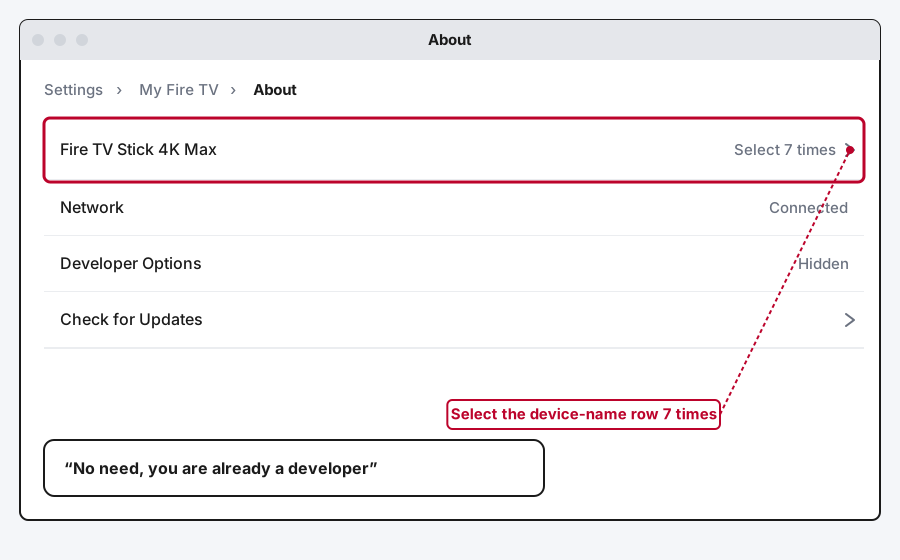
Step 4: Select Your Device Name Seven Times
The very first row on this screen is your device's name, something like "Fire TV Stick 4K Max" or "Fire TV Cube." Highlight it and press the center select button on your remote repeatedly, about seven times total. A countdown usually appears near the bottom of the screen as you go, counting down how many more taps you need.
Step 5: Confirm the Message
Once the count hits zero, you'll see a confirmation message, something like "No need, you are already a developer." That's the signal it worked.
Step 6: Back Out to Find Developer Options
Press Back once to return to the My Fire TV menu. Developer Options now appears as a new entry in that list, sitting alongside About, Reset to Factory Defaults, and the rest.
What's Actually Inside the Developer Options Menu
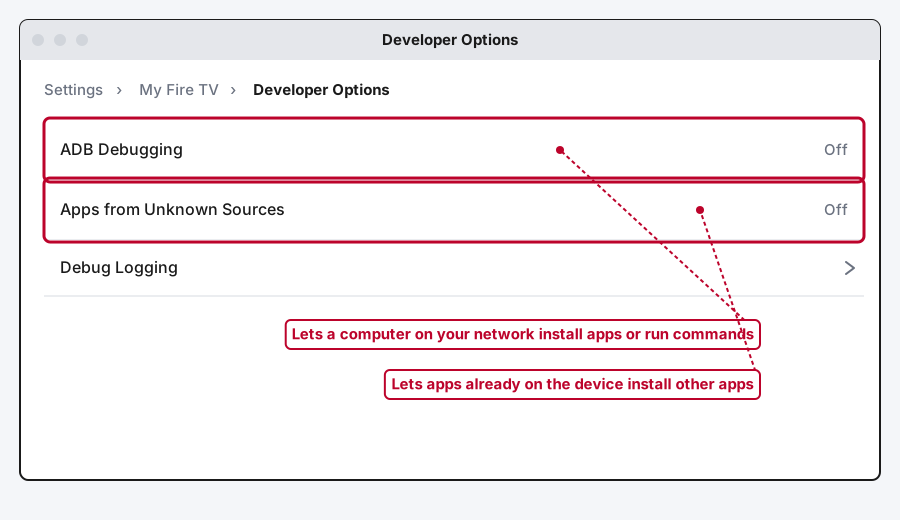
Once you're in, there are two toggles that actually matter on current Fire OS builds. I'll say upfront that some older guides mention a third one, USB Debugging, that used to sit alongside these. Fire OS dropped that one from the on-device menu some time ago (it only ever applied to Fire TV devices with a USB port anyway, which most current Fire TV Sticks don't have), so don't go looking for it if it's not there. That's expected, not a sign something's broken.
ADB Debugging
ADB stands for Android Debug Bridge, a developer tool that lets a computer on the same network connect to your Fire TV directly, install apps, pull logs, or run commands without you touching the remote at all. It's genuinely useful if you're using a network-based sideloading method (the AFTVnews APK Installer is the common one) or doing any real development work on the device.
It's off by default, and I'd leave it off unless you specifically need it. While it's on, any device on your network that knows your Fire TV's IP address can potentially connect to it. That's a fine risk to accept briefly on your own home network and not one worth leaving switched on indefinitely. If you turn it on for something, turn it back off once you're done.
Apps from Unknown Sources
This one lets apps already installed on your Fire TV, most commonly the Downloader app, install other apps from outside the official Amazon Appstore. It's the setting most people are actually looking for when they search for this menu in the first place, since it's the one that makes sideloading possible at all.
On some newer Fire OS versions, you won't see this as one global toggle in Developer Options. Instead, the permission gets requested per app, the first time something you've installed (like Downloader) tries to install another app on top of it. Same effect either way, just a different place the prompt shows up.
Which Fire TV Devices Actually Have This Menu
Here's the part that's genuinely changed recently and catches a lot of existing guides flat-footed: not every Fire TV device sold right now actually has a Developer Options menu to unlock.
Every Fire TV device has run Fire OS, Amazon's Android fork, for over a decade. That's still true for the Fire TV Stick 4K, Fire TV Stick 4K Max, Fire TV Stick 4K Plus, and the Fire TV Cube. All of those support Developer Options, ADB, and sideloading exactly as described above.
Amazon has started shipping some newer, cheaper models on a different operating system entirely: Vega OS, a Linux-based system built from the ground up rather than forked from Android. The current entry-level Fire TV Stick and the Fire TV Soundbar are the ones on Vega OS as of this writing. Vega OS is leaner and runs fine on less RAM, but it drops Developer Options, ADB, and sideloading support completely. There's no hidden menu to unlock on these devices because Amazon didn't build one in.
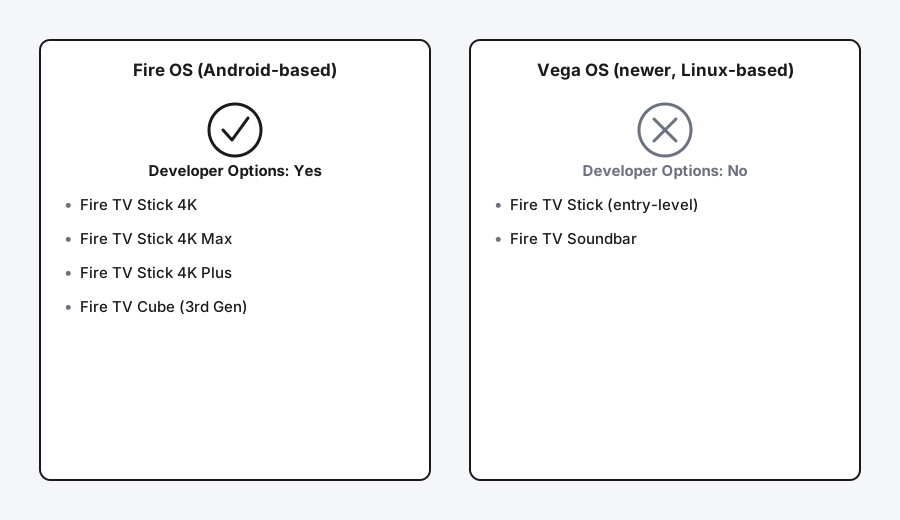
If you're not sure which one you have, check Settings > My Fire TV > About and look at the Operating System or Software Version line. If it mentions Fire OS, you're set. If Developer Options never shows up no matter how many times you tap the device name, and the About screen doesn't look or behave like the Fire OS screens shown here, Vega OS is the likely reason, not a mistake on your part.
Developer Options Missing or Won't Unlock?
A few things worth checking if the menu genuinely isn't appearing after you've tried the tap sequence.
Make sure you're tapping the right row. It's specifically the device-name row, the very first item on the About screen, not the software version or serial number listed below it.
Restart the Fire TV once if the menu doesn't show up right after you get the confirmation message. This is a known, harmless display glitch after some software updates, not a sign anything was actually removed.
Check for a pending Fire OS update under Settings > My Fire TV > About > Check for Updates. An outdated build occasionally behaves oddly here, and updating usually clears it up.
And if none of that works, confirm you're not on a Vega OS device per the section above. That's the one case where no amount of tapping will make the menu appear, because the feature genuinely isn't there.
Still Not Working?
If you've confirmed you're on a Fire OS device and the menu still won't unlock after a restart and an update check, Amazon's own Fire TV help pages cover device-specific settings issues and are worth a look before assuming your unit is faulty.
Frequently Asked Questions
Is it safe to turn on Developer Options?
Yes. Unlocking the menu itself does nothing on its own, it just makes two toggles visible that were previously hidden. Nothing changes on your device until you actually turn ADB Debugging or Apps from Unknown Sources on, and both of those are reversible any time.
Does enabling Developer Options void my Fire TV's warranty?
No. You're using a feature Amazon built into the device on purpose, the same way Android phones expose developer options on purpose. It's not rooting, it's not custom firmware, and it's not something Amazon support would treat as tampering.
Why can't I find "My Fire TV" in my Settings menu?
On Fire TV Smart TVs, the equivalent menu is labeled Device & Software instead. If you're on a stick or cube and still don't see My Fire TV, check that you're not in a different settings sub-menu, like Preferences, which looks similar but doesn't have the About screen you need.
What's the difference between Developer Options and jailbreaking a Firestick?
Developer Options is the hidden settings menu itself. Jailbreaking, which isn't really a jailbreak at all, is what people call the process of using one specific toggle in that menu (Apps from Unknown Sources) to install apps from outside the Appstore. If you're here specifically to sideload apps, our full jailbreaking guide walks through that entire process step by step, once Developer Options is already unlocked.
Can I turn Developer Options back off once I've enabled it?
You can turn off the individual toggles inside it (ADB Debugging, Apps from Unknown Sources) any time, and I'd recommend turning ADB Debugging off whenever you're not actively using it. There's no official way to re-hide the Developer Options menu entry itself once it's unlocked, but leaving the menu visible with both toggles off has no real downside.
Does my Fire TV Stick even have this menu?
If it's a Fire TV Stick 4K, 4K Max, 4K Plus, or a Fire TV Cube, yes. If it's the newer entry-level Fire TV Stick or a Fire TV Soundbar running Vega OS, no, that menu and sideloading in general aren't available on those devices at all.
Quick Summary
Developer Options on a Fire TV is hidden behind the same trick Android phones use: select the device name seven times under Settings > My Fire TV > About, and the menu appears back in My Fire TV. Inside it, ADB Debugging controls network-based remote access and Apps from Unknown Sources is what actually enables sideloading. Not every current Fire TV device has this menu at all, the entry-level Vega OS models dropped it entirely, so if seven taps aren't doing anything, that's worth checking before you assume you're doing something wrong.
Related Articles
How Does a Firestick Actually Work?
A Fire TV Stick is a tiny standalone computer that takes over your TV's smart features. Here's what's actually inside one, how it streams, and why 2026's new models work differently.
How to Clear Cache on an LG Smart TV
Clearing cache on an LG webOS TV means something different depending on your model: a one-tap Memory Optimizer on OLED sets, manual steps on everything else.
How to Jailbreak a Firestick (What It Actually Means)
Jailbreaking a Firestick isn't really a jailbreak at all, it's turning on a setting Amazon already built in. Here's the real, legal process.