

How Does a Firestick Actually Work?

How does a Firestick actually work? Mechanically, it's simpler than people expect: it's a computer about the size of a pack of gum, it plugs into your TV's HDMI port, and everything you think of as "the TV's smart features" is really happening inside that little stick, not inside the television at all. The TV is just the screen. The stick is doing all the thinking.
I didn't fully get this until I plugged one into an old 2012 LCD TV that had zero smart features of its own, no apps, no Wi-Fi, nothing, and watched it instantly become a fully modern streaming device. Nothing about the TV changed. The stick brought everything with it.
Quick answer: a Fire TV Stick is a small streaming computer with its own processor, memory, storage, and Wi-Fi antenna. It plugs into an HDMI port and draws power separately (either from the TV's USB port or a wall adapter, depending on the model), connects to your home Wi-Fi, runs an operating system Amazon builds, and pulls video on demand from apps like Netflix or Prime Video over the internet. It doesn't store shows on the device. It streams them live, the same way a phone does.
Key takeaways:
- The stick, not the TV, is doing the actual computing. A "smart TV" and a dumb TV with a Fire Stick plugged in behave almost identically once the stick is running.
- It needs its own power source. Some newer models can pull enough power straight from the TV's USB port; older and higher-power models need the included wall adapter instead.
- There are now two completely different operating systems running on different current Fire TV Stick models, and which one you own changes what the device can and can't do. More on that below, since it's genuinely new as of this year.
- Nothing is stored on the stick itself. It's a nonstop live stream over your Wi-Fi, which is why a weak signal shows up as buffering, not as "files loading slowly."
Prefer an interactive walkthrough? Try our Fire TV Stick Explainer →
What's Actually Inside the Thing
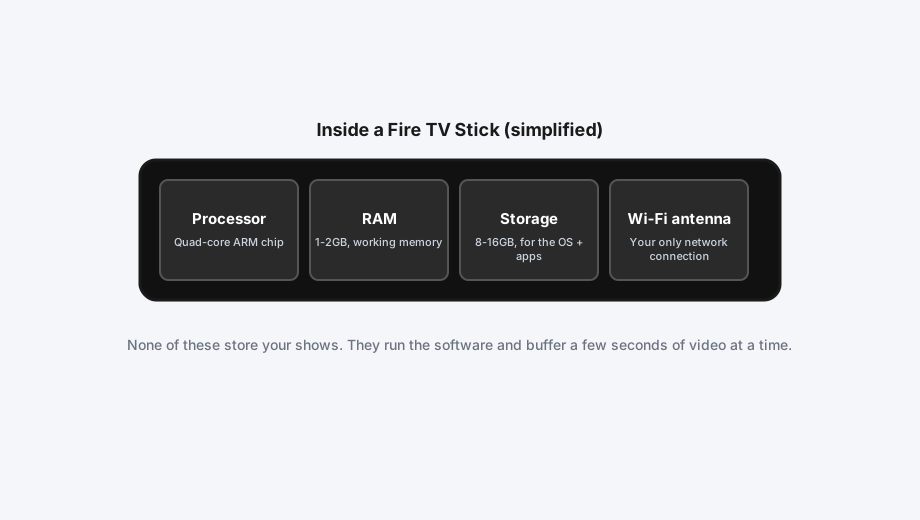
Pop open a Fire TV Stick and you'd find the same basic parts as any small computer: a processor, a bit of RAM, some flash storage, and a Wi-Fi antenna, all packed onto a board small enough to disappear behind your TV once it's plugged in. Current models use a MediaTek chipset with a quad-core ARM processor, somewhere between 1GB and 2GB of RAM depending on the model, and 8 to 16GB of storage, mostly used for the operating system and installed apps rather than your actual shows.
That storage number trips people up. It sounds small for a device that plays 4K video, but the stick isn't downloading and holding onto full episodes the way your phone holds photos. It's buffering a few seconds ahead at a time and discarding what's already played. The storage is for apps, not content.
How It Connects to Your TV (and Why It Needs Its Own Power)
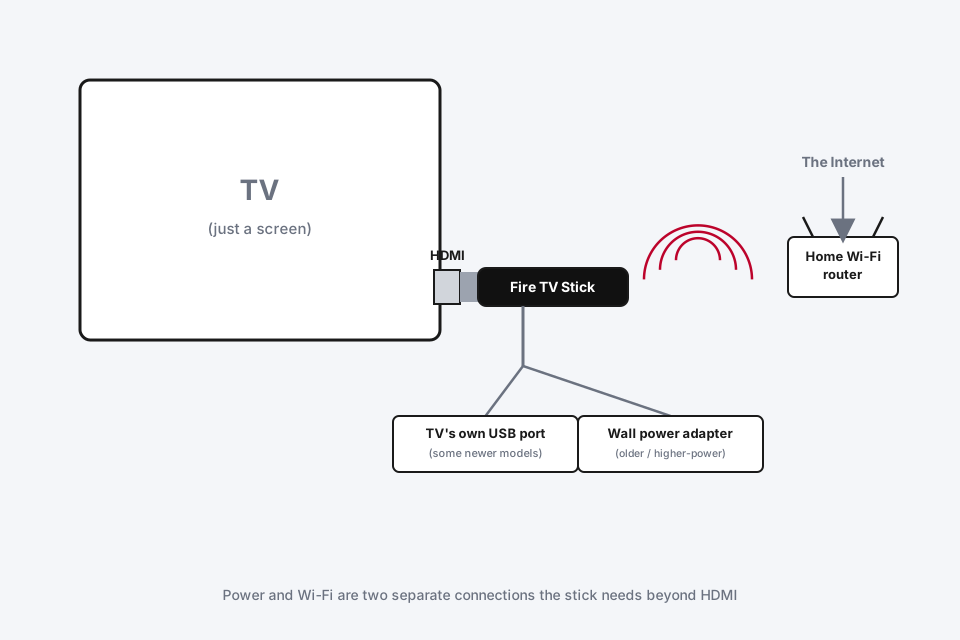
The HDMI side is simple: the stick has an HDMI plug built right onto its body, and it goes straight into any open HDMI port on your TV, no cable needed for the video and audio signal. That part hasn't changed in over a decade.
Power is the part people get wrong. HDMI itself can carry a tiny trickle of power, nowhere near enough to run a processor and Wi-Fi radio continuously. So every Fire TV Stick needs a second connection just for power. Older and higher-performance models (the Fire TV Stick 4K Max, for instance) ship with a wall adapter because they draw more current than a TV's own USB port reliably supplies. Newer models with "Direct Power" over USB-C can sometimes pull enough from a TV's own USB-C port and skip the wall adapter entirely, though Amazon still recommends the wall adapter if your TV's port struggles to keep up, which shows up as random restarts or a sluggish interface.
Where the Shows Actually Come From
Once it's powered on and connected to Wi-Fi, the stick doesn't talk to your TV's tuner or any cable box. It reaches out over the internet directly, the same way a laptop would, and pulls video from whatever app you've opened: Netflix's servers, Amazon's, Disney's, whoever owns the content. The TV displays whatever the stick hands it over HDMI. That's genuinely the entire relationship.
This is why a Fire TV Stick plugged into a 15-year-old TV can outperform some genuinely "smart" TVs from a few years back. The TV's own built-in smart platform is frozen at whatever software it shipped with, while the stick gets pushed real updates from Amazon independent of what television it happens to be plugged into.
Fire OS vs. the New Vega OS (This Part Is Genuinely New in 2026)
Here's the part that's actually changed recently, and it's worth understanding if you're buying one or already own one. For over a decade, every Fire TV Stick ran Fire OS, Amazon's own operating system built on top of Android. That's why sideloading an APK file onto a Fire Stick has always worked basically the same way it does on an Android phone, and why third-party app stores and emulators have had such an easy home on Fire TV devices.
That's changing. Amazon has started shipping some current models, the Fire TV Stick 4K Select and newer Fire TV Stick HD units among them, on a completely new, Linux-based operating system called Vega OS instead of Android-based Fire OS. Vega is leaner, it can run on less RAM, and Amazon controls it more tightly. The tradeoff that actually matters to a reader: Vega OS has no sideloading support and a smaller library of third-party apps than Fire OS ever had.
Meanwhile, the Fire TV Stick 4K, Fire TV Stick 4K Max, and Fire TV Cube are still running Android-based Fire OS as of this writing. So "how does my Fire Stick work" doesn't have one single answer anymore. It genuinely depends which one you bought, and Amazon hasn't been especially clear about this on its own product pages, which is a real source of the confusion behind this exact search.
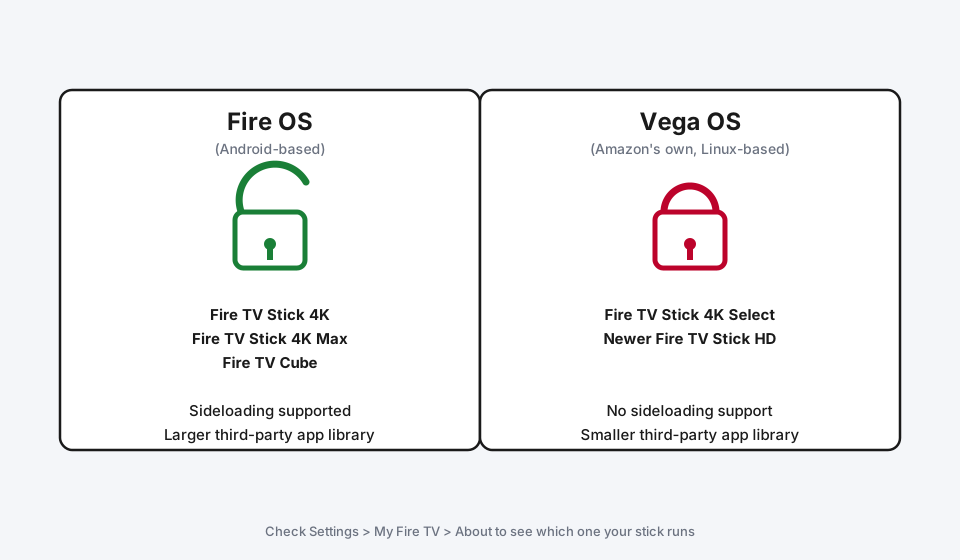
If you're trying to figure out which one your own stick runs, check Settings > My Fire TV > About. A device running Fire OS will show an Android-based build number and a Developer Options menu under My Fire TV. A Vega OS device won't have that menu at all, which is itself the tell. If you're specifically trying to sideload apps, that distinction decides whether the process I covered in How to Jailbreak a Firestick will even work on your particular model before you spend ten minutes trying.
The Remote Isn't Just a Remote
The included Alexa Voice Remote pairs to the stick over Bluetooth automatically the first time you set it up, not infrared like most TV remotes, which is why it still works from another room or without a clear line of sight to the TV. It also has a microphone built in for voice search and Alexa commands, and on most current models, dedicated power, volume, and mute buttons that control the TV itself over HDMI-CEC or an IR blaster, so one remote handles both the stick and the television's own basics.
If your remote stops responding to button presses specifically, that's a Bluetooth pairing issue rather than anything to do with how the stick itself works, and I've covered that separately in Fire TV Remote Not Working? Try This.
Wi-Fi Is Doing More Work Than People Realize
Every Fire TV Stick needs a Wi-Fi connection to function at all; there's no over-the-air broadcast fallback the way an old antenna TV had. Current models support Wi-Fi 6, older ones Wi-Fi 5, and you can add Ethernet only through a separate adapter plugged into the stick's power port, since there's no built-in Ethernet jack on a device this size. Because every single frame of video is arriving live over that connection, the stick's performance is really a reflection of your network's performance. A stick on excellent Wi-Fi feels instant. The exact same stick on a weak signal feels broken, even though nothing about the hardware itself changed.
A Firestick vs. a Smart TV's Built-In Apps
If your TV already has its own Netflix and YouTube apps built in, you might wonder what a Fire TV Stick is even adding. The honest answer: mostly update speed and app selection. A built-in smart TV platform is tied to whatever hardware shipped inside that television, and manufacturers eventually stop updating it, sometimes within just a few years. A Fire TV Stick is a separate, replaceable piece of hardware that Amazon keeps updating on its own schedule, and it's one you can simply unplug and swap for a newer model later without buying an entirely new TV. That's the whole pitch in one sentence, and it's a genuinely good one for anyone whose smart TV has started feeling slow or missing an app it used to have.
Frequently Asked Questions
Does a Fire TV Stick need a subscription to work at all?
No. The stick itself is a one-time purchase and doesn't require any Amazon subscription to function. You'll still need individual subscriptions (Netflix, Max, Disney+, and so on) for whatever paid services you actually want to watch, the same as on any other device, but the stick doesn't charge you anything on its own just to turn on and use free or ad-supported content.
Can I use a Fire TV Stick without an Amazon account?
Not really, no. Setup requires signing into an Amazon account, since that's how the device gets linked to your Amazon Appstore access and settings sync. You don't need Amazon Prime specifically, a free Amazon account is enough, but you do need one of some kind.
Does the Fire TV Stick work if my internet goes down?
No. Since nothing is stored locally, a Fire TV Stick is completely dependent on an active internet connection. If your Wi-Fi drops, the stick itself stays "on" but every app will fail to load or buffer content, since there's genuinely nothing for it to play without a live connection.
Is a Fire TV Stick the same thing as Fire TV Cube?
No, and this trips people up because of the shared Fire TV branding. The Stick is the small HDMI dongle. The Fire TV Cube is a separate, larger set-top box with a more powerful processor and a built-in speaker for far-field Alexa commands (so you don't need to hold the remote to talk to it). Both run on the Fire TV platform and share the same basic streaming concept described above, but the Cube is a genuinely different, higher-end device.
Why does my Fire Stick feel slower than it did when it was new?
Usually it's cache buildup inside individual apps, not the hardware itself aging. If your stick has gotten sluggish, our How to Clear Cache on LG Smart TV article covers the equivalent app-cache-clearing concept, and the same Settings > Applications > [app name] > Clear Cache path exists on Fire TV devices too, under Settings > My Fire TV > Applications.
Quick Summary
A Fire TV Stick is a self-contained streaming computer, not an accessory that makes your TV smarter on its own. It plugs into HDMI, needs its own power source, connects over Wi-Fi, and streams video live from whatever app you open, storing nothing locally. The one real wrinkle worth knowing in 2026 is that not every current Fire TV Stick runs the same operating system anymore: older and current high-end models still run Android-based Fire OS, while newer budget and mid-range models have shifted to Amazon's own Vega OS, which trades some flexibility (like sideloading) for a leaner, more locked-down platform. Which one you've got changes more than people realize about how the device actually behaves.
Related Articles
Developer Options on Firestick: Find It and Use It
Developer Options is hidden on every Fire TV by default. Here's the tap sequence to reveal it, what each toggle does, and which current models even have it.
How to Clear Cache on an LG Smart TV
Clearing cache on an LG webOS TV means something different depending on your model: a one-tap Memory Optimizer on OLED sets, manual steps on everything else.
How to Jailbreak a Firestick (What It Actually Means)
Jailbreaking a Firestick isn't really a jailbreak at all, it's turning on a setting Amazon already built in. Here's the real, legal process.