

How to Clear Cache on an LG Smart TV

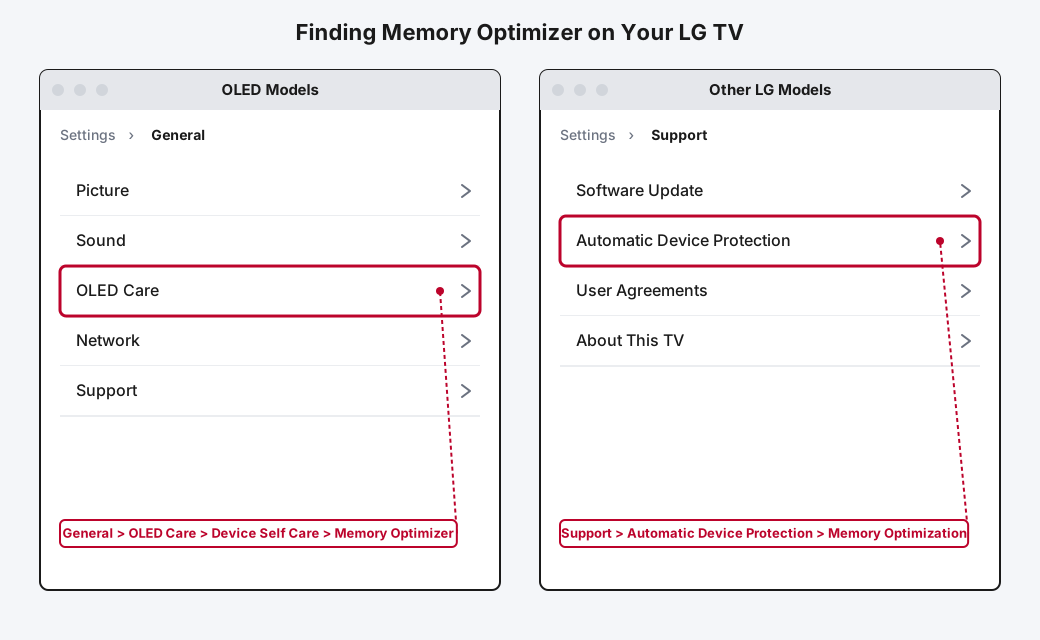
How to clear cache on an LG smart TV depends on something most guides skip right past: which kind of LG TV you actually own. LG built a genuine one-tap cache-and-memory tool called Memory Optimizer, but it only exists on OLED models. Every other LG TV, the UHD, NanoCell, and QNED sets that make up most of what LG actually sells, doesn't have it at all, no matter how long you dig through the menu looking for it.
I learned this one the annoying way, hunting through a basic LG UHD TV's settings for an "OLED Care" option a guide told me to look for, before I realized that set simply doesn't have it and never will. Once you know which camp your TV falls into, the rest takes two minutes.
Quick answer: on an LG OLED TV, go to Settings > All Settings > General > OLED Care > Device Self Care > Memory Optimizer and run it, that's the real one-button fix built for exactly this. On every other LG smart TV, there's no single system-wide cache button: clear a specific app's cache under Settings > Apps, check your actual free storage under General > Devices > TV Information, and run a proper power cycle to flush short-term memory across the whole system.
Key takeaways:
- Memory Optimizer is genuinely OLED-exclusive among LG TVs. UHD, NanoCell, and QNED models don't have it, that's not a menu you're failing to find.
- Clearing an individual app's cache is still possible on practically every LG smart TV, it just lives under Settings > Apps rather than one system-wide command.
- Clearing an app's cache never signs you out or wipes your watchlist. That's Clear Data, a separate option sitting right below it, and it's worth knowing the difference before you tap the wrong one.
- LG TVs don't proactively warn you when storage is getting tight. Check TV Information yourself instead of waiting for apps to start acting up.
- If an app genuinely has no Clear Cache option, which does happen on some older webOS builds, uninstalling and reinstalling it clears the same stuck data.
Prefer an interactive walkthrough? Try our LG TV Cache Troubleshooter →
Which Method Should You Use?
| Your situation | What to do | Method |
|---|---|---|
| Your LG TV is an OLED model (has "OLED Care" under General) | Run Memory Optimizer | Method 1 |
| Your LG TV is a UHD, NanoCell, or QNED model (no OLED Care option) | Clear a specific app's cache manually | Method 2 |
| One particular app is slow, crashing, or stuck loading | Clear that app's cache directly | Method 2 |
| You're not sure how much storage is actually free | Check TV Information | Method 3 |
| The whole TV feels sluggish across every app, not just one | Full power cycle | Method 4 |
| The built-in web browser itself feels slow or won't load pages right | Clear browser cache | Method 5 |
| An app has no Clear Cache option at all | Uninstall and reinstall it | Method 6 |
Why LG Splits This Two Different Ways
This isn't LG hiding a feature behind confusing menu labels, it's a genuine hardware difference. Memory Optimizer is built into webOS's OLED Care suite, the same place where you'll find pixel-refresh and screen-care tools that only make sense on an OLED panel in the first place. LG never ported a standalone version of it to its LCD-based sets (UHD, NanoCell, QNED), so if your TV doesn't have an OLED panel, there's genuinely nothing to find, not a setting you've overlooked.
That's a real limitation worth knowing up front, because it changes what "clearing cache" even means for you. On an OLED set it's a single tool that handles memory and background processes system-wide. On everything else, it's a handful of smaller, more manual steps that add up to roughly the same result.
Before You Start: Check Which Kind of LG TV You Actually Have
Press the Settings (gear) button on your remote, open All Settings, and look under General. If you see an option called OLED Care, you're on an OLED model and Method 1 is your fastest path. If General goes straight from Picture or Sound into Network or Support with nothing resembling OLED Care, you're on a UHD, NanoCell, or QNED set, and Method 1 genuinely doesn't apply to you, skip straight to Method 2.
Method 1: Run Memory Optimizer (OLED Models Only)
Step 1: Open All Settings, Then General
Press Settings on the remote, select All Settings, then General.
Step 2: Go to OLED Care, Then Device Self Care
Select OLED Care, then Device Self Care. On some 2021 OLED models this sits one level deeper, under Support > OLED Care instead of directly under General, so if you don't see it right away, check inside Support too.
Step 3: Select Memory Optimizer and Run It
Choose Memory Optimizer and confirm. It closes background processes and clears cached data across the system in a few seconds, no restart required. There's no harm in running it more than you think you need to, a quick run every few days is a reasonable habit if your TV tends to feel sluggish by evening.
Method 2: Clear Cache for a Specific App (Any LG Smart TV)
This is the one that actually applies to most LG TVs sold, since Memory Optimizer isn't available to them at all.
Step 1: Open Settings, Then Apps
Press Settings, then look for Apps (sometimes labeled Applications). On some older webOS versions this same function sits under General > Storage instead, with a list of installed apps and their sizes, LG hasn't kept the label perfectly consistent across years, so check both spots if one comes up empty.
Step 2: Select the App That's Acting Up
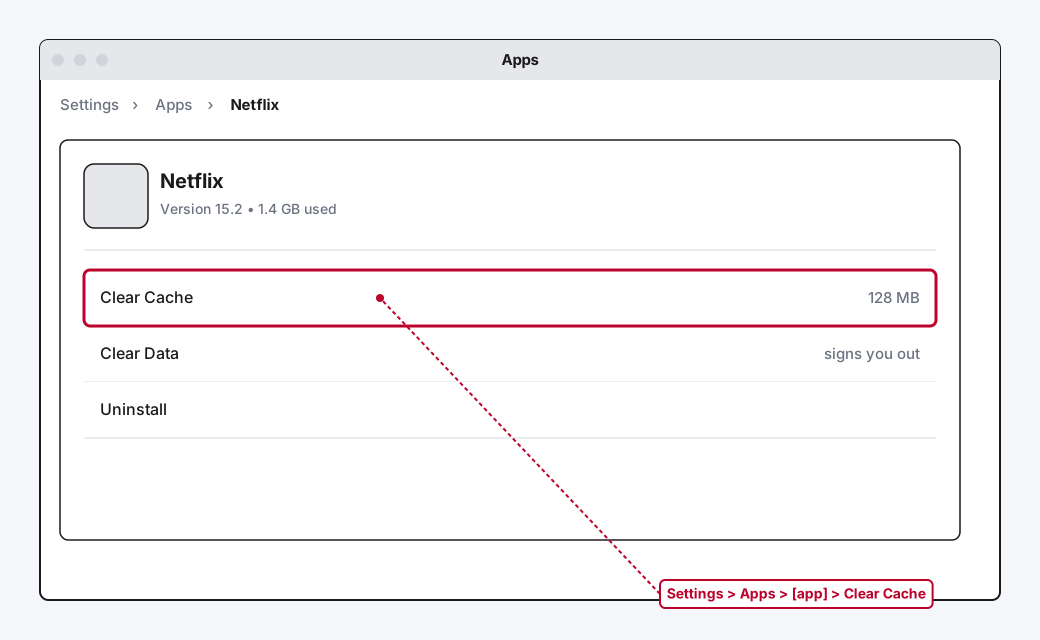
Pick the specific app giving you trouble, Netflix, Disney+, whatever's buffering or crashing. You'll see its version number and how much storage it's using.
Step 3: Choose Clear Cache, Not Clear Data
Select Clear Cache. This removes temporary files the app stores to load faster, without touching your login or saved preferences. Clear Data sits right next to it and does something different: it wipes the app back to a fresh install, including your login, so you'll need to sign back in. Use Clear Cache first, and only reach for Clear Data if cache alone doesn't fix whatever was wrong.
Method 3: Check How Much Storage You Actually Have
LG TVs don't put up a clear low-storage warning the way a phone does, so a TV that's quietly running out of room just gets slower and glitchier without telling you why.
Step 1: Open TV Information
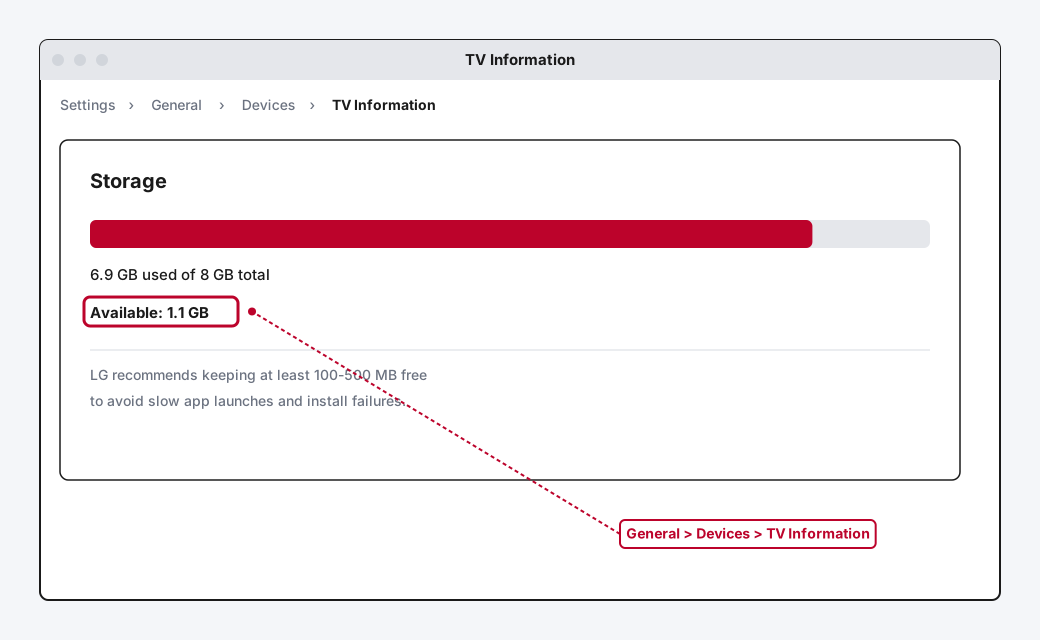
Go to Settings > All Settings > General > Devices (or TV Management, depending on your model), then select TV Information.
Step 2: Read Your Available Storage
Most LG TVs ship with somewhere between 2GB and 8GB of usable internal storage, far less than a phone, and it fills up faster than you'd expect once you've installed a handful of streaming apps. If available space is sitting under roughly 500MB, that's worth treating as a real signal to start clearing app caches or removing apps you don't use, not just a number to glance past.
Method 4: Do a Full Power Cycle
A real restart clears short-term memory and cache data that's built up across every app at once, not just whichever one you happened to pick in Method 2.
Step 1: Turn Off and Unplug
Power the TV off, then unplug it from the wall rather than just leaving it on standby.
Step 2: Wait at Least 30 Seconds
Give it a genuine 30 seconds before plugging back in. Some sources recommend going longer, up to a full minute, to be safe, and there's no real downside to erring on the longer side here.
Step 3: Plug Back In and Let It Fully Boot
Reconnect the power and let the TV completely finish starting up before opening anything. Opening an app the instant the home screen appears, before background services have caught up, can make a restart look like it didn't help when it actually did.
Method 5: Clear the LG Browser's Own Cache
If it's specifically the built-in Web Browser app that's slow or won't load pages correctly, that has its own separate cache, outside the Apps menu entirely.
Step 1: Open the Web Browser
Launch the Web Browser app from your home screen.
Step 2: Open Its Three-Dot Menu, Then Settings
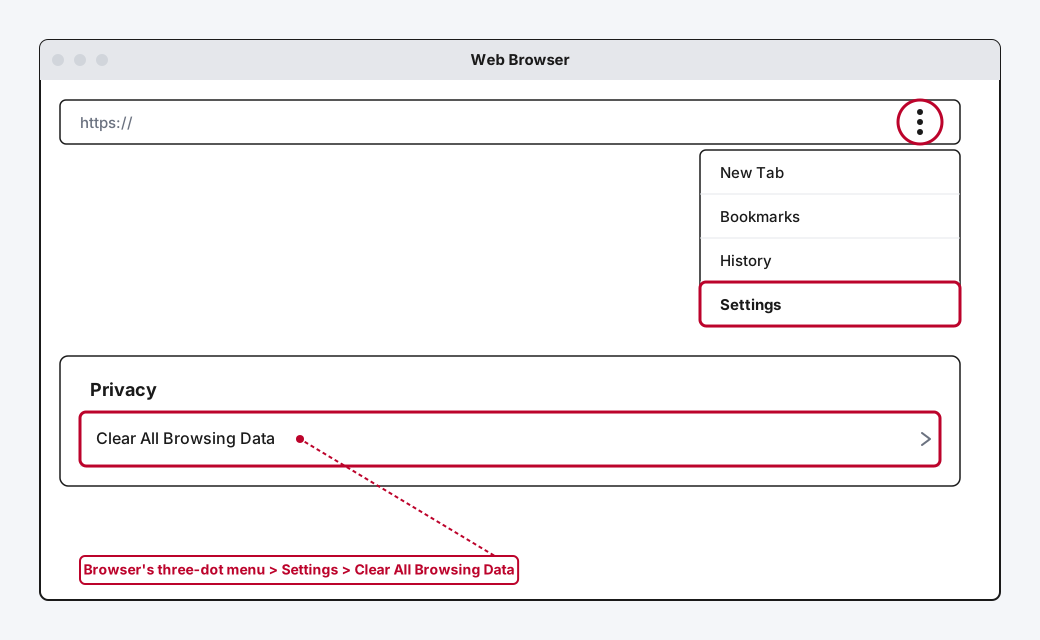
Select the three-dot menu in the browser's own interface, then Settings.
Step 3: Select Clear All Browsing Data
Scroll to Privacy and choose Clear All Browsing Data. This clears the browser's own cache, cookies, and history, separate from anything you did in Method 2.
Method 6: Uninstall and Reinstall an App With No Clear-Cache Option
A few apps on older webOS builds genuinely don't expose a Clear Cache button at all. When that happens, removing and reinstalling the app does the same job.
Step 1: Remove the App From the Home Screen
Highlight the app's icon, long-press the wheel or select button on your remote to open its options, and choose to delete or uninstall it.
Step 2: Reinstall It From the LG Content Store
Open the Content Store (or Apps), search for the app by name, and reinstall it. You'll need to sign back in, same as Clear Data, but this also clears out anything genuinely corrupted in the old install that a cache clear alone wouldn't have touched.
How Often Should You Actually Do This?
There's no hard rule here, and running any of these constantly isn't necessary. A reasonable baseline is clearing cache on your most-used streaming apps every two to three months, or immediately if you notice apps opening slower than usual, crashing on launch, or content failing to load even though your internet is fine. If you're on an OLED model with Memory Optimizer, running it every few days is a lighter-touch habit that costs you nothing since it takes a few seconds and needs no restart.
Still Not Working?
If you've cleared the relevant app's cache, confirmed you have real free storage, and done a proper power cycle, and the TV is still sluggish or a specific app still won't behave, LG's official support site covers model-specific troubleshooting steps and can point you toward a firmware update if your webOS build is genuinely out of date. And if the actual problem is streaming trouble across multiple apps rather than one TV just feeling generally slow, our Streaming Problems on Smart TV guide covers that from a different angle, including the network-side checks that a cache clear won't fix.
Frequently Asked Questions
Does clearing cache delete my LG TV's apps or logins?
No. Clear Cache only removes temporary files an app stores to load faster, your apps stay installed and you stay logged in. Clear Data is the option that signs you out and resets an app to a fresh state, and it's a separate choice you have to pick deliberately.
Why doesn't my LG TV have an OLED Care menu?
Because Memory Optimizer and the rest of OLED Care are built specifically for OLED panels, LG never built a version of it for its LCD-based UHD, NanoCell, or QNED TVs. If you don't see it, your TV isn't missing a setting, it genuinely doesn't apply to your model.
Is there a way to clear cache for every app at once on a non-OLED LG TV?
Not as a single built-in button the way Memory Optimizer works on OLED models. A full power cycle (Method 4) is the closest equivalent, since it clears short-term memory across the whole system rather than one app at a time.
Will a factory reset clear the cache too?
Yes, but it also wipes every app, setting, and saved login back to default, which is a much bigger step than almost any cache problem actually needs. Work through the methods above first, a factory reset is a last resort, not a starting point.
How much storage should I keep free on an LG smart TV?
LG's own guidance points to keeping at least 100 to 500MB free, though more breathing room than that makes a real difference on TVs with only 2 to 4GB of usable storage to begin with. If TV Information shows you're consistently near that floor, it's worth uninstalling an app you don't actually use rather than just clearing caches repeatedly.
Quick Summary
Figure out which kind of LG TV you have first, since that decides everything else: OLED models get a genuine one-tap Memory Optimizer under General > OLED Care > Device Self Care, while UHD, NanoCell, and QNED models don't have that tool at all and need the manual route instead. Either way, clearing an individual app's cache under Settings > Apps works across practically every LG TV, and it's worth knowing that Clear Cache and Clear Data are two different buttons with two different consequences. Check your actual free storage under TV Information rather than guessing, and when something feels wrong across the whole TV rather than one app, a real 30-second power cycle clears more than people expect. If an app has no cache option at all, uninstalling and reinstalling it gets you the same result.
Related Articles

Developer Options on Firestick: Find It and Use It
Developer Options is hidden on every Fire TV by default. Here's the tap sequence to reveal it, what each toggle does, and which current models even have it.
How Does a Firestick Actually Work?
A Fire TV Stick is a tiny standalone computer that takes over your TV's smart features. Here's what's actually inside one, how it streams, and why 2026's new models work differently.
How to Jailbreak a Firestick (What It Actually Means)
Jailbreaking a Firestick isn't really a jailbreak at all, it's turning on a setting Amazon already built in. Here's the real, legal process.