

How to Connect Your Samsung TV to Wi-Fi

How to connect your Samsung TV to Wi-Fi comes down almost entirely to which menu system your specific TV is running, and Samsung has used two genuinely different ones over the past several years. Get the right one and it's a five-minute job. Get the wrong one and you'll be clicking through a settings screen that doesn't even have the option you're looking for.
I've walked a family member through this over the phone more than once, and the actual Wi-Fi part was never the slow bit. The slow bit was them hunting for a "Connection" menu on a TV old enough that it simply doesn't have one, it's buried under Smart Hub instead. Once you know which layout you're on, this stops being confusing.
Quick answer: on a Samsung TV from 2022 or newer, go to Settings > All Settings > Connection > Network > Open Network Settings > Wireless, select your network, and enter the password. On a 2021 or older model, press Home on the remote to open Smart Hub, then go to Settings > General > Network > Open Network Settings > Wireless instead.
Key takeaways:
- 2022 and newer Tizen-based TVs use Settings > All Settings > Connection > Network. 2021 and older TVs use the Home button to open Smart Hub, then Settings > General > Network.
- Older Samsung TVs (2021 and earlier) can only see 2.4GHz networks. If your router only broadcasts a 5GHz-only or combined network name, the TV won't find anything to connect to.
- Samsung's own documentation states the TV needs at least 10 Mbps of network speed just to establish a connection, separate from whatever speed you need for actual streaming.
- Wi-Fi passwords are case sensitive on Samsung TVs, and the on-screen keyboard makes it easy to mistype a character. Use the "Show password" checkbox to verify before submitting.
- A hidden network doesn't show up in the list automatically. Scroll to the bottom and select "Add Network" to enter its name manually.
Prefer an interactive walkthrough? Try our Samsung TV Wi-Fi Troubleshooter →
Which Setup Method Should You Use?
| Your situation | What to do | Method |
|---|---|---|
| TV bought 2022 or later, has an "All Settings" menu | Settings > All Settings > Connection > Network | Method 1 |
| TV from 2021 or earlier, no "All Settings" option | Home button > Smart Hub > Settings > General > Network | Method 2 |
| Your network name doesn't show in the list | Check the band and see if it's hidden | Method 3 or 4 |
| You'd rather use a cable | Ethernet/LAN port on the TV or One Connect Box | Method 5 |
| You don't want to type the password on the remote | WPS button on your router, where supported | Method 6 |
Before You Start: Two Things Worth Checking First
Samsung's own network requirements are worth knowing before you even open a settings menu, since they explain a couple of connection failures that otherwise look mysterious.
Your network needs to be running at 10 Mbps or faster for the TV to connect at all. This isn't about streaming quality, it's the baseline the TV checks just to establish a Wi-Fi connection in the first place. If your internet is genuinely struggling (an outage, a router overloaded by other devices), the TV may refuse to connect even before you get to enter a password.
And if you've got an older Samsung TV, confirm your router is actually broadcasting a 2.4GHz network as its own visible name. Some routers bundle 2.4GHz and 5GHz into a single combined network name, which works fine for a phone or laptop that can use either band, but a TV that only supports 2.4GHz may never see anything to connect to in that setup. Check your router's admin page to confirm.
Method 1: Connect a 2022 or Newer Samsung TV (Tizen)
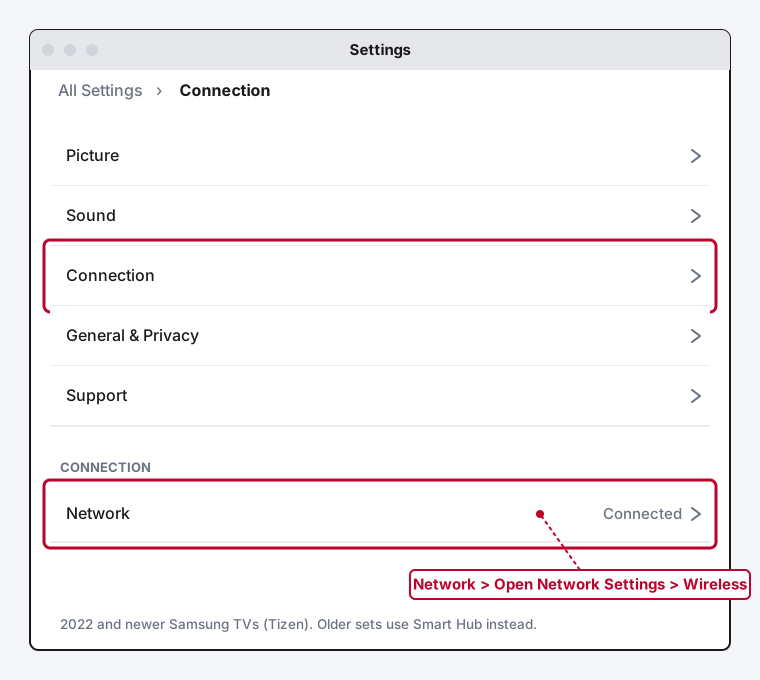
If your TV has an "All Settings" option when you press the Settings button, you're on the newer Tizen-based menu system, and this is your path.
Step 1: Open All Settings
Press the Settings button on your remote (or navigate to it from the home screen), then select All Settings.
Step 2: Go to Connection, Then Network
Select Connection from the sidebar, then Network. You'll see your current status here, Connected, Not Connected, or similar.
Step 3: Open Network Settings
Select Open Network Settings, then choose Wireless.
Step 4: Select Your Network and Enter the Password
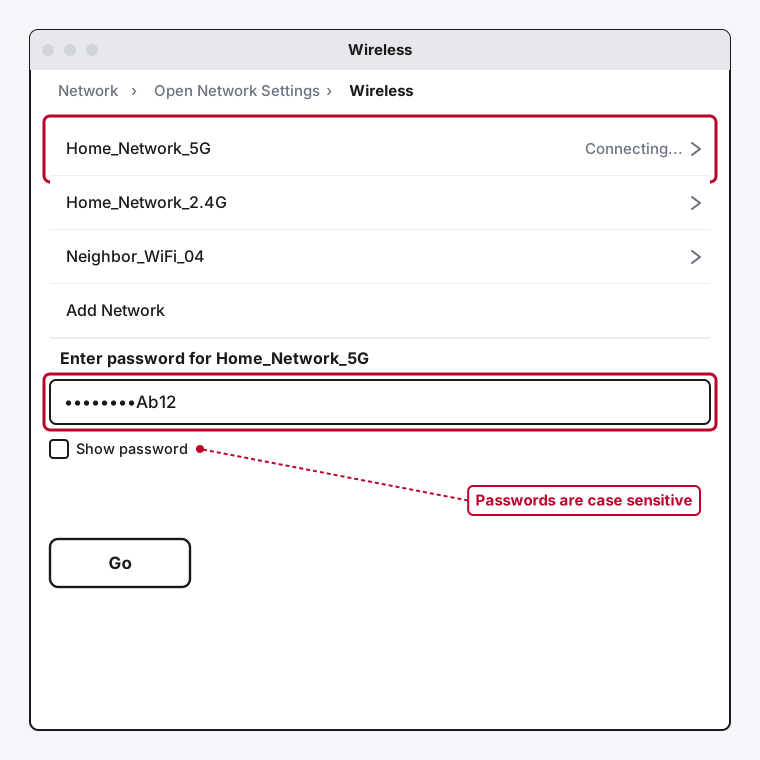
Pick your network from the list of nearby Wi-Fi names, type the password on the on-screen keyboard, and select Go. Check the Show password box first if you want to verify what you've typed before submitting, since a wrong character here is the single most common reason this step fails.
Step 5: Confirm the Connection
The TV will show a brief connecting animation, then return to the Network screen showing Connected. That's it, you're done.
Method 2: Connect a 2021 or Older Samsung TV
Older Samsung TVs run everything through Smart Hub instead of an "All Settings" screen, and the exact path is different enough that Method 1's steps won't line up.
Step 1: Press Home to Open Smart Hub
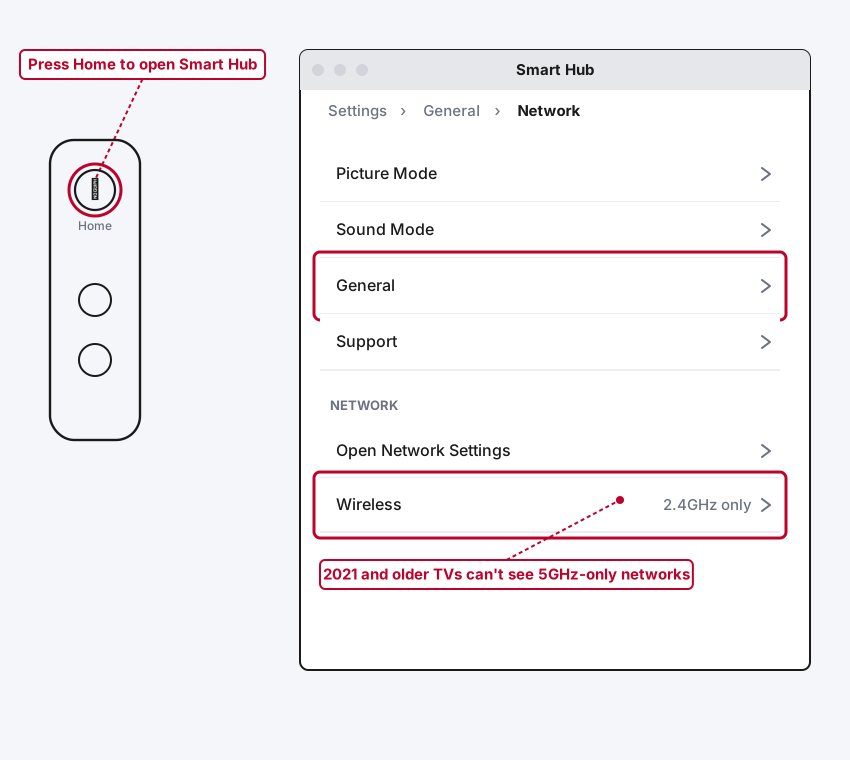
Press the Home button on your remote. This opens Smart Hub, which is where these older models keep their settings instead of a standalone Settings app.
Step 2: Go to Settings, Then General
From Smart Hub, select Settings, then General.
Step 3: Select Network, Then Open Network Settings
Under General, select Network, then Open Network Settings, then Wireless.
Step 4: Pick Your Network and Enter the Password
Same as the newer models: select your network from the list, type the password carefully, and confirm.
One real limitation worth knowing here: these older TVs only support 2.4GHz Wi-Fi. If your network list looks empty or your usual network name is nowhere to be found, that band mismatch is very likely why, not a broken TV.
Method 3: Fix a Network That Doesn't Show Up in the List
If you've made it into the Wireless screen but your network isn't there, it's almost always one of two things.
Check the Band
As covered above, older TVs only see 2.4GHz. Log into your router's admin page (usually reachable by typing its IP address into a browser) and confirm it's broadcasting a 2.4GHz network under its own visible name, not bundled invisibly into a 5GHz-only setup.
Check the Distance and Signal
If the network shows up on your phone standing right next to the TV but not on the TV itself, move the TV or router closer together, or check for obstructions between them like thick walls, metal cabinets, or large mirrors, all of which weaken a Wi-Fi signal more than people expect.
Method 4: Connect to a Hidden Network
If your router's network is intentionally hidden (SSID broadcast turned off), it won't appear in the scan no matter which model you're on.
Step 1: Scroll to the Bottom of the Network List
Below every visible network name, you'll find an option labeled Add Network.
Step 2: Enter the Network Name Manually
Type the exact network name (case sensitive, same as the password), then enter the password when prompted.
Method 5: Set Up a Wired Connection Instead
A wired connection skips Wi-Fi troubleshooting entirely, and Samsung itself generally recommends it for the most stable connection.
Step 1: Connect the Cable
Plug an Ethernet cable into your router or modem, then into the LAN port on the TV itself, or on the One Connect Box if your model uses one (most higher-end Samsung TVs route all their ports through this separate box rather than the TV chassis).
Step 2: Select Wired Instead of Wireless
Follow the same menu path as Method 1 or 2 depending on your TV's age, but choose Wired instead of Wireless at the Open Network Settings screen. The TV detects the connection automatically, no password needed.
Method 6: Use WPS to Skip Typing the Password
Some Samsung TVs support WPS (Wi-Fi Protected Setup), which pairs with a compatible router at the press of a button instead of typing a password on the remote. It's a genuinely convenient shortcut when it's available, though I'd call it inconsistent rather than universal, some owners report it not surviving a full power-off the way a normal saved network does.
Step 1: Check Your Router Has a WPS Button
Not every router supports this, look for a physical button labeled WPS, usually on the back or side.
Step 2: Start WPS on the TV
In the Wireless network list, look for a WPS or "Connect via WPS" option, exact wording varies by model year.
Step 3: Press the Router's WPS Button Within the Time Limit
You'll typically have about two minutes to press the router's WPS button after starting the process on the TV. If it works, the TV connects without ever asking for a password.
If this doesn't stick after a restart, it's not you doing something wrong, just fall back to Method 1 or 2 and enter the password directly, that connection is more reliable long-term anyway.
If Your Samsung TV Won't Connect at All
Everything above assumes you're setting up a fresh connection. If you've been through the right menu path and your TV still refuses to connect, times out, or keeps dropping the connection after it briefly succeeds, that's a genuine troubleshooting problem rather than a setup one, and our Smart TV Won't Connect to Wi-Fi guide covers the router-restart sequence, saved-network resets, and DNS fixes that apply across every smart TV brand, not just Samsung's own menu paths.
Still Not Working?
If you've worked through the right method for your TV's age and it's still not connecting, Samsung's own Wi-Fi troubleshooting page covers model-specific fixes, and their support line can look up known issues for your exact TV by model number. It's also worth confirming another device can connect to the same network normally, if nothing else in the house can either, the problem is your router or your internet service, not the TV.
Frequently Asked Questions
Why does my Samsung TV's settings menu look completely different from what I'm reading?
Samsung changed its menu layout starting with 2022 models. If your remote's Settings button doesn't open an "All Settings" screen, you're on the older Smart Hub-based system in Method 2, not the newer one in Method 1.
Can I connect my Samsung TV to 5GHz Wi-Fi?
Newer Tizen-based TVs (2022 and later) generally support both 2.4GHz and 5GHz. Older models (2021 and earlier) only support 2.4GHz, and won't detect a 5GHz-only network at all.
What's the minimum internet speed to connect a Samsung TV to Wi-Fi?
Samsung's own documentation states the TV needs at least 10 Mbps of network speed just to establish the connection itself, separate from whatever speed you actually need for smooth streaming afterward.
My Samsung TV says the password is wrong, but I know it's correct. What's going on?
Wi-Fi passwords are case sensitive, and a mistyped character on the remote's on-screen keyboard is a very easy, very common mistake. Check the Show password box before submitting so you can actually see what you've typed rather than a row of dots.
Does WPS work on every Samsung TV?
No, and even where it's available, it's not always the most reliable long-term option. It's a genuine convenience for the initial setup, but if it stops working after a power cycle, entering the password directly through Method 1 or 2 is the more dependable fallback.
Quick Summary
Figure out which menu system your Samsung TV runs first, since that decides everything else: 2022 and newer models go through Settings > All Settings > Connection > Network, while 2021 and older models go through Smart Hub (press Home) > Settings > General > Network. From there, both paths land on the same Open Network Settings > Wireless screen, where you pick your network and enter the password carefully, since it's case sensitive. If your network isn't showing up, check whether it's a band mismatch (older TVs only see 2.4GHz) or a hidden network you'll need to add manually. A wired connection through the TV's LAN port or One Connect Box sidesteps Wi-Fi entirely if you'd rather not deal with any of this, and WPS can skip the password step too, when your router supports it and the pairing actually holds. If you've done all of this correctly and the TV still won't connect, that's a troubleshooting problem, not a setup one, and our general Smart TV Wi-Fi guide picks up from there.
Related Articles

Developer Options on Firestick: Find It and Use It
Developer Options is hidden on every Fire TV by default. Here's the tap sequence to reveal it, what each toggle does, and which current models even have it.
How Does a Firestick Actually Work?
A Fire TV Stick is a tiny standalone computer that takes over your TV's smart features. Here's what's actually inside one, how it streams, and why 2026's new models work differently.
How to Clear Cache on an LG Smart TV
Clearing cache on an LG webOS TV means something different depending on your model: a one-tap Memory Optimizer on OLED sets, manual steps on everything else.