

How to Connect Your LG TV to Wi-Fi

How to connect your LG TV to Wi-Fi depends more on which version of webOS your TV is running than on anything else, and LG has reshuffled that settings menu more than once over the years. Find the right layout for your model and it's a two-minute job. Guess wrong and you'll be scrolling through a Network menu that doesn't have the option you're expecting, because it's one level up or down from where you're looking.
I've set this up on three different LG TVs for family members over the past few years, spanning an old webOS 3.5 set and a newer webOS 24 model, and the actual Wi-Fi part never changed. What changed every single time was where "Network" was hiding. Once you know your TV's era, the rest is genuinely quick.
Quick answer: on a 2021 or newer LG TV (webOS 6.0 and up), press the Settings gear on your remote, select All Settings, then go to General > Network > Wi-Fi Connection, pick your network, and enter the password. On a 2018-2020 model, the path is All Settings > Network > Wi-Fi Connection instead, and on 2017 or older sets it's just Settings > Network > Wi-Fi Connection, no All Settings screen at all.
Key takeaways:
- Newer LG TVs (webOS 6.0+, 2021 and later) go through Settings > All Settings > General > Network > Wi-Fi Connection. Older models skip the General step, or the All Settings step entirely, depending on age.
- If Wi-Fi Connection is greyed out and won't let you select it, unplug any Ethernet cable from the back of the TV first. LG's software won't let you configure Wi-Fi while a wired connection is active.
- Wi-Fi passwords on LG TVs are case sensitive, and LG's own support documentation specifically calls this out as a common point of failure.
- A hidden network needs its own option, usually labeled "Add a Hidden Wireless Network," where you type the network name and password manually.
- If your TV connects to Wi-Fi fine but apps won't load, that's often a DNS issue rather than a Wi-Fi issue, and it has its own separate fix.
Prefer an interactive walkthrough? Try our LG TV Wi-Fi Troubleshooter →
Which Setup Method Should You Use?
| Your situation | What to do | Method |
|---|---|---|
| TV bought 2021 or later, has an "All Settings" menu with a "General" section | All Settings > General > Network > Wi-Fi Connection | Method 1 |
| TV from 2018-2020, has "All Settings" but no separate "General" section | All Settings > Network > Wi-Fi Connection | Method 2 |
| TV from 2017 or earlier, no "All Settings" option at all | Settings > Network > Wi-Fi Connection | Method 3 |
| Your network name doesn't show in the list | Check the band, or whether it's hidden | Method 4 or 5 |
| You'd rather skip typing the password | WPS, if your router supports it | Method 6 |
| Wi-Fi connects fine but apps won't load | Manual DNS | Method 7 |
Before You Start: One Thing Worth Checking
If the Wi-Fi Connection option is greyed out and won't respond when you select it, look at the back of the TV first. LG TVs won't let you configure a wireless connection while an Ethernet cable is plugged in, since the software assumes you're using the wired connection on purpose. Unplug it, and the Wi-Fi option should become selectable again.
It's also worth confirming another device, a phone or laptop, can connect to your network normally before you start. If nothing in the house can get online, the problem is your router or your internet service, not the TV, and no amount of menu-hunting on the TV will fix that.
Method 1: Connect a 2021 or Newer LG TV (webOS 6.0+)
If your remote's Settings button opens a quick menu with an "All Settings" option, and that full menu has a dedicated "General" section, you're on a newer webOS build and this is your path.
Step 1: Open Settings, Then All Settings
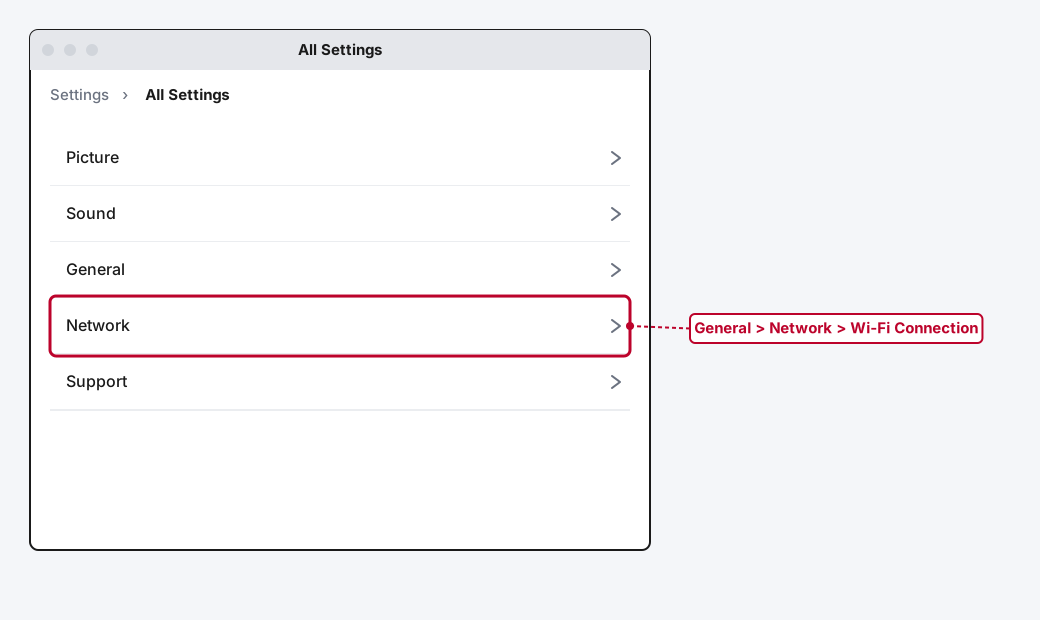
Press the Settings (gear) button on your Magic Remote or standard LG remote. A quick-settings panel appears in the corner. Select All Settings to open the full menu.
Step 2: Go to General, Then Network
Scroll down and select General, then Network.
Step 3: Select Wi-Fi Connection
Choose Wi-Fi Connection. The TV scans for nearby networks, which can take fifteen to thirty seconds.
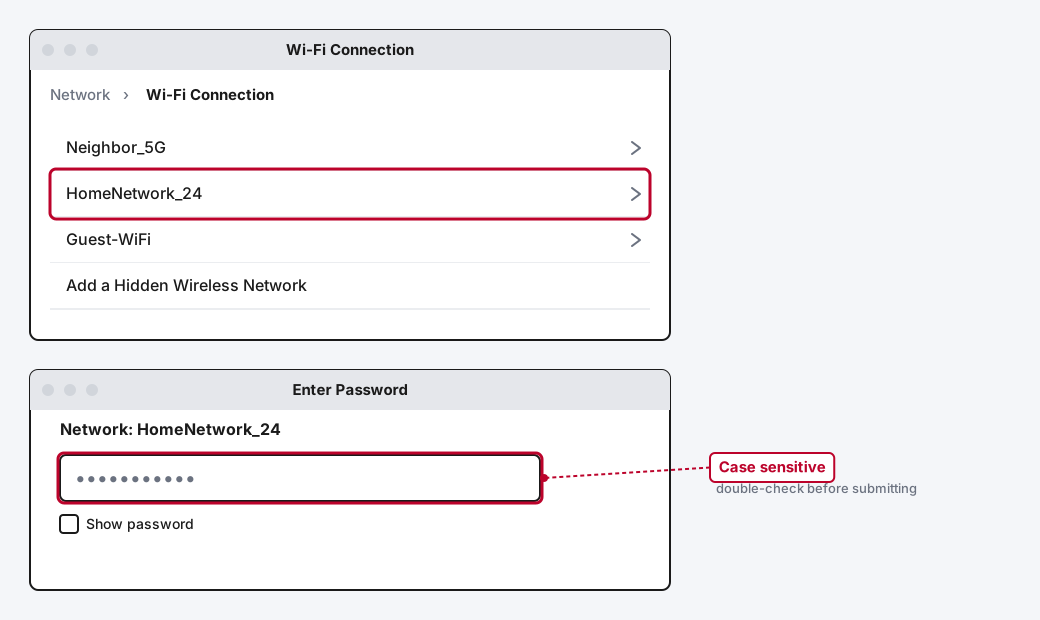
Step 4: Pick Your Network and Enter the Password
Select your network name from the list, type the password on the on-screen keyboard, and confirm. Passwords are case sensitive, so double-check capitalization before submitting.
Step 5: Confirm the Connection
Once connected, the Network screen shows your network name with a connected status. Some models also let you check Network Status from this same screen to confirm both the Wi-Fi link and internet access are working, not just one of the two.
Method 2: Connect a 2018-2020 LG TV (webOS 4.0-5.0)
TVs from this window still have an All Settings screen, but the layout is flatter, there's no separate General section sitting between All Settings and Network.
Step 1: Open All Settings
Press Settings on the remote, then select All Settings.
Step 2: Go Straight to Network
Select Network directly, without a General step in between. On some 2019 and 2020 models this section is labeled Connection instead of Network, so if you don't see Network, look for Connection in the same spot.
Step 3: Select Wi-Fi Connection and Connect
Choose Wi-Fi Connection, pick your network, and enter the password the same way as Method 1.
Method 3: Connect a 2017 or Older LG TV (webOS 3.5 and Earlier)
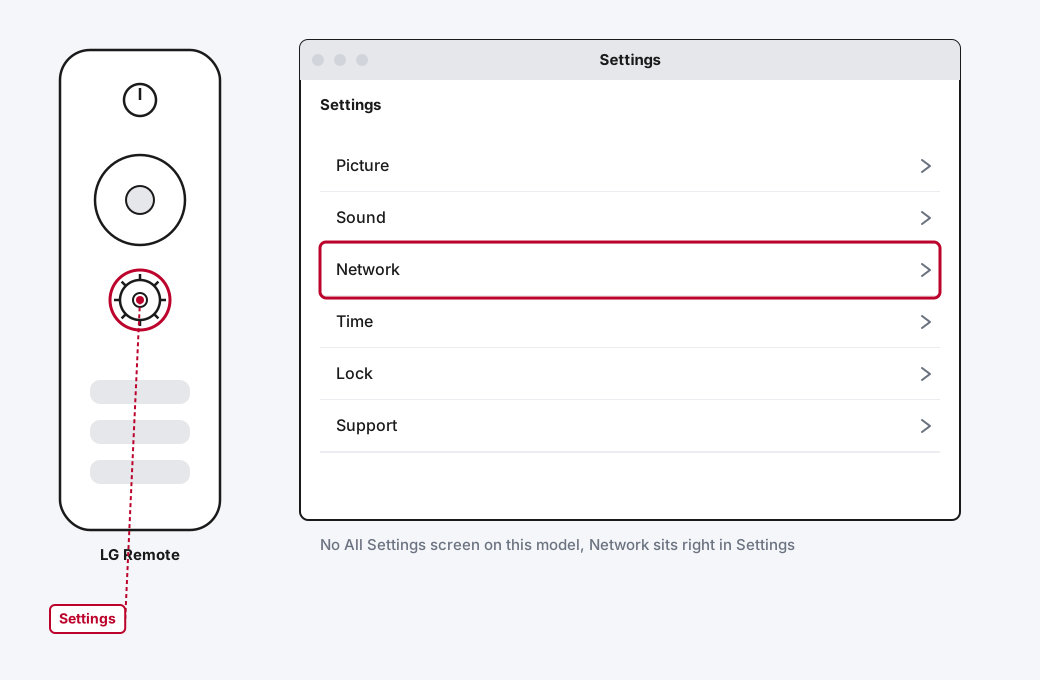
The oldest webOS TVs don't have an All Settings screen at all, everything sits under one flat Settings menu.
Step 1: Open Settings
Press the Settings button on the remote. You'll land directly in a single settings list, no intermediate All Settings screen to click through.
Step 2: Select Network, Then Wi-Fi Connection
Select Network from the list, then Wi-Fi Connection.
Step 3: Pick Your Network and Enter the Password
Same process: select your network, type the password, confirm.
These older sets are also the ones most likely to only see 2.4GHz networks. If your usual network name isn't showing up, that's worth checking before assuming anything else is wrong.
Method 4: Fix a Network That Doesn't Show Up in the List
If you're on the Wi-Fi Connection screen but your network isn't in it, it's almost always one of two things.
Check the Band
Older and budget LG TVs may only support 2.4GHz. Log into your router's admin page and confirm it's broadcasting a 2.4GHz network under its own visible name rather than bundled into a single 5GHz-only or combined network.
Check Signal Strength
If your phone sees a strong signal standing right next to the TV but the TV's list looks weak or empty, move the TV or router closer together, or check for obstructions like thick walls, metal furniture, or large mirrors between them.
Method 5: Connect to a Hidden Network
If your router's network is deliberately hidden (SSID broadcast turned off), it won't show up in the scan no matter which webOS version you're running.
Step 1: Look for "Add a Hidden Wireless Network"
On the Wi-Fi Connection screen, look for this option, usually near the bottom of the visible network list.
Step 2: Enter the Network Name and Password Manually
Type the exact network name, case sensitive, then the password when prompted.
Method 6: Use WPS to Skip Typing the Password
Many LG TVs support WPS, which pairs with a compatible router at the press of a button instead of typing a password on the remote.
Step 1: Confirm Your Router Has a WPS Button
Look for a physical button labeled WPS, usually on the back or side of the router.
Step 2: Start WPS on the TV
On the Wi-Fi Connection screen, look for a WPS or "Connect via WPS (PBC)" option.
Step 3: Press the Router's WPS Button
Press the router's WPS button, generally within about two minutes of starting the process on the TV. If it works, the TV connects without ever prompting for a password.
Method 7: Set a Manual DNS if Wi-Fi Connects But Apps Won't Load
This one catches people off guard because the TV genuinely shows "Connected" on the Network screen while apps still refuse to load or the app store won't open. That's usually a DNS problem, not a Wi-Fi problem, and it needs a separate fix.
Step 1: Open Your Connected Network's Advanced Settings
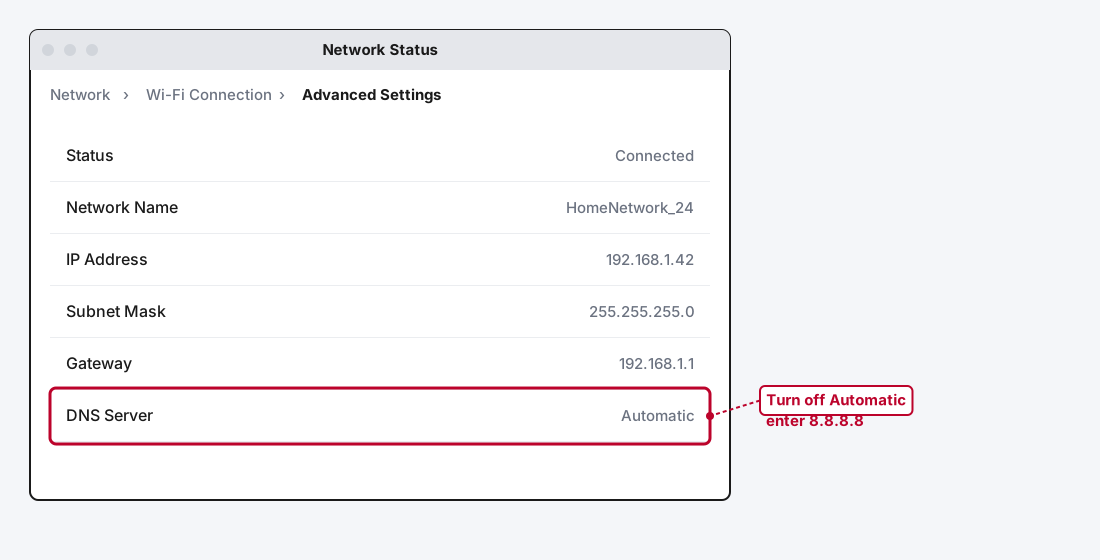
From Wi-Fi Connection, select your connected network, then look for Advanced Settings or Edit.
Step 2: Turn Off Automatic DNS
Disable automatic DNS assignment.
Step 3: Enter a Public DNS Address
Type in a public DNS server, 8.8.8.8 (Google) or 1.1.1.1 (Cloudflare) both work fine, then save and restart the TV.
A wrong or stuck DNS setting is one of the few situations where a TV can be genuinely connected to your network and still act like it isn't online for anything that matters.
If Your LG TV Won't Connect at All
Everything above assumes you're setting up a fresh connection. If you've gone through the right menu path for your TV's age and it still refuses to connect, times out mid-scan, or drops the connection after briefly succeeding, that's a troubleshooting problem rather than a setup one. Our Smart TV Won't Connect to Wi-Fi guide covers the router restart sequence, saved-network resets, and signal fixes that apply across every smart TV brand, not just LG's specific menu wording.
Still Not Working?
LG's own support documentation recommends checking whether other devices on the same network are having trouble first, since that tells you whether the problem is the TV or the network itself. If it's isolated to the TV, a full power cycle in the right order (modem first, wait for it to fully reconnect, then router, then TV) resolves a large share of connection problems before you need to touch a single TV setting. If your TV genuinely can't see any Wi-Fi networks at all even after that, LG's official internet connection troubleshooting page covers what to check next, and notes that a TV that can't detect any networks whatsoever may need service.
Frequently Asked Questions
Why can't I find "All Settings" on my LG TV?
If your Settings button opens a menu with no "All Settings" option, you're on a 2017 or older webOS build, and Method 3 above is your path. Everything lives under a single flat Settings menu on those models instead.
My LG TV's Wi-Fi Connection option is greyed out. What's wrong?
Check the back of the TV for an Ethernet cable. LG TVs disable the wireless option while a wired connection is plugged in, on the assumption you're using it deliberately. Unplug it and Wi-Fi Connection should become selectable again.
Can I connect my LG TV to 5GHz Wi-Fi?
Most LG TVs from the past several years support both bands. Older or budget models are more likely to only see 2.4GHz, so if your network isn't showing up on an older set, check whether your router is broadcasting a 2.4GHz name it can actually see.
My LG TV shows Connected, but apps still won't load. Why?
That's a strong sign of a DNS issue rather than a Wi-Fi issue. Method 7 above walks through setting a manual DNS address, which resolves this far more often than it should.
Does WPS work on every LG TV?
Most current LG TVs support it, but not every router does, and it requires a physical WPS button. It's a genuine shortcut when both sides support it, but typing the password directly through Method 1, 2, or 3 remains the more universally reliable option.
Quick Summary
Figure out your LG TV's webOS era first, since that decides the entire menu path: 2021 and newer models go through Settings > All Settings > General > Network > Wi-Fi Connection, 2018-2020 models skip the General step, and 2017-or-older sets skip All Settings entirely. Wherever you land, the actual connection step is the same everywhere: pick your network, type the password carefully since it's case sensitive, and confirm. A greyed-out Wi-Fi option almost always means an Ethernet cable is still plugged in, a missing network is usually a band mismatch or a hidden SSID, and a TV that connects fine but won't load apps is a DNS problem with its own separate fix. If you've done all of that correctly and the TV still won't connect, that's a troubleshooting issue, not a setup one, and our general Smart TV Wi-Fi guide picks up from there.
Related Articles
Developer Options on Firestick: Find It and Use It
Developer Options is hidden on every Fire TV by default. Here's the tap sequence to reveal it, what each toggle does, and which current models even have it.
How Does a Firestick Actually Work?
A Fire TV Stick is a tiny standalone computer that takes over your TV's smart features. Here's what's actually inside one, how it streams, and why 2026's new models work differently.
How to Clear Cache on an LG Smart TV
Clearing cache on an LG webOS TV means something different depending on your model: a one-tap Memory Optimizer on OLED sets, manual steps on everything else.