

Screen Mirroring iPhone to Samsung TV (AirPlay Setup Guide)

Screen mirroring an iPhone to a Samsung TV doesn't need an app, a cable, or Samsung's Smart View. Samsung TVs from 2018 onward have Apple's AirPlay built in, so your iPhone treats the TV much like an Apple TV. The one catch is that AirPlay has to be switched on in the TV's settings first, and on a lot of Samsung TVs it isn't, or it got turned off by an update. Flip that switch and the rest takes ten seconds from Control Center.
Quick answer: On the Samsung TV, go to Settings > All Settings > Connection > Apple AirPlay Settings (on 2018 to 2021 models, it's under General instead of Connection) and turn AirPlay on. Then, on your iPhone, open Control Center, tap Screen Mirroring, and pick your Samsung TV. Type the code shown on the TV into your iPhone and your screen appears.
Key takeaways:
- Samsung supports AirPlay 2 on select models from 2018 through 2025. Older Samsung TVs don't have it, and no update adds it.
- AirPlay lives in Apple AirPlay Settings, under Connection on 2022 and newer TVs and under General on 2018 to 2021 TVs.
- Your iPhone and the Samsung TV must be on the same Wi-Fi network. Samsung's own guide lists this as a requirement.
- The Require Code setting decides whether you type a code the first time, every time, or a password you choose.
- For videos, the AirPlay icon inside an app usually gives a better picture than mirroring your whole screen.
Prefer an interactive walkthrough? Try our iPhone to Samsung TV Mirroring Helper →
Mirroring to a different brand of TV, or an Apple TV, Roku, or Fire TV? How to Mirror iPhone to TV covers every brand. This guide is just for Samsung.
Does Your Samsung TV Support AirPlay?
| Your Samsung TV | AirPlay support | What to do |
|---|---|---|
| 2019 to 2025 smart TV | Yes, on supported models | Turn on Apple AirPlay Settings (below) |
| 2018 smart TV | Select models, after a firmware update | Update the TV, then look for Apple AirPlay Settings |
| 2017 or older | No | Use an HDMI adapter, or an Apple TV plugged into the Samsung |
| Any Samsung TV with no "Apple AirPlay Settings" menu at all | Not supported on that model | Same as above |
To find your model year, check Settings > Support > About This TV (older menus: Support > Contact Samsung), where the model code is shown. Samsung's own AirPlay pages list compatible models, and Apple keeps a list of AirPlay 2 TVs too.
Before You Start
- Same Wi-Fi network. The iPhone and the Samsung TV must be on the identical network, not a guest network or a different band.
- Updated software. Samsung's support page says AirPlay needs iOS 12.3 or later on the iPhone. Any current iPhone is fine, but update the TV too: Settings > Support > Software Update > Update Now.
Step 1: Turn On AirPlay on the Samsung TV
On 2022 and Newer Samsung TVs
- Press the Home button on the Samsung remote and go to Settings, then All Settings.
- Select Connection.
- Select Apple AirPlay Settings.
- Make sure AirPlay is set to On.
On 2018 to 2021 Samsung TVs
- Go to Settings.
- Select General.
- Select Apple AirPlay Settings and turn AirPlay on.
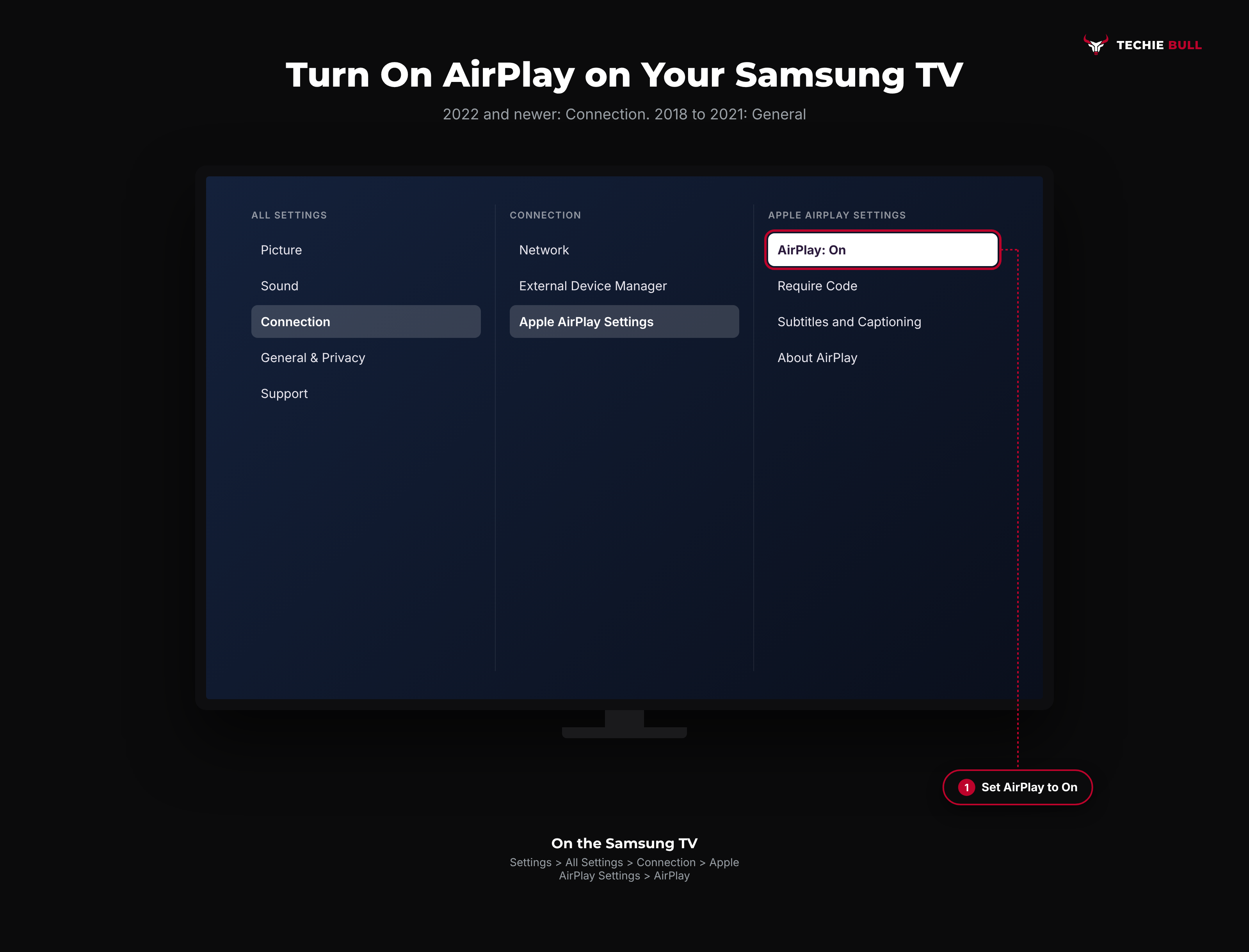
If you can't see Apple AirPlay Settings in either place, update the TV's software and look again. If it's still missing, your model doesn't support AirPlay.
Step 2: Mirror From Your iPhone
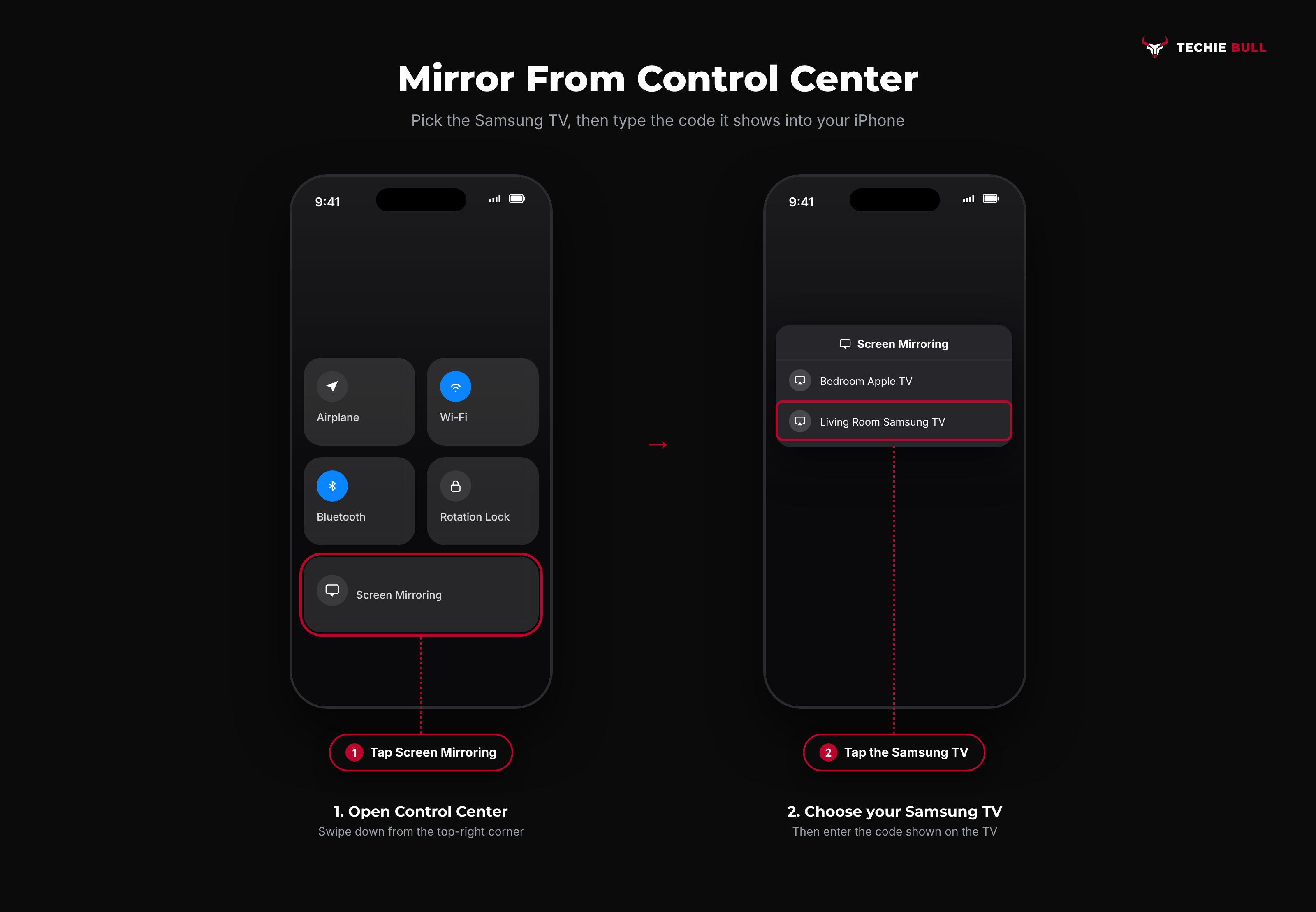
Open Control Center
On an iPhone with Face ID, swipe down from the top-right corner of the screen. On an iPhone with a Home button, swipe up from the bottom edge.
Tap Screen Mirroring and Choose the Samsung TV
Tap the Screen Mirroring icon (two overlapping rectangles), then tap your Samsung TV in the list.
Enter the Code
A four-digit code appears on the Samsung TV. Type it into the iPhone. Your iPhone's screen now shows on the TV. Turn the phone sideways when you're showing videos or photos, so they fill more of the TV.
To stop, open Control Center, tap Screen Mirroring, and tap Stop Mirroring.
I'd change one setting the first time you do this, too. Samsung's Require Code option (in the same Apple AirPlay Settings menu) can ask for a code only the first time a device connects, every time, or use a fixed password you set. In a busy house, "every time" gets old fast. On a TV in a shared flat or office, it's worth keeping.
Better for Video: Use the AirPlay Icon in the App
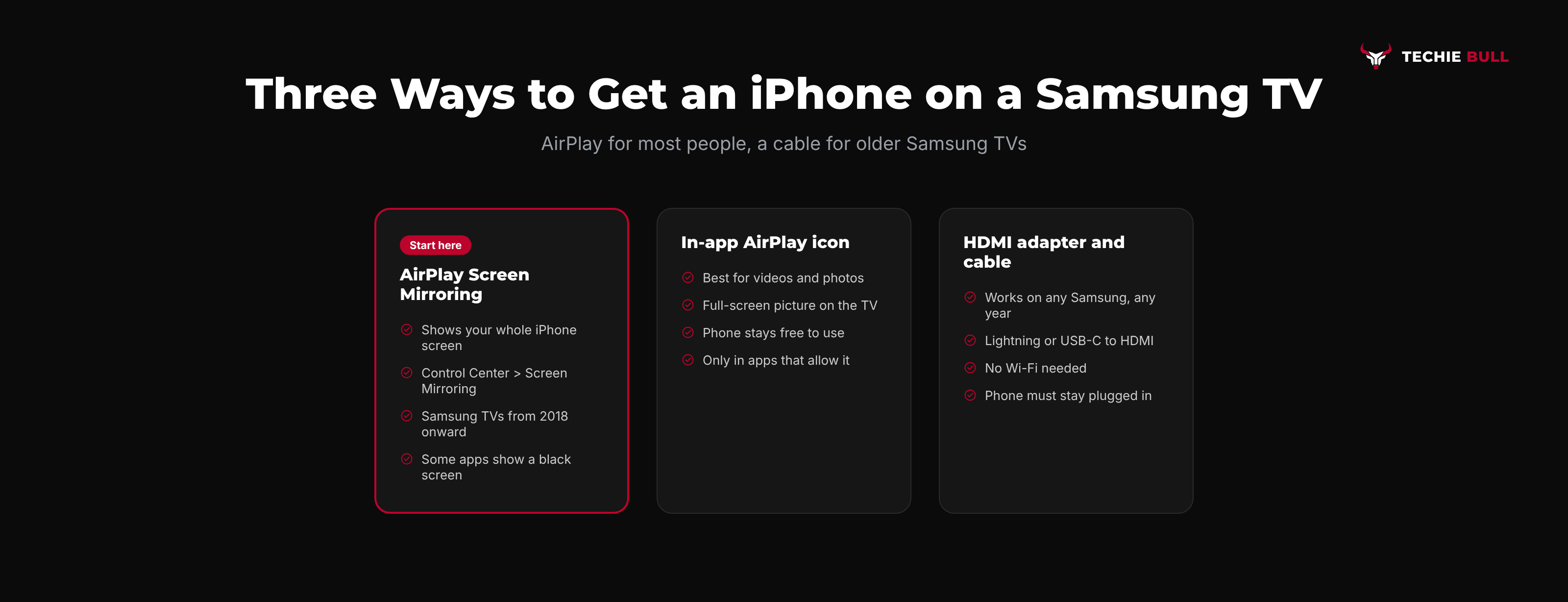
Mirroring copies everything on your iPhone, including notifications and the black bars around a tall phone screen. For watching something, tap the AirPlay icon (a rectangle with a triangle) inside the video player of apps like YouTube or Photos, and choose the Samsung TV. The TV plays the video full-screen and your iPhone becomes a remote, so you can lock it or reply to messages without interrupting the show.
Not every streaming service allows this, and some block mirroring with a black screen. If that happens, open the same app on the Samsung TV itself.
What If Your Samsung TV Doesn't Support AirPlay?
For a pre-2018 Samsung or a model without AirPlay, you've got two dependable options:
- A cable. An iPhone with a Lightning port needs Apple's Lightning Digital AV Adapter and an HDMI cable. An iPhone with USB-C (iPhone 15 and later) uses a USB-C to HDMI adapter. Plug into the TV's HDMI port and switch inputs.
- An Apple TV. Plug one into a spare HDMI port and you get full AirPlay mirroring on any Samsung, old or new.
Samsung's Smart View feature, which you might see recommended, is built for Galaxy phones, not iPhones. Samsung's own iPhone instructions point to AirPlay.
Samsung TV Not Showing Up in Screen Mirroring?
Work through these in order:
- Check AirPlay is on. Go back to Apple AirPlay Settings and confirm AirPlay says On. Updates sometimes switch it off.
- Match the Wi-Fi. Check the network name on the iPhone (Settings > Wi-Fi) against the TV's (Settings > All Settings > Connection > Network > Network Status).
- Turn off any VPN on the iPhone. A VPN can hide your local network and the TV with it.
- Restart both. Turn the TV off at the wall for 30 seconds, and restart the iPhone.
- Update the TV. Settings > Support > Software Update > Update Now.
- Reset AirPlay pairing. If the TV appears but keeps refusing to connect, look in Apple AirPlay Settings for an option to reset paired devices, then connect again and enter a fresh code.
If the TV appears but one app shows a black screen while mirroring, that app is blocking mirroring of its content. Use the app's own AirPlay button or the Samsung TV's version of the app. For deeper AirPlay problems, Why Is AirPlay Not Working? goes through every cause.
Still Not Working?
If AirPlay is on, the networks match, and the TV is updated but still won't appear or connect, Samsung's AirPlay support page covers supported models and connection steps, and Samsung support can check your specific TV. On the iPhone side, Apple's AirPlay troubleshooting article is the official checklist.
Frequently Asked Questions
How do I screen mirror my iPhone to my Samsung TV without an app?
Use AirPlay, which is built into Samsung TVs from 2018 onward. Turn on AirPlay in the TV's Apple AirPlay Settings, then open Control Center on the iPhone, tap Screen Mirroring, and choose the TV. No app is needed on either device.
Where is Apple AirPlay Settings on my Samsung TV?
Under Settings > All Settings > Connection > Apple AirPlay Settings on 2022 and newer models, and Settings > General > Apple AirPlay Settings on 2018 to 2021 models.
Why does my Samsung TV ask for a code every time?
The Require Code setting is set to every time. Change it in Apple AirPlay Settings to only the first time, or set your own password.
Can I use Smart View to mirror an iPhone to a Samsung TV?
Smart View is designed for Samsung Galaxy phones. For an iPhone, Samsung's own instructions use AirPlay through Control Center.
Why is there a black screen when I mirror Netflix or another app?
Some streaming apps block screen mirroring to protect their content. Use the app's built-in AirPlay button if it has one, or the app on the Samsung TV.
Quick Summary
Screen mirroring an iPhone to a Samsung TV is built in on 2018 and newer models. Turn on AirPlay under Settings > All Settings > Connection > Apple AirPlay Settings (General on 2018 to 2021 TVs), put both devices on the same Wi-Fi, then open Control Center, tap Screen Mirroring, pick the TV, and type the code. Use the in-app AirPlay icon for video, a Lightning or USB-C HDMI adapter for older Samsung TVs, and if the TV vanishes from the list, recheck the AirPlay switch, the Wi-Fi name, and any VPN.
Related Articles
How to Connect a Firestick Remote to Your TV (Pair + TV Control)
How to connect a Firestick remote to your TV: pair it to the Fire TV Stick with a 10-second Home hold, then set it up to run your TV's power and volume.
How to Pair a Roku Remote (Voice, Pro, and Simple Remotes)
How to pair a Roku remote in under a minute: the pairing button, the Back and Home shortcut, the Settings menu route, and what to do with a simple IR remote.
LG TV Won't Connect to Wi-Fi? 9 Fixes That Actually Work
LG TV won't connect to Wi-Fi? Run LG's hotspot test to find whether the TV or router is at fault, then fix it with power cycling, Quick Start+, DNS, and more.