

How to Connect a Firestick Remote to Your TV (Pair + TV Control)

How to connect a Firestick remote to your TV is really two jobs that people lump together. First the remote has to pair with the Fire TV Stick itself, over Bluetooth, so you can move around menus and pick shows. Then, separately, it has to learn to control your actual TV, so the power and volume buttons do something. The first happens with a 10-second button hold. The second lives in a settings menu called Equipment Control. Most "my remote won't connect" problems are one of these two, not both.
Quick answer: To pair the remote to the Firestick, put batteries in, point it at the TV, and hold the Home button for 10 seconds until the light flashes and a confirmation appears on screen. To make the power and volume buttons work on your TV, go to Settings > Equipment Control > Manage Equipment > TV, pick your TV's brand, and follow the on-screen tests.
Key takeaways:
- Pairing (navigation, Home, play/pause) and TV control (power, volume, mute) are separate setups. A remote can do one perfectly and fail the other.
- A 10-second hold of the Home button pairs a new or replacement remote, even if you don't have the old one.
- Adding a second remote is easiest from Settings > Controllers & Bluetooth Devices > Amazon Fire TV Remotes > Add New Remote.
- Power and volume control uses HDMI-CEC or infrared, set up under Equipment Control. HDMI-CEC also has to be switched on in your TV's own settings, and it goes by a brand name there.
- Older basic Fire TV remotes have no power or volume buttons at all, so they can only ever control the Fire TV, not the TV.
Prefer an interactive walkthrough? Try our Firestick Remote Setup Helper →
If your remote used to work and has now gone dead, Fire TV Remote Not Working? Here's How to Fix It covers batteries, diagnostic mode, and full resets in depth. This guide is about connecting a remote from scratch.
What "Connecting" Actually Involves
| What you want the remote to do | How it talks | Where you set it up |
|---|---|---|
| Move around menus, open apps, play and pause | Bluetooth to the Fire TV Stick | 10-second Home hold, or Controllers & Bluetooth Devices |
| Voice search with Alexa | Bluetooth to the Fire TV Stick | Works automatically once paired |
| Turn the TV on and off, change TV volume, mute | HDMI-CEC through the HDMI cable, or infrared straight to the TV | Equipment Control on the Fire TV, plus CEC on the TV |
| Control a soundbar or AV receiver's volume | HDMI-CEC or infrared | Equipment Control > Manage Equipment (add the soundbar or receiver) |
The Bluetooth part is why a Fire TV remote works even when the stick is hidden behind the TV. The infrared part is why the volume buttons sometimes only work when you point straight at the TV.
Method 1: Pair the Remote With a 10-Second Home Hold
This is the route for a brand new Fire TV Stick, a replacement remote, or a remote that's lost its pairing. You don't need the old remote.
Step 1: Put Fresh Batteries In
Slide the back cover off and insert two new batteries, checking the direction. Low batteries are the number one reason a pairing attempt does nothing, so don't use ones from the junk drawer.
Step 2: Turn On the TV and Fire TV Stick
Switch the TV to the HDMI input the Fire TV Stick is plugged into and wait for the Fire TV Home screen, or the setup screen on a new stick.
Step 3: Hold Home for 10 Seconds
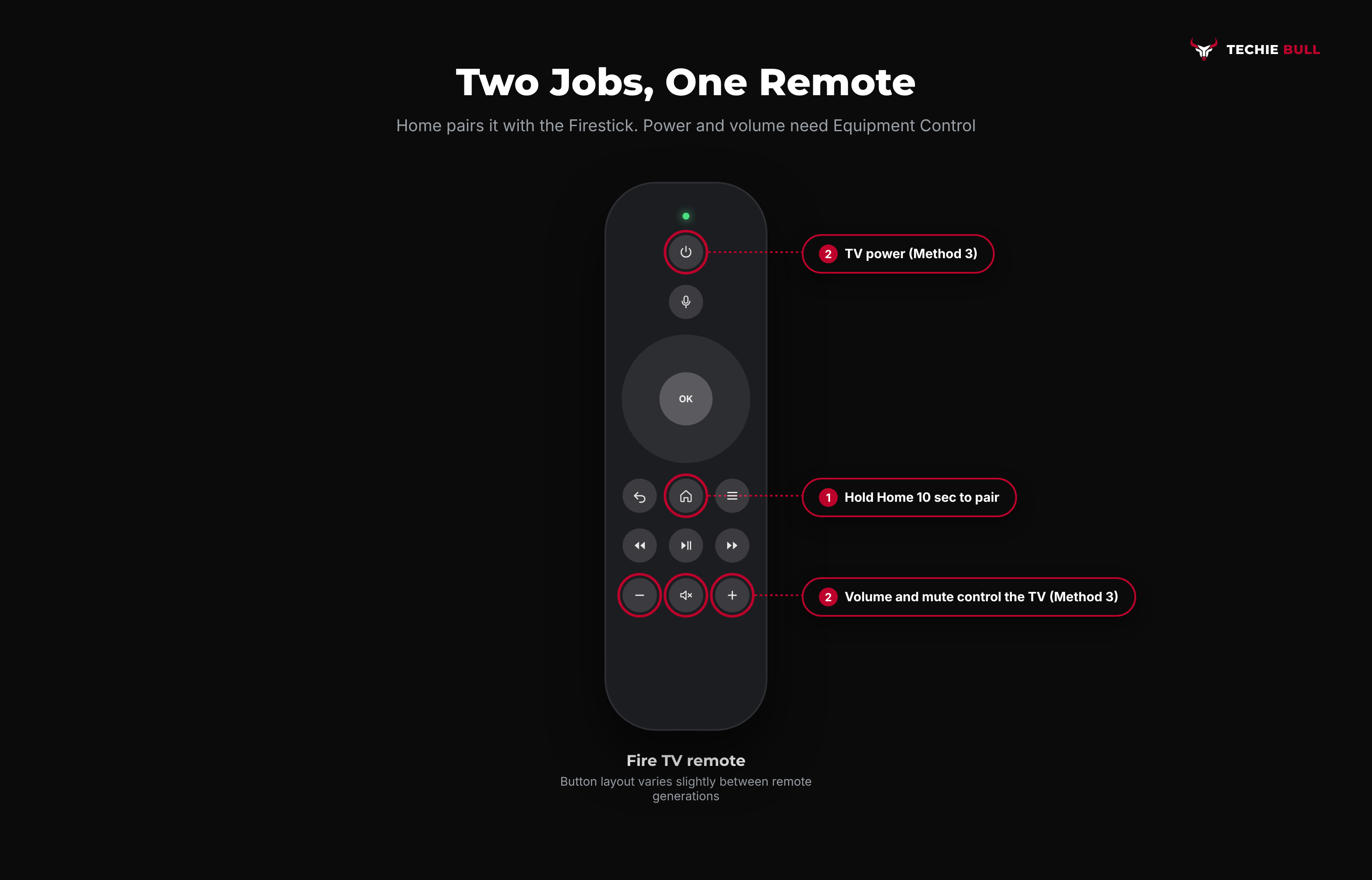
Point the remote at the TV, then press and hold the Home button (the house icon) for 10 seconds. The light at the top of the remote should start flashing.
Step 4: Watch for the Confirmation
A message appears on screen confirming the remote is connected. On a brand new stick, setup continues straight away. If nothing happens, wait a few seconds and repeat the 10-second hold. Some remotes take two attempts on the first pair.
Method 2: Add a New or Second Remote From Settings
If you've got one remote working and want to add another, or the Fire TV app on your phone, use the menu. Amazon's own help page lays it out like this:
Step 1: Open the Remotes Menu
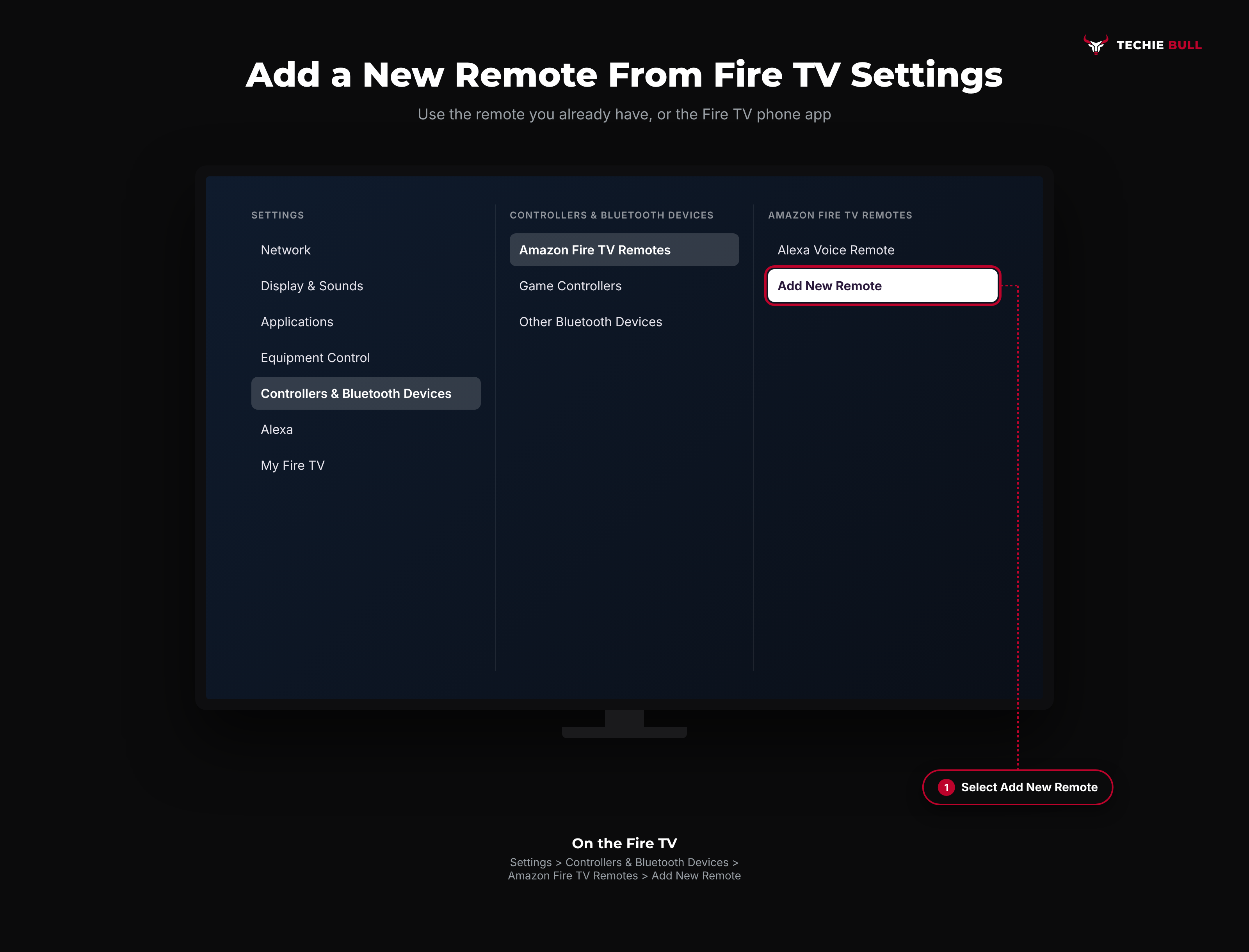
From the Home screen, go to Settings > Controllers & Bluetooth Devices > Amazon Fire TV Remotes.
Step 2: Select Add New Remote
Choose Add New Remote. The Fire TV starts searching.
Step 3: Put the New Remote in Pairing Mode
Insert batteries in the new remote. It should appear in the list on its own. If it doesn't, press and hold its Home button for 10 seconds. Select it with the old remote when it appears to finish pairing.
A Fire TV can have more than one remote paired at the same time, so there's no need to remove the old one. If you're replacing a lost remote, though, it's tidy to remove it here so it can't interfere if it turns up again.
Method 3: Set Up the Remote to Control Your TV
This is the part that makes the remote's power, volume, and mute buttons work on the TV itself. It only applies if your remote actually has those buttons, since the older basic Alexa Voice Remote doesn't.
Step 1: Switch On HDMI-CEC on the TV
HDMI-CEC lets devices on an HDMI cable control each other. Most TVs ship with it on, but not all, and every brand gives it a different name. Look in your TV's settings for:
- Samsung: Anynet+ (HDMI-CEC)
- LG: SIMPLINK (HDMI-CEC)
- Sony: BRAVIA Sync, or Control for HDMI
- Vizio: CEC
- Hisense, TCL, and others: usually CEC, HDMI Control, or something similar
Turn it on. This one setting fixes more "remote won't control my TV" complaints than anything else on this page.
Step 2: Open Equipment Control on the Fire TV
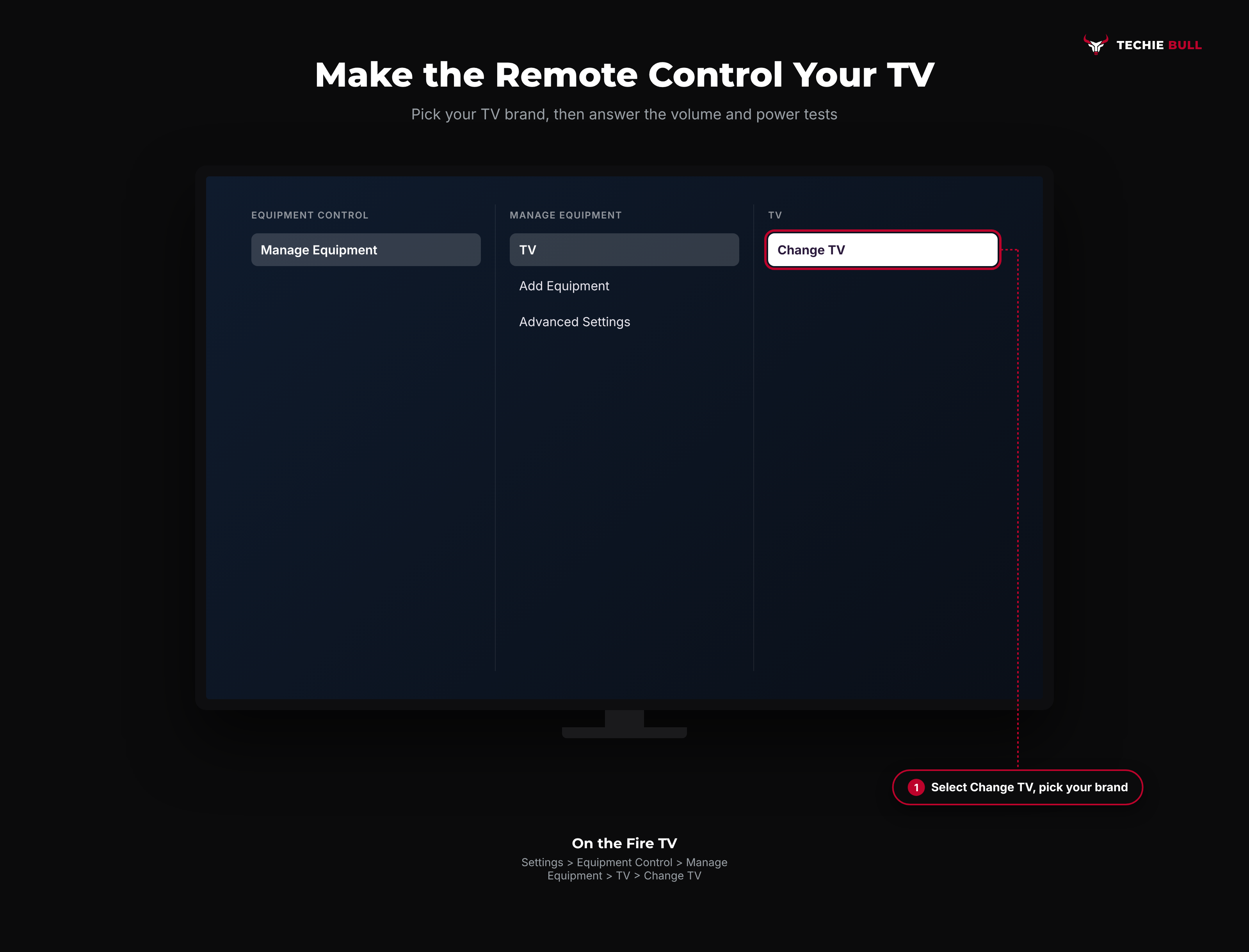
Go to Settings > Equipment Control > Manage Equipment > TV. Some software versions word the entry slightly differently (for example Manage TV), but it lives under Equipment Control.
Step 3: Choose Change TV and Pick the Brand
Select Change TV and choose your TV's brand from the list. The Fire TV then runs a short test: it'll try turning the TV's volume up and down, or the TV off and on, and ask whether that worked.
Step 4: Answer the Tests Honestly
If the TV responded, choose Yes and move on. If it didn't, choose No and the Fire TV tries a different set of codes. It can take a few rounds, which is normal. When it's done, the power and volume buttons on the remote control the TV.
Step 5: Add a Soundbar or Receiver If Your Sound Goes Through One
If your audio plays through a soundbar or AV receiver, the volume buttons need to control that instead of the TV. Go back to Manage Equipment and add the soundbar or receiver, then run the same brand-and-test process.
I set this up on my parents' TV last year and spent ten minutes convinced the remote was faulty, until I noticed the volume was going to the TV speakers while the sound was actually coming out of their soundbar. Adding the soundbar fixed it in about a minute.
Pairing Without the Original Remote
Lost the remote, or bought the stick secondhand? You've got two options.
- Use the replacement remote's Home hold. A new compatible Fire TV remote pairs with the 10-second Home hold from Method 1, no old remote required.
- Use the Fire TV app as a temporary remote. Install the Amazon Fire TV app on your phone, connect it to the stick over the same Wi-Fi, and use it to get into Settings and add a physical remote with Method 2. If the stick has never been connected to your Wi-Fi, the app can't find it, so a physical remote is the only way through first setup.
When the Remote Won't Connect
Run through these before deciding the remote is faulty:
- Fresh batteries first. Pairing draws more power than normal use.
- Restart the Fire TV Stick by unplugging it from power for a few seconds, then try the 10-second Home hold as soon as it boots.
- Check the remote is compatible. Most current Alexa Voice Remotes work across current Fire TV Sticks, but very old Fire TV devices don't support every newer remote. Amazon's product page for each remote lists compatible devices.
- Get closer. Stand within a few feet of the stick while pairing, and keep other Bluetooth gadgets away.
- Volume and power still dead? That's Method 3, not a pairing problem. Check CEC on the TV and re-run Equipment Control.
Still Not Working?
If the remote won't pair with fresh batteries and a restart, or Equipment Control can't find working codes for your TV, Amazon's Fire TV help pages cover remote compatibility and troubleshooting, and Amazon's customer service can confirm whether a remote is faulty. For HDMI-CEC trouble on the TV side, your TV maker's support site is the better bet, since the setting name and location are theirs.
Frequently Asked Questions
How do I pair a new Firestick remote without the old one?
Insert batteries in the new remote, turn on the TV and Fire TV Stick, and hold the Home button for 10 seconds until the light flashes and a confirmation shows on screen. You don't need the old remote at all.
Why does my Firestick remote work but not turn the TV on or change the volume?
Because TV control is a separate setup from pairing. Turn on HDMI-CEC in your TV's settings, then go to Settings > Equipment Control > Manage Equipment > TV on the Fire TV and run the brand test. Also check your remote actually has power and volume buttons.
Can I use one Firestick remote on two different TVs?
A remote pairs with one Fire TV device at a time. If you move the Fire TV Stick to a different TV, the remote comes with it, but you'll need to redo Equipment Control so the power and volume buttons learn the new TV.
How many remotes can I connect to one Firestick?
More than one. Add extras from Settings > Controllers & Bluetooth Devices > Amazon Fire TV Remotes > Add New Remote, and they all stay paired.
Do Fire TV Smart TVs need Equipment Control?
Usually not for the TV itself, since the Fire TV software is built into the TV and the remote controls it directly. Equipment Control is still where you'd add a soundbar or receiver.
Quick Summary
Connecting a Firestick remote to your TV takes two separate steps. Pair it with the Fire TV Stick by holding Home for 10 seconds with fresh batteries in, or add extra remotes from Settings > Controllers & Bluetooth Devices > Amazon Fire TV Remotes > Add New Remote. Then make the power and volume buttons work by switching on HDMI-CEC on the TV and running Settings > Equipment Control > Manage Equipment > TV > Change TV. Add your soundbar there too if your sound goes through one. If pairing still fails after new batteries and a restart, the remote may be incompatible or faulty.
Related Articles
How to Pair a Roku Remote (Voice, Pro, and Simple Remotes)
How to pair a Roku remote in under a minute: the pairing button, the Back and Home shortcut, the Settings menu route, and what to do with a simple IR remote.
LG TV Won't Connect to Wi-Fi? 9 Fixes That Actually Work
LG TV won't connect to Wi-Fi? Run LG's hotspot test to find whether the TV or router is at fault, then fix it with power cycling, Quick Start+, DNS, and more.
Screen Mirroring iPhone to Samsung TV (AirPlay Setup Guide)
How to screen mirror your iPhone to a Samsung TV with AirPlay: turn on Apple AirPlay Settings on the TV, mirror from Control Center, and fix a missing TV.