

LG TV Won't Connect to Wi-Fi? 9 Fixes That Actually Work

When an LG TV won't connect to Wi-Fi, the first thing to figure out isn't which setting to change. It's whether the problem is the TV or your network. LG's own support pages start in exactly that place, and for good reason: if your phone and laptop can't get online either, no amount of fiddling with the TV will help. If everything else works and only the LG refuses, the fixes below are where to look, starting with a proper power cycle that clears more LG Wi-Fi faults than anything else.
Quick answer: Unplug the LG TV from the wall for a full minute, restart your router, then reconnect through Settings > All Settings > General > Network > Internet Connection > Wi-Fi Connection (on 2021 and newer models). If it still won't connect, try your phone's hotspot. If the TV connects to the hotspot, the router is the problem. If it can't even see the hotspot, the TV's Wi-Fi needs attention.
Key takeaways:
- Test with a phone's mobile hotspot before changing anything. It tells you in two minutes whether to fix the TV or the router.
- A real power cycle (unplugged from the wall, not just turned off with the remote) clears most stuck LG Wi-Fi states, especially with Quick Start+ on.
- Quick Start+ keeps the TV in a low-power standby rather than fully off, which can leave a stale network connection hanging around.
- A wrong date and time setting can stop secure connections, so set it to automatic.
- If the TV says it's connected but apps won't load, it's usually DNS, not Wi-Fi.
- An empty network list, or a Wi-Fi menu that's missing, points to a hardware fault that needs LG service.
Prefer an interactive walkthrough? Try our LG TV Wi-Fi Troubleshooter →
Connecting an LG TV for the first time? How to Connect Your LG TV to Wi-Fi walks through the menu path for every webOS version. This guide is for when you've done that and it still won't connect.
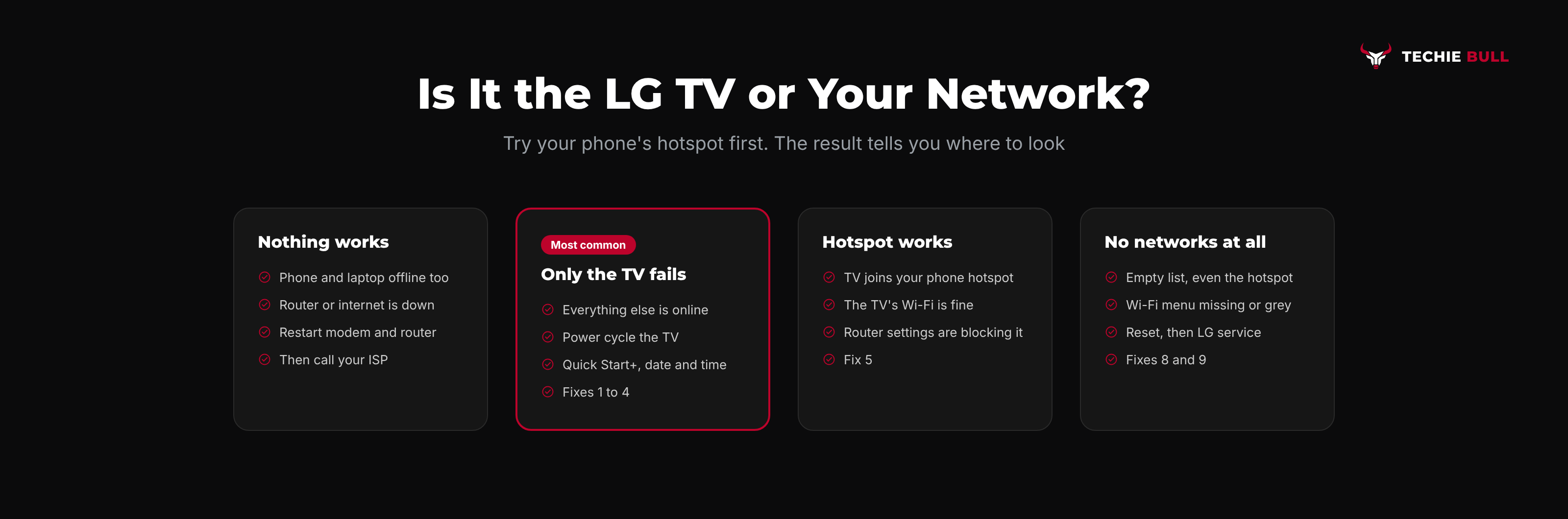
First, Find Out If It's the TV or the Network
This is the test LG's own help library recommends, and it saves a lot of wasted effort.
| What happens | What it means | Where to go |
|---|---|---|
| Phone and laptop can't get online either | The router or your internet service is down | Fix 1, then call your ISP |
| Everything else works, TV won't connect to your Wi-Fi | Something between the TV and router | Fixes 1 to 7 |
| TV connects fine to your phone's hotspot | Your router's settings are the issue | Fix 5 |
| TV can't see any networks, not even the hotspot | TV's Wi-Fi hardware or software | Fixes 8 and 9 |
| TV says "Connected" but apps and the LG Content Store won't load | DNS or internet access, not Wi-Fi | Fix 6 |
To run the hotspot test, turn on Personal Hotspot (iPhone) or Mobile Hotspot (Android) on your phone, then search for it from the TV's Wi-Fi list and connect. Use a little mobile data and switch it off afterwards.
Fix 1: Power Cycle the TV and Router Properly
Turning the TV off with the remote isn't a restart. With Quick Start+ on, it goes into standby and keeps parts of its software, including the network connection, running. A full power cycle clears that.
- Unplug the LG TV from the wall socket.
- While it's unplugged, press and hold the power button on the TV itself (not the remote) for a few seconds to drain leftover power. Not every LG has a reachable button; if yours doesn't, just wait.
- Unplug the router and modem too.
- After a minute, plug the modem and router back in and wait until their lights settle, which can take two or three minutes.
- Plug the TV back in, turn it on, and try connecting again.
I'd bet more LG "Wi-Fi is turned off" errors are fixed by this one step than by everything else on this page combined.
Fix 2: Reconnect From the Right Menu
Once it's powered back up, reconnect through LG's path for your TV's age.
- 2021 and newer (webOS 6.0 and up): Settings > All Settings > General > Network > Internet Connection > Wi-Fi Connection. On some models the Wi-Fi Connection option sits directly under Network.
- 2018 to 2020: Settings > All Settings > Network > Wi-Fi Connection.
- 2017 and older: Settings > Network > Wi-Fi Connection.
Select your network, type the password carefully (LG's on-screen keyboard makes it easy to hit the wrong case), and connect.
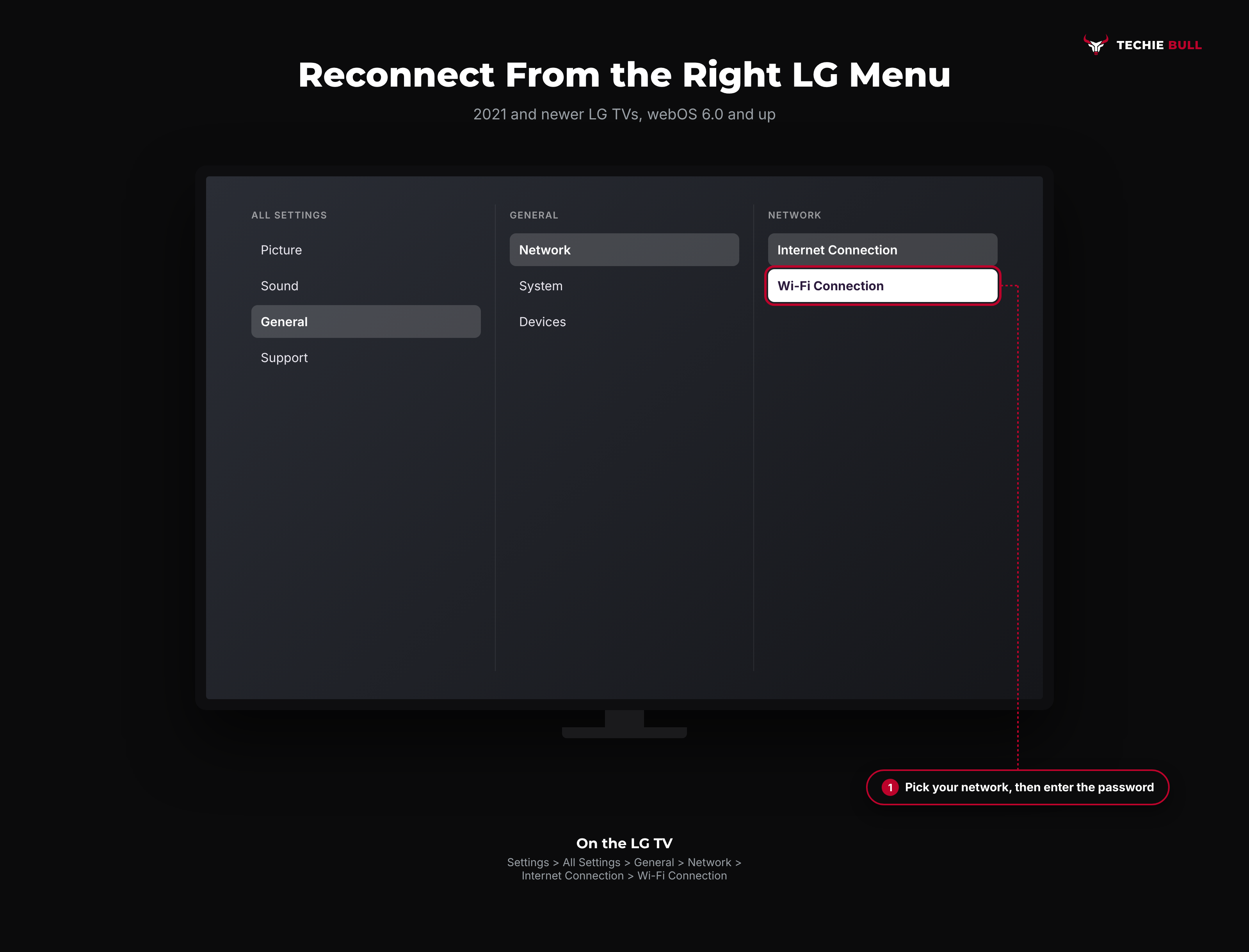
If the network was saved before, select it and choose to forget or delete it first, then reconnect with the password. That forces a fresh connection instead of reusing a broken one.
Fix 3: Turn Off Quick Start+
Quick Start+ makes the TV switch on faster by keeping it in standby instead of shutting down. It's convenient, but several troubleshooting guides point to it as a cause of Wi-Fi that drops or reports as "turned off," because the TV never does a clean network start. Look for Quick Start+ in the General section of All Settings (on newer models it may sit in a submenu such as Devices or Additional Settings), switch it off, then power the TV off and on.
You lose a few seconds at startup. In exchange, the TV reconnects to Wi-Fi from scratch every time it turns on, which is exactly what you want while you're troubleshooting.
Fix 4: Set the Date, Time, and Country Correctly
Secure Wi-Fi and online services check certificates against the TV's clock. If the date is wrong, after a power cut for instance, connections can fail in confusing ways. In the General settings, open the time and date options (on newer models under System) and set them to Automatic. While you're there, check the location or country setting matches where you actually are, since a mismatched region can block LG's online services even when Wi-Fi itself connects.
Fix 5: Check the Router Settings That Trip Up LG TVs
If the hotspot test worked, your router is the thing to adjust. These are the usual suspects:
- Separate the bands. Many routers merge 2.4GHz and 5GHz under one name (called band steering or Smart Connect). Some TVs struggle with that. Temporarily splitting them into two names and connecting the LG to one specific band often fixes it. Older LG TVs only support 2.4GHz.
- Check the security mode. If the router is set to WPA3-only, an older TV may not be able to join. A WPA2/WPA3 mixed mode, or WPA2, keeps older devices working.
- Look for a device block. MAC filtering, parental controls, or a device limit on the router can quietly refuse a new device. Check the router's app or admin page for a blocked or paused TV.
- Move closer, or use Ethernet. A TV at the edge of the Wi-Fi range may see the network but fail to stay connected. An Ethernet cable from the router, or a powerline adapter, removes Wi-Fi from the equation entirely.
Fix 6: Change DNS When It's Connected but Apps Won't Load
If the Network screen says connected but apps, the LG Content Store, or updates fail, the TV usually can't look up internet addresses. From Wi-Fi Connection, select your connected network, then open Advanced Settings or Edit. Turn off automatic DNS and enter a public DNS server such as 8.8.8.8 (Google) or 1.1.1.1 (Cloudflare). Save, then restart the TV.
Fix 7: Update the TV's Software
A webOS update can fix known Wi-Fi bugs. If you can get the TV online at all, even through a phone hotspot or Ethernet, go to Settings > All Settings > Support > Software Update (on older models under General > About This TV) and install anything available. Then switch back to your home Wi-Fi.
Fix 8: When the TV Sees No Networks at All
If the Wi-Fi list is completely empty, or the Wi-Fi menu is greyed out or missing, LG's own help page says an internal component may need service. Before you book a repair, try Fix 1 once more with the TV unplugged for several minutes, and then the reset in Fix 9. If the list is still empty after a reset, it's very likely the TV's Wi-Fi module.
Fix 9: Reset the TV to Initial Settings (Last Resort)
A factory reset wipes your apps, sign-ins, and picture settings, so save it for when nothing else has worked. Look for Reset to Initial Settings in the General section of All Settings (on newer models under General > System). The TV restarts into first-time setup, where you can connect to Wi-Fi again. If you've set a TV PIN, you'll need it here; the default on many LG TVs is 0000.
Still Not Working?
If the TV fails the hotspot test, sees no networks, or won't connect after a reset, contact LG support with your model number, since the Wi-Fi module may need repair under warranty. LG's help library also has an internet connection troubleshooting guide worth checking for your model. If every device in the house is struggling, the problem is your router or internet service, and your ISP is the call to make. For fixes that apply to any brand of TV, see Smart TV Won't Connect to Wi-Fi.
Frequently Asked Questions
Why does my LG TV say Wi-Fi is turned off?
Usually because the TV's network software is stuck, often after waking from Quick Start+ standby. Unplug the TV from the wall for a minute, turn off Quick Start+, and reconnect. If the Wi-Fi option stays greyed out after a reset, the Wi-Fi module may need service.
Why will my LG TV connect to my phone's hotspot but not my router?
That means the TV's Wi-Fi works and something in the router is blocking or confusing it. Split the 2.4GHz and 5GHz bands, check the security mode isn't WPA3-only, and look for MAC filtering or a blocked device in the router settings.
My LG TV says connected but apps won't load. Why?
The TV has Wi-Fi but can't reach the internet properly, usually a DNS problem. Set a manual DNS such as 8.8.8.8 in the connected network's advanced settings, then restart the TV.
Can I connect my LG TV to the internet without Wi-Fi?
Yes. Plug an Ethernet cable from your router into the TV's LAN port. The TV switches to the wired connection automatically, and it's usually faster and more stable than Wi-Fi.
Will a factory reset fix my LG TV's Wi-Fi?
Sometimes, when the problem is corrupted settings. It won't fix a failed Wi-Fi module, and it erases your apps and settings, so try power cycling, Quick Start+, and DNS first.
Quick Summary
When an LG TV won't connect to Wi-Fi, run the phone hotspot test first to see whether the TV or the router is at fault. Then do a real power cycle, unplugging the TV and router, and reconnect through Settings > All Settings > General > Network > Internet Connection > Wi-Fi Connection. Turn off Quick Start+, set the date and time to automatic, and fix router settings like merged bands or WPA3-only security. If it connects but apps won't load, change the DNS. An empty network list after a reset means the TV likely needs LG service.
Related Articles
How to Connect a Firestick Remote to Your TV (Pair + TV Control)
How to connect a Firestick remote to your TV: pair it to the Fire TV Stick with a 10-second Home hold, then set it up to run your TV's power and volume.
How to Pair a Roku Remote (Voice, Pro, and Simple Remotes)
How to pair a Roku remote in under a minute: the pairing button, the Back and Home shortcut, the Settings menu route, and what to do with a simple IR remote.
Screen Mirroring iPhone to Samsung TV (AirPlay Setup Guide)
How to screen mirror your iPhone to a Samsung TV with AirPlay: turn on Apple AirPlay Settings on the TV, mirror from Control Center, and fix a missing TV.