

How to Cast Your Laptop to a TV (Windows, Chromecast & More)

How to cast a laptop to a TV depends almost entirely on what's plugged into that TV, more than most guides let on. A Windows laptop can throw its whole screen at a Smart TV, a Roku, or most Fire TV sticks using a built-in wireless display feature called Miracast, no extra software needed. A Chromecast or a Google TV is a different story entirely, since it doesn't speak Miracast at all, so you're using Chrome's own Cast button instead. I'll walk through both paths, plus the one option that always works regardless of brand: a cable.
Quick answer: On Windows, press Windows key + K to open the Cast panel, then pick your TV from the list. That works for most Smart TVs, Rokus, and newer Fire TV sticks straight out of the box, since they all support the Miracast protocol natively. If your TV is a Chromecast or a Google TV, that won't work at all, open Chrome, click the three-dot menu, select Cast, then choose Cast desktop.
Key takeaways:
- Windows has Miracast casting built right into the OS. No app to install for a Smart TV, Roku, or most current Fire TV sticks, just Windows key + K.
- Chromecast and Google TV devices don't support Miracast. They use Google's own Cast protocol instead, so you're going through Chrome's Cast menu, not the Windows Cast panel.
- Your laptop's own Wi-Fi hardware has to support Miracast for the Windows method to work at all. Most laptops from the last several years do, but some older ones and most desktop PCs genuinely don't, and that's not a setting you can turn on.
- Fire TV's Miracast support has had a messy history, dropped from early hardware, then added back to the Fire TV Stick 4K in a 2019 software update. If the mirroring option isn't in your Fire TV's settings at all, it just isn't supported on that specific device.
Prefer an interactive walkthrough? Try our Laptop to TV Casting Helper →
This article covers getting a laptop's screen onto a TV for the first time. If you're trying to mirror a phone instead, How to Mirror iPhone to TV is the one you want. And if your TV won't even show up on your Wi-Fi network in the first place, that's a connectivity problem, not a casting one, covered in How to Connect Your Samsung TV to Wi-Fi and How to Connect Your LG TV to Wi-Fi.
Which Method Should You Use?
| What's plugged into your TV | Method | Extra software needed? |
|---|---|---|
| Samsung, LG, Sony, or Vizio Smart TV | Windows Cast (Miracast) | No, built into Windows |
| Roku (most models except Express 3700/3710) | Windows Cast (Miracast) | No, built into Windows |
| Fire TV Stick 4K or newer, select other Fire TV models | Fire TV's own Display Mirroring (Miracast) | No, but check your specific model first |
| Chromecast or Google TV | Chrome browser's Cast button | No extra install, but must use Chrome, not Windows' Cast panel |
| Apple TV | Not natively supported from Windows | Needs a third-party Miracast-to-AirPlay bridge, or just use an HDMI cable |
| Any TV, any brand, including older or budget models | HDMI cable | No software at all, just a cable |
Check your TV's own settings or remote shortcut menu before assuming it needs extra software. Miracast support has quietly spread into a lot of hardware that doesn't make a big deal of it on the box.
Before You Start
Two things cause more failed first attempts than anything actually broken with your TV.
Same Wi-Fi network, the identical one. Not just the same house, the same exact network name. If your router splits 2.4GHz and 5GHz into separate SSIDs, or a guest network is active, put your laptop and your TV on the identical network. This single mismatch causes most "my TV isn't showing up" moments, more than any real hardware fault.
Your laptop's Wi-Fi adapter has to actually support Miracast. This is a hardware capability, not a toggle you can flip on. Most laptops built in the last several years support it fine, but some older machines and most desktop PCs with no Wi-Fi radio at all simply can't send a Miracast signal, regardless of which Windows version they're running. If Windows key + K shows no devices anywhere, even on a network you know has a compatible TV on it, this is worth checking before you assume the TV is the problem.
How to Cast From Windows Using Miracast
This is the built-in method and the one I'd try first for a Smart TV, a Roku, or a newer Fire TV. No install required.
Step 1: Open the Cast Panel
Press Windows key + K on your keyboard. This opens a panel showing every nearby Miracast-capable device Windows can find.
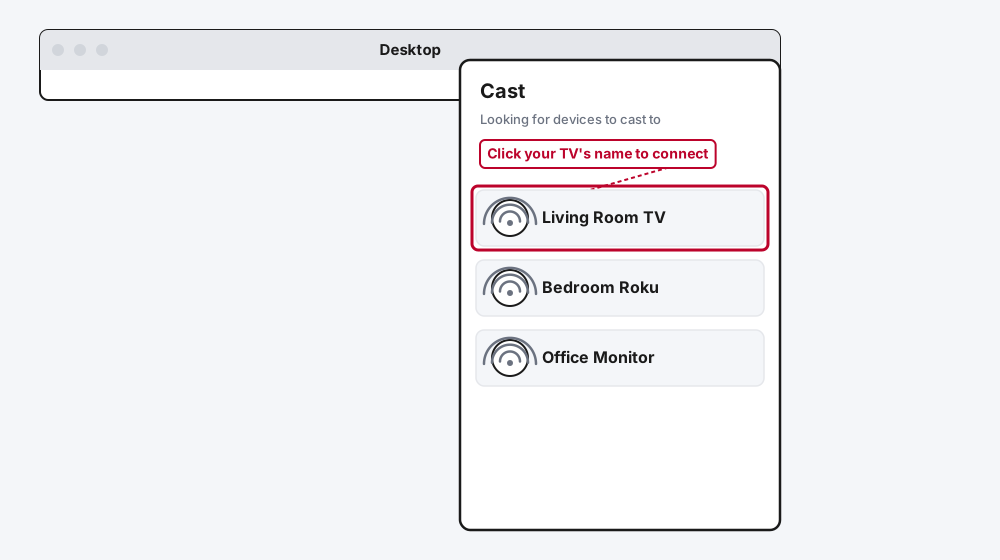
An alternative route to the exact same panel: press Windows key + A to open Quick Settings, then click the Cast tile.
Step 2: Pick Your TV From the List
Click its name. Your TV might ask you to confirm the connection, or show a short PIN code to type into the Cast panel on your laptop, depending on the TV.
Step 3: Choose How You Want It Displayed
Once connected, press Windows key + P to pick a display mode: Duplicate mirrors your laptop screen exactly, Extend turns the TV into a second monitor with its own separate desktop space, Second screen only shows just the TV with your laptop screen blank, and PC screen only disconnects.
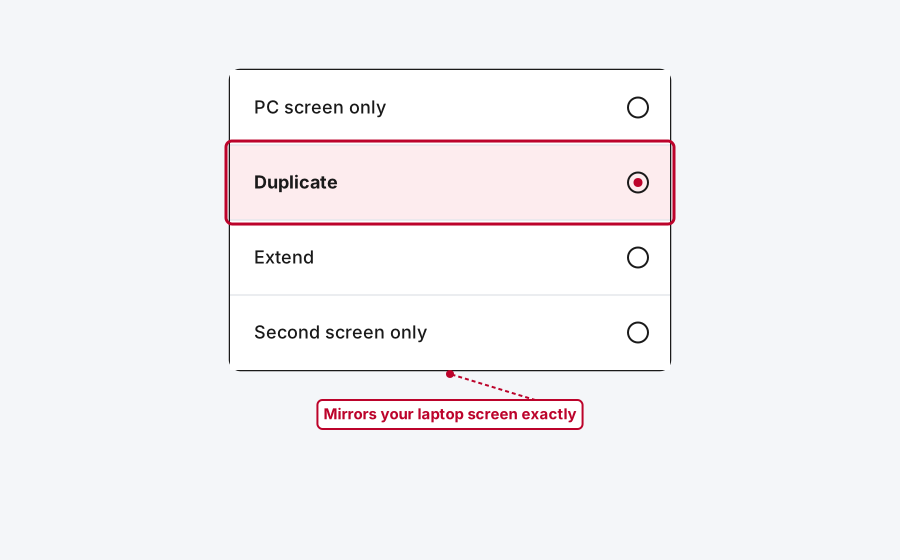
Duplicate is what most people actually want for watching something or giving a casual presentation. Extend is the better pick if you're using the TV as genuine extra screen real estate while still working on the laptop itself.
Casting to a Smart TV's Built-In Screen Mirroring
Most Samsung, LG, Sony, and Vizio Smart TVs made in the last several years have a Miracast receiver built right in, usually labeled Screen Mirroring, Screen Share, or something similar in the TV's own Source or Settings menu.
Samsung's own support documentation points to two routes on the Windows side: open the Action Center from the taskbar and select Connect, or press Windows key + P and choose Connect to a wireless display. Either way, your Smart TV should appear in the device list within a few seconds, and you may need to enter a PIN code that shows up on the TV screen to finish pairing.
If your TV doesn't show up at all, double check that the exact menu path above (Windows key + K is the more direct route) and confirm the TV's own screen mirroring setting is actually switched on rather than assuming it isn't supported.
Casting to a Roku
Roku added genuine Miracast support to most of its players and Roku TVs a while back, with one notable exception: the Roku Express 3700 and 3710 models don't support screen mirroring at all, so don't spend time chasing a setting that genuinely isn't there on those two.
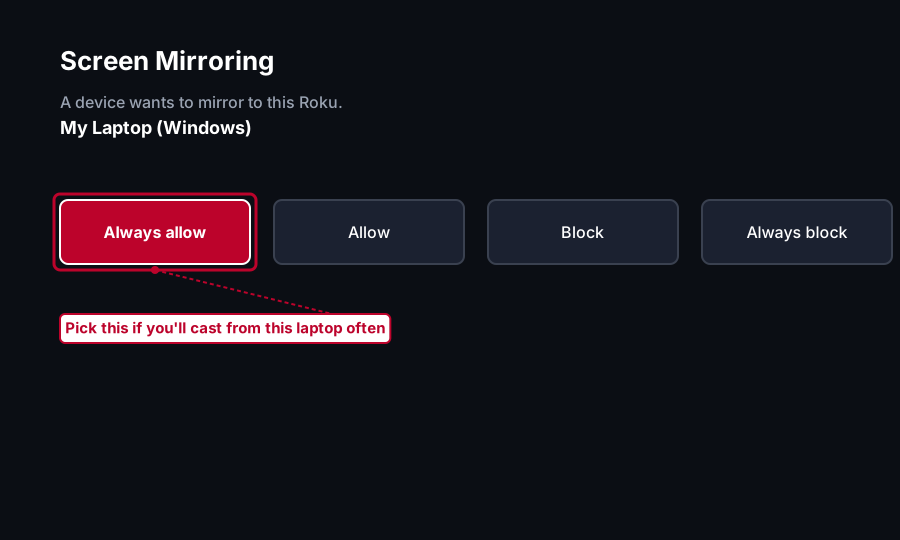
On a supported Roku, the process on the Windows side is identical to the Smart TV method: Windows key + K, pick the Roku from the list. The first time you connect, your Roku will show four options on screen: Always allow (skip the prompt for future connections), Allow (just this once), Block, and Always block. Pick Always allow if this is a laptop you'll be casting from regularly, since otherwise you're approving the connection on the TV every single time.
Casting to a Fire TV
This is the one with the messiest history of the bunch, and I'd rather say that plainly than pretend it's always simple. Early Fire TV hardware had Miracast built in, Amazon dropped it for a stretch, then brought it back to the Fire TV Stick 4K through a 2019 software update. Whether your specific Fire TV supports it at all depends entirely on which model and software version you've got.
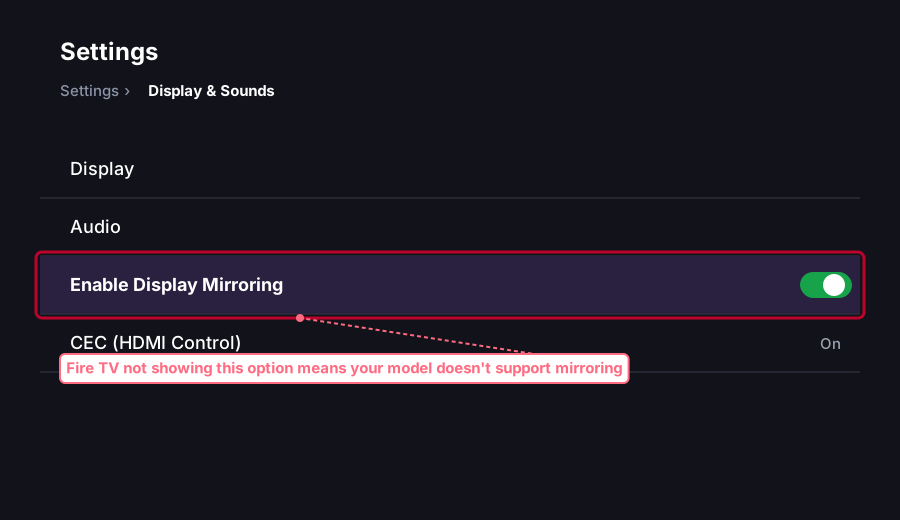
To check, hold the Home button on your Fire TV remote to open the shortcut menu and look for a Mirroring option, or go into Settings > Display & Sounds and look for Enable Display Mirroring. If it genuinely isn't there, your Fire TV doesn't support it, full stop, and Amazon's own support documentation confirms that's the expected signal rather than a bug to troubleshoot around.
Step 1: Enable Display Mirroring on the Fire TV
Go to Settings > Display & Sounds > Enable Display Mirroring on the Fire TV itself.
Step 2: Connect From Your Laptop
With both devices on the same Wi-Fi network, press Windows key + K on your laptop and select the Fire TV from the list.
One real limitation worth knowing: Alexa stops working on your Fire TV while mirroring is active. That's expected behavior, not something broken.
Casting to a Chromecast or Google TV
Here's the part that trips people up the most, so I'll be direct about it: a Chromecast or a Google TV does not support Miracast at all. It's built around Google's own Cast protocol instead, which is a completely different technology that Windows' native Cast panel has no idea how to talk to. Pressing Windows key + K will simply never find a Chromecast, no matter how many times you try it, and that's not a bug on your end.
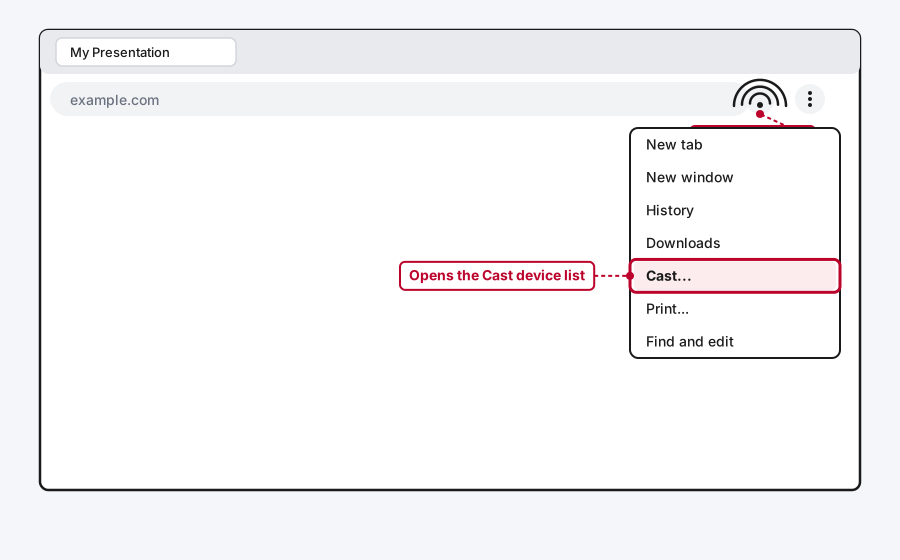
Step 1: Open Chrome's Cast Menu
With Chrome open and both devices on the same Wi-Fi network, click the three-dot menu in the top-right corner and select Cast. If you've pinned the Cast icon to the toolbar, click that directly instead.
Step 2: Choose Cast Desktop
A dropdown shows your available Chromecast or Google TV devices. Select the device, then pick Cast desktop to send your whole screen, rather than Cast tab, which only sends that one browser tab's content.
Windows can also mirror system audio this way, which is genuinely one advantage over a pure video-only mirror, though it depends on the specific site or app you're casting from, and a handful of players like older QuickTime or VLC setups don't always cooperate with it cleanly.
What About an Apple TV?
Short answer: not directly. Apple TV runs on AirPlay, not Miracast, and Windows has no native AirPlay support. Getting a Windows laptop's screen onto an Apple TV specifically means a third-party sender app built to bridge the two protocols, and reliability there is a step down from either native method above. For a one-off, an HDMI cable is the less fiddly answer.
The Reliable Fallback: Just Use an HDMI Cable
If the wireless route is giving you grief, or you need something working right now with zero troubleshooting, a plain HDMI cable from your laptop to any open HDMI input works regardless of brand, software version, or Wi-Fi network, with zero lag and no pairing step. It's less convenient if you want to walk around with the laptop, but it's the one method here that can't fail from a network mismatch.
Common First-Time Problems
Nothing shows up in the Windows Cast panel at all, on any TV. Either the Wi-Fi mismatch covered above, or your laptop's Wi-Fi hardware genuinely doesn't support Miracast. Try casting from a different, newer laptop on the same network to narrow down which one it is.
A Chromecast specifically won't show up in Chrome, even though other casting works fine. This is almost always Windows' network profile setting. Google's own support documentation points directly at this: go to Settings > Network & Internet, select your active connection, and make sure it's set to Private, not Public. A network marked Public blocks the device discovery Chromecast relies on.
It connects, then drops or lags badly. Keep both devices on 5GHz Wi-Fi if your router supports it, and keep the laptop reasonably close to the router. A crowded 2.4GHz band is the most common cause of stutter that has nothing to do with the TV itself.
A router setting is blocking discovery entirely. On a personal router, check that AP isolation is switched off, since that setting deliberately keeps devices on the same Wi-Fi from seeing each other. On a router you don't control, you may need to ask whoever manages it.
Still Not Working?
If you've confirmed the Wi-Fi network matches, checked the network profile setting, and your laptop still won't find or hold a connection to your TV, Microsoft's own screen mirroring support page covers Windows-side troubleshooting in more depth than a getting-started guide can. For Chromecast specifically, Google's Chromecast troubleshooting page is the more relevant one, since the two devices run on genuinely different underlying protocols.
Frequently Asked Questions
Can I cast my laptop to any TV?
Not with the same method every time. Most Smart TVs, Rokus, and newer Fire TV sticks support Windows' built-in Miracast casting directly. A Chromecast or Google TV needs Chrome's own Cast button instead, since it doesn't speak Miracast at all. An HDMI cable works on literally any TV with a free HDMI port, regardless of brand.
Why does Windows key + K find my Roku but not my Chromecast?
Because they're built on two completely different wireless casting technologies. Windows key + K only searches for Miracast devices, and a Chromecast simply isn't one, it uses Google's Cast protocol instead, which only Chrome (or another Cast-aware app) knows how to talk to.
Does casting my laptop to a TV use up my mobile data?
No. Both Miracast and Google Cast work entirely over your local Wi-Fi network, not cellular data, so this works the same whether you're on an unlimited data plan or watching it closely.
My desktop PC can't find any devices at all. Is something broken?
Probably not broken, just missing the right hardware. Most desktop PCs don't have a built-in Wi-Fi adapter with Miracast support the way laptops do, so Windows key + K won't find anything no matter how correctly everything else is set up. An HDMI cable, or a USB Wi-Fi adapter that specifically advertises Miracast support, are your real options there.
Can I cast just one browser tab instead of my whole screen?
Yes, through Chrome's Cast menu to a Chromecast or Google TV. The same menu that offers Cast desktop also offers Cast tab, sending only that tab's content, useful if you don't want notifications or other open windows showing up on the TV.
Quick Summary
Casting a laptop to a TV comes down to which protocol your TV actually speaks. Windows' own built-in Cast panel (Windows key + K) handles most Smart TVs, Rokus, and newer Fire TV sticks directly through Miracast, no extra software needed. A Chromecast or Google TV is the real exception, since it runs on Google's Cast protocol instead, which means going through Chrome's Cast button rather than Windows' native panel. Get both devices on the identical Wi-Fi network first, make sure that network is set to Private if a Chromecast is involved, and when all else fails, a plain HDMI cable works on any TV with zero network troubleshooting at all.