

Streaming Problems on Smart TV? Here's the Real Fix

Streaming problems on a smart TV usually look like an app problem at first. Netflix buffers, so you blame Netflix. Then Disney+ does the same thing an hour later, and so does the free channel app you barely use. That pattern is the actual clue: when more than one app on the same TV is acting up, the TV itself is almost always the real source, not any single streaming service.
I've gone down the wrong path on this myself, restarting a Fire Stick a dozen times over a few weeks before I actually checked what was eating its storage. A smart TV or streaming box is a small, often aging computer running several apps that all want the same limited memory, storage, and network bandwidth, and when it's overloaded, every app shows it a little differently. One crashes outright, one freezes on the loading screen, one just buffers constantly. Same cause, different symptom.
Quick answer: if buffering, freezing, or crashing is happening across more than one streaming app on the same TV, start with a real restart of the TV itself (not just the app), then clear that app's cache if your TV supports it, and check your actual Wi-Fi signal strength at the TV using its own built-in network tool rather than assuming your internet is fine because everything else in the house streams okay. If the problems are isolated to one specific app, this isn't the right article, your Wi-Fi is fine and the issue is that one app's own settings or install.
Key takeaways:
- Problems on more than one streaming app, on the same TV, point to the TV, not any individual service, so stop troubleshooting app by app.
- A real power-cycle restart clears more stuck TV problems than people expect, more reliably than restarting from the remote's power button on some models.
- Samsung, LG, and Android-based TVs let you clear a specific app's cache without reinstalling it. Roku doesn't offer that option at all, a full app reinstall is the equivalent fix there.
- Your TV's own network diagnostic tool (every major platform has one) tells you the actual signal strength and speed reaching that specific device, which is often worse than what your phone or laptop sees from across the room.
- Older smart TVs genuinely slow down as apps get heavier over time, even with nothing wrong. That's a real limitation worth knowing about, not something a setting fixes.
Prefer an interactive walkthrough? Try our Smart TV Streaming Troubleshooter →
Quick Diagnostic: What's Actually Going Wrong?
| What you're seeing | Likely cause | Try this first |
|---|---|---|
| Several different apps buffer, freeze, or crash, not just one | The TV itself, not any app | Method 1 |
| Restarting the TV helps for a bit, then it comes back | A specific app's cache or storage is clogged | Method 2 |
| Everything else in the house streams fine, but this TV struggles | Weak signal reaching this specific device | Method 3 |
| Problems happen mostly in the evening or when others are home | Too many devices sharing the same connection | Method 4 |
| Problems started after you noticed, with no obvious cause | Outdated TV software or app version | Method 5 |
| The TV is several years old and this has been getting slowly worse | Aging hardware, not a setting to fix | Method 6 |
Method 1: Actually Restart the TV, Not Just the App
This sounds too basic to be the real fix, but closing and reopening an app only clears that app's memory, not whatever else is stuck running in the background on the TV itself. A full restart clears all of it at once.
Step 1: Power-Cycle It From the Wall, Not the Remote
On most smart TVs and streaming boxes, holding the remote's power button puts the device to sleep rather than actually restarting it, which means whatever was stuck stays stuck. Unplug the TV or streaming box from the wall outlet directly, wait a full 30 seconds, then plug it back in. That gap matters: some internal components hold a small charge for a few seconds after being unplugged, and cutting power for less than that doesn't fully clear it.
Step 2: Let It Fully Boot Before Opening Anything
Give it a minute or two to finish starting up completely before launching a streaming app again. Opening an app the instant the home screen appears, before background services have finished loading, is a common way to get a false "still broken" result right after a restart that actually worked.
Step 3: Test With a Different App First
Open something other than whichever app was giving you trouble before, just to confirm the restart helped generally rather than just resetting that one app's own state.
Method 2: Clear the Problem App's Cache and Data
If a restart helps for a while and then the same symptoms creep back, a specific app's cache is the more likely culprit, and most platforms let you clear it without uninstalling anything.
On a Samsung Smart TV
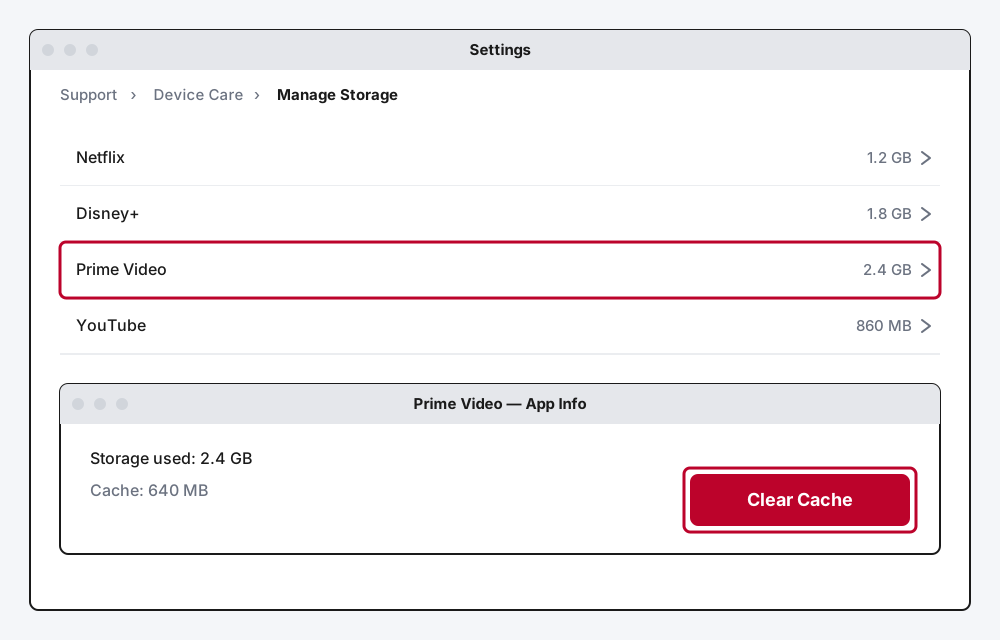
Go to Settings > Support > Device Care > Manage Storage, select the app that's been giving you trouble, choose View Details, then Clear Cache.
On an LG Smart TV
The path varies a little by model year, but it's generally Settings > General > Storage, where you'll find a list of installed apps with their own Clear Cache option next to each one.
On a Sony, Android TV, or Google TV
Go to Settings > Apps > See all apps, select the app, and tap Clear Cache. These platforms also separate out Clear Data, which wipes the app's saved logins and preferences too, worth trying only if clearing the cache alone doesn't help, since you'll need to sign back in afterward.
On Roku
Roku genuinely doesn't offer a cache-clearing option for individual channels, it's not hidden somewhere you missed. The equivalent fix is removing the app from the home screen and reinstalling it from the Channel Store, which clears out the same stuck data a cache clear would on other platforms.
On Fire TV or a Firestick
Go to Settings > Applications > Manage Installed Applications, select the app, and you'll see separate Clear Cache and Clear Data options, the same split as Sony and Android TV.
Method 3: Check the Actual Signal Reaching This TV
Here's a real trap: your phone streaming fine from the couch doesn't mean your TV's Wi-Fi connection is fine. TVs are often tucked into furniture, mounted close to metal studs, or simply placed farther from the router than anything else in the room, and most have a noticeably weaker Wi-Fi antenna than a phone or laptop to begin with. Don't guess, check the TV's own network tool directly.
On Roku
Press Home, then go to Settings > Network > Check connection. Roku runs a real test and shows you a signal-quality rating alongside an actual download speed, not just a generic "connected" status.
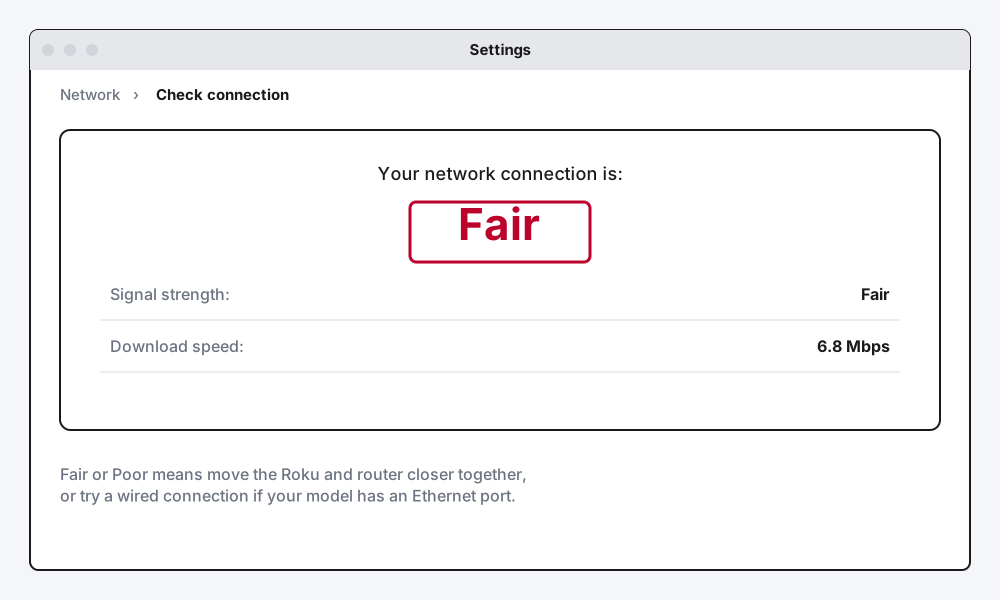
A result of Excellent or Good means the network itself is fine and the problem is elsewhere. Fair means move the TV or router closer together, or clear any obvious obstruction between them. Poor means restart both the Roku device and the router (unplug each for 30 seconds), and if that doesn't help, switching to a wired Ethernet connection is the most reliable fix available for a device that's chronically stuck with a weak signal.
On Fire TV or a Firestick
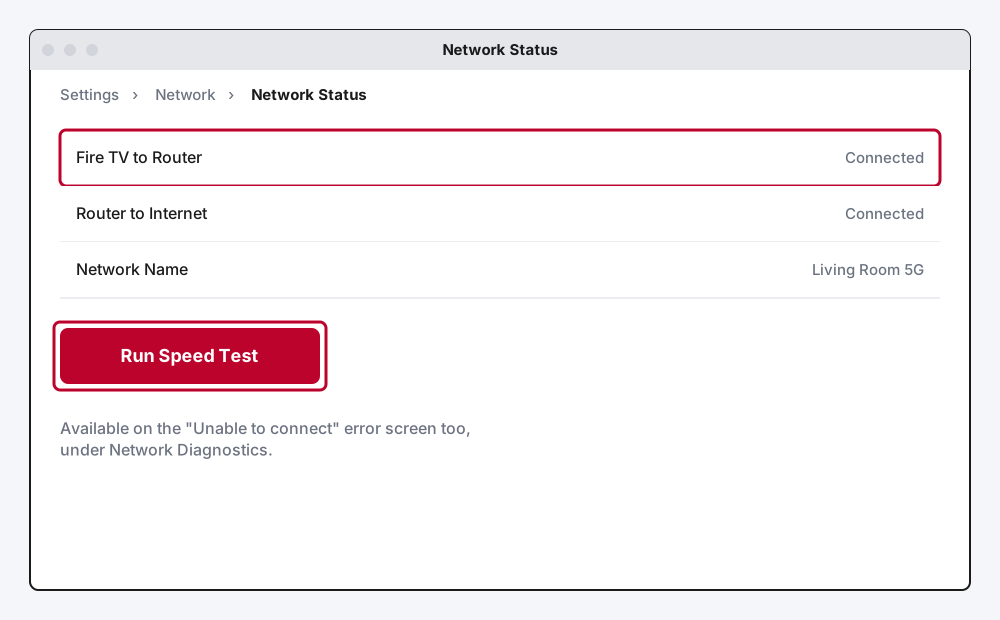
Go to Settings > Network, or select Network Diagnostics directly from an "Unable to connect" error if one shows up. Amazon's built-in Network Status tool checks the connection between your Fire TV and the router, and separately between the router and the internet, so it can actually tell you which half is failing. On supported devices there's also a Run Speed Test button for a real download-speed number.
On a Samsung or LG Smart TV
The same idea applies even without a one-tap speed test built in. On Samsung, check Settings > Connection > Network > Network Status for a signal-strength reading. On LG, the network screen lives under Settings > All Settings > General > Network, where you can see whether the connection is active and reconnect if it's dropped.
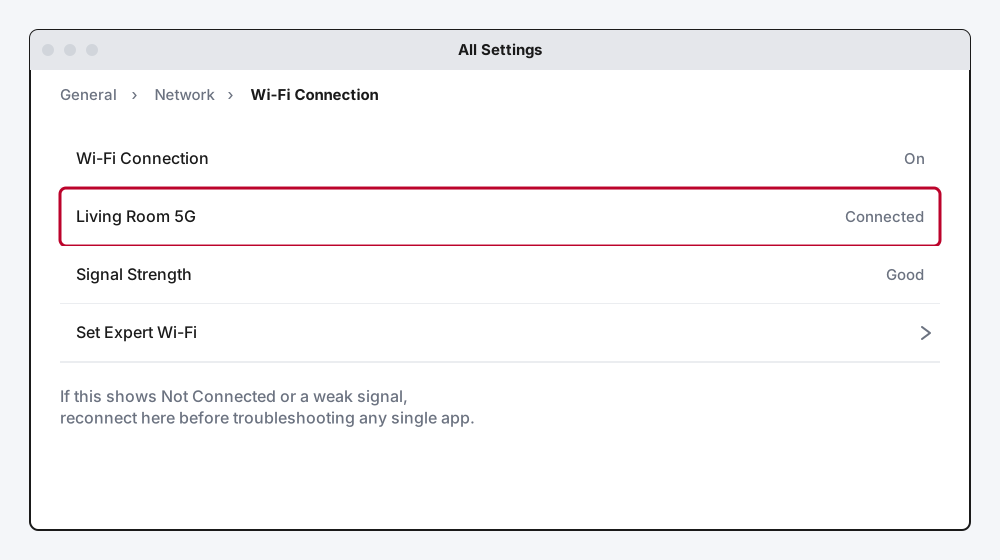
If the signal reads weak on either brand, the same fixes apply: move the TV closer to the router, remove obstructions, or run an Ethernet cable if the TV has a port for one.
Method 4: Rule Out Everyone Else on the Network
If problems cluster around specific times of day, evenings especially, the TV's connection might be fine on its own but overloaded by everything else competing for the same bandwidth.
A 4K stream alone can use several times the bandwidth of an HD one, and it adds up fast with a few people in the house streaming, gaming online, or on a video call at once. If you can, check how many devices are actually connected to your router, most router apps show this directly. Moving your TV to the 5GHz band instead of 2.4GHz, if your router offers both and the TV is close enough for 5GHz's shorter range, usually helps more than almost any other single change here, since 2.4GHz is also the band most of your other smart-home devices are competing on.
Method 5: Update the TV's Software and the App Itself
An outdated software build, on either the TV's own operating system or the individual app, is a genuinely common and easy-to-miss cause, especially right after a streaming service pushes a big update to its own app that an older TV platform doesn't handle well yet.
Check for a system update under your TV's general settings (the exact label is Software Update on Samsung, under General > About This TV on LG, and System > System Update on Roku and Fire TV), and separately check whether the specific app that's been acting up has a pending update in its own app store. These are two different update paths, and updating one doesn't update the other.
Method 6: Know When It's Just the TV Getting Older
This one's less of a fix and more of an honest thing worth saying plainly: smart TVs don't get more powerful as they age, but the apps running on them do get heavier. A TV from four or five years ago shipped with enough memory and processing power for what streaming apps needed back then, and today's versions of those same apps are bigger, do more in the background, and expect more from the hardware.
If you've worked through every method above and the same TV still struggles in a way a brand-new streaming stick plugged into the same TV doesn't, that's a real answer, not a dead end. A $30 to $50 streaming device (a current Roku, Fire TV Stick, or Google TV Streamer) plugged into any TV's HDMI port instantly gives it current-generation processing power and memory, without replacing the whole television. I've recommended this exact fix to more people than any other item on this list, since it's genuinely cheaper and more effective than anything a settings menu can do for hardware that's simply reached its limit.
Still Not Working?
If you've restarted properly, cleared cache, confirmed a strong signal at the TV, and ruled out network congestion, and the problem is still happening across multiple apps, it's worth checking your TV manufacturer's own support resources for anything specific to your exact model: Samsung Support, LG Support, Roku Support, and Amazon's Fire TV help pages all cover model-specific quirks that a general guide like this one can't. And if your TV can't even stay connected to Wi-Fi in the first place, rather than connecting but struggling once it's streaming, that's a different underlying problem, covered in Smart TV Won't Connect to Wi-Fi? Here's the Fix instead of this one.
Frequently Asked Questions
Why does my smart TV buffer on every app, but my phone streams fine on the same Wi-Fi?
Because the phone and the TV aren't actually testing the same connection. TVs often sit farther from the router, have a weaker Wi-Fi antenna than a phone, and can be partially blocked by furniture or a wall-mounted TV's own positioning. Check the TV's own network diagnostic tool (Method 3) rather than assuming the two devices see the same signal.
Does clearing an app's cache delete my saved shows or login?
No, not on its own. Clearing cache just removes temporary files the app stores to load faster, you'll stay logged in and your watchlist stays intact. Clearing data (a separate option on some platforms) does sign you out, so only use that if cache alone doesn't help.
Will a factory reset fix streaming problems on my smart TV?
Sometimes, but it's a much bigger step than most streaming issues actually need, and it wipes every app and setting back to default. Work through restarting, cache clearing, and the network check first. If none of that helps and the TV is still relatively new, a factory reset is a reasonable next step before assuming it's a hardware issue.
Is it worth buying a separate streaming stick if my TV is a "smart TV" already?
Yes, genuinely, if your TV is more than a few years old. A current streaming stick has more memory and a faster processor than most TVs' built-in smart platforms did when they were made, and it's a cheaper fix than replacing the television for a problem that's really just aging hardware.
Why do streaming problems get worse in the evening specifically?
Two separate things both peak then: more people in your own house are online at once, and streaming services themselves see their heaviest nationwide traffic in the evening, which can occasionally mean the slowdown isn't on your end at all. Method 4 covers checking your own network's share of that load.
Quick Summary
When streaming problems show up on more than one app on the same TV, the TV is the actual source, not any single service, so stop troubleshooting app by app and start with a real power-cycle restart. If that only helps temporarily, clear the specific app's cache (or reinstall it, on Roku). Check your TV's own network diagnostic tool rather than trusting what your phone sees from across the room, and rule out everyone else in the house competing for the same bandwidth before assuming something's broken. And if you've done all of that on a TV that's a few years old, a cheap current streaming stick plugged into its HDMI port is often the real, honest fix, not a settings tweak you haven't found yet.
Related Articles

Developer Options on Firestick: Find It and Use It
Developer Options is hidden on every Fire TV by default. Here's the tap sequence to reveal it, what each toggle does, and which current models even have it.
How Does a Firestick Actually Work?
A Fire TV Stick is a tiny standalone computer that takes over your TV's smart features. Here's what's actually inside one, how it streams, and why 2026's new models work differently.
How to Clear Cache on an LG Smart TV
Clearing cache on an LG webOS TV means something different depending on your model: a one-tap Memory Optimizer on OLED sets, manual steps on everything else.