

Fire TV Remote Not Working? Try This

A Fire TV remote that's gone quiet on you usually isn't broken. Amazon's Alexa Voice Remote runs on Bluetooth for navigation, which means it can lose its pairing the same way a Bluetooth headset or mouse can, and it runs on infrared for TV power and volume, which means those two specific buttons can stop working for a completely different reason than everything else on the remote. Knowing which system is actually failing is most of the fix.
I've had a Fire TV Stick remote go dead mid-episode more times than I'd like to admit, and every single time it turned out to be one of three things: batteries, pairing, or a blocked sensor. Never once has it actually needed replacing.
Quick answer: if nothing on the remote responds at all, start with the batteries, dead or corroded contacts cause more "broken" remotes than anything else. If the batteries are fine but nothing still works, re-pair it by holding the Home button for 10 seconds, or run a full reset if that doesn't bring it back. If navigation works but the TV power or volume buttons don't, that's an infrared setup issue, not a pairing problem, and it has its own fix further down.
Key takeaways:
- Fire TV remotes use Bluetooth for navigation and menus, but infrared (or HDMI-CEC on newer setups) for TV power and volume, so "navigation works but volume doesn't" is a completely separate problem from "nothing works."
- Most LED-equipped Fire TV remotes have a built-in diagnostic mode that tells you exactly what's wrong, low battery, bad pairing, or a malfunctioning remote, before you start guessing.
- A 10-second hold of the Home button re-pairs most remotes without a full reset. Save the full reset for when that doesn't work.
- The free Fire TV app turns your phone into a working remote over Wi-Fi, useful to have installed before you actually need it.
Prefer an interactive walkthrough? Try our Fire TV Remote Troubleshooter →
Quick Diagnostic: What's Actually Going Wrong?
| What you're seeing | Likely cause | Try this first |
|---|---|---|
| Nothing happens at all, no LED, no response | Dead, backward, or corroded batteries | Method 1 |
| You want to know exactly what's wrong before guessing | The remote's own diagnostic mode | Method 2 |
| Remote worked before but suddenly stopped responding | Lost Bluetooth pairing | Method 3 |
| Re-pairing alone didn't fix it | Needs a full reset | Method 4 |
| Navigation works fine, but TV power or volume does nothing | IR/equipment control isn't set up right | Method 5 |
| Remote works up close, drops out or lags from across the room | Range or interference | Method 6 |
| You need a working remote right now | Use the Fire TV phone app | Method 7 |
Method 1: Rule Out Batteries and Corrosion First
This sounds too simple to be the actual fix, but it's the single most common cause of a "dead" Fire TV remote, more common than a lost pairing or a hardware fault combined.
Pop the back cover off and pull both batteries. Check the contacts inside the compartment for any white powder, greenish discoloration, or rust. That's corrosion from a leaking battery, and it's a real electrical problem, not just cosmetic, since it blocks the connection even with fresh batteries inserted. Wipe it out with a dry cloth (a cotton swab dipped in a little vinegar or lemon juice works if the buildup is stubborn, just let it dry completely before reinserting anything).
Put in a fresh, matching pair of AAA batteries, negative end first, and double-check they're seated the right way round. It's an easy thing to get backward, especially swapping batteries in a dim living room, and a backward battery looks identical to a dead one from the remote's perspective: nothing happens.
Method 2: Run the Remote's Built-In Diagnostic Mode
Most Fire TV remotes with an LED near the top (basically every Alexa Voice Remote made in the last several years) have a genuinely useful troubleshooting mode built in, and almost nobody knows it exists.
Step 1: Trigger Diagnostic Mode
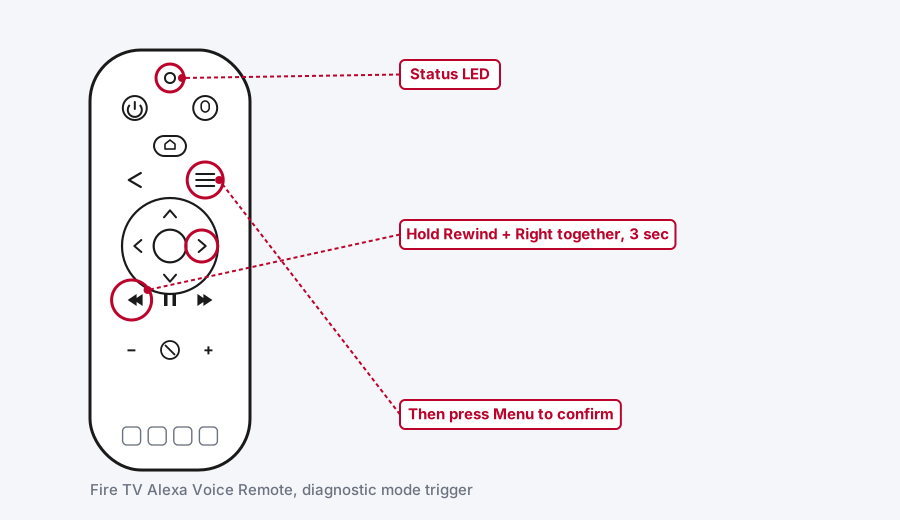
Press and hold the Rewind and Right (skip) buttons on the navigation ring at the same time for 3 seconds, then press the Menu button, the one with three horizontal lines. The LED at the top of the remote will blink green briefly to confirm the mode activated.
Step 2: Read the LED Color
Whatever color the LED settles on next tells you exactly what's wrong, straight from the remote itself:
| LED behavior | What it means |
|---|---|
| Slow blinking red | Battery is low, replace it |
| Fast blinking red | Remote malfunction, a reset is the next step |
| Blinking orange | Remote isn't paired to the Fire TV device |
| Solid white | The Fire TV device itself is powered off |
| Blinking blue | No problem found, the remote is working and paired correctly |
This one step saves you from guessing your way through the rest of this article. A blue light means the remote's fine and something else is going on (check that your Fire TV device is actually on and awake). An orange light sends you straight to Method 3. Fast red sends you straight to Method 4.
Method 3: Re-Pair the Remote
If diagnostic mode showed orange, or you skipped straight here because the remote just stopped responding out of nowhere, re-pairing is the next move, and it's simpler than people expect.
Step 1: Try the Quick Re-Pair
Point the remote at your Fire TV device and hold the Home button (the house icon) for about 10 seconds. Watch for the LED to blink and a confirmation message to show up on screen. On some newer remotes, holding Home alone is enough to kick off pairing automatically, no unpair step needed first.
Step 2: Unpair and Re-Add It From the Menu
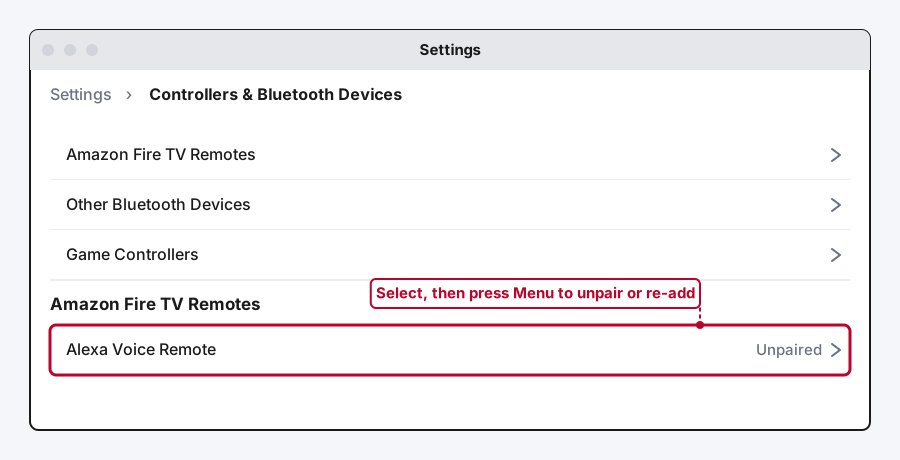
If that doesn't take, or you want to start clean, go to Settings > Controllers & Bluetooth Devices > Amazon Fire TV Remotes, select the remote giving you trouble, press the Menu button, and choose to unpair it. Then back out to Add New Remote and repeat the Home-button hold from Step 1.
Step 3: Rule Out a Second Remote Fighting for the Pairing Slot
If you've got an old remote or a universal one still registered, unpair it too. Two remotes both trying to hold the same connection is a real, if less common, cause of pairing that seems to work for a second and then drops.
Method 4: Do a Full Remote Reset
This is the deeper fix when re-pairing alone doesn't bring the remote back, and it resets both the remote and its connection to the Fire TV device from scratch.
- Unplug your Fire TV device from power completely and leave it unplugged for about a minute.
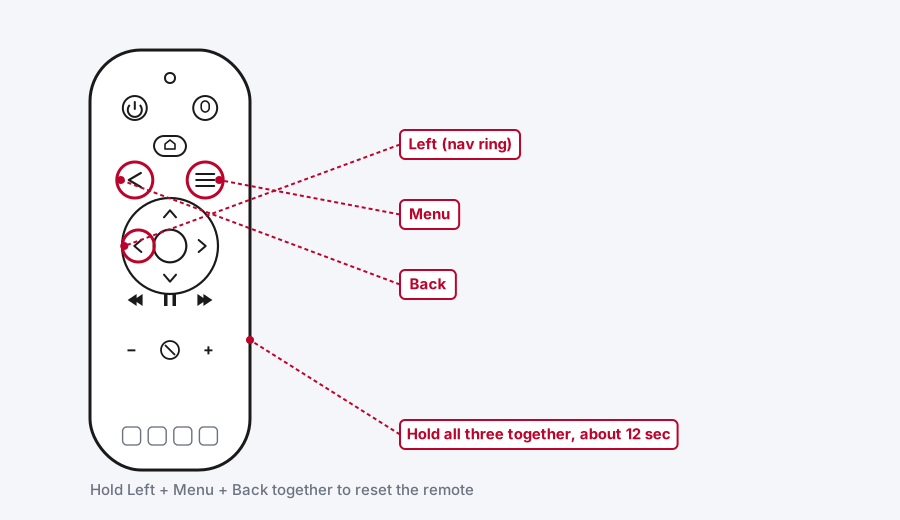
- On the remote, press and hold the Left button on the navigation ring, the Menu button, and the Back button all at the same time for about 12 seconds, then let go.
- Wait 5 seconds, then remove the batteries from the remote.
- Plug the Fire TV device back in and wait for it to fully boot. You should see a message on screen saying no remote is detected, that's expected at this point.
- Reinsert the batteries and press and hold the Home button for 10 to 15 seconds. The LED should blink blue once it's paired successfully.
This process doesn't touch anything else on your Fire TV device, no apps, no settings, no sign-in, it only resets the remote's own connection. If the LED still won't come on at all after this, the remote's battery contacts or internal hardware are the more likely culprit, not the pairing.
Method 5: Fix TV Power, Volume, or Mute That Won't Work
Here's the part that catches people off guard: if you can navigate menus and pick something to watch just fine, but the power, volume, or mute buttons do nothing, the remote itself is working. Those three buttons run over infrared (sometimes HDMI-CEC on newer setups), a completely different system from the Bluetooth connection that handles everything else, and they need to be set up separately.
Step 1: Open Equipment Control
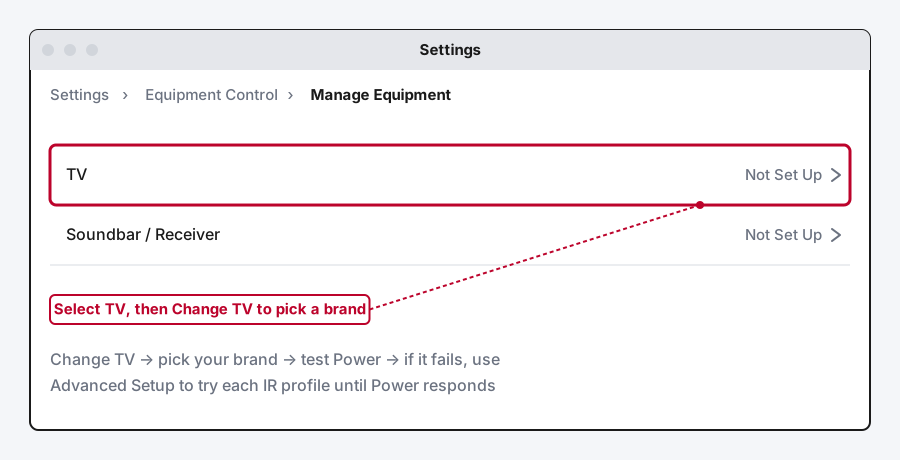
Go to Settings > Equipment Control > Manage Equipment > TV > Change TV.
Step 2: Select Your TV Brand and Test
Choose your TV's brand from the list. Fire TV will prompt you to press the power button on the remote to confirm it's working. If your TV actually responds, you're done.
Step 3: If the First Test Fails, Use Advanced Setup
Select No when asked if it worked, then look for the three-line menu button for Advanced Setup. From there you'll see a list of roughly a dozen available IR profiles for your TV brand. Test them one at a time, backing out to the main test screen after each one, until you find the profile that actually makes your TV's power button respond. Once power works, volume and mute almost always work with that same profile.
Step 4: Save and Do a Final Check
Once you've landed on a working profile, confirm the setup and test power, volume up, volume down, and mute one more time to be sure all four actually respond, not just the one you happened to test during setup.
Method 6: Fix Range and Interference Issues
If the remote works fine up close but lags, drops input, or stops responding entirely from across the room, that's a signal or interference problem rather than a pairing one.
Fire TV remotes are Bluetooth, with an effective range of around 30 feet, but walls, furniture, and especially other wireless electronics can shrink that in practice. Move closer to the Fire TV device and see if it clears up immediately, that alone tells you range is the issue. If it is, check what else is nearby: wireless speakers, a router sitting close to the TV, another Bluetooth device, or a gaming console can all compete for the same 2.4GHz frequency the remote uses. Moving the Fire TV device (or the competing device) even a foot or two can genuinely fix this.
Method 7: Use the Fire TV App as a Backup Remote
Worth setting up before you actually need it, not scrambling for it after the physical remote dies. The free Amazon Fire TV app (Android and iOS) gives you on-screen navigation, a keyboard for typing in search bars, and menu control, connecting either through your Amazon account sign-in or by sharing the same Wi-Fi network as your Fire TV device.
One real limitation worth knowing: the app can't power your Fire TV device off, that one function still needs the physical remote or the TV's own power button. Everything else, browsing, selecting, typing, works fine from your phone while you sort out the actual remote.
Still Not Working?
If you've been through battery, pairing, and a full reset and the remote genuinely still won't respond to anything, including diagnostic mode never lighting up at all, that points to a hardware failure rather than a settings problem. Amazon's own Fire TV remote support page covers model-specific steps worth checking before buying a replacement, since exact button layouts differ slightly across the Fire TV Stick, Fire TV Cube, and older Fire TV Stick 4K remotes. A replacement remote, official or a compatible third-party one, is a normal and inexpensive fix at that point, and the Fire TV app keeps you going in the meantime.
Frequently Asked Questions
Why does my Fire TV remote work for navigation but not for volume?
Because they're two different systems. Navigation runs over Bluetooth, but power, volume, and mute run over infrared (or HDMI-CEC on some setups), which needs to be configured separately through Equipment Control. See Method 5.
How do I know if my Fire TV remote needs new batteries or a re-pair?
Run the built-in diagnostic mode first (Method 2). Hold Rewind and Right for 3 seconds, then press Menu, and the LED color tells you directly, slow red for low battery, orange for not paired, so you're not guessing which fix to try.
Can I control my Fire TV with my phone while I fix the remote?
Yes. The free Fire TV app gives you full navigation and search over Wi-Fi. It can't turn the device off, but it covers everything else while you troubleshoot the physical remote.
Do all Fire TV remotes have a diagnostic mode?
Most remotes with a visible LED near the top do, which covers the majority of Alexa Voice Remotes shipped in recent years. Older, more basic Fire TV Stick remotes without an LED don't have this feature, so if yours doesn't light up at all, go straight to checking batteries and re-pairing instead.
Will resetting my Fire TV device fix a broken remote?
Rarely, and it's a much bigger step than the problem usually needs. A remote reset (Method 4) resets the connection between remote and device without touching your apps, settings, or sign-in, and it solves nearly everything a full device reset would for pairing specifically.
Quick Summary
Start with batteries and corrosion, since that alone explains most "dead" Fire TV remotes. If the LED lights up, use diagnostic mode to see exactly what's wrong before you try anything else, it'll point you straight at low battery, a bad pairing, or a malfunction. A 10-second Home button hold re-pairs most remotes; save the full reset for when that doesn't work. And if navigation is fine but power or volume isn't, that's an infrared setup problem under Equipment Control, not a broken remote at all. Keep the Fire TV app installed on your phone so a dead remote never actually stops you from watching something.
Related Articles
Developer Options on Firestick: Find It and Use It
Developer Options is hidden on every Fire TV by default. Here's the tap sequence to reveal it, what each toggle does, and which current models even have it.
How Does a Firestick Actually Work?
A Fire TV Stick is a tiny standalone computer that takes over your TV's smart features. Here's what's actually inside one, how it streams, and why 2026's new models work differently.
How to Clear Cache on an LG Smart TV
Clearing cache on an LG webOS TV means something different depending on your model: a one-tap Memory Optimizer on OLED sets, manual steps on everything else.