

How to Jailbreak a Firestick (What It Actually Means)

Jailbreaking a Firestick is one of those phrases that sounds a lot more dramatic than what it actually involves. There's no exploit, no unlock code, no risk of bricking the device the way jailbreaking an iPhone used to carry real risk. What people actually mean by it is sideloading: flipping a setting Amazon already built into every Fire TV device so you can install apps that aren't listed in the Amazon Appstore.
I've set up more Fire TV Sticks this way than I can count, for myself and for family members who just wanted a specific app or emulator the Appstore didn't carry. It takes maybe ten minutes, and every step happens inside settings Amazon put there on purpose. Nothing about it requires hacking the device, and nothing about it is sketchy by itself. What you choose to install with it is a separate question, and I'll get to that honestly further down.
Quick answer: turn on Apps from Unknown Sources in Settings > My Fire TV > Developer Options, install the Downloader app from the official Amazon Appstore, then use Downloader to grab an APK from a trusted source like APKMirror and install it. That's the whole process. ADB Debugging is a separate toggle you'll sometimes see mentioned alongside it, and it's worth understanding what it does before you touch it.
Key takeaways:
- "Jailbreaking a Firestick" really means sideloading, turning on a built-in Amazon setting to install apps from outside the official Appstore. It's not a hack, and it doesn't void anything you'd normally expect it to.
- The Downloader app, from the Amazon Appstore itself, is the standard tool almost everyone uses to actually bring APK files onto the device.
- Sideloading itself is legal. What gets installed afterward is where the legal line actually sits, and it's worth being honest with yourself about that before you start.
- ADB Debugging is a different toggle from Apps from Unknown Sources. It's genuinely useful for installing apps over your network, but it also accepts remote connections while it's on, so turn it back off when you're done.
Prefer an interactive walkthrough? Try our Firestick Sideloading Troubleshooter →
What "Jailbreaking a Firestick" Actually Means
A real jailbreak, the iPhone kind, breaks out of a locked-down operating system to get root access the manufacturer never intended you to have. Fire OS isn't locked down the same way. It's Amazon's own fork of Android, and Android has always let device makers decide whether to allow installing apps from outside their official store. Amazon decided yes, as long as you flip the setting yourself first.
So when someone says they "jailbroke" their Firestick, what actually happened is they turned on Apps from Unknown Sources, a toggle sitting in plain sight in the settings menu, and then used it to install something the Appstore doesn't carry. The term stuck around because it sounds more impressive than "I changed a setting," and because a lot of the content built around this phrase, back when Kodi add-ons for pirated streams were the main draw, wanted it to sound edgier than it is.
That history is worth being upfront about. A lot of what gets called "jailbreaking a Firestick" online is really a pitch for installing illegal streaming add-ons, and I'm not going to walk you through that here. Streaming pirated content through a sideloaded app carries real legal risk, and it's a genuinely bad way to treat the people who make the shows and movies you're watching. What I am going to walk you through is the actual technical process, which has plenty of legitimate uses on its own: emulators, niche utility apps, an app your TV's region doesn't officially support yet, or just more control over what's on your own device.
Before You Start: Three Things Worth Knowing
A few honest notes before you touch any settings, since skipping these is how people run into trouble later.
Sideloading from outside the Appstore means Amazon isn't vetting what you install the way it vets Appstore apps. Stick to sources with a real reputation, APKMirror is the one most people trust, and don't install anything you can't verify. Never enter payment or account details into a sideloaded app you don't fully trust, the same rule you'd apply to a sketchy website.
This process doesn't technically void your warranty, and it doesn't require rooting the device or installing custom firmware. You're using a setting Amazon shipped on purpose. That said, installing something that genuinely breaks the device (rare, but it happens with badly built APKs) isn't something Amazon support is going to be thrilled to help with, so use common sense about what you install.
And one more thing worth saying plainly: sideloading is legal everywhere I'm aware of. What you choose to stream through a sideloaded app is a separate legal question entirely, and claiming otherwise would be dishonest. If an app or add-on's whole purpose is giving you free access to paid content without paying for it, that's piracy, not a gray area, whatever the site selling you on it calls it.
Method 1: Turn On Apps from Unknown Sources
This is the one setting that actually makes sideloading possible. Everything else in this guide depends on it being on.
Step 1: Open Developer Options
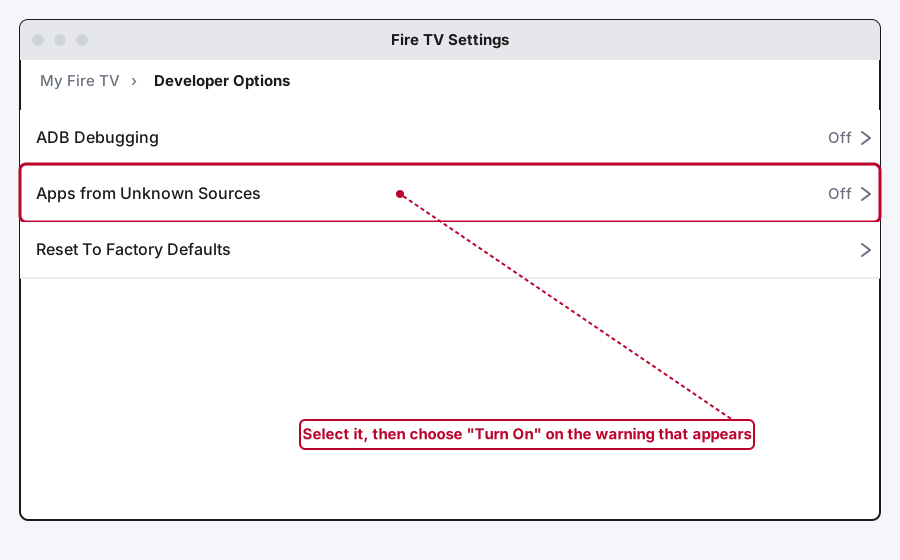
From the Fire TV home screen, go to the Settings tab on the far right of the top menu. Select My Fire TV (on older Fire OS versions this is labeled Device), then Developer Options.
Step 2: Turn On Apps from Unknown Sources
Highlight Apps from Unknown Sources and press the center select button on your remote. A warning will pop up explaining that apps from unknown sources can harm your device, which is standard boilerplate Android shows for this exact setting, not something specific to your Fire TV. Select Turn On to confirm.
On newer Fire OS versions you might see this permission requested per-app instead, the first time an app you've installed (like Downloader) tries to install something else. Either way, the effect is the same: you're allowing apps outside the Appstore to be installed.
Method 2: Understand ADB Debugging (and Leave It Off Unless You Need It)
Right above Apps from Unknown Sources in that same Developer Options menu, you'll see ADB Debugging. It's a different setting that does a related but separate job, and it's worth knowing the difference before you flip it.
ADB Debugging lets your Fire TV accept connections from the Android Debug Bridge, a developer tool that can install apps, pull logs, and run commands over your network without you touching the remote. Some sideloading methods (using a tool like the AFTVnews APK Installer from a computer on the same Wi-Fi network) rely on it. The Downloader method in this guide doesn't need it at all, since Downloader installs apps directly from the device itself.
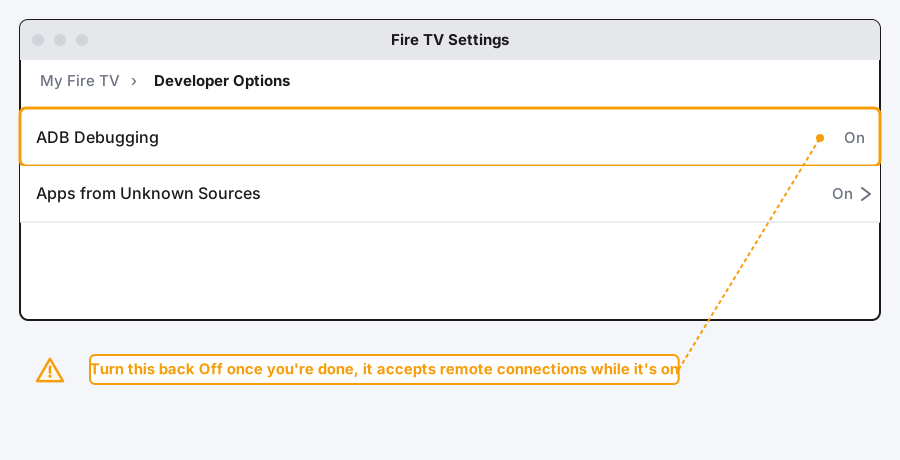
If you do turn it on for a network-based sideloading method, turn it back off when you're finished. While it's on, any device on your network that knows your Fire TV's IP address can potentially connect to it, which is a fine risk to accept briefly on your own home network and not one worth leaving open indefinitely.
Method 3: Install the Downloader App
Downloader, built by AFTVnews, is the tool almost everyone actually uses to get an APK file onto a Fire TV Stick. It's free, it's in the official Appstore, and it does one job well: grab a file from a URL and install it.
Step 1: Search for Downloader
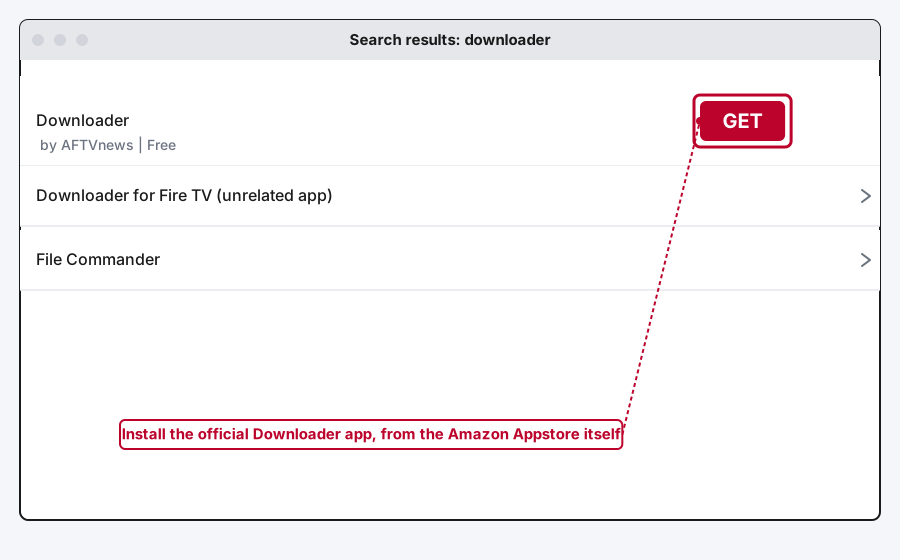
From the Fire TV home screen, use the Search tool (the magnifying glass, top left) or press the Alexa button and say "Downloader." Look for the one published by AFTVnews, it's the original and the one every guide, including this one, means by "Downloader."
Step 2: Install It
Select the Downloader app's result, then select Get to download and install it, same as installing any normal Appstore app. This step doesn't need Apps from Unknown Sources to be on, Downloader itself comes straight from Amazon's own store.
Method 4: Sideload an APK with Downloader
With Downloader installed and Apps from Unknown Sources turned on, this is the actual sideloading step.
Step 1: Enter the APK's URL
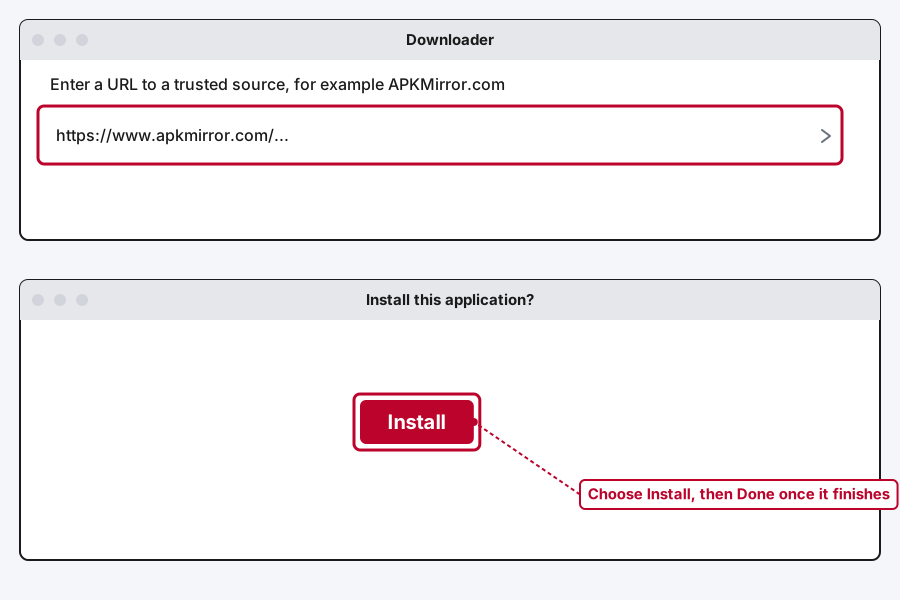
Open Downloader and you'll land on a screen with a URL field. If you already know the exact page for the app you want (a direct link from APKMirror is the most common source people trust for this), type that address in. If you're not sure, Downloader has its own built-in browser you can use to find a file first.
Step 2: Download and Install
Downloader fetches the file, then prompts you with an install confirmation screen, the same kind of "Install this application?" prompt Android shows for any sideloaded app. Select Install.
Step 3: Finish and Clean Up
Once the install finishes, select Done. Downloader will ask if you want to delete the APK file it just downloaded, I'd say yes, there's no reason to keep it sitting on the device afterward. Your new app now shows up on the Fire TV home screen and under Apps, same as anything installed the normal way.
What's Actually Worth Sideloading
Since the technical part is genuinely simple, the more interesting question is what to put it toward. A few categories that are worth the effort and stay well inside the legal, legitimate side of things:
Emulators for classic games you own, retro-gaming emulation is a well-established legal gray area that leans legal as long as you're not pirating ROMs you don't own. Niche utility apps the Appstore doesn't carry, a specific file manager, a network tool, a remote-control app for another device you own. Apps available in other regions' stores but not shown in yours yet. And legitimate streaming apps some Fire TV models don't list by default, Kodi itself is open-source media player software, completely legal on its own, it's only the illegal third-party add-ons some people load into it that cross the line, and I'd steer clear of those entirely.
If what you're actually after is free access to cable channels, new movies, or live sports without paying for them, I'll say it plainly: that's piracy, the legal risk is real and has landed people in genuine trouble, and it's not something I'm going to point you toward here.
Still Not Working?
If Apps from Unknown Sources won't toggle on, Downloader won't install, or a sideloaded app crashes immediately on open, a factory reset of the Developer Options menu rarely helps and usually isn't the problem. More often it's a Fire OS update that changed a menu label, or a specific APK that's genuinely broken or built for the wrong architecture. Amazon's own Fire TV help pages cover device-specific settings issues, and Downloader's own in-app help screen is worth checking for APK-source-specific problems.
Frequently Asked Questions
Is jailbreaking a Firestick legal?
Yes. Turning on Apps from Unknown Sources and sideloading apps is legal, it's a setting Amazon built into the device on purpose. What becomes illegal is using that ability to stream pirated content through an unauthorized add-on, which is a choice you make afterward, not something baked into the sideloading process itself.
Does jailbreaking void my Fire TV's warranty?
No. You're not rooting the device, flashing custom firmware, or doing anything Amazon didn't explicitly build a setting for. Installing something that damages the device through your own actions is a different story, but the sideloading process itself doesn't touch your warranty.
Do I need a VPN to jailbreak a Firestick?
No, not for the sideloading process itself. A VPN is sometimes recommended alongside piracy-focused setups specifically because streaming pirated content can expose your IP address to legal risk, which is really a signal about what that setup is for, not a requirement of sideloading in general. If you're only installing legitimate apps and emulators, you don't need one for this.
What's the difference between Apps from Unknown Sources and ADB Debugging?
Apps from Unknown Sources lets apps already on your device (like Downloader) install other apps from outside the Appstore. ADB Debugging is a separate setting that lets a computer on your network connect to the Fire TV directly to install apps or run commands. Most people only need the first one. The second is for network-based sideloading methods and comes with its own security tradeoff while it's switched on.
Can I undo this later?
Yes. Apps from Unknown Sources and ADB Debugging are both just toggles, flip them back off in Developer Options any time. Turning them off doesn't uninstall anything you've already sideloaded, it just stops you from installing new apps that way until you turn it back on.
Will sideloaded apps still get updates?
Not automatically, the way Appstore apps do. You'll need to check the app's own source periodically and sideload a newer APK file the same way you installed the first one. Some third-party app stores, like Aptoide TV, handle this for you if you'd rather not track updates manually, though that's a separate install with its own trust tradeoffs to weigh.
Quick Summary
Jailbreaking a Firestick is really just sideloading: turning on Apps from Unknown Sources in Developer Options, installing the official Downloader app, then using it to install an APK from a source you trust. The whole thing takes about ten minutes and doesn't touch your warranty or require anything close to an actual hack. The one real decision is what you install once you've got the ability, and that's worth being honest with yourself about before you start.
Related Articles
Developer Options on Firestick: Find It and Use It
Developer Options is hidden on every Fire TV by default. Here's the tap sequence to reveal it, what each toggle does, and which current models even have it.
How Does a Firestick Actually Work?
A Fire TV Stick is a tiny standalone computer that takes over your TV's smart features. Here's what's actually inside one, how it streams, and why 2026's new models work differently.
How to Clear Cache on an LG Smart TV
Clearing cache on an LG webOS TV means something different depending on your model: a one-tap Memory Optimizer on OLED sets, manual steps on everything else.