

How to Cast Your Phone to a TV (Android Guide for Any TV)

How to cast your phone to a TV comes down to one question most guides skip: which casting language does your TV understand? An Android phone can speak two of them. Google Cast is what Chromecasts, Google TVs, and most Android TVs listen for. Miracast is what Samsung, LG, Roku, and most Fire TV sticks listen for. Pick the button that matches your TV and it takes about ten seconds. Pick the wrong one and your TV simply never shows up in the list, which is exactly where most people get stuck.
Quick answer: Swipe down twice from the top of your Android phone and tap Screen Cast (on a Pixel or most Android phones) or Smart View (on a Samsung Galaxy), then pick your TV from the list and tap Start now. If your TV doesn't appear, it probably speaks the other casting protocol: use the Google Home app for a Chromecast or Google TV, or turn on your TV's own screen mirroring setting for a Roku, LG, or Fire TV.
Key takeaways:
- Android phones cast using either Google Cast (for Chromecast and Google TV) or Miracast (for Samsung, LG, Roku, and most Fire TV sticks). Your TV's brand decides which one you need.
- Google Pixel phones don't support Miracast at all. A Pixel can only mirror its whole screen to a Google Cast device, so a Pixel won't find a Roku or LG TV through Screen Cast no matter what you try.
- Samsung Galaxy phones use Smart View, which finds Samsung TVs and most other Miracast receivers like Roku and LG. That makes a Galaxy the more flexible phone for mirroring.
- Casting a single app (the Cast icon inside YouTube, for example) is a different thing from mirroring your whole screen, and it's usually smoother. Netflix removed phone casting for most modern TVs in late 2025, so don't assume every app still has the icon.
- Phone and TV have to be on the exact same Wi-Fi network. That one detail causes more failures than anything actually broken.
Prefer an interactive walkthrough? Try our Phone to TV Casting Helper →
This guide is written for Android phones. If you're holding an iPhone, AirPlay works differently, and How to Mirror iPhone to TV is the one you want. Casting from a Windows laptop has its own guide too: How to Cast Your Laptop to a TV.
Which Method Should You Use?
| What's on your TV | What your phone needs | Where to tap on Android |
|---|---|---|
| Chromecast, Google TV, or a TV with "Google Cast built-in" | Google Cast | Quick Settings > Screen Cast, or the Google Home app |
| Samsung Smart TV | Miracast (Samsung calls it Smart View) | Quick Settings > Smart View on a Galaxy, Screen Cast or Wireless display on some other brands |
| LG Smart TV (webOS) | Miracast | Phone's Screen Share / Smart View option, with the TV's Screen Share app open |
| Roku player or Roku TV | Miracast | Phone's Smart View / Cast option, Roku accepts the request |
| Fire TV Stick | Miracast | Turn on mirroring on the Fire TV first, then the phone's cast option |
| Any TV with an HDMI port | A USB-C to HDMI cable, if your phone supports video out | No settings, just plug in |
Notice the Pixel problem in that table. Since Pixels only speak Google Cast, the only rows that work wirelessly for a Pixel owner are the Chromecast/Google TV row and app-level casting. For a Samsung, LG, Roku, or Fire TV, a Pixel owner's best bets are casting from inside individual apps or the cable.
Why Your TV Sometimes Doesn't Show Up at All
Here's the thing that took me embarrassingly long to figure out the first time I tried this on a friend's Roku with my Pixel: the phone wasn't failing to connect, it was never looking for the right kind of device. Screen Cast on a Pixel searches only for Google Cast receivers. A Roku is listening for Miracast. They're both on the same Wi-Fi, both perfectly healthy, and they'll never see each other.
So when a TV is missing from the list, run through this order before you start resetting things:
- Is the phone on the same Wi-Fi network as the TV? Not the guest network, not the 2.4GHz band while the TV sits on 5GHz under a different name. The identical network.
- Does your phone speak the TV's protocol? Use the table above.
- Is the TV's own mirroring setting switched on? Roku, LG, and Fire TV all have one, covered in each section below.
Some Android phones also want Location switched on before they'll scan for nearby cast devices, so if the device list stays empty and everything else checks out, flip Location on from Quick Settings and try again.
Method 1: Cast From Quick Settings (Fastest for Most People)
This is where I'd start on any Android phone. It mirrors your entire screen, including notifications, so silence anything private before you start.
Step 1: Open Quick Settings
Swipe down from the top of the screen twice to expand the full Quick Settings panel.
Step 2: Find the Cast Tile
On a Pixel and on stock-style Android phones, the tile is called Screen Cast. On a Samsung Galaxy it's Smart View. Other brands use names like Cast, Screen mirroring, or Wireless display.
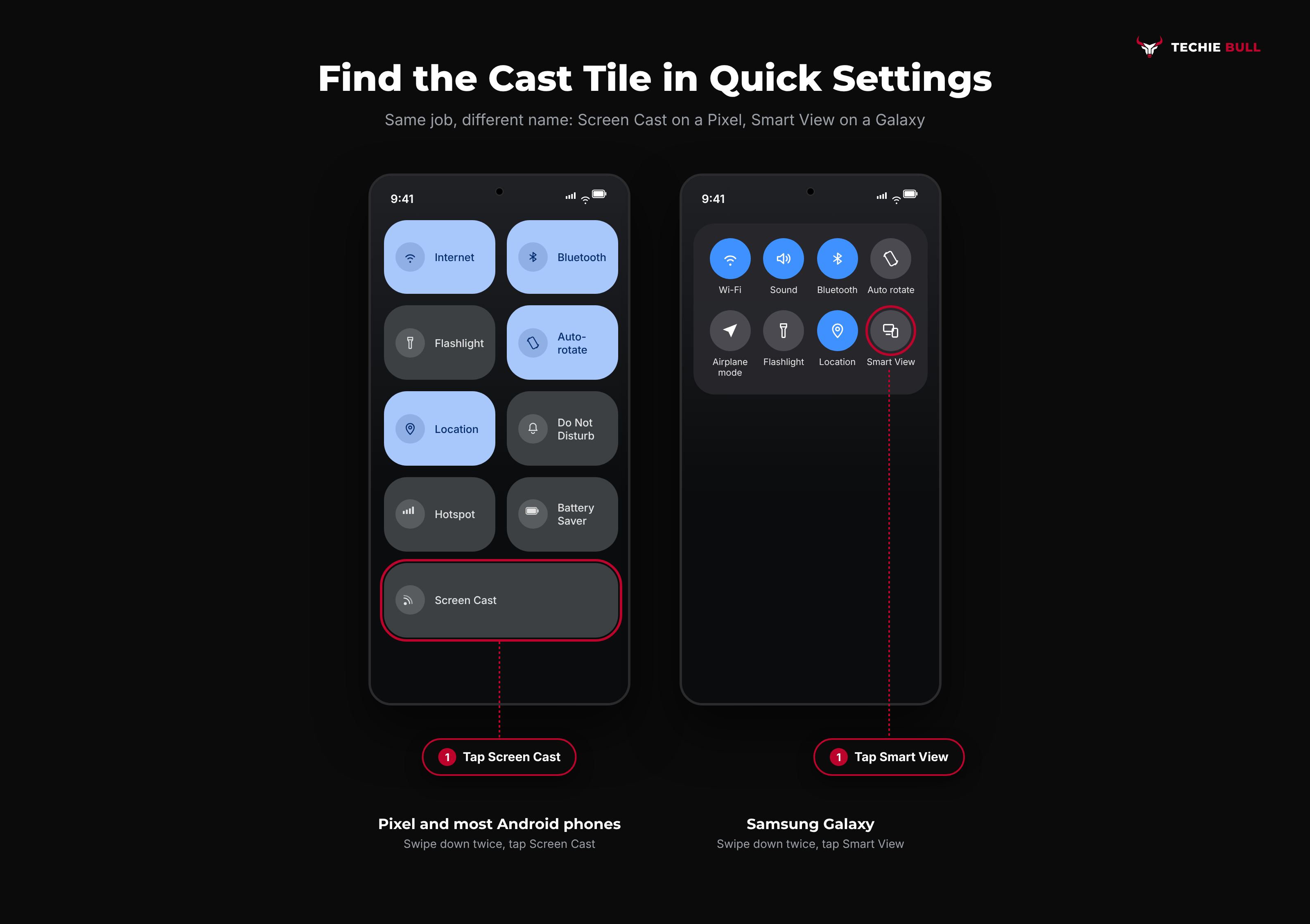
If you don't see it, tap the pencil (Edit) icon at the bottom of Quick Settings, find the tile in the list of available tiles, and drag it up into your active tiles.
Step 3: Pick Your TV
A list of nearby devices appears. Tap your TV's name. Depending on the TV, you might get a PIN code on the TV screen to type into your phone.
Step 4: Tap Start Now
Android shows a warning that the app you're casting with will be able to see everything on your screen. Tap Start now. On a Samsung or LG TV, you may also need to accept the connection request on the TV itself with your remote.
To stop, open Quick Settings, tap the same tile again, and choose Disconnect.
Method 2: Cast Your Screen With the Google Home App
If you have a Chromecast or Google TV and the Quick Settings tile is missing or misbehaving, the Google Home app does the same job, and it's the route Google's own Chromecast help documentation points to.
Step 1: Open Google Home
Make sure your phone is on the same Wi-Fi as the Chromecast or Google TV, then open the Google Home app.
Step 2: Select Your Device
Touch and hold your Chromecast or Google TV's tile to open its page.
Step 3: Tap Cast My Screen
Tap Cast my screen (some versions of the app label it Cast screen), then tap Start now on the permission prompt.
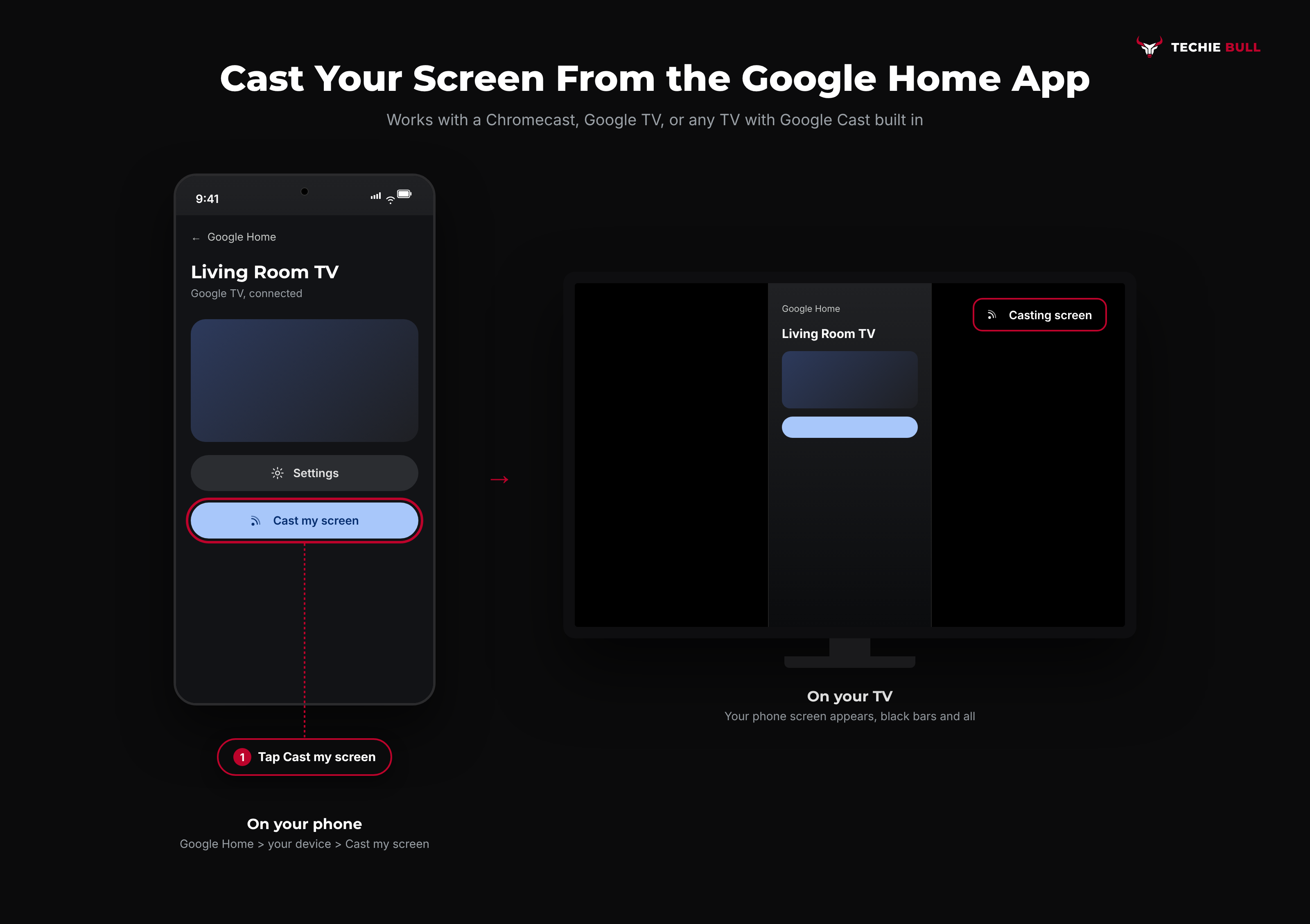
The Home app route is identical in result to the Screen Cast tile. It's just more reliable to find when your phone maker has moved or renamed the tile.
Method 3: Mirror to a Samsung TV With Smart View
If you've got a Galaxy phone and a Samsung TV, this pairing is about as painless as casting gets, since Samsung builds both ends. Samsung's own support pages list the steps like this:
- Connect the phone and the TV to the same Wi-Fi network.
- Swipe down to open the quick panel and tap Smart View.
- Select your TV from the list. Enter the PIN shown on the TV if one appears.
- Tap Start now, then accept the connection request on your TV.
Samsung's documentation says Smart View works with Galaxy phones on Android 4.3 or later, which in practice means any Galaxy you're likely to still be using. To end the session, tap Smart View again and choose Disconnect, or just exit with the TV remote.
Using a non-Samsung Android phone with a Samsung TV? The TV still accepts Miracast, so the phone's own cast option (anything except a Pixel's Screen Cast) usually finds it.
Method 4: Mirror to an LG TV With Screen Share
LG TVs running webOS take Android mirroring through an app called Screen Share, and it has to be open on the TV for your phone to find it. LG's own help library describes the phone side as pulling down the notifications panel, selecting Screen Share (or whatever your phone calls its Miracast option), and choosing the TV from the list.
- On the LG TV, press Home on the remote and open the Screen Share app. The TV now waits for a connection.
- On your phone, open Quick Settings and tap Smart View, Screen Share, or Cast, depending on the brand.
- Pick the LG TV from the list and accept the connection on the TV if asked.
The wording shifts a little between webOS years, so if Screen Share isn't on your Home row, check the full app list. And again: a Pixel won't find an LG TV this way because it has no Miracast support. Cast from inside a Google Cast-enabled app instead, many recent LG models accept that.
Method 5: Mirror to a Roku
Roku supports Android mirroring on most of its players and Roku TVs, with the Express 3700 and 3710 being the known exceptions that don't do screen mirroring at all.
Step 1: Check the Roku's Screen Mirroring Mode
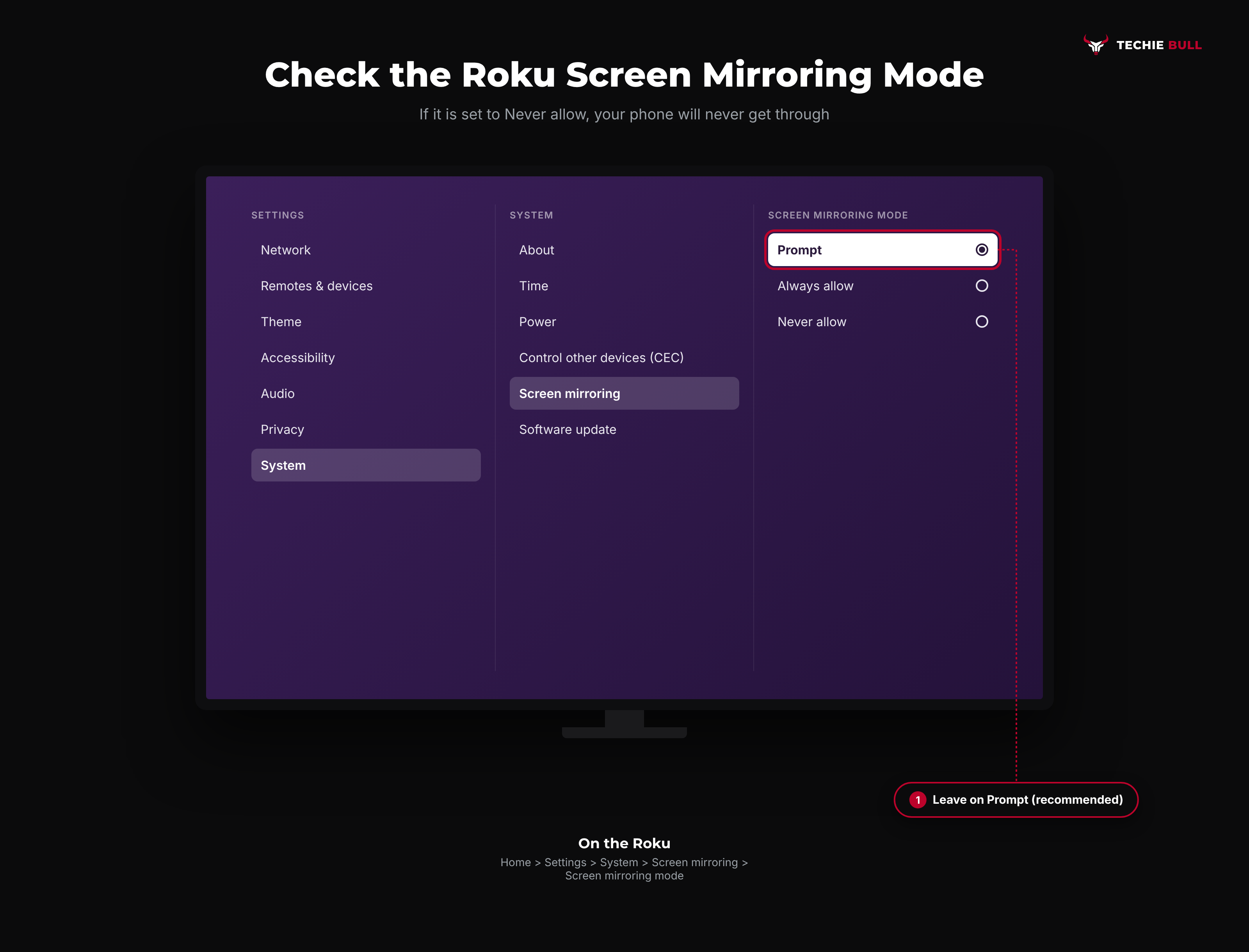
On the Roku remote, press Home, then go to Settings > System > Screen mirroring > Screen mirroring mode. You'll see three choices:
- Prompt: the Roku asks every time a device tries to connect. This is the default and the one I'd leave on in a flat or shared house.
- Always allow: any device on your network can mirror without asking.
- Never allow: mirroring is blocked entirely. If someone in the house picked this, your phone will never get through.
Step 2: Cast From Your Phone
On the phone, tap Smart View, Cast, or Screen mirroring in Quick Settings and pick the Roku.
Step 3: Approve It on the TV
With Prompt mode on, the Roku shows a request on screen. Pick Allow for this time only, or Always allow to add your phone to the Roku's allowed devices list so you're not approving it every time.
Method 6: Mirror to a Fire TV Stick
Fire TV mirroring also runs on Miracast, and support depends on which Fire TV you have. Amazon's own help page lists phones older than Android 4.2 and phones without Miracast support as the cases that won't work.
- On the Fire TV, go to Settings > Display & Sounds > Enable Display Mirroring. Some models also offer a shortcut: press and hold Home on the remote, then select Mirroring.
- Leave the Fire TV on the "waiting" screen.
- On your phone, tap your Miracast cast option in Quick Settings and choose the Fire TV.
If Enable Display Mirroring isn't in the menu at all, that specific Fire TV doesn't support it. That's the expected sign, not a fault. Alexa voice control also stops responding on the Fire TV while mirroring is active, which is normal.
Method 7: Cast Just One App Instead of Your Whole Screen
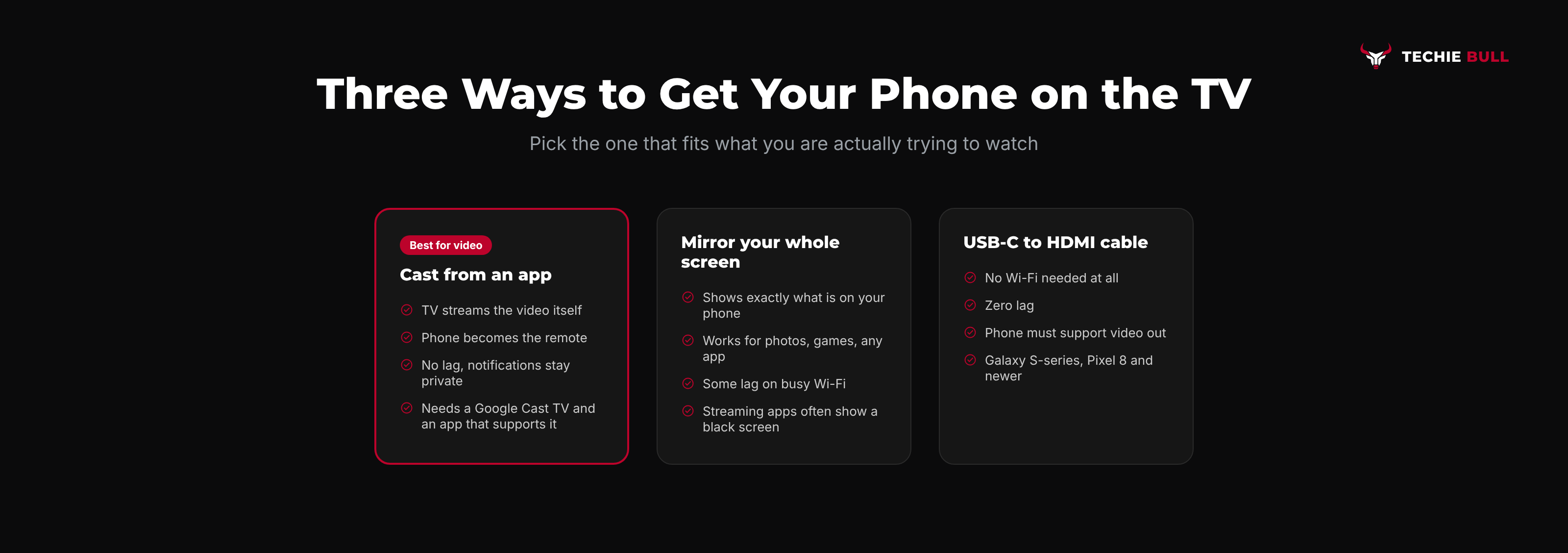
Honestly, for watching video, this beats screen mirroring nearly every time. When you tap the Cast icon (a small rectangle with Wi-Fi waves in the corner) inside an app like YouTube, the TV fetches the video straight from the internet itself. Your phone just acts as the remote. That means better picture, no lag, notifications stay private, and you can lock your phone or take a call without killing the stream.
The catch is that the app has to support it and the TV has to be a Google Cast receiver (Chromecast, Google TV, or a TV with Google Cast built in). And streaming services keep changing their minds: Netflix stopped allowing phone casting to most modern TVs and streaming devices, including Chromecast with Google TV and Google TV Streamer, at the end of 2025, and points people to the Netflix app on the TV instead. If an app's Cast icon has vanished, that's probably why.
Method 8: Use a USB-C to HDMI Cable
When Wi-Fi is the problem, or you're in a hotel room where casting just isn't happening, a cable skips every protocol question above. Plug a USB-C to HDMI adapter into the phone, run an HDMI cable to the TV, and switch the TV's input.
The catch: your phone has to support video output over USB-C (called DisplayPort Alt Mode), and plenty don't. Samsung Galaxy S-series and many Galaxy Tab models do, and they'll even offer Samsung DeX, a desktop-style layout, on the big screen. Google turned on wired video output for the Pixel 8 series through a 2024 software update, but older Pixels lack the hardware for it. Many budget phones have USB 2.0-only ports with no video at all. Check your exact model's spec sheet before buying an adapter, because a cable on an unsupported phone just shows nothing.
Common Problems and Quick Fixes
The TV never appears in the device list. Same Wi-Fi network first, protocol match second (Pixel plus Roku, LG, or Samsung is the classic mismatch), TV's own mirroring setting third. Then try Location on.
It connects, then drops or stutters. Move closer to the router, put both devices on 5GHz if you can, and close heavy apps on the phone. Mirroring encodes your whole screen live, so a crowded 2.4GHz band shows up as lag fast.
Video plays but there's no sound on the TV. Check the phone's media volume, not just the TV's, and disconnect any Bluetooth earbuds or speaker, since Android may keep routing audio to them instead of the TV. If it's still silent, disconnect and start the cast again.
The picture is a small box with black bars. That's just your phone's tall aspect ratio meeting a 16:9 TV. Rotate the phone to landscape, or use app casting, which sends a proper TV-shaped picture.
A specific app shows a black screen while everything else mirrors. Many streaming apps block screen mirroring to protect copyrighted video. Use that app's own Cast button, or the app on the TV itself.
Still Not Working?
If the networks match, the protocols match, and the TV's mirroring setting is on, the next step is the support page for whichever end is misbehaving. Google's Chromecast help center covers Screen Cast and the Google Home app. Galaxy owners should head to Samsung's TV and Smart View support, Roku owners to Roku's screen mirroring overview, and LG owners to LG's support library. If your TV won't stay on Wi-Fi in the first place, that's a different problem, covered in Smart TV Won't Connect to Wi-Fi.
Frequently Asked Questions
Can I cast my phone to a TV without Wi-Fi?
Wirelessly, mostly not. Google Cast needs both devices on a shared network, and while Miracast technically creates a direct connection, most TVs and phones still expect the network for discovery. A USB-C to HDMI cable is the real no-Wi-Fi answer, if your phone supports video output.
Why can't my Pixel find my Roku or LG TV?
Because Pixel phones only support Google Cast, and Roku and LG TVs listen for Miracast. The two never see each other. Cast from inside apps that support Google Cast if your TV accepts it, or plug in a cable if your Pixel is an 8 series or newer.
Does casting my phone to a TV use mobile data?
Screen mirroring runs over your local Wi-Fi and doesn't touch mobile data. App casting has the TV stream from the internet directly over its own connection, so your phone's data plan isn't used for the video either.
Is casting the same as screen mirroring?
Not quite. Screen mirroring copies your whole phone screen live. Casting usually means sending one app's content to the TV, which then plays it independently while your phone works as a remote. Android uses "cast" loosely for both, which doesn't help.
Why do I get a black screen when mirroring Netflix or Disney+?
Many streaming apps block their video from being screen-mirrored for copy protection, so you see the app's interface but a black video area. Use the TV's own app for that service instead.
Quick Summary
Casting an Android phone to a TV is quick once you match the phone's casting option to what the TV understands. Chromecast and Google TV want Google Cast, through the Screen Cast tile or the Google Home app. Samsung, LG, Roku, and most Fire TVs want Miracast, through Smart View or your phone's equivalent, with the TV's own mirroring setting switched on. Pixels only do Google Cast, which explains most "my TV isn't showing up" moments. For video, the Cast icon inside an app is smoother than full mirroring, and when wireless gives up entirely, a USB-C to HDMI cable on a supported phone gets you on screen with no network at all.
Related Articles
How to Cast iPad to TV (AirPlay, Cable, and Chromecast)
How to cast your iPad to a TV with AirPlay Screen Mirroring, a USB-C or Lightning HDMI adapter, or app casting to a Chromecast, plus which iPads can extend.
How to Cast Your Laptop to a TV (Windows, Chromecast & More)
How to cast a Windows laptop to a TV, whether you're using a Smart TV's built-in Miracast receiver, a Roku, a Fire TV, or a Chromecast instead.