

How to Cast iPad to TV (AirPlay, Cable, and Chromecast)

How to cast an iPad to a TV comes down to what's on the other end of the room. If your TV speaks AirPlay, which covers an Apple TV, plenty of Roku devices, and most Samsung, LG, Sony, and Vizio sets from 2018 on, it's two taps from Control Center. If it doesn't, an HDMI adapter in the iPad's charging port gets you there with a cable, and for a Chromecast or Google TV, casting from inside individual apps does the job. The iPad has one trick the iPhone doesn't, too: newer models can use the TV as a proper second screen rather than a copy.
Quick answer: Swipe down from the top-right corner of the iPad's screen to open Control Center, tap Screen Mirroring, and pick your Apple TV or AirPlay-compatible TV. Enter the passcode if one appears on the TV. No AirPlay TV? Plug a USB-C Digital AV Multiport Adapter (USB-C iPads) or a Lightning Digital AV Adapter (Lightning iPads) into the iPad and run an HDMI cable to the TV.
Key takeaways:
- Screen Mirroring in Control Center works with any AirPlay receiver: Apple TV, AirPlay-enabled Roku and Fire TV models, and most 2018-or-newer smart TVs once AirPlay is switched on.
- On an iPad, Control Center opens from the top-right corner, not the bottom.
- A cable is the most reliable option. USB-C iPads and Lightning iPads need different adapters, and they aren't interchangeable.
- iPads with an M-series chip can extend onto the TV as a second display with Stage Manager. Other iPads mirror only.
- Chromecast and Google TV don't support AirPlay. Use the Cast icon inside apps like YouTube, or a cable.
Prefer an interactive walkthrough? Try our iPad to TV Casting Helper →
Which Method Fits Your Setup?
| What's connected to your TV | Best method | Notes |
|---|---|---|
| Apple TV | AirPlay Screen Mirroring | Works immediately on the same Wi-Fi |
| Roku with AirPlay support | AirPlay Screen Mirroring | Turn on Settings > Apple AirPlay and HomeKit on the Roku first |
| Fire TV Omni or 4-Series TV | AirPlay Screen Mirroring | Turn on Settings > Display & Sounds > AirPlay & HomeKit first; most Fire TV Sticks lack AirPlay |
| Samsung, LG, Sony, or Vizio smart TV (2018 or newer) | AirPlay Screen Mirroring | Switch AirPlay on in the TV's settings |
| Chromecast or Google TV | Cast icon inside apps | No full-screen AirPlay mirroring |
| Any TV with a free HDMI port | HDMI adapter and cable | No Wi-Fi needed, least lag |
The same table holds for an iPhone. If you're mirroring a phone instead, How to Mirror iPhone to TV walks through each TV brand's AirPlay settings in more detail.
Before You Start
Two quick checks save most failed first attempts:
- Same Wi-Fi network. For AirPlay, the iPad and the TV (or Apple TV, Roku, or Fire TV) must be on the identical network, not a guest network and not a separately named 5GHz band.
- Updated software. Apple's AirPlay support page says devices should be on the latest software, and a pending iPadOS or TV update is a surprisingly common reason a TV doesn't show up.
Method 1: Mirror Your iPad With AirPlay
This is where I'd start if you've got an Apple TV or a recent smart TV. It takes about ten seconds once AirPlay is on.
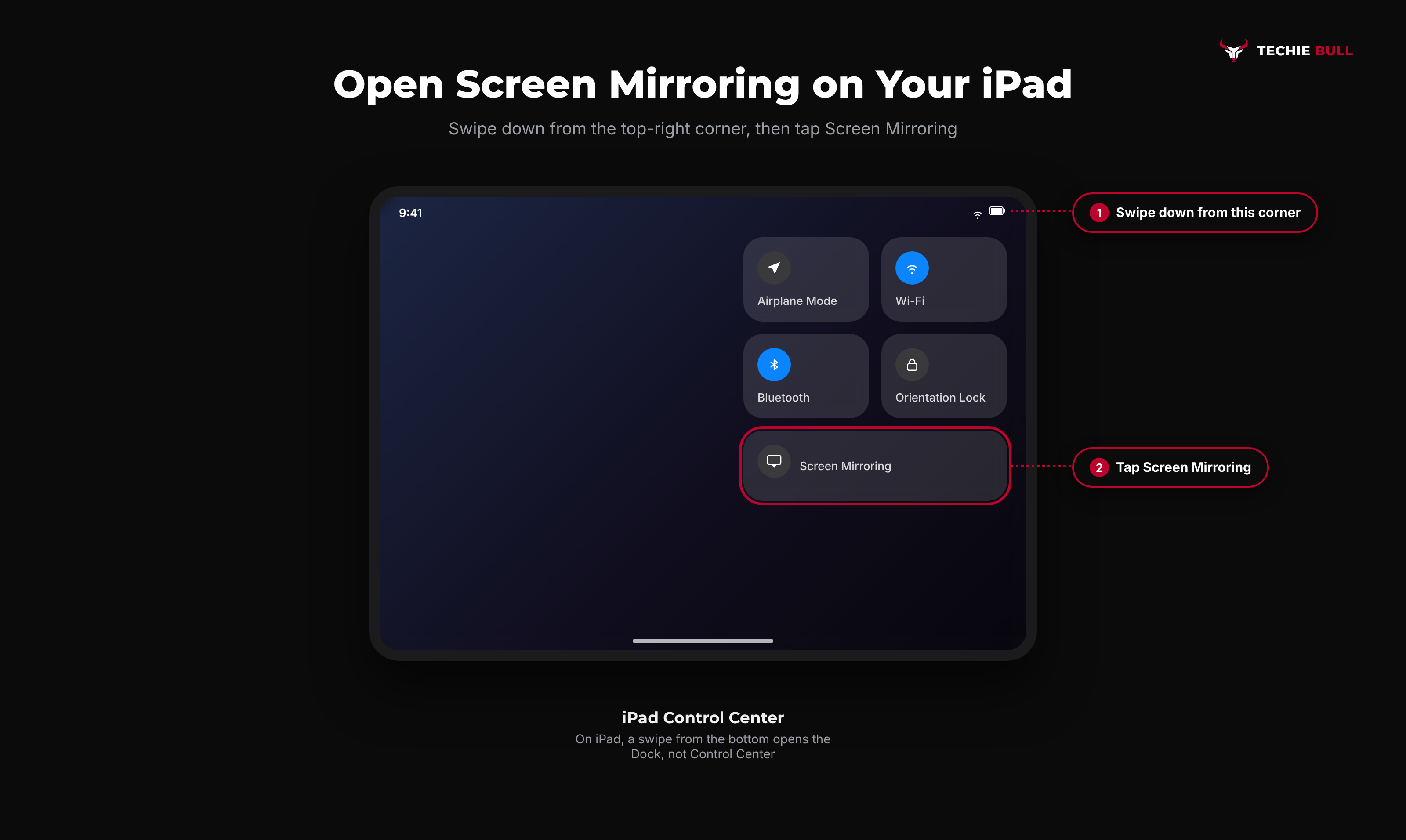
Step 1: Open Control Center
Swipe down from the top-right corner of the iPad screen, where the battery and Wi-Fi icons are. On an iPad, a swipe from the bottom brings up the Dock, not Control Center, which trips up a lot of people coming from older iPads or iPhones with a Home button.
Step 2: Tap Screen Mirroring
It's the icon of two overlapping rectangles. If it's not there, you can add it via Control Center's customize options.
Step 3: Pick Your TV
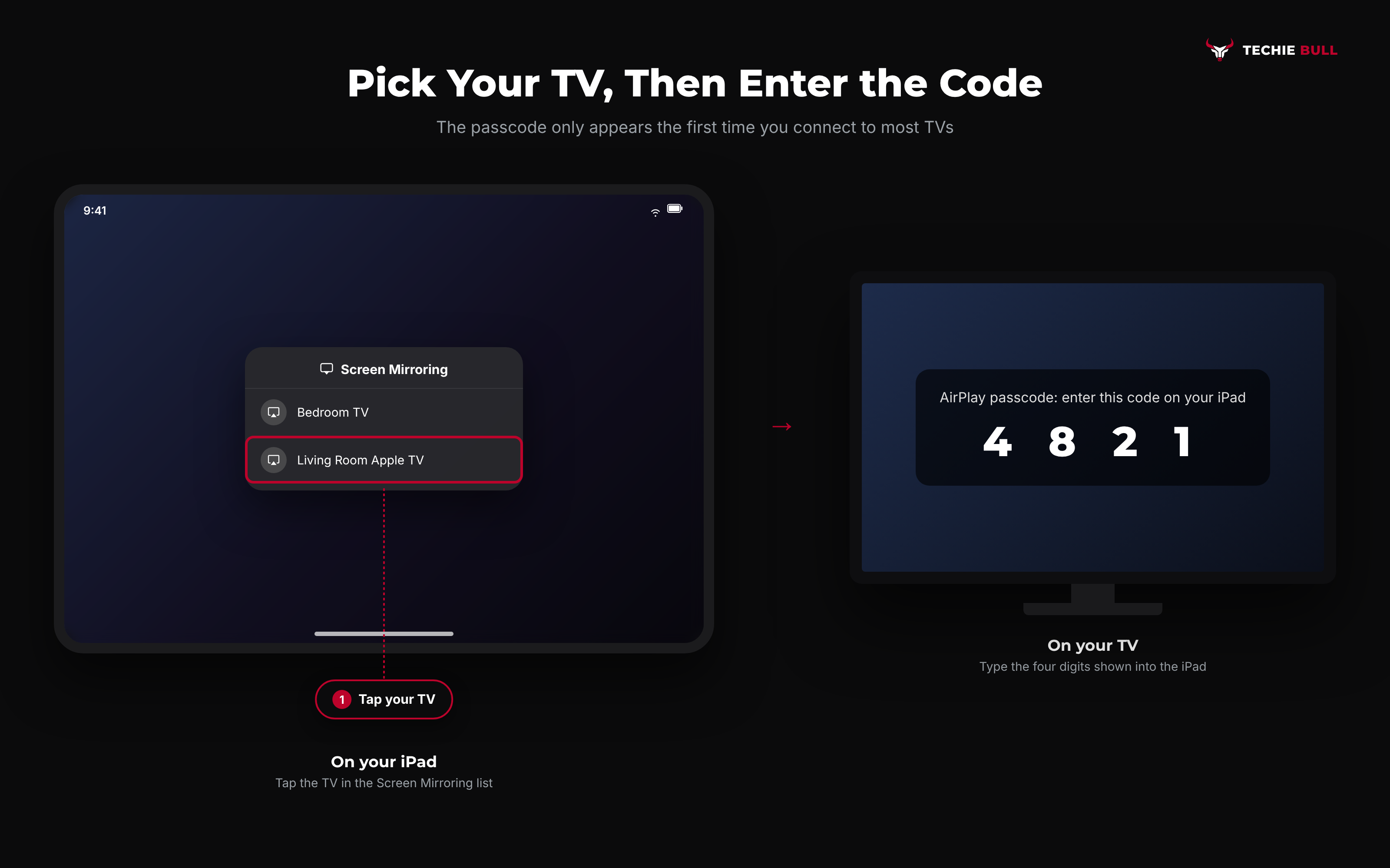
A list of AirPlay devices on your network appears. Tap your Apple TV or smart TV.
Step 4: Enter the Passcode If One Appears
The first time you connect, many TVs show a four-digit code. Type it on the iPad and your screen appears on the TV.
Step 5: Rotate for a Fuller Picture
iPads are closer to a TV's shape than phones, but they're still 4:3 or close to it, so expect black bars at the sides. Rotating to landscape fills more of the screen.
To stop, open Control Center, tap Screen Mirroring, then Stop Mirroring. On an Apple TV, pressing Menu (or Back) on the Apple TV Remote also ends it.
Method 2: Stream One Video With the AirPlay Icon
When you're watching something rather than showing your whole screen, AirPlay's video mode is better. Inside apps that support it, tap the AirPlay icon (a rectangle with a triangle at the bottom) in the video controls and pick your TV.
The difference matters. Mirroring shows everything, including notifications, and the iPad has to stay on that app. Streaming hands the video to the TV, so you can use the iPad for something else, and the picture often fills the TV in full 16:9 instead of being boxed in the iPad's shape. Not every streaming app allows it, so if the AirPlay icon isn't in an app's video player, mirroring or the TV's own app are your fallbacks.
Method 3: Connect With an HDMI Adapter
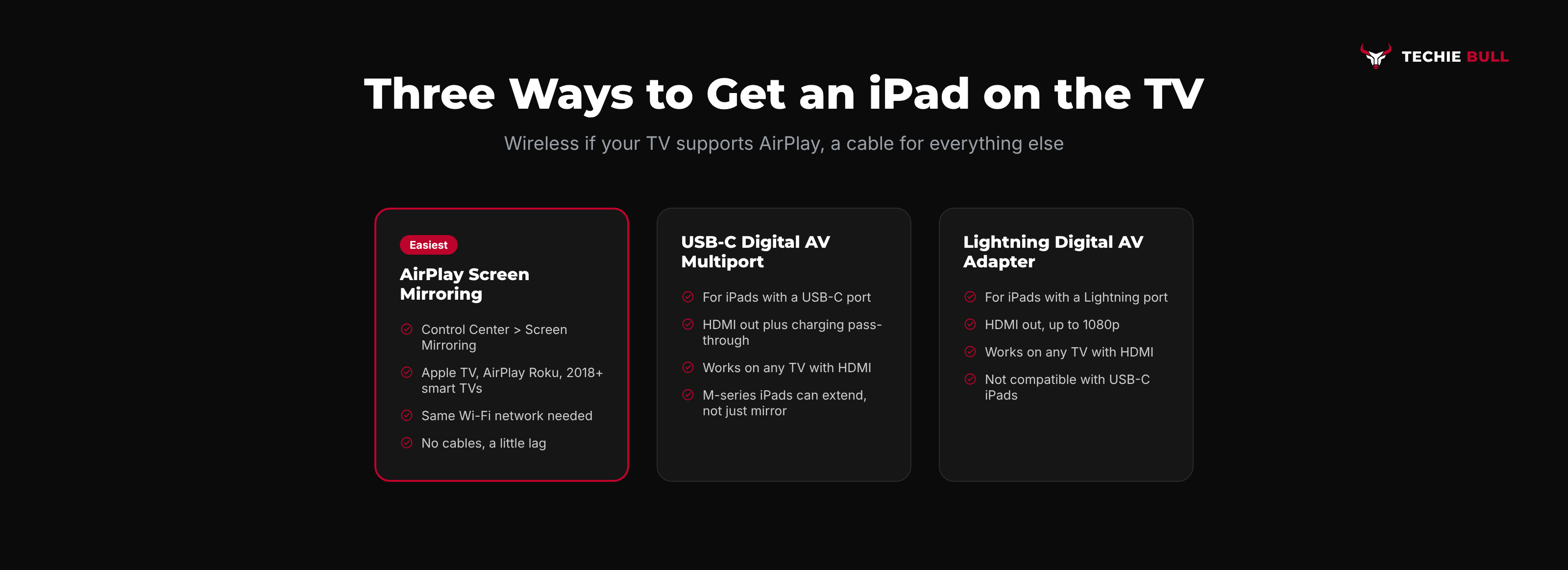
A cable works on any TV with an HDMI port, needs no Wi-Fi, and has no wireless lag, which makes it the most dependable choice for presentations, classrooms, and games. Which adapter you need depends on your iPad's port.
iPads With a USB-C Port
Recent iPad Pro, iPad Air, iPad mini, and standard iPad models have USB-C. Apple's own option is the USB-C Digital AV Multiport Adapter, which has an HDMI port, a USB port, and a USB-C port so you can charge at the same time. Third-party USB-C to HDMI adapters and hubs work too, but some don't support HDCP, the copy protection many streaming apps need, so you may get a black screen in those apps on a cheap hub.
iPads With a Lightning Port
Older iPads with the Lightning connector need the Lightning Digital AV Adapter. Apple's listing says it mirrors your screen to HDMI displays at up to 1080p. A Lightning adapter won't work on a USB-C iPad, or the other way around.
Connecting
- Plug the adapter into the iPad.
- Run an HDMI cable from the adapter to a free HDMI port on the TV.
- Switch the TV to that HDMI input with its remote.
I keep a USB-C multiport adapter in my laptop bag for exactly the moment a hotel TV refuses to show up on AirPlay. It's the least exciting gadget I own and the one that's saved me most often.
Method 4: Use the TV as a Second Screen (M-Series iPads)
iPads with Apple's M-series chips (M1 and newer iPad Pro and iPad Air models) can use an external display as an extended screen with Stage Manager, rather than just copying the iPad. That means one app on the iPad and another on the TV, which is handy for working, editing photos, or keeping notes open while presenting.
Connect with a cable as in Method 3, then go to Settings > Display & Brightness on the iPad, where the connected display shows up and you can choose whether to mirror or extend. Other iPads, including older iPad Pro models without an M-series chip, mirror only. Stage Manager has changed across iPadOS versions, so if the option looks different on yours, check Apple's iPad User Guide for your iPadOS version.
Method 5: Cast to a Chromecast or Google TV
Chromecast and Google TV devices use Google Cast, not AirPlay, so Screen Mirroring won't find them. What works:
- The Cast icon inside apps. YouTube and many other apps on iPad have a Cast button in the video player. Tap it and choose your Chromecast. The TV streams the video itself.
- A cable. Method 3 bypasses the protocol problem entirely.
- Third-party mirroring apps. Some App Store apps can mirror an iPad's whole screen to a Chromecast, but reliability is a step down from AirPlay, and many charge a subscription.
Streaming services also change their casting rules. Netflix, for example, ended phone and tablet casting to most modern TVs and streaming devices in late 2025, so a missing Cast icon in one app isn't always something you can fix.
Common Problems
The TV doesn't appear in Screen Mirroring. Check the Wi-Fi network matches, AirPlay is switched on in the TV's settings, and both devices are updated. Restarting the iPad and the TV or streaming box clears up a lot of stuck AirPlay discovery.
It connects but the video stutters. Move closer to the router, or switch to a cable. Mirroring a whole screen is more demanding than streaming a single video, so Method 2 often runs smoother than Method 1.
A streaming app shows black on the TV. Some apps block mirroring of copyrighted video. Use the app's own AirPlay or Cast button, or the app on the TV. With a cable, a hub that lacks HDCP can cause the same thing.
Sound plays on the iPad, not the TV. Check the iPad isn't connected to Bluetooth headphones, and raise the TV's volume. With mirroring, audio normally follows the picture to the TV.
Still Not Working?
If AirPlay still won't connect after a restart and matching networks, Apple's AirPlay support article covers mirroring and streaming in detail, and Apple Support can check your iPad. For TV-side AirPlay settings, your TV maker's support site (Samsung, LG, Sony, Vizio, or Roku) is the right place, since each puts the setting somewhere different. If AirPlay isn't working at all across devices, our AirPlay Not Working guide goes deeper.
Frequently Asked Questions
Can I cast my iPad to a TV without Wi-Fi?
Yes, with a cable. A USB-C Digital AV Multiport Adapter (USB-C iPads) or Lightning Digital AV Adapter (Lightning iPads) plus an HDMI cable puts your iPad on any TV with an HDMI port, no network needed.
Why can't my iPad find my Chromecast?
Because Screen Mirroring uses AirPlay, and Chromecast uses Google Cast. Use the Cast icon inside apps like YouTube, or a cable. Full-screen mirroring to a Chromecast needs a third-party app.
Can my iPad use the TV as a second screen instead of mirroring?
If it has an M-series chip (M1 or newer iPad Pro or iPad Air), yes, through Stage Manager with a wired connection. Other iPads mirror only.
Why are there black bars around my iPad on the TV?
iPad screens are a different shape from a widescreen TV. Rotating to landscape helps, and streaming a video with the AirPlay icon usually fills the TV properly.
How do I stop mirroring my iPad?
Open Control Center, tap Screen Mirroring, then Stop Mirroring. Unplugging the adapter ends a wired connection.
Quick Summary
For most people, casting an iPad to a TV is Control Center (top-right swipe), Screen Mirroring, and your TV's name, as long as the TV supports AirPlay and you've switched it on. For video, the AirPlay icon in an app streams more cleanly than mirroring. No AirPlay? A USB-C or Lightning HDMI adapter works on any TV and needs no Wi-Fi, and M-series iPads can even turn that TV into a second screen. Chromecast and Google TV owners should use the Cast icon inside apps, or the cable.
Related Articles
How to Cast Your Phone to a TV (Android Guide for Any TV)
How to cast your Android phone to a TV, whether it's a Chromecast, Google TV, Samsung, LG, Roku, or Fire TV, plus the cable option when Wi-Fi won't cooperate.
How to Cast Your Laptop to a TV (Windows, Chromecast & More)
How to cast a Windows laptop to a TV, whether you're using a Smart TV's built-in Miracast receiver, a Roku, a Fire TV, or a Chromecast instead.