

Firestick Remote Not Working? 7 Fixes That Work

A Firestick remote not working feels like a hardware death sentence, because without the remote you can't even get into the menu to fix anything. It almost never is. In my experience the remote is fine about nine times out of ten, and the real culprit is a flat battery, a Bluetooth pairing that quietly dropped, or a stick that has frozen and stopped listening.
The trick is to stop guessing. Your remote can actually tell you what's wrong, and once you know that, the fix takes a couple of minutes.
Quick answer: swap in two fresh AAA alkaline batteries first. If that changes nothing, unplug the Firestick for a minute, plug it back in, and hold the Home button for 10 seconds while it boots. Still dead? Put the remote into troubleshooting mode (hold Rewind and Right for 3 seconds, then press Menu) and read the LED color, which points you to the right fix below.
Key takeaways:
- Fresh batteries and a restart of the stick itself solve a surprising share of cases, so do those before anything clever.
- Remotes with an LED have a built-in troubleshooting mode: slow red means low battery, fast red means a problem with the remote, orange means it isn't paired, white means the Fire TV is off, blue means the remote is fine.
- Holding Home for 10 seconds re-pairs most remotes without a full reset.
- The free Fire TV app on your phone works as a temporary remote, as long as the phone and the stick are on the same Wi-Fi.
Want a faster route? Try our Firestick Remote Troubleshooter →
What's Going Wrong? A Quick Triage
| What you're seeing | Most likely cause | Start with |
|---|---|---|
| Nothing responds, no LED when you press a button | Dead or backward batteries | Method 1 |
| Remote worked yesterday, now nothing | Stick frozen, or a dropped pairing | Methods 2 and 3 |
| You want to know the cause before guessing | Remote's own diagnostic mode | Method 4 |
| Remote lags or drops out, but works up close | Range or interference | Method 5 |
| Reset and re-pair didn't help | Needs a full remote reset | Method 6 |
| You need to watch something right now | Use the Fire TV phone app | Method 7 |
If only the TV power or volume buttons are dead while everything else works, that's a separate setup issue. We cover it in our Fire TV remote guide, under the Equipment Control section.
Why a Firestick Remote Stops Responding
Your Firestick remote talks to the stick over Bluetooth, not infrared, which is why you don't have to point it at the device. That's convenient, but it also means the remote has a connection that can break. A weak battery can interrupt it. A stick that has been running for weeks without a restart can stop accepting input. And a remote that was paired once can simply forget the stick after a glitch.
So the problem is rarely "the remote is broken." It's usually "the remote and the stick stopped agreeing with each other," and every fix below is a way of getting them back in sync.
Method 1: Replace the Batteries (and Check the Contacts)
Boring, yes. Also the most common fix. Amazon recommends AAA alkaline batteries, and weak ones can interrupt pairing long before they die outright.
- Slide off the back cover and take both batteries out.
- Look at the metal contacts for white or green crust. That's corrosion, and it can block the connection even when the batteries are new. Wipe it away with a dry cloth or cotton swab.
- Insert two fresh, matching AAA batteries, checking the plus and minus ends against the markings inside.
- Press Home and see whether the stick responds.
Don't mix an old battery with a new one. That's an easy way to end up with a remote that works for ten minutes and then stalls.
Method 2: Restart the Firestick Itself
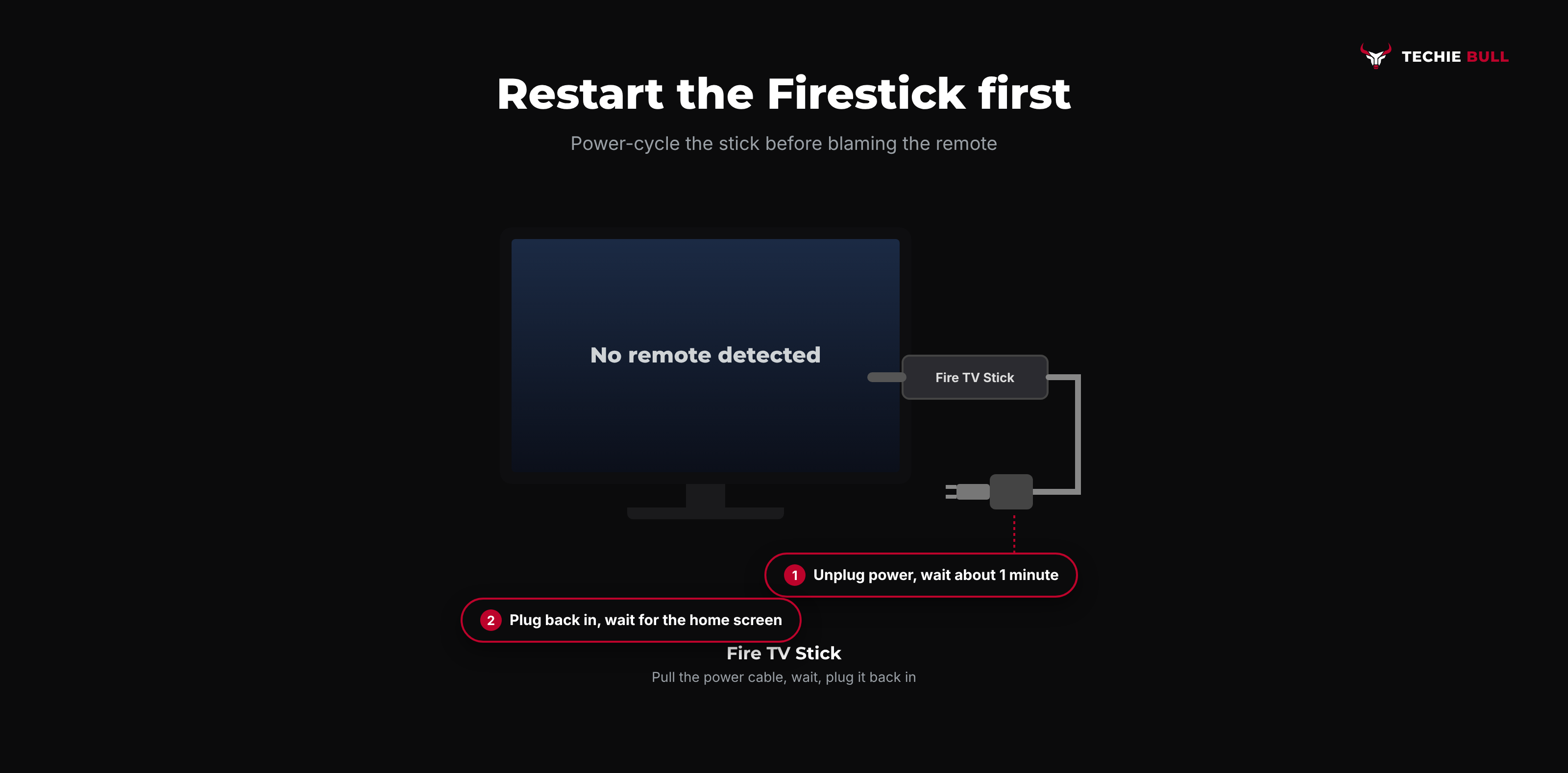
If the remote responds to nothing, the stick may be the one that's stuck. Unplug the Firestick from power (pull the cable from the stick, or unplug the power adapter from the wall) and leave it for about a minute. Plug it back in and wait for the home screen.
If the remote still does nothing, watch the screen as the stick boots. You may see a message saying it can't detect your remote. That's good news. It means the stick is awake and waiting to be paired, which brings us to the next step.
Method 3: Re-Pair the Remote
Point the remote at the stick, stand reasonably close, and hold the Home button for 10 seconds. Don't press anything else while you wait. The LED on the remote should blink and the TV should confirm the connection.
If you have another working way to navigate (the phone app in Method 7, say), you can also add the remote from the menu: Settings > Controllers & Bluetooth Devices > Amazon Fire TV Remotes > Add New Remote, then hold Home on the remote while the stick searches. Exact wording can shift a little between Fire TV software versions, so look for the closest match.
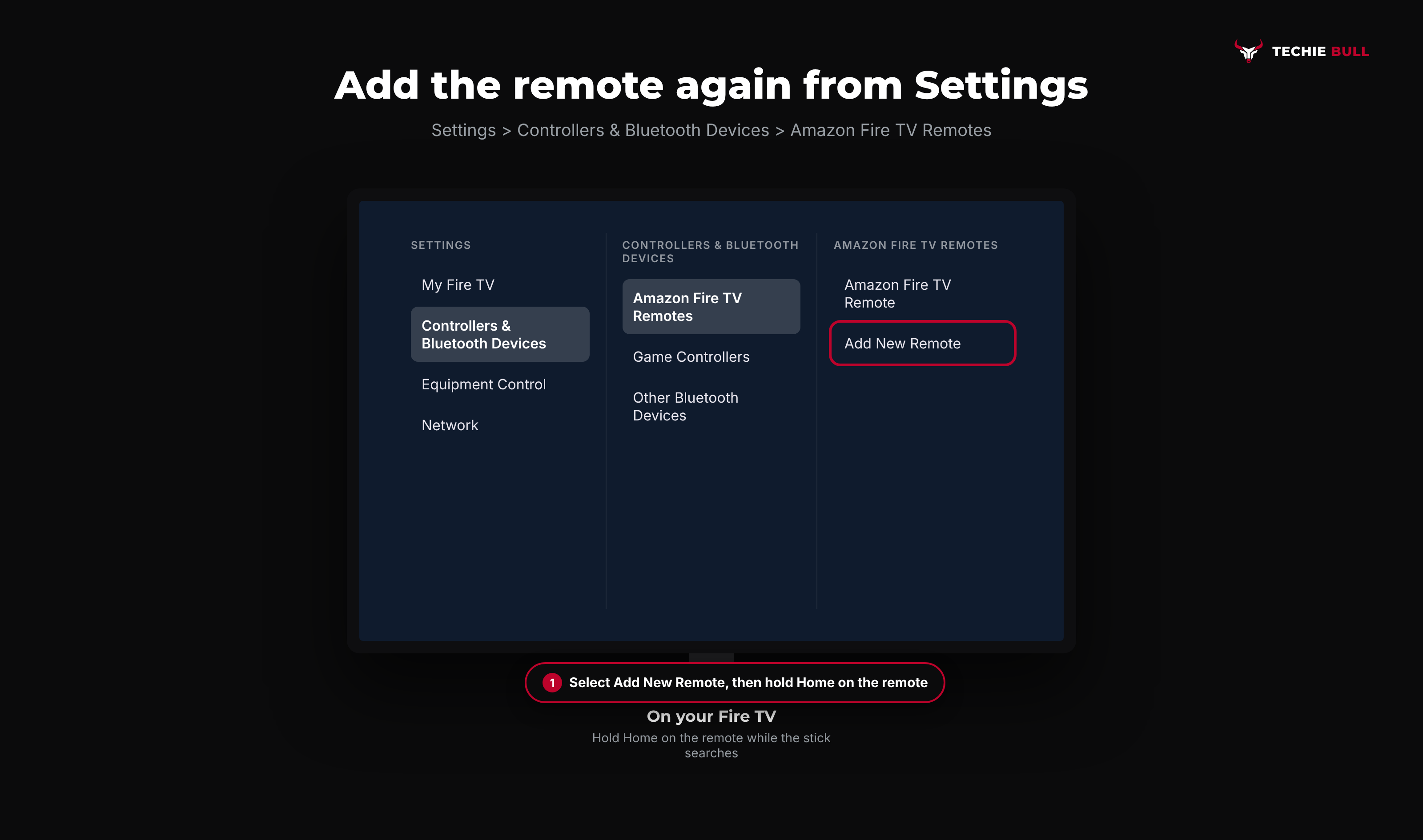
This menu also shows your remote's battery status, which is a handy second opinion if you aren't sure the batteries are the problem.
Method 4: Use the Remote's Built-In Diagnostic Mode
This is the part almost nobody knows exists. If your remote has an LED at the top, it can diagnose itself. To check, press the Alexa Voice button. If the LED flashes, troubleshooting mode is available.
Step 1: Switch Troubleshooting Mode On
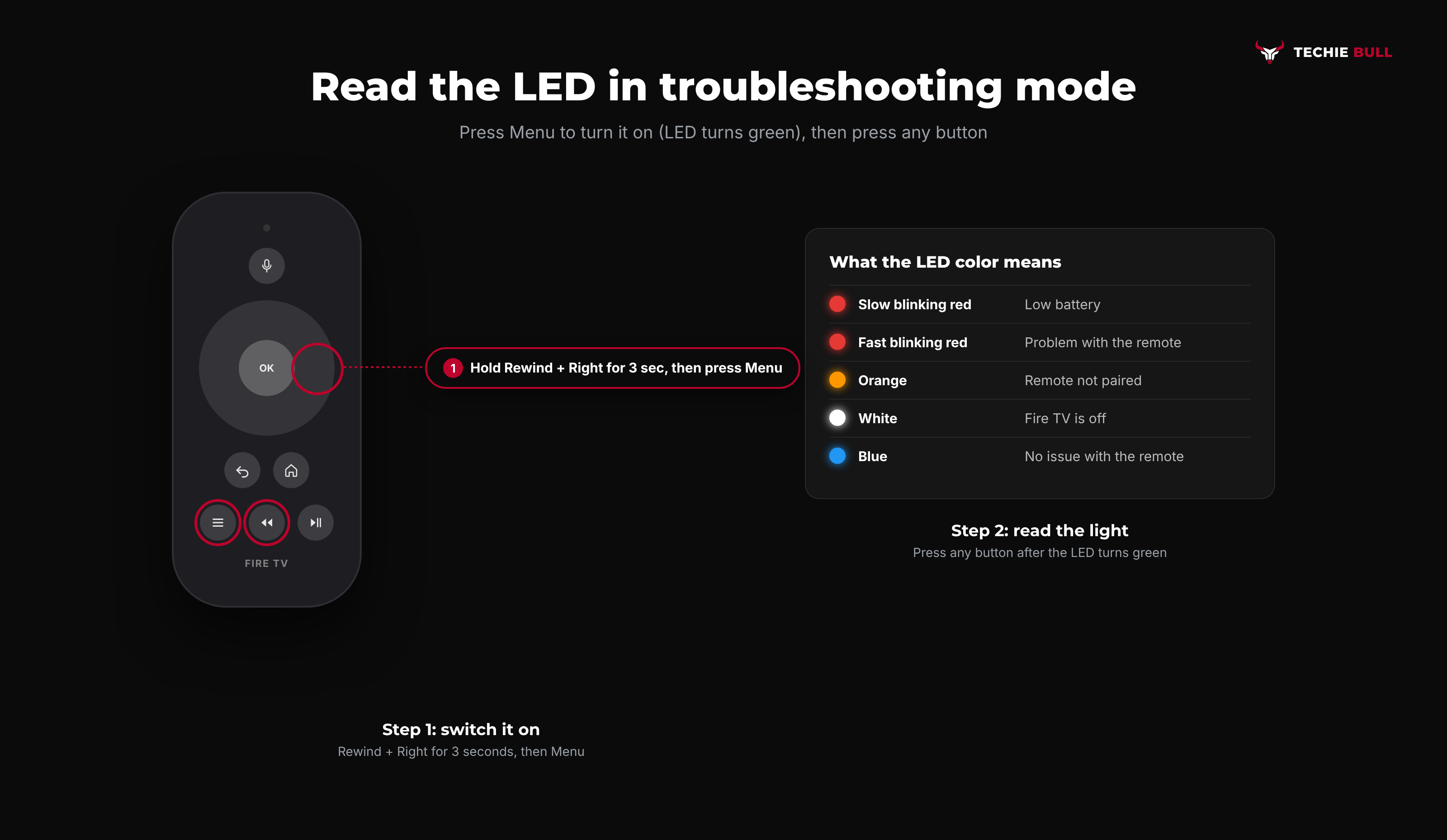
Press and hold Rewind and Right (on the navigation ring) together for 3 seconds, then press Menu. The LED turns green to confirm the mode is on.
Step 2: Press Any Button and Read the Light
Press any button on the remote. The LED color tells you what Amazon's own troubleshooting page says is going on:
| LED | What it means | What to do |
|---|---|---|
| Slow blinking red | Low battery | Replace the batteries |
| Fast blinking red | A problem with the remote | Do the full reset in Method 6 |
| Orange | Remote isn't paired | Restart the Fire TV, wait for the "cannot detect your remote" message, then hold Home for 10 seconds |
| White | The Fire TV is off or not responding | Make sure it's on, restart it if it stays white |
| Blue | No issue with the remote | Restart the Fire TV |
A blue light is oddly reassuring. It tells you to stop blaming the remote and look at the stick, the TV input or the HDMI connection instead.
When you're done, leave troubleshooting mode by holding Play/Pause and Up for 3 seconds, then pressing Menu. Amazon also says to remove and reinsert the batteries afterward.
Method 5: Fix Range and Interference Problems
If the remote works from two feet away but lags or cuts out from the sofa, this is a Bluetooth reach problem, not a dead remote. A Firestick tucked behind a thick TV, pushed flush against the wall, or sitting next to a router, speaker bar or game console can have its signal squeezed.
- Use the little HDMI extender that ships with many Firesticks, so the stick sits further from the back of the TV and out of its own shadow.
- Move other wireless gear a foot or two away from the stick.
- Test from close range first. If it works up close, you've found the cause.
I treat this as the "it only fails in the evening" fix, because that's when everything else in the room is also switched on.
Method 6: Do a Full Remote Reset
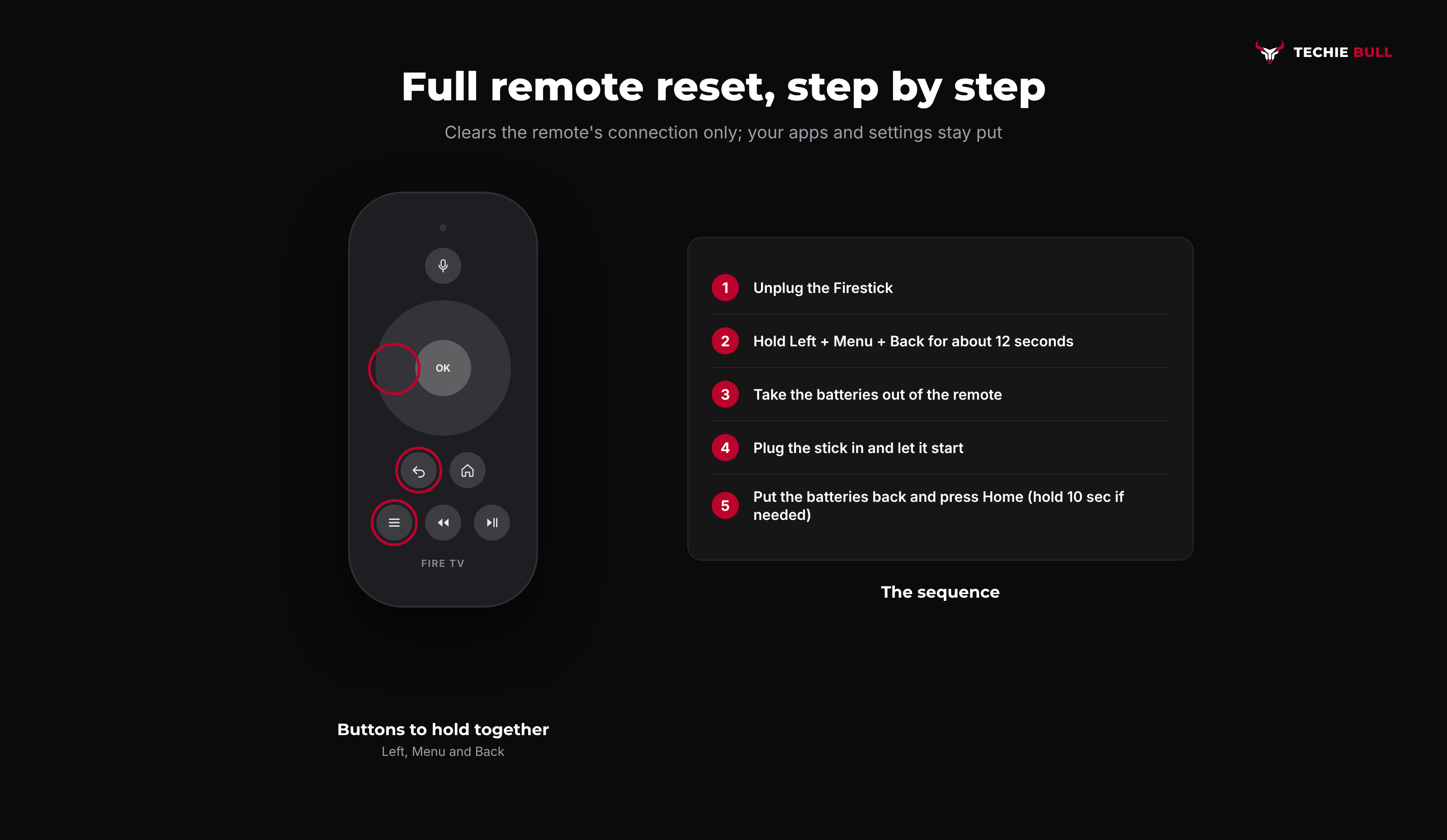
When re-pairing fails, reset the remote's connection from scratch. This is the longer version, and it doesn't touch any of your apps or settings.
- Unplug the Firestick and leave it unplugged.
- On the remote, press and hold Left, Menu and Back together for about 12 seconds, then let go. (One source says to hold until the remote's light blinks blue, and Amazon's reset page is the one to check if your model behaves differently.)
- Take the batteries out of the remote.
- Plug the Firestick back in and let it start up.
- Put the batteries back in and press Home. If nothing pairs, hold Home for about 10 seconds.
Button combinations can vary on older or unusual remotes, so if yours doesn't respond to this, use Amazon's own page for your model, linked below.
Method 7: Use the Fire TV App as a Stand-In Remote
Get a working remote on your phone while you sort the real one out. Install the free Amazon Fire TV app (iPhone and Android), sign in, and pick your stick. The phone and the stick need to be on the same Wi-Fi network. From there you can navigate, type with your phone's keyboard and open the Settings path from Method 3 to add the physical remote back.
I'd install it now, before you need it. It's far easier than trying to set it up when the TV is stuck on a screen you can't get past.
Still Not Working?
If fresh batteries, a stick restart, re-pairing and a full reset all fail, and the LED never lights in troubleshooting mode, the remote has most likely failed. Amazon's Fire TV remote support page covers model-specific steps and replacement options. A new remote is cheap, and the phone app keeps you going until it arrives.
Frequently Asked Questions
Why is my Firestick remote not working even with new batteries?
New batteries only help if the remote and stick are still paired. If the LED is orange in troubleshooting mode, or the TV says it can't detect a remote, re-pair by holding Home for 10 seconds (Method 3). If that fails, run the full reset in Method 6.
How do I reset my Firestick remote?
Unplug the stick, hold Left, Menu and Back together for about 12 seconds, remove the remote's batteries, plug the stick back in, then reinsert the batteries and press Home. If it doesn't pair, hold Home for about 10 seconds.
What does the orange light on my Firestick remote mean?
Orange in troubleshooting mode means the remote isn't paired. Restart the Fire TV, wait for the on-screen "cannot detect your remote" message, then hold Home for 10 seconds.
Can I control my Firestick without the remote?
Yes. The free Fire TV app on iPhone or Android works as a remote, as long as your phone and the stick share the same Wi-Fi network.
Will resetting the remote delete my apps?
No. The remote reset only clears the remote's connection to the stick. Your apps, accounts and settings stay as they are.
Quick Summary
Start with fresh AAA alkaline batteries, then restart the stick. Re-pair with a 10-second Home hold. If you're still guessing, use troubleshooting mode and let the LED color point to the cause. Fix range issues by moving the stick away from the wall and other wireless gear, do a full reset only if you must, and keep the Fire TV app handy as a backup.
Related Articles
How to Fix Onn TV Problems: 8 Fixes That Work
Learn how to fix Onn TV problems like no power, a dead remote, a black screen or Wi-Fi drops, starting with a restart and ending with a factory reset.
Samsung TV Volume Not Working? Fixes That Work
Samsung TV volume not working, stuck, or silent? Check Sound Output, Anynet+, Sound Test and Reset Sound, plus what to do if none of it helps.
How to Connect a Firestick Remote to Your TV (Pair + TV Control)
How to connect a Firestick remote to your TV: pair it to the Fire TV Stick with a 10-second Home hold, then set it up to run your TV's power and volume.