

Samsung TV Volume Not Working? Fixes That Work

When your Samsung TV volume is not working, the problem is almost never the speakers. Far more often the TV is sending sound somewhere else, the remote is controlling the wrong device, or a setting is quietly overriding what you press. The good news is that every one of those causes can be checked from the couch in a few minutes, and the order you check them in matters more than any single trick.
A quick note on what "not working" means, because it changes the fix. Maybe you press volume up and nothing appears on screen. Maybe the volume bar moves but there's no sound. Maybe the sound works fine but the volume jumps or sticks at one level. Each of those points at a different culprit, and I've split the methods below so you can jump to yours.
Quick answer: open Settings > Sound > Sound Output and make sure it's set to TV Speaker (unless you actually use a soundbar). Then run Settings > Support > Self Diagnosis > Start Sound Test. If the test plays a tone, the speakers are fine and the problem is a setting or a connected device. If it doesn't, try Reset Sound, a software update, and a full power reset.
Key takeaways:
- Samsung's own support pages say that when Sound Output is set to external speakers only, the Volume and Mute buttons on the remote and some sound functions are disabled. That alone explains a lot of "dead volume button" reports.
- The built-in Sound Test tells you in seconds whether the TV hardware is working, so run it before anything else.
- If you use a soundbar or receiver, volume control over HDMI depends on Anynet+ (HDMI-CEC) being on, and on the right HDMI port.
- Reset Sound clears bad audio settings without touching your picture, apps or Wi-Fi.
- A set-top box, console or streaming stick has its own volume, and it can sit at zero while the TV is fine.
Prefer an interactive walkthrough? Try our Samsung TV Volume Troubleshooter →
Which Symptom Do You Have?
| What you see | Most likely cause | Go to |
|---|---|---|
| Pressing volume does nothing at all, no bar on screen | Sound Output set to an external speaker, or a remote problem | Method 1 and Method 5 |
| Volume bar moves, but no sound | Wrong sound output, muted external device, or a bad audio setting | Method 1, 2 and 3 |
| Sound only missing from one device (cable box, console) | That device's own volume or its HDMI audio setting | Method 4 |
| Soundbar volume won't change from the TV remote | Anynet+ off, or soundbar on the wrong HDMI port | Method 6 |
| Sound test is silent too | Software or hardware fault | Method 2, 7 and 8 |
Why Samsung TV Volume Stops Responding
Samsung TVs can send audio to the built-in speakers, to a soundbar or receiver over HDMI or optical, or to a Bluetooth speaker. Only one of those is the active output at a time, and the volume buttons on your remote control whichever one is active. Switch the output to something that isn't actually playing sound (a soundbar that's powered off, a Bluetooth speaker you walked away from) and you get exactly the symptom people describe: the TV looks like it's working and nothing comes out.
Samsung also notes that with external speakers selected, the volume and mute buttons on the remote can be disabled outright, and many Expert Settings go grey. So a "broken" volume button is frequently the TV doing what it was told, not a fault.
Before You Start: Two Quick Checks
Look at the mute icon and the volume number. It sounds obvious, but a muted TV and a TV at volume 0 look identical from across the room. Press Volume Up on the remote and watch for the on-screen volume bar. If the bar appears and the number climbs, the remote is fine and you're dealing with an output or device problem. If nothing appears at all, note that for Method 5.
Check the volume on anything connected. Samsung's guidance for a no-sound TV starts with the connected device's own volume. A cable box, console or soundbar can be turned down independently, and the TV's volume bar will happily show a healthy level the whole time.
Method 1: Set Sound Output to the TV Speaker
This is the most common fix, and it takes under a minute.
Step 1: Open the Sound Output setting
Press the Home button on your remote, go to Settings, choose Sound, then select Sound Output.
Step 2: Pick TV Speaker
Select TV Speaker and test the volume again. If you normally use a soundbar, receiver or Bluetooth speaker, switching to TV Speaker temporarily is still a useful test: if sound comes back, the TV is fine and your external speaker or its connection is the issue.
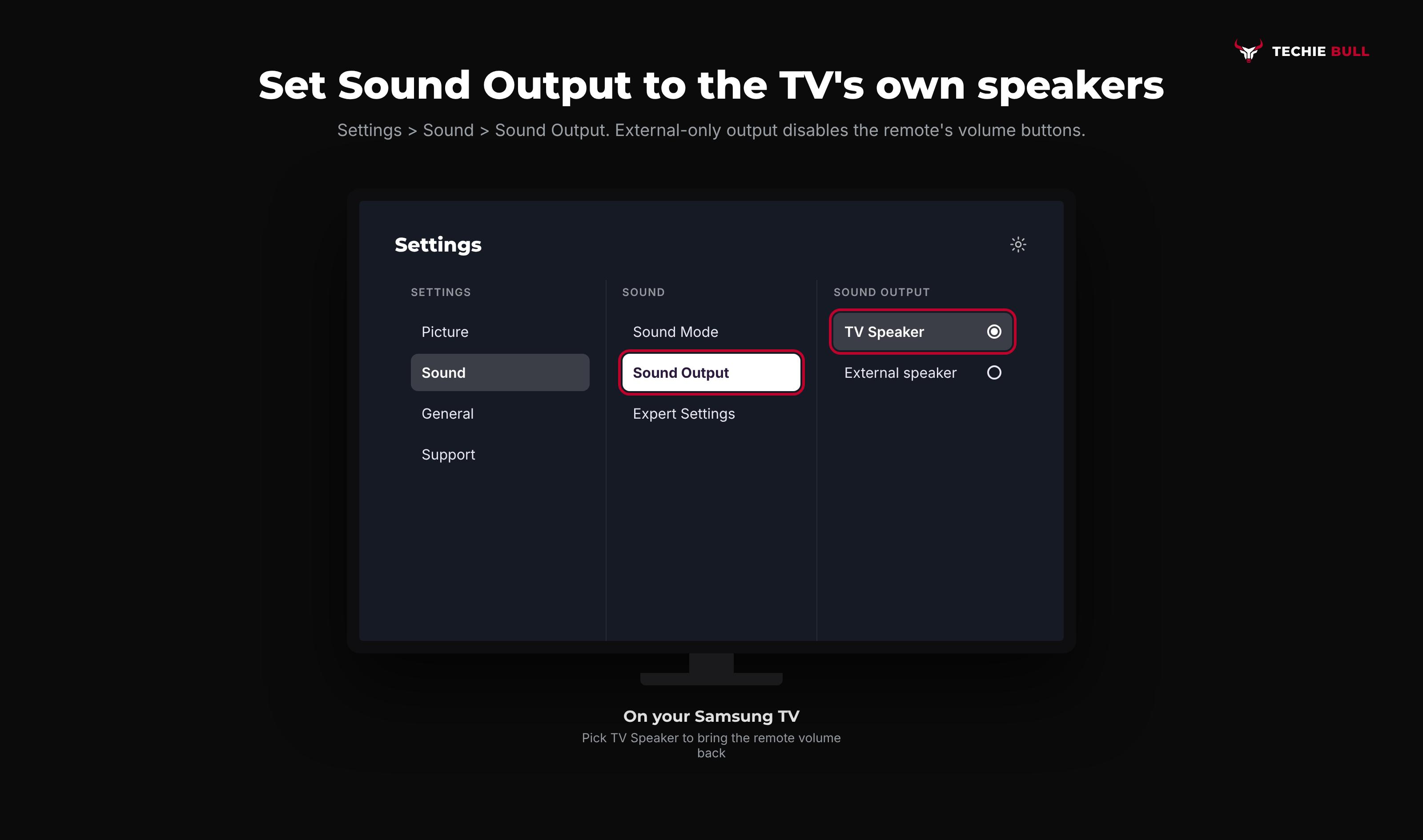
Menu names shift a little between model years, so if yours looks different, look for the Sound section and an output or speaker selection inside it.
Method 2: Run the Sound Test
Samsung builds a diagnostic into every recent Smart TV, and it's the quickest way to separate a hardware fault from a settings problem.
Step 1: Start the test
Go to Settings > Support > Self Diagnosis > Start Sound Test. Some models list this under Device Care, so if you don't see Support, check there.
Step 2: Listen for the tone
If the test plays a melody or tone from the TV speakers, the hardware is working. Your fix is in the settings or the connected devices, so keep going through Methods 3 to 6.
If the test is silent with Sound Output set to TV Speaker, jump to Methods 7 and 8.
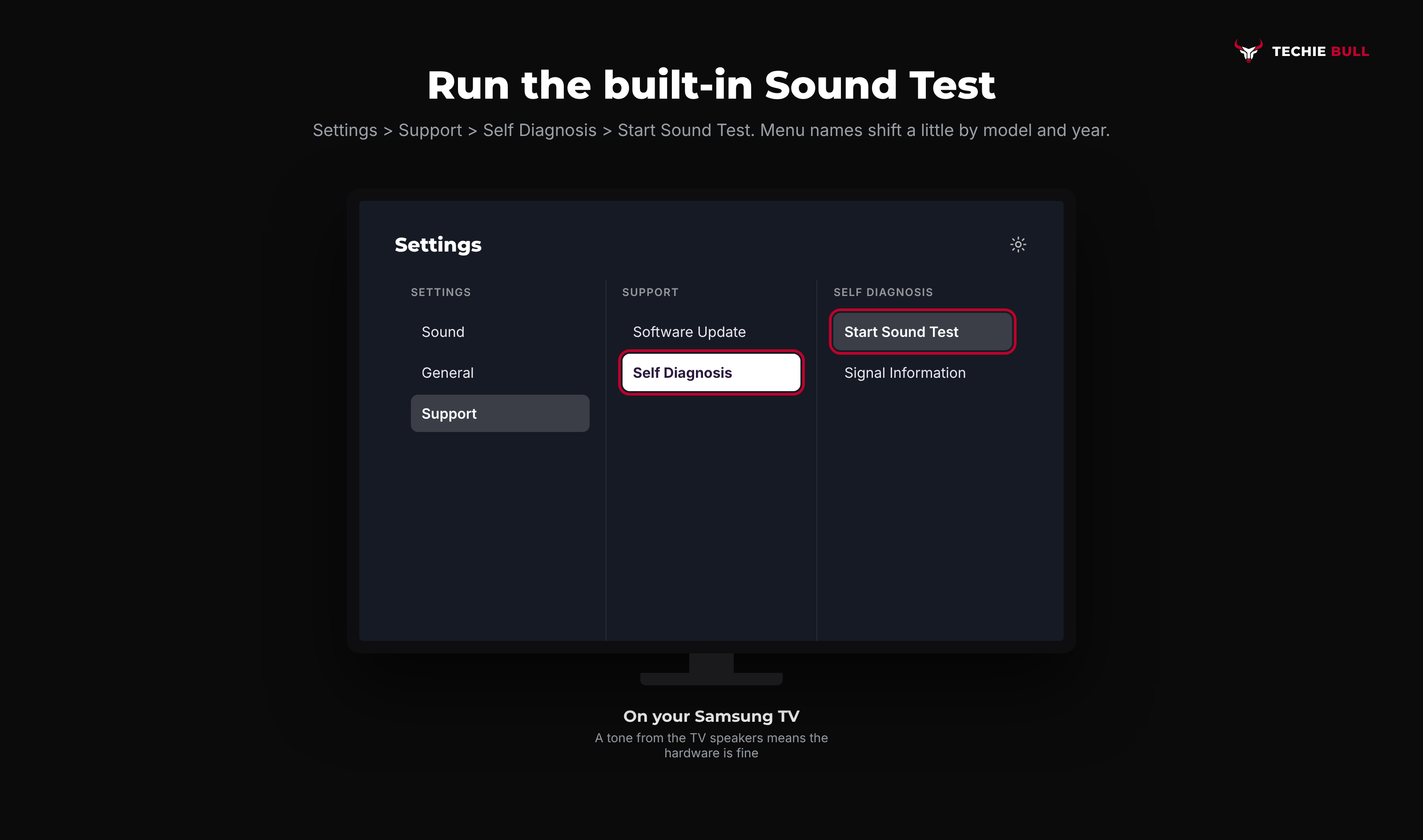
Samsung also suggests, when sound is unclear or breaking up, running the Sound Test first and then using Reset Sound if it shows a problem, or checking Signal Information (also under Self Diagnosis) if it shows none.
Method 3: Reset the Sound Settings
If you've been through the Expert Settings (or a family member has), a stray option can leave you with odd or missing audio. Reset Sound puts them all back without touching your picture settings, apps or network.
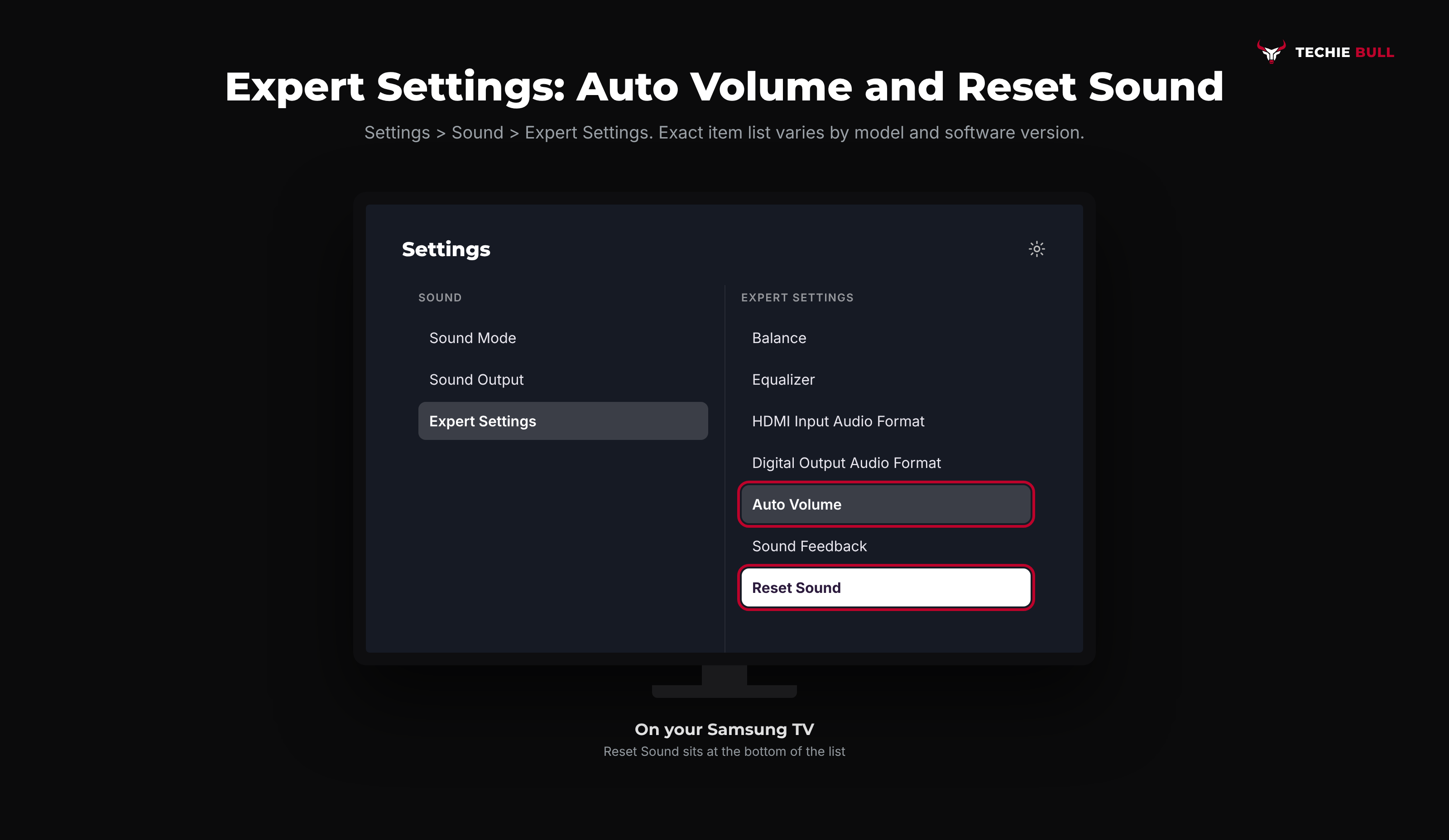
- Press Home, then go to Settings > Sound > Expert Settings.
- Scroll all the way to the bottom and select Reset Sound.
- Confirm when the TV asks whether to reset the sound settings.
The exact list under Expert Settings depends on your model and software version. On the Samsung pages I checked, it included items such as Balance, Equalizer, HDMI Input Audio Format, Digital Output Audio Format, Auto Volume and Sound Feedback, with Reset Sound at the end. While you're in there, Auto Volume is worth a glance if your complaint is that volume jumps around between channels or ads, since it exists to even those out. Turn it off and see if the behavior changes.
Method 4: Check the Connected Device (Cable Box, Console, Streaming Stick)
If sound is missing on one input only, the TV is rarely to blame. Work through this in order:
- Turn up the volume on the device itself. Many boxes and consoles have their own volume or mute setting.
- Switch the TV to a different input or app. If sound plays there, the TV is fine.
- Unplug the TV and the box from power, plug both back in, and reseat the HDMI cable. Samsung suggests this for set-top box sound problems, then trying another input source if it persists.
- Try a different HDMI cable or port if you have one.
If the TV plays sound from its own apps but not from an HDMI device, the device's audio output setting (often set to a surround format the TV can't decode, or to PCM versus bitstream) is the next thing to check in that device's menu.
Method 5: Rule Out the Remote
If pressing volume does nothing and no bar appears, test whether the TV or the remote is at fault before you change anything else.
Use the physical buttons or joystick on the TV itself, or the Samsung SmartThings app on your phone as a backup remote, to change the volume. If that works, the TV is fine and the remote is the problem: replace the batteries first, then re-pair a Samsung Smart Remote by pointing it at the TV and holding Return and Play/Pause together for at least 3 seconds.
One caveat worth knowing: if Sound Output is set to external speakers only, the remote's volume buttons can be disabled by design, so go back to Method 1 before blaming the remote.
Method 6: Fix Soundbar and Receiver Volume Control
This one catches a lot of people. The soundbar plays sound, but the TV remote's volume buttons don't change it, or they change a volume bar that has no effect.
Step 1: Use the right HDMI port
If you connect a soundbar or home theatre system over HDMI, use the port labelled HDMI (eARC/ARC) on the TV. Samsung notes that if a device is connected via Optical, volume control may not be possible depending on the device, so HDMI ARC is the safer choice.
Step 2: Turn on Anynet+ (HDMI-CEC)
Anynet+ is what lets the TV remote control your soundbar's volume. On 2022 and newer models, go to Settings > All Settings > Connection > External Device Manager and set Anynet+ (HDMI-CEC) to On. On 2021 and older models it lives under Settings > General > External Device Manager. Samsung says it's typically on by default, but a software update or a reset can change that.
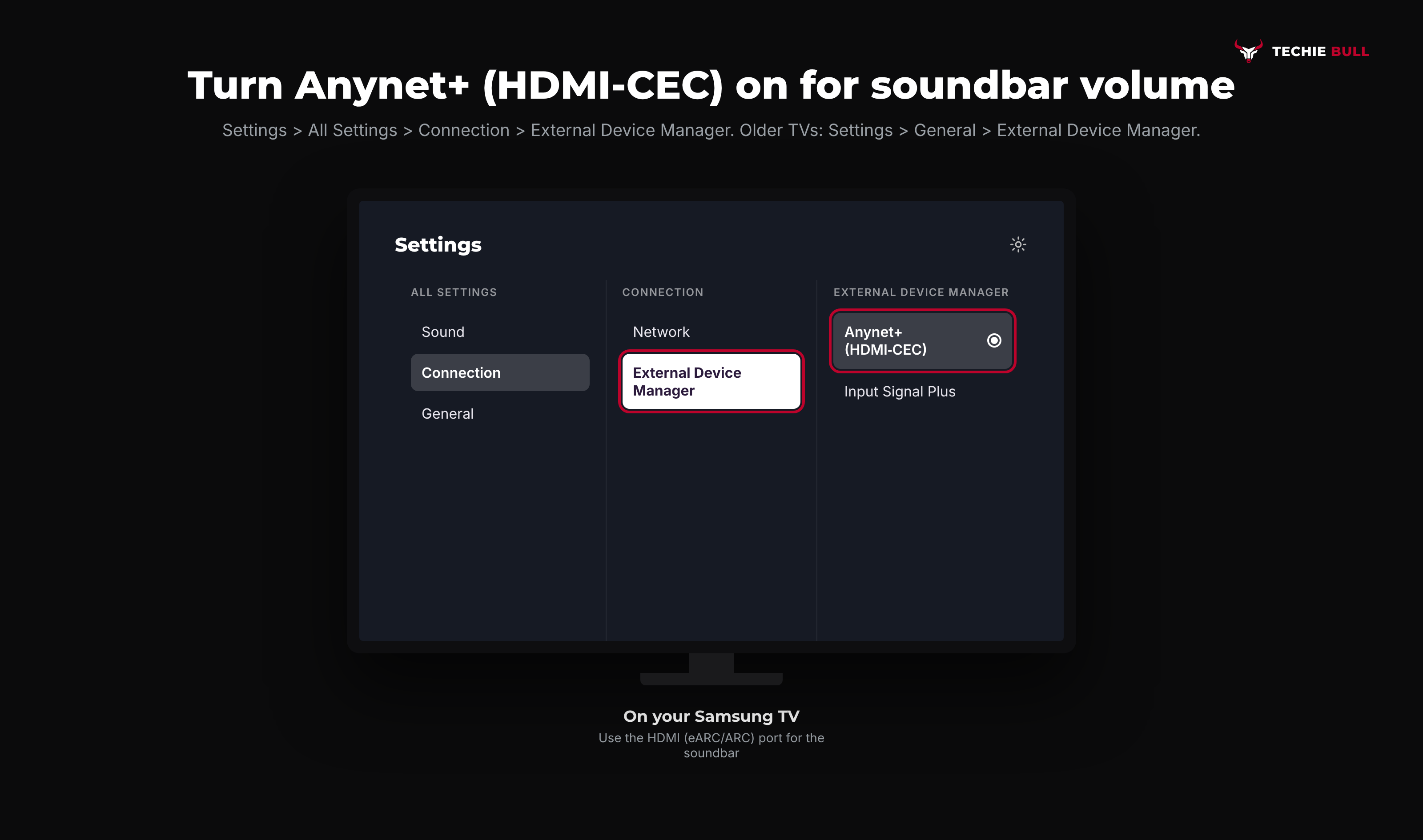
Samsung also says this only works on specific models and with the Samsung TV remote, so if you use a universal remote, test with the original Samsung one first.
Method 7: Update the Software and Do a Full Power Reset
If the Sound Test was silent, or nothing above helped, these two steps clear a surprising number of cases.
- Unplug the TV from the wall (and the One Connect Box if yours has one) and leave it for a full 30 seconds, then plug it back in and switch it on.
- Go to Settings > Support > Software Update > Update Now and install anything that's waiting.
Samsung's own no-sound guidance puts the software update right after the power cycle, and it's worth doing before you consider a factory reset.
Method 8: Factory Reset, and When It's Hardware
If you've gone through every method and the Sound Test still plays nothing from the TV speakers, a full reset is the last thing you can try yourself. Samsung's guidance for a persistent no-sound problem is to reset the TV at Settings > General > Reset (the path varies by model).
Be aware this wipes your settings, signed-in apps and saved channels, so only do it once you've tried everything above. If the Sound Test is still silent after a factory reset, that points to a hardware fault, usually in the audio board or the speakers themselves, and it's repair or replacement territory.
Still Not Working?
If the Sound Test is silent after a software update and a reset, stop troubleshooting and contact Samsung. Their no-sound support page covers the sound settings in detail, and you can start a repair request or check your warranty through Samsung Support. Have your model number ready (it's on the sticker on the back of the TV or under Settings > Support > About This TV).
Frequently Asked Questions
Why can I see the volume bar but hear nothing on my Samsung TV?
The TV is changing a volume level for an output that isn't producing sound. Check Settings > Sound > Sound Output and switch to TV Speaker. If sound returns, your soundbar, receiver or Bluetooth speaker was the active output and has a problem of its own, such as being off, muted or disconnected.
Why won't my Samsung TV remote change the volume?
If no volume bar appears, test with the buttons on the TV or the SmartThings app. If those work, replace the remote's batteries and re-pair it by holding Return and Play/Pause for 3 seconds. Also check that Sound Output isn't set to external speakers only, which Samsung says can disable the remote's volume and mute buttons.
Why does my Samsung TV volume get stuck at one level?
A stuck volume is usually tied to an external device or to Anynet+. If you have a soundbar or receiver connected, the TV may be handing volume control to it. Check Anynet+ (HDMI-CEC) under External Device Manager and try the TV speakers on their own to confirm.
Will Reset Sound delete my apps or Wi-Fi?
No. Reset Sound under Settings > Sound > Expert Settings only restores the sound options to their defaults. Your apps, picture settings and network connection stay as they are.
Can I fix a Samsung TV with no sound without a factory reset?
Usually yes. The Sound Output check, the Sound Test, Reset Sound, a 30-second power reset and a software update solve most cases without wiping the TV. A factory reset is the last resort, and it can't fix a genuine speaker or audio board fault.
Quick Summary
Start with Settings > Sound > Sound Output and make sure it's on TV Speaker, because an external-only output can disable the volume buttons entirely. Then run the Sound Test: a tone means your settings or connected devices are the problem, silence means a software or hardware fault. Use Reset Sound to clear bad audio settings, check the connected device's own volume, confirm Anynet+ and the HDMI ARC port if you use a soundbar, and finish with a 30-second power reset and a software update. If the Sound Test is still silent after all that, it's time to call Samsung.
Related Articles
How to Connect a Firestick Remote to Your TV (Pair + TV Control)
How to connect a Firestick remote to your TV: pair it to the Fire TV Stick with a 10-second Home hold, then set it up to run your TV's power and volume.
How to Pair a Roku Remote (Voice, Pro, and Simple Remotes)
How to pair a Roku remote in under a minute: the pairing button, the Back and Home shortcut, the Settings menu route, and what to do with a simple IR remote.
LG TV Won't Connect to Wi-Fi? 9 Fixes That Actually Work
LG TV won't connect to Wi-Fi? Run LG's hotspot test to find whether the TV or router is at fault, then fix it with power cycling, Quick Start+, DNS, and more.