

How to Fix Onn TV Problems: 8 Fixes That Work

If you're trying to work out how to fix Onn TV problems, the reassuring part is that most of them are the same handful of glitches in different costumes. An Onn TV that won't turn on, a remote that's gone quiet, a screen that stays black while the sound plays, an app that freezes: nearly all of it traces back to a stuck software state, a remote that has lost its connection, or a device plugged into an HDMI port that's confusing the TV.
Walmart's Onn sets are budget TVs, and most of them run Roku's software, which is a big advantage when something breaks. Roku publishes proper support pages for restarts and resets, and the menus are the same on every Onn Roku TV. This guide follows that order: gentlest fix first, factory reset last.
Quick answer: unplug the TV for at least 10 seconds (Roku's own minimum) and plug it back in. If it's on but misbehaving, go to Home > Settings > System > Power > System restart. If the remote is the problem, swap the batteries and re-pair it. Only factory reset once everything else has failed.
Key takeaways:
- Roku says unplugging the power cord for at least 10 seconds is different from pressing the power button. Pressing the button doesn't fully restart the TV.
- On a TV that still shows a picture, the System restart option is the quickest, safest first move.
- A dead remote is often just dead batteries or a lost pairing, and the Roku phone app can stand in while you sort it out.
- External devices on HDMI can cause power and input trouble. Turning off Control Other Devices (CEC) settles a lot of "TV turns itself on" complaints.
- A factory reset erases your settings and unlinks the TV from your Roku account, so keep it as the last step.
Prefer an interactive walkthrough? Try our Onn TV Troubleshooter →
Which Symptom Do You Have?
| What you see | Most likely cause | Go to |
|---|---|---|
| TV won't turn on, no lights | No power reaching the board, or a stuck state | Method 1 |
| Red light on, no picture | Stuck standby, remote or input trouble | Method 1, 2 and 4 |
| Remote does nothing | Batteries, lost pairing, or the wrong remote type | Method 3 |
| Picture frozen, apps crashing, slow menus | Software glitch or an old software version | Method 2 and 5 |
| Wi-Fi keeps dropping | Network connection or router distance | Method 6 |
| TV turns on or off by itself | HDMI-CEC from a connected device | Method 4 |
| Nothing works at all | Needs a reset or repair | Method 7 and 8 |
Why Onn TV Problems Happen in the First Place
Onn TVs are built to a price. That doesn't make them unreliable, but they don't have much spare processing power, so a small software hiccup can snowball into a frozen menu or a black screen. The TV also trusts whatever you plug into it: a soundbar, console or streaming box can send signals over HDMI that wake the TV, switch inputs or hold it in a half-awake state.
The remote is the other usual suspect. Some Onn remotes are simple infrared ones and some pair over the network, and they fail in different ways. I'll flag which is which in Method 3, because the fix for one is useless on the other.
Before You Start: Two Quick Checks
Look at the power light and the wall. Make sure the outlet works (plug a lamp into it) and the cord is pushed all the way into the back of the TV. It sounds silly, but a loose cord accounts for a surprising number of "dead" TVs.
Take a photo of what's on screen. If an error message appears, you'll want its exact wording if you end up contacting support.
Method 1: Unplug the TV (the Real Restart)
Roku's support page is specific here: unplug the power cord, wait at least 10 seconds, then plug it back in. It also points out that this isn't the same as pressing the power button on the remote or TV, which only puts the set into standby.
Step 1: Pull the plug
Unplug the TV from the wall, not just the power strip switch.
Step 2: Wait it out
Give it at least 10 seconds. I'd make it a full minute for a TV that won't power on, because a longer wait gives the electronics more time to settle. Some third-party guides recommend holding the TV's own physical power button while it's unplugged. Hold times vary between guides (15 or 30 seconds), so treat that as an extra try rather than a rule.
Step 3: Plug in and power on
Plug it back in and press the power button. If the TV starts, you're done. If you still get nothing, move to Method 4 and unplug every connected device, then try again.
Method 2: Restart From the Menu
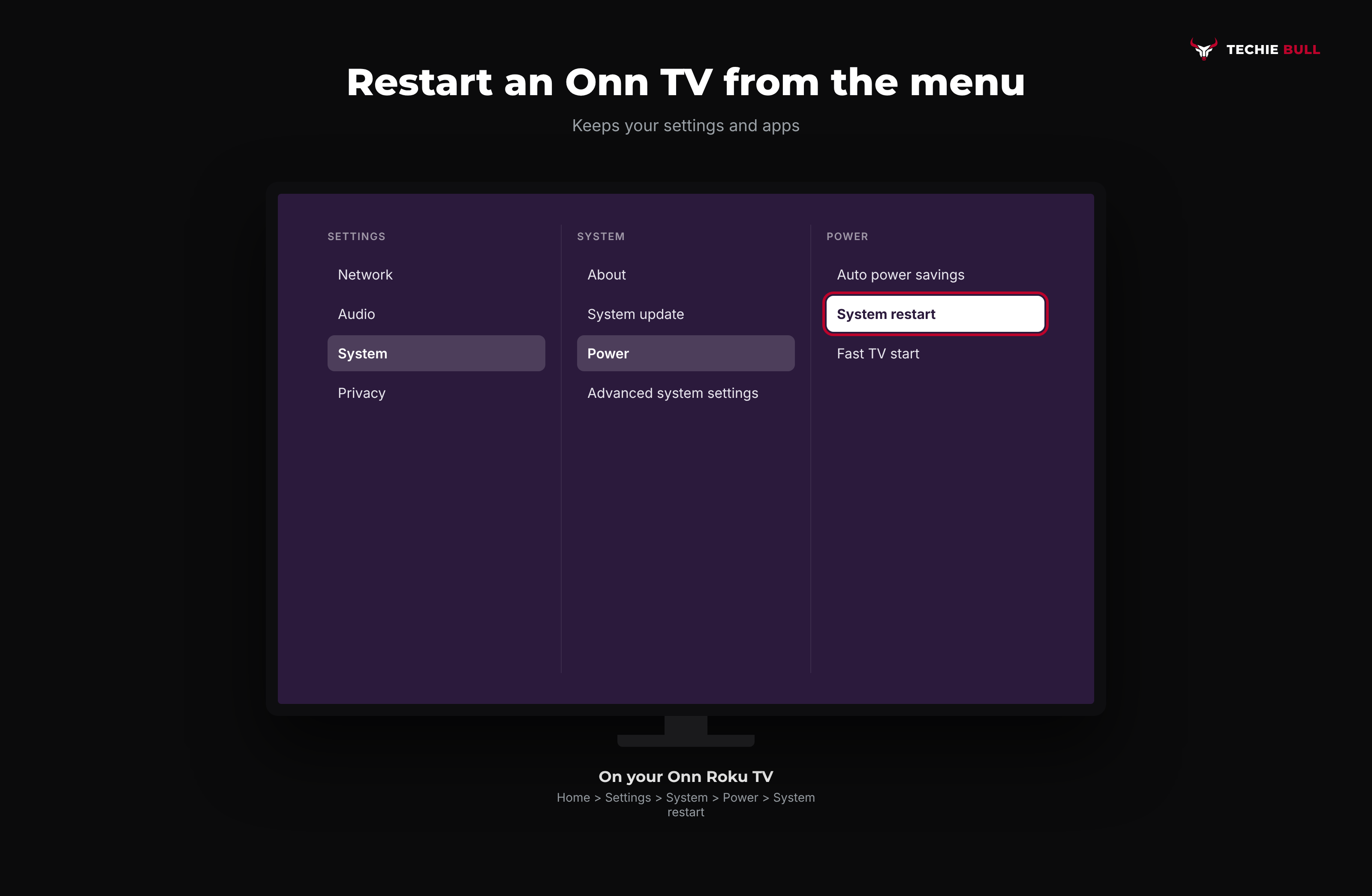
When the TV is on but acting up (frozen apps, slow menus, a glitchy home screen), restart it from the settings. This keeps all your settings and apps.
Step 1: Open Settings
Press Home on the remote, then scroll to Settings.
Step 2: Go to Power
Select System, then Power. Roku notes that some devices don't have a Power submenu, and if yours doesn't, skip that step.
Step 3: Restart
Select System restart, then confirm. The TV reboots and returns to the home screen.
If the picture is frozen and you can't reach the menu, a widely shared third-party tip for Roku Voice remotes is to press Home five times, Up once, Rewind twice and Fast Forward twice. It's not from Roku's official pages, so don't rely on it, but it costs nothing to try before you fall back on unplugging.
Method 3: Fix an Unresponsive Onn Remote
Check the type of remote you have first, because the fix depends on it.
- A basic remote with no pairing button talks to the TV with infrared light and has no pairing step. Replace the batteries (use fresh ones, not the pair from the drawer), remove any case or sticker over the front, and make sure nothing blocks the path to the small sensor on the TV. A phone camera is a handy test: point the remote at your camera, press a button, and you should see a flicker of light on the screen.
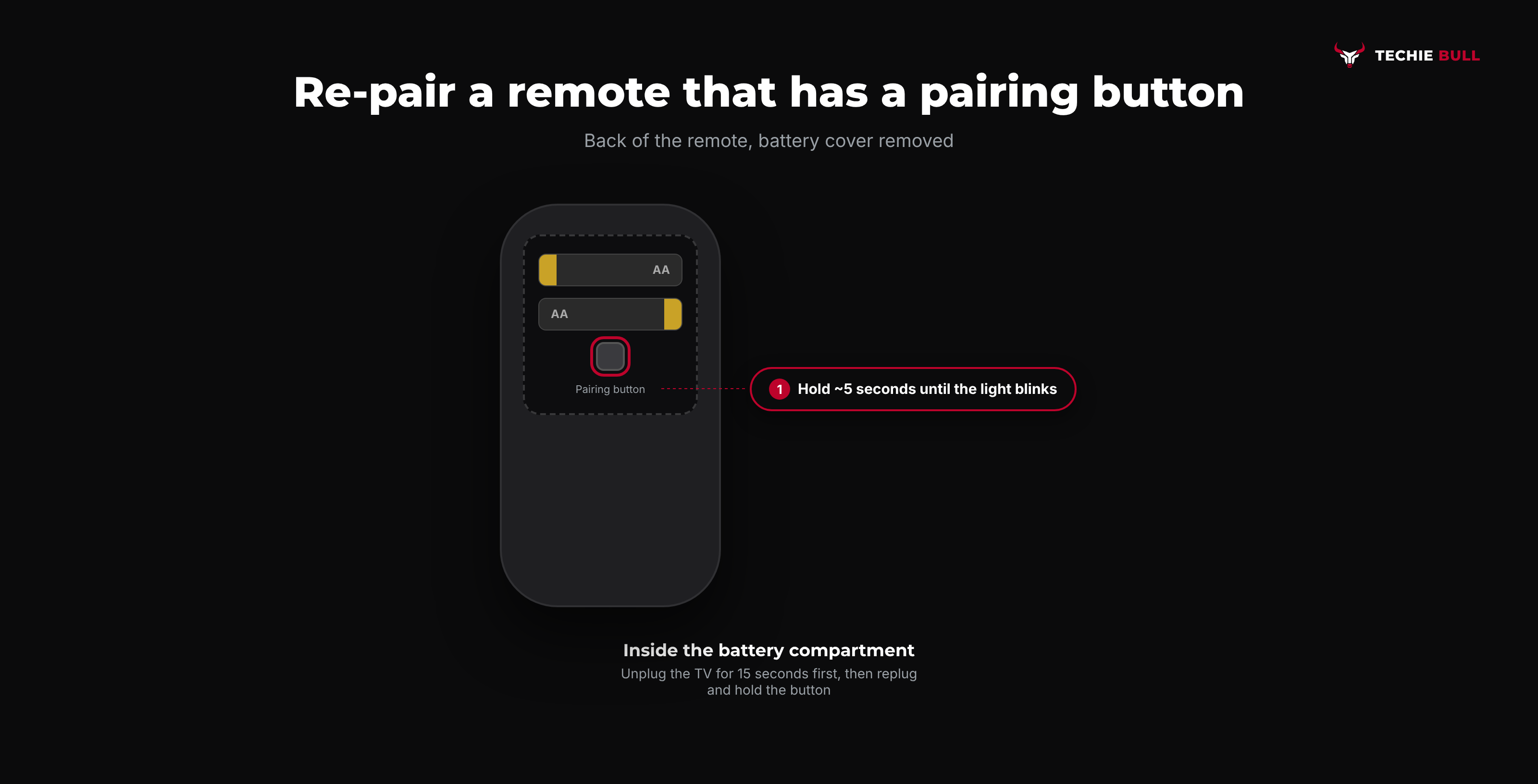
- A remote with a pairing button (usually inside the battery compartment) connects over your network and can lose its connection.
Step 1: Re-pair a remote with a pairing button
Unplug the TV, wait about 15 seconds, and plug it back in. When the home screen has loaded, open the battery compartment and hold the pairing button for about 5 seconds, until the light on the remote starts blinking. This sequence comes from third-party guides rather than a Roku page, so if your remote's own instructions differ, follow those.
Step 2: Use the Roku app as a backup remote
If you can't get the physical remote working, install the Roku mobile app on your phone, make sure the phone is on the same Wi-Fi network as the TV, and use the app's remote screen. It lets you reach Settings and finish any of the fixes below.
Method 4: Remove HDMI Devices and Turn Off CEC
A game console, soundbar or cable box can turn your TV on, change its input or keep it awake. This is the usual reason for an Onn TV that turns on by itself or won't stay off.
Step 1: Unplug the extras
Disconnect every device from the HDMI ports and USB, leaving only the power cord. Run the TV for a while. If the problem disappears, add devices back one at a time to find the culprit.
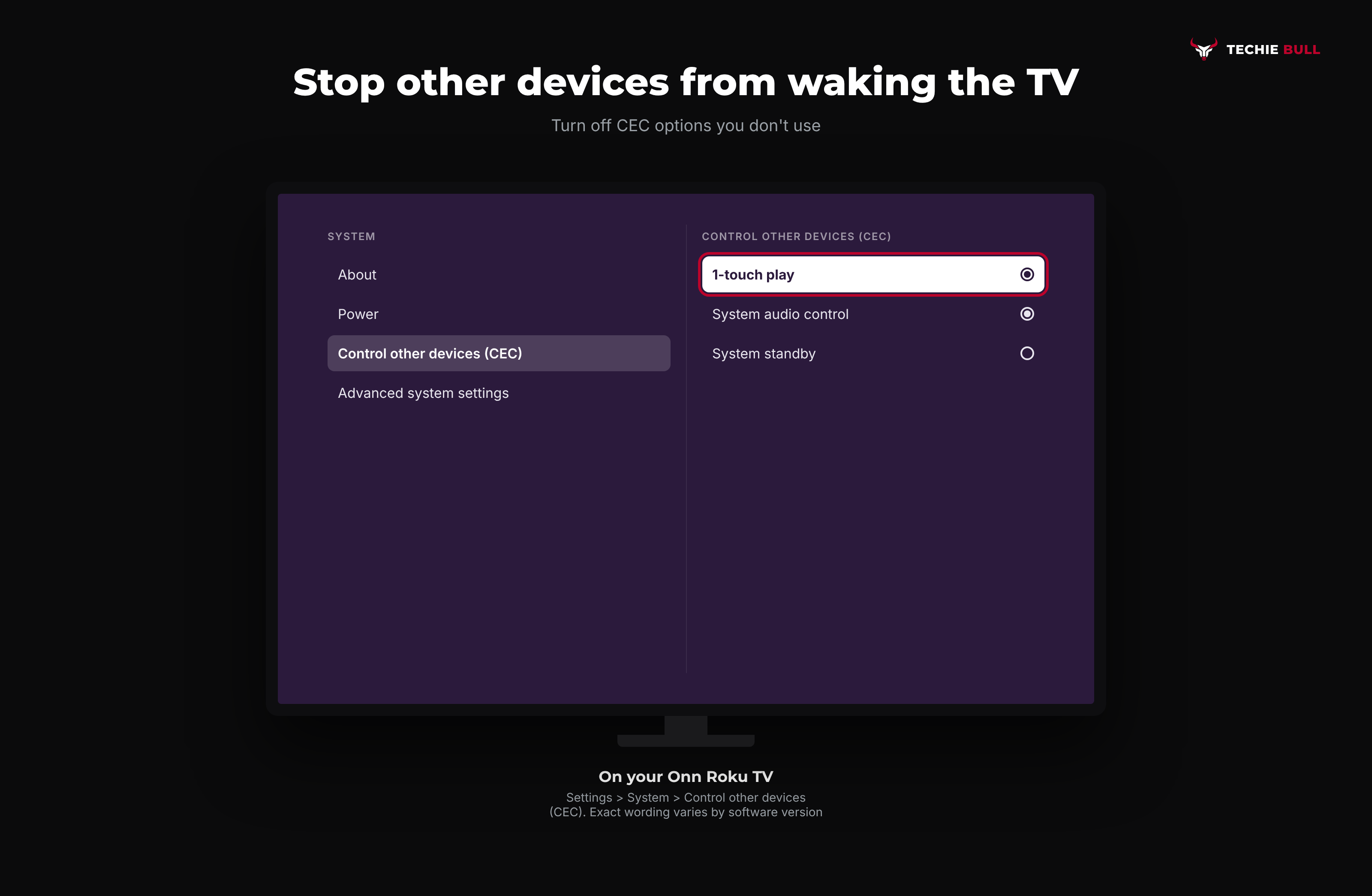
Step 2: Turn off one-touch control
On a Roku TV, go to Settings > System > Control other devices (CEC) and untick 1-touch play (and the system audio control options if you don't use them). Third-party guides disagree on the exact wording between software versions, but the idea is the same: stop other devices from commanding the TV.
Step 3: Check the input
If the TV is on but the picture is black, press the Input button on the remote or go to Home and pick the right input tile. A TV left on an unused HDMI port looks exactly like a dead screen.
Method 5: Update the Software
Old software causes freezes and app crashes that a restart only hides for a day or two.
- Press Home, then Settings > System > System update.
- Select Check now.
- Install anything that's waiting and let the TV restart on its own.
If the TV can't reach the update server, go to Method 6 first.
Method 6: Fix Wi-Fi and Network Drops
An Onn TV that keeps buffering or says it can't connect usually has a network issue, not a TV problem.
Step 1: Reset the network connection
Roku's restart page describes a network reset: Settings > System > Advanced system settings > Network connection reset > Reset connection. After this you'll need to enter your Wi-Fi password again, so keep it handy.
Step 2: Fix the signal
Move the router closer, or move anything large and metal out of the way. Restart the router by unplugging it for a minute. If your router offers separate 2.4 GHz and 5 GHz networks, try the other one.
Method 7: Factory Reset From the Menu
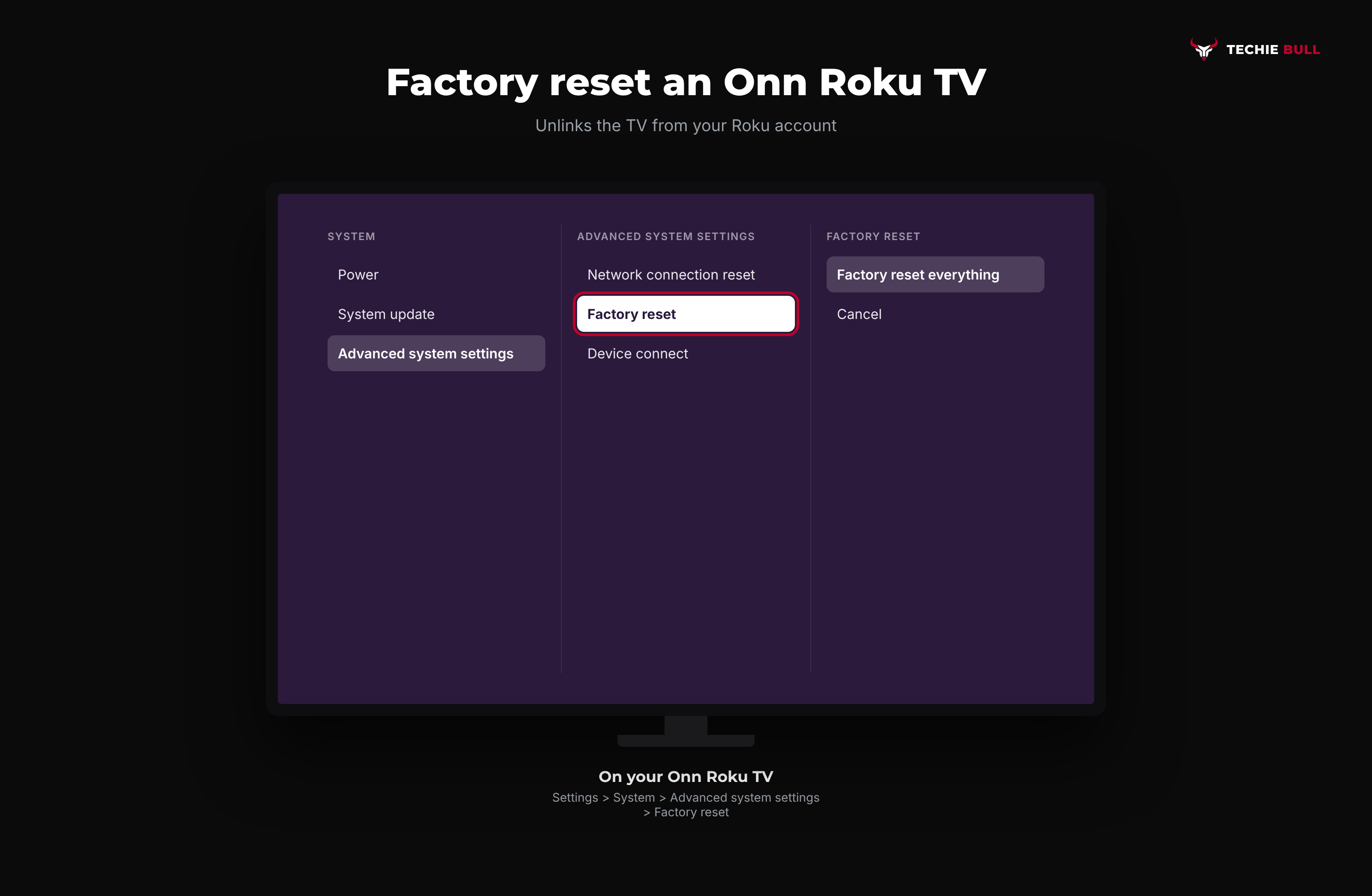
This is the last resort before repair. Roku's support page says a factory reset erases your personal preferences, unlinks the device from your Roku account and resets settings. Before you start, have your Roku account email and password, your Wi-Fi details, your streaming app logins, and your parental control PIN if you set one.
- Press Home and go to Settings > System > Advanced system settings.
- Select Factory reset.
- On a Roku TV, choose Factory reset everything and follow the on-screen instructions. Some third-party guides mention a four-digit code appearing on screen that you must type to confirm.
- When the TV restarts, run through Guided Setup again.
Method 8: Factory Reset With the Reset Button
If the screen won't respond and you can't reach the menu, Roku has a hardware route. On Roku TVs the physical reset takes a 12-second hold, per Roku's page, and where the button sits depends on the model. Some TVs have a small reset button, others use a combination of the Power button and a Find My Remote button on the TV. I couldn't confirm which one your specific Onn model has, so check the labels on the back or side panel of the set, or your manual. Hold for the full 12 seconds, and when it completes an indicator light blinks rapidly on most Roku devices.
What About Onn Google TV Devices?
Onn also sells Google TV streaming boxes, such as the 4K Pro. Those aren't TVs, but the same reasoning applies. Google's help page for an unresponsive Google TV device says to unplug the power cable, leave it unplugged for one minute, plug it back in and press Power on the remote. It also suggests updating your apps and checking Settings > System > About > System update. Google doesn't publish one universal factory-reset menu path for third-party devices and refers you to the manufacturer, so I'm not going to guess one here.
Still Not Working?
If you've been through the factory reset and the TV still won't behave, it's hardware: a failing power board, a backlight or a panel fault. Check your warranty. Roku's support site covers the software side of Roku TVs, and Walmart handles Onn hardware support and returns through its own customer service. Third-party sites list a dedicated Onn support phone line, but I haven't been able to confirm the number from Walmart's own pages, so use the official contact options. Have the model number from the sticker on the back of the TV ready.
Frequently Asked Questions
Why is my Onn TV not turning on?
Start with a real power cycle: unplug it for at least 10 seconds (a minute is safer), plug it in and press the power button. If that doesn't work, unplug every HDMI device and try again. A TV that stays dark after that, with no standby light at all, may have a failed power board.
How do I reset an Onn Roku TV?
For a restart, go to Settings > System > Power > System restart. For a full reset, go to Settings > System > Advanced system settings > Factory reset > Factory reset everything. The factory reset erases your settings and unlinks the TV from your Roku account.
Why is my Onn TV remote not working?
Replace the batteries first. If your remote has a pairing button, re-pair it with the steps in Method 3. If it's a basic infrared remote, check that nothing blocks the sensor and try the Roku app as a stand-in.
Why does my Onn TV turn on by itself?
Another device on HDMI is usually waking it through CEC. Unplug your devices to confirm, then turn off 1-touch play under Settings > System > Control other devices (CEC).
Will a factory reset fix a black screen?
Only if the cause is software. If the TV plays sound but never shows a picture after a reset and a different input, the backlight or panel is more likely at fault and needs a repair or replacement.
Quick Summary
Work from the gentlest fix to the harshest. Unplug the TV for a real restart, use Settings > System > Power > System restart when it's on, re-pair or replace the remote, unplug HDMI devices and turn off CEC, update the software, reset the network connection, and keep the factory reset for last. If a reset doesn't help, the fault is in the hardware and Walmart's warranty is your next stop.
Related Articles
Samsung TV Volume Not Working? Fixes That Work
Samsung TV volume not working, stuck, or silent? Check Sound Output, Anynet+, Sound Test and Reset Sound, plus what to do if none of it helps.
How to Connect a Firestick Remote to Your TV (Pair + TV Control)
How to connect a Firestick remote to your TV: pair it to the Fire TV Stick with a 10-second Home hold, then set it up to run your TV's power and volume.
How to Pair a Roku Remote (Voice, Pro, and Simple Remotes)
How to pair a Roku remote in under a minute: the pairing button, the Back and Home shortcut, the Settings menu route, and what to do with a simple IR remote.