

Xbox Controller Not Connecting to PC? How to Fix It

Xbox controller not connecting to PC is usually one of three things: you're trying to pair it over regular Bluetooth when it needs the real Xbox Wireless protocol (or the other way around), Windows has a driver problem, or the cable you're using can charge the controller but can't carry data. Sorting out which one it is takes about thirty seconds once you know what to check.
I made the Bluetooth-vs-Xbox-Wireless mistake myself the first time I tried this with an older controller model, and spent longer than I'd like to admit troubleshooting a "broken" controller that was actually just trying to pair over the wrong protocol entirely.
Quick answer: the newest Xbox controllers (with Bluetooth built in) show up as "Xbox Wireless Controller" in Windows' regular Bluetooth pairing list, but older or non-Bluetooth models only work with the proprietary Xbox Wireless Adapter, and trying to Bluetooth-pair one of those will never work no matter how long you hold the button. Confirm which type you have first, then everything else below gets much faster.
Key takeaways:
- Not every Xbox controller has Bluetooth. Models without it need Microsoft's own Xbox Wireless Adapter dongle, and no amount of Bluetooth troubleshooting will fix that.
- A USB cable that only charges (no data lines) is a common, easy-to-miss cause that looks identical to a pairing failure.
- Windows sometimes installs a generic driver for the controller instead of the correct one, which causes it to appear connected while not actually working in games.
- Holding the Connect button for the wrong amount of time, or letting go too early, is the single most common reason pairing silently fails.
Prefer an interactive walkthrough? Try our Xbox Controller Troubleshooter →
Quick Diagnostic: What's Actually Going Wrong?
| What you're seeing | Likely cause | Try this first |
|---|---|---|
| Controller doesn't show up in Windows' Bluetooth list at all | It may not have Bluetooth, or Bluetooth itself is off | Method 1 |
| Wired connection charges the controller but nothing happens in-game | Charge-only cable, or wrong USB port | Method 2 |
| Using the official Xbox Wireless Adapter, nothing detected | Adapter driver missing, or controller not in pairing mode | Method 3 |
| Shows as connected in Windows, but games don't detect it | Driver issue, or a conflicting second controller | Method 4 |
| Worked before, stopped after a Windows update | Outdated or corrupted driver | Method 4 |
| Connects, then randomly disconnects | Battery, interference, or a stuck Bluetooth pairing record | Method 5 |
| Everything above checks out and it still won't connect | The pairing itself needs to be reset from scratch | Method 6 |
Why "Xbox Controller Not Connecting" Usually Isn't a Broken Controller
Xbox controllers connect to a PC one of three genuinely different ways: a wired USB connection, regular Bluetooth (only on newer controller revisions), or Microsoft's proprietary Xbox Wireless protocol via a dedicated adapter, which is not Bluetooth at all despite looking similar from the outside. Most "my controller won't connect" situations are actually a mismatch between which method you're trying and which methods your specific controller and PC actually support, not a hardware fault.
That's why the first real troubleshooting step isn't a fix at all, it's figuring out which of the three connection types applies to your setup, since the rest of the fixes branch from there.
Method 1: Confirm Your Controller Has Bluetooth, Then Pair It
Xbox controllers released alongside the Xbox One S or later generally have Bluetooth built in. Older original Xbox One controllers do not, and no amount of troubleshooting will make Bluetooth pairing work on one of those.
Step 1: Check for the Bluetooth Marking
Look at the plastic around the Xbox button on the front of the controller. A small Bluetooth-style icon there confirms it has Bluetooth support.
Step 2: Put the Controller in Pairing Mode
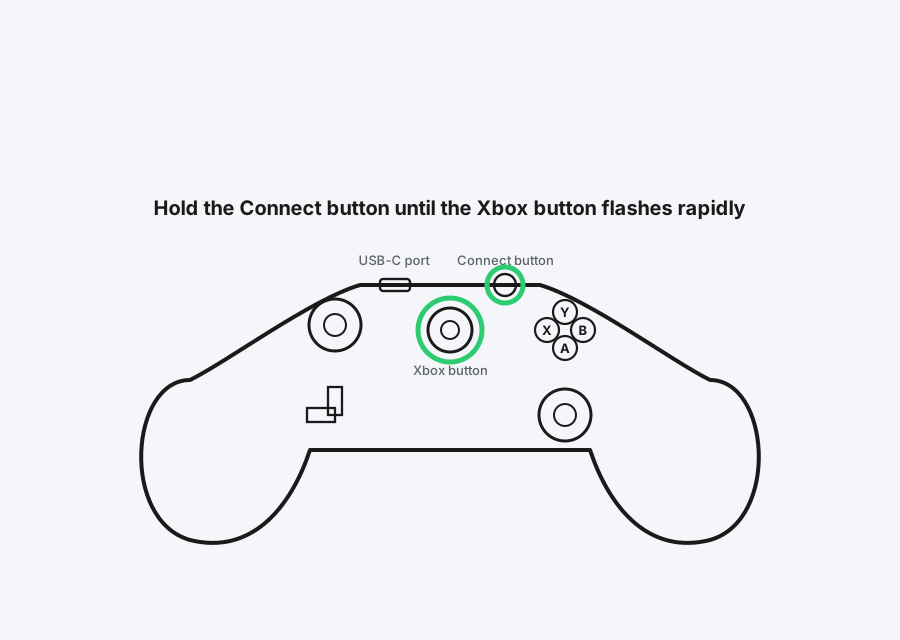
Hold the Connect button, a small button on the top edge near the USB-C port, until the Xbox button starts flashing rapidly. This usually takes about 3 seconds, briefly tapping it does nothing.
Step 3: Pair It From Windows Bluetooth Settings
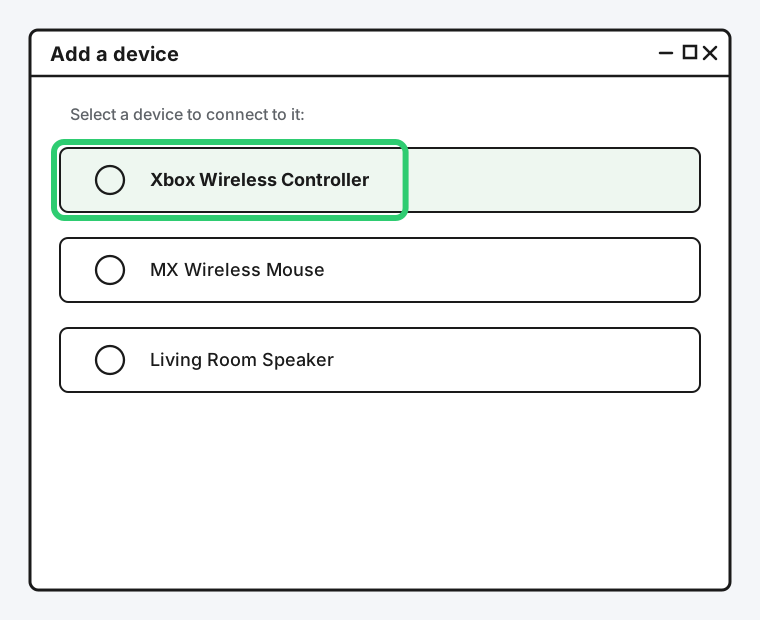
Go to Settings > Bluetooth & devices > Add device > Bluetooth, and select "Xbox Wireless Controller" when it appears.
Step 4: Give It a Moment to Finish Pairing
The Xbox button will stop flashing and stay solidly lit once pairing completes. If it goes dark instead, the controller went to sleep, wake it back up and try again.
Method 2: Check Your USB Cable and Port
If you're going wired, this is the most common silent failure, and it's worth ruling out before touching any settings.
Step 1: Confirm It's a Data Cable, Not Charge-Only
Some USB-C cables, especially ones bundled cheaply or meant purely for charging, don't carry data at all. If a cable came specifically labeled as a "charging cable," that's a strong hint it's charge-only.
Step 2: Try a Different USB Port
Some older PCs and docking stations have USB ports that don't reliably handle a controller's data connection. Try a port directly on the PC itself rather than through a hub, especially an unpowered one.
Step 3: Try a Different Cable Entirely
If you have a second USB-C cable you know works for data (one used for a phone or another accessory), swap it in to isolate the cable from the port.
Method 3: Set Up the Xbox Wireless Adapter Correctly
If your controller doesn't have Bluetooth, or you specifically bought Microsoft's Xbox Wireless Adapter for Windows, it uses its own separate pairing process, entirely independent of Windows' Bluetooth settings.
Step 1: Install the Xbox Accessories App First
The adapter needs its driver installed before it'll do anything, and the easiest way to get that is the free Xbox Accessories app from the Microsoft Store, which installs the necessary driver automatically the first time you plug the adapter in.
Step 2: Plug In the Adapter and Press Connect
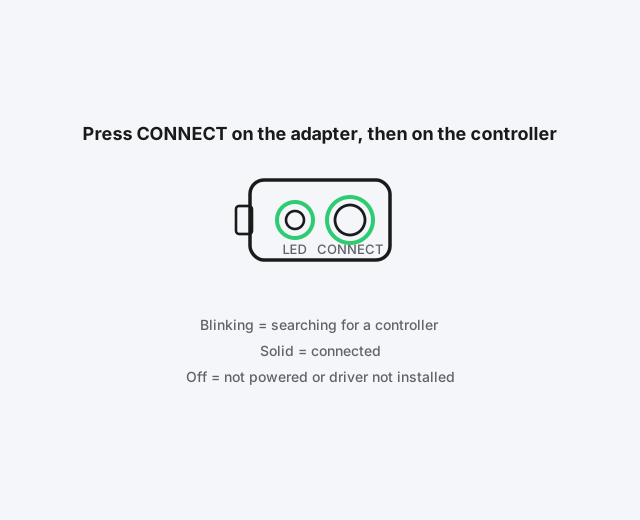
Plug the adapter into a USB port, then press its Connect button. Its LED will start blinking, indicating it's searching for a controller.
Step 3: Press Connect on the Controller Within 20 Seconds
Press the controller's own Connect button while the adapter's LED is still blinking. Both LEDs going solid means they've successfully paired.
Step 4: Don't Confuse This With Bluetooth Pairing
The Xbox Wireless Adapter will never appear in Windows' Bluetooth device list, and a controller paired to it won't show up there either, that's expected, not a sign something's wrong.
Method 4: Fix a Driver Problem
This is the most likely cause when the controller shows up in Windows as connected but games and apps don't respond to it.
Step 1: Open Device Manager
Press Windows key + X and choose Device Manager.
Step 2: Look for a Warning Icon
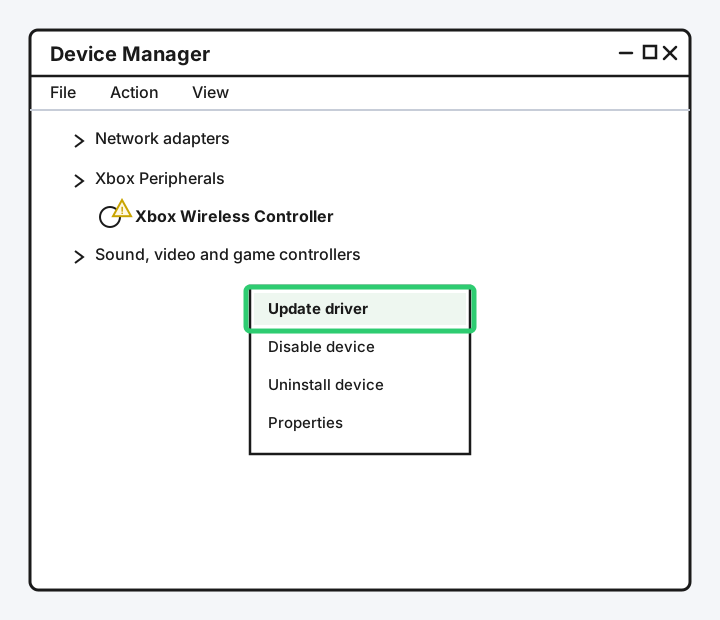
Check under "Xbox Peripherals" or "Sound, video and game controllers" for your controller, and look for a small yellow warning triangle on its icon, which indicates a driver problem.
Step 3: Update the Driver
Right-click the entry and choose "Update driver," then "Search automatically for drivers." If Windows says it's already up to date but the controller still doesn't work correctly, choose "Uninstall device" instead, then unplug and replug the controller (or re-pair it) to force a completely fresh driver install.
Step 4: Check the Xbox Accessories App for a Firmware Update
Outdated controller firmware, separate from the Windows driver, is a real and fairly common cause of connection issues after a Windows update changes how it communicates with the controller. The Xbox Accessories app will prompt you if an update is available.
Method 5: Fix Random Disconnects
If the controller connects fine but drops out during use, this is a slightly different problem from a controller that won't connect at all.
Step 1: Check the Battery
A low battery causes exactly this kind of intermittent behavior before it dies completely. Swap batteries or plug in via USB to rule this out first.
Step 2: Move Closer, or Reduce Interference
Other 2.4GHz devices, particularly Wi-Fi routers and USB 3.0 ports and hubs (which are a documented source of interference for 2.4GHz wireless devices), can cause a controller to drop out intermittently even at close range. Try a USB extension cable to move the adapter or receiver away from other electronics.
Step 3: Rule Out a Stuck Pairing Record
If disconnects happen consistently rather than randomly, the Bluetooth pairing itself may be corrupted rather than the connection being physically interrupted, worth trying Method 6 below.
Method 6: Forget the Device and Re-Pair From Scratch
If you've worked through the methods above and it's still not connecting reliably, the stored pairing information itself may be the problem, the same category of fix that resolves a lot of stubborn Bluetooth issues generally.
Go to Settings > Bluetooth & devices, find the Xbox controller in the list, and choose Remove device. Put the controller back into pairing mode and pair it again from scratch as if it were new. This clears out whatever corrupted pairing data might be causing the silent failure.
Still Not Working?
If you've been through all of this and the controller still won't connect, Microsoft's own Xbox Accessories troubleshooting page covers model-specific quirks that are worth checking, since controller hardware has changed across several generations and not every fix applies to every model. It's also worth testing the controller on a different PC or an Xbox console if you have access to one, which quickly tells you whether the problem is the controller itself or something specific to your PC.
Frequently Asked Questions
Why does my Xbox controller show as connected but not work in my game?
This is almost always a driver issue rather than a connection issue, Windows can successfully pair the controller while still using an incorrect or generic driver that doesn't properly translate its inputs. Check Device Manager for a warning icon first.
Can I use Bluetooth and the Xbox Wireless Adapter at the same time?
Not for the same controller connection, no, but you can have a controller paired over Bluetooth while a completely different controller uses the adapter, since they're independent systems.
Does the cable that came with my controller support data, or just charging?
The official cable Microsoft includes with newer controllers supports data. It's third-party or after-market cables, especially unusually cheap ones, where charge-only cables are more common.
Why does my controller keep disconnecting only on my PC, not my Xbox?
This usually points to interference specific to your PC's environment, commonly a nearby USB 3.0 port or hub, which is a well-documented source of 2.4GHz wireless interference that a console setup may not have as prominently.
Do I need Bluetooth for the Xbox Wireless Adapter to work?
No, the adapter uses Microsoft's own Xbox Wireless protocol over a 2.4GHz connection, completely separate from your PC's Bluetooth hardware, so it works even on PCs with no Bluetooth at all.
Quick Summary
Start by confirming which connection method actually applies to your controller: newer models with a Bluetooth icon near the Xbox button pair through Windows' regular Bluetooth settings, while older or non-Bluetooth models need Microsoft's dedicated Xbox Wireless Adapter instead. If you're going wired, rule out a charge-only cable before anything else. If the controller connects but doesn't respond in games, check Device Manager for a driver warning and update or reinstall it from there. Random disconnects point to battery or 2.4GHz interference rather than a pairing problem, and if nothing else works, removing the device and pairing it again from scratch resolves most stubborn cases that are left.
Related Articles
How to Calibrate Your PS5 or Xbox Controller
Xbox has a real built-in recalibration tool for stick and trigger drift. PS5 doesn't, so here's exactly what actually works on a DualSense instead.
How to Fix PS5 Controller Stick Drift
PS5 controller stick drift is usually dust, wear, or a software glitch, not a dead controller. Here's the real fix order, from a free reset to Sony's repair program.
How to Fix Nintendo Switch Joy-Con Drift (2026 Guide)
Joy-Con drift comes down to dust or worn contacts under the stick's rubber flap. Here's how to calibrate, clean, and get it repaired for free.