

How to Calibrate Your PS5 or Xbox Controller

PS5 controller calibration and Xbox controller calibration sound like the same job, but they're not even close. Microsoft builds a real recalibration tool straight into the Xbox Accessories app, one that walks you through resetting a stick's center point or a trigger's pull range in under a minute. Sony doesn't. The standard DualSense has no system-level calibration menu at all, on PS5 or anywhere else, and no amount of digging through Settings will turn one up.
I went looking for it myself the first time a friend's DualSense started drifting mid-race in Gran Turismo, fully expecting a slider or a "recalibrate" button tucked into Accessories somewhere. There isn't one. What actually works for a DualSense is a different set of tools entirely, mostly on PC, and knowing that up front saves you a lot of wasted menu-hunting.
Quick answer: if you're on Xbox, open the Xbox Accessories app (on console or Windows), select your controller, and use its built-in recalibration tool for the sticks and triggers under "More options." If you're on PS5, there's no equivalent, so your real options are Windows' own joystick calibration wizard (joy.cpl) for USB or Bluetooth-connected controllers, Steam Input's deadzone slider for Steam games, or the DualSense Edge's Custom Profiles if you own that specific model.
Key takeaways:
- Xbox Wireless Controllers and the Xbox Elite Wireless Controller Series 2 both support Microsoft's official recalibration tool in the Xbox Accessories app, for sticks and triggers separately.
- The standard PS5 DualSense has no built-in calibration menu anywhere in its system settings. This isn't a hidden setting you missed, it genuinely doesn't exist.
- Windows' old-school Game Controllers panel (
joy.cpl) still works for calibrating a DualSense connected to a PC, since Windows treats it as a generic joystick. - Steam Input's deadzone slider is the fastest fix if the drift only shows up in Steam games, and it takes about thirty seconds to adjust.
- Calibration only fixes centering and range issues. If a stick is physically worn out, no calibration tool anywhere will make it stop drifting for good.
Prefer an interactive walkthrough? Try our Controller Calibration Troubleshooter →
Quick Diagnostic: Are You Actually in the Right Place?
"Calibration" gets used loosely, and a few genuinely different problems all end up here. This table sends you somewhere else if calibration isn't actually what you need.
| What you're dealing with | What you actually need | Where to go |
|---|---|---|
| Stick center point is slightly off, or trigger pull feels wrong | Calibration (this article) | Keep reading |
| Stick drifts badly, feels loose, or has survived cleaning and a reset already | Physical wear, not a calibration problem | PS5 Controller Drift guide |
| Controller won't connect to PC or pair at all | Connection/pairing issue, not calibration | PS5 Controller to PC or Xbox Controller Not Connecting to PC |
| You just want to test if a stick or button is working, not fix it | Diagnosis, not a fix | Any controller test site, then come back here once you know which stick is off |
If your drift has already survived a reset and a cleaning, calibration probably won't be the fix either, worth knowing before you spend twenty minutes on it.
Why PS5 and Xbox Handle This So Differently
This isn't an oversight on Sony's part so much as a different philosophy. Microsoft ships its recalibration tool as part of the Xbox Accessories app, the same app you'd use to check firmware or remap buttons, and it's designed to let a stuck-at-home player rule out a software issue before mailing a controller in for repair or replacement. It resets where the stick reports "center" and "full range," which fixes drift caused by a slightly-off baseline reading.
Sony's approach has stayed the same since the DualShock days: no consumer-facing calibration option, full stop. The DualSense Edge, Sony's higher-end controller, does have adjustable deadzones and sensitivity curves through its Custom Profiles, but that's a feature of the Edge specifically, not the standard DualSense that ships with every PS5. If you own a regular DualSense, that setting simply isn't there for you.
Neither approach is really "better." Xbox's tool only fixes centering, not wear, and Sony's silence doesn't mean DualSense drift is worse, it's just as fixable through a reset and cleaning, Sony would just rather you do that than offer a menu that could mask a controller that actually needs repair.
How to Calibrate an Xbox Controller
This works for the Xbox Wireless Controller (the standard pad that ships with every Xbox One S, Xbox One X, and Series X|S console, and the one most people plug into a PC) and the Xbox Elite Wireless Controller Series 2. Both the stick recalibration tool and, more recently, a trigger calibration tool live in the same app.
Step 1: Connect the Controller and Open Xbox Accessories
On console, press the Xbox button, go to My games & apps, and launch Xbox Accessories (it's pre-installed). On Windows, grab it free from the Microsoft Store. Either way, connect over USB first, since firmware checks and calibration writes are more reliable wired than over Bluetooth.
Step 2: Check for a Firmware Update First
Select your controller in the app and let it check for updates before doing anything else. A firmware update occasionally resolves a drift complaint on its own, and running the recalibration tool on outdated firmware is a good way to get inconsistent results.
Step 3: Open Recalibration Options
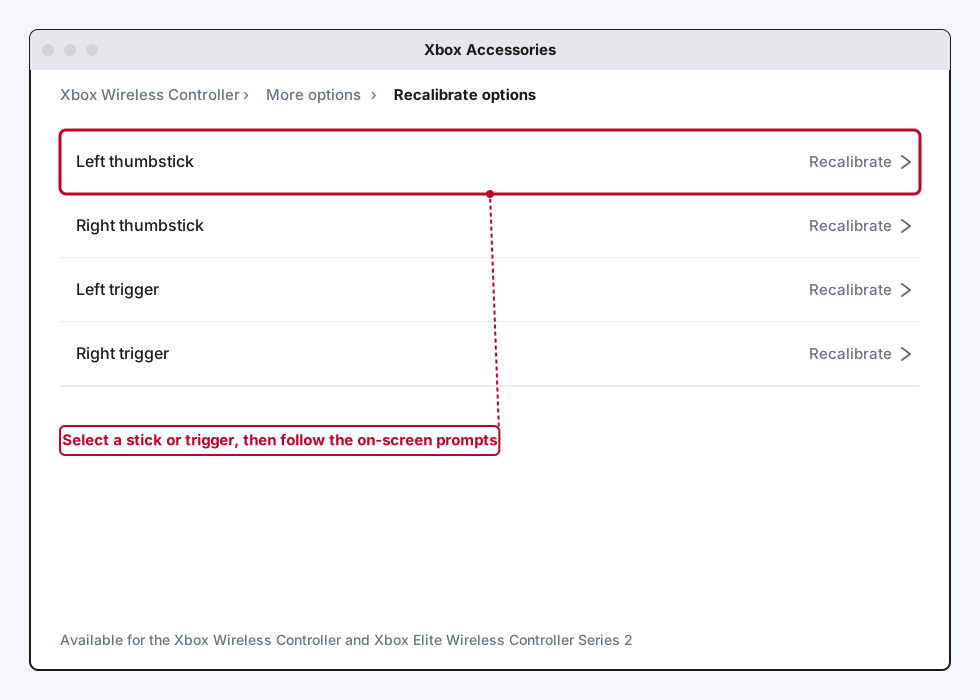
Select your controller, then look for More options below the main Configure button, and choose Recalibrate options. You'll see the sticks and triggers listed separately, each with its own Recalibrate action.
Step 4: Recalibrate the Stick That's Drifting
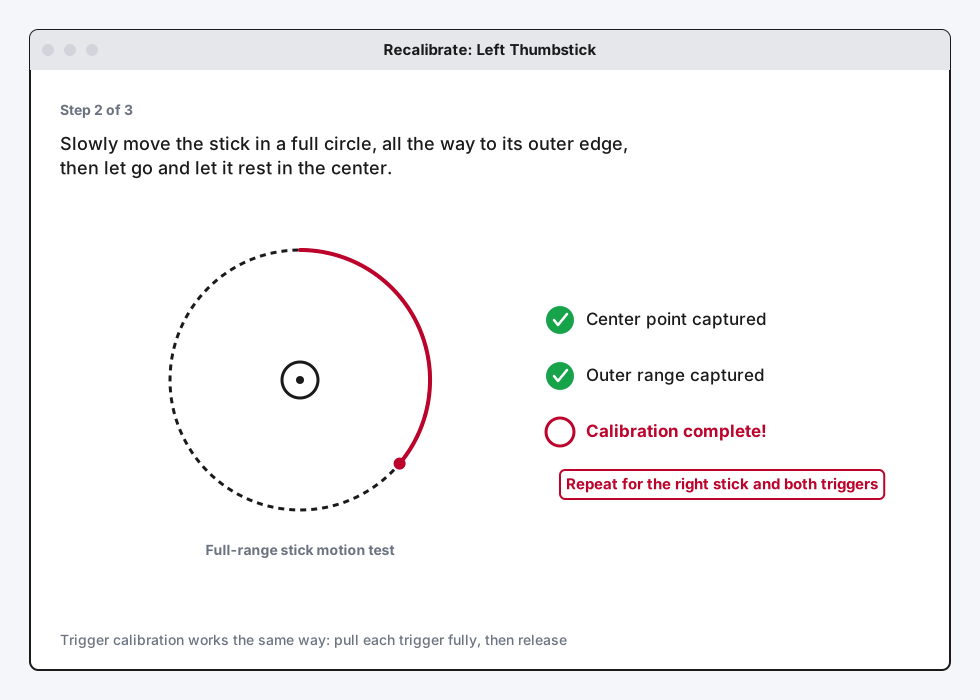
Pick the stick giving you trouble and follow the on-screen prompts: leave it centered for a moment, move it in a full circle out to the edge, then let it rest again. The app confirms with a clear "Calibration complete!" This resets where the controller thinks "center" and "full range" actually are, which is exactly what fixes a stick drifting because its reported center shifted, not because anything's mechanically broken.
Step 5: Run the Trigger Calibration Tool If Triggers Feel Off
Microsoft added a separate trigger calibration tool to the same app for minor issues like a trigger that doesn't read as fully released, or one that registers input too early. It works the same way: select the trigger, pull it fully, release, and let the app capture the new range.
Step 6: Elite Series 2 Owners, Check Your Deadzone Profiles Too
If you're on an Elite Series 2, you get an extra option the standard pad doesn't: adjustable per-stick deadzone and sensitivity curves saved as custom profiles inside the same app. If recalibration alone doesn't fully settle a mild drift, nudging the deadzone up slightly in a profile is a legitimate second layer, not just a workaround.
Worth knowing: Microsoft is upfront that this tool is meant for minor centering and range issues, not a cure-all. Its own guidance says plainly that it won't fix drift caused by genuine wear and tear on the stick module. If you've recalibrated and the drift is still there, or it's gotten worse, that's a hardware problem, not a software one, and no amount of re-running this tool will change that.
How to Calibrate a PS5 DualSense Controller
There's no way to sugarcoat the first step here, so let's get it out of the way.
Step 1: Accept That There's No Calibration Menu on PS5 Itself
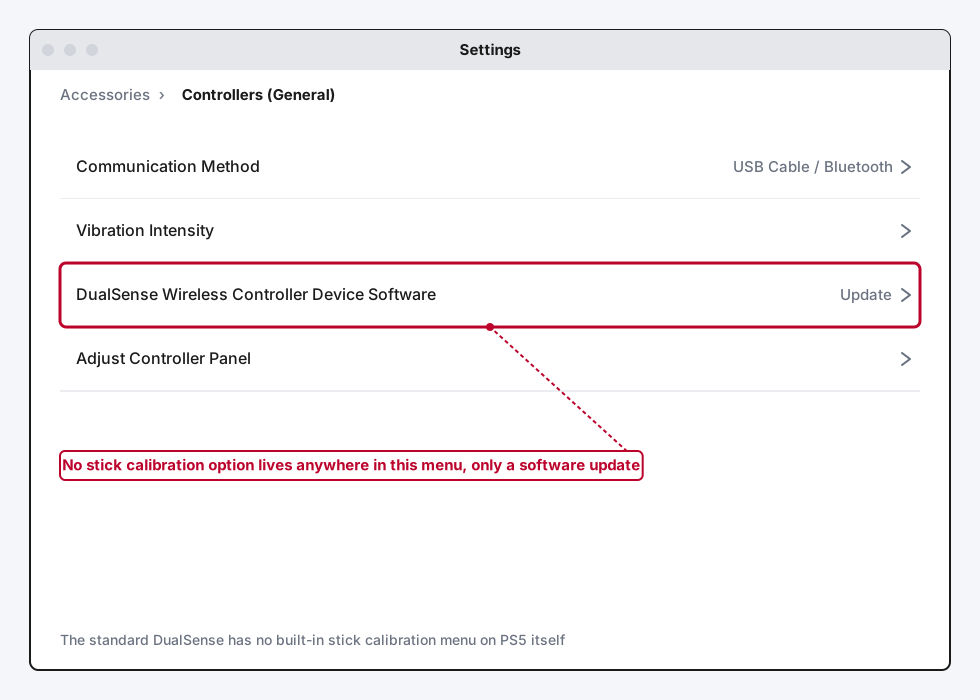
Check Settings, then Accessories, then Controllers (General), and you'll find communication method, vibration intensity, and a controller software update option. That's it. No calibration, no deadzone slider, nothing. This isn't a case of it being buried somewhere unintuitive, Sony genuinely hasn't built one into the PS5's system software.
Step 2: Update the Controller's Software Anyway
Before assuming you need a workaround, update the DualSense's firmware through Settings > Accessories > Controllers (General) > DualSense Wireless Controller Device Software. Same logic as the Xbox side: a chunk of what looks like drift is actually a firmware quirk, and this costs nothing to rule out.
Step 3: Calibrate Through Windows If You're Connected to a PC
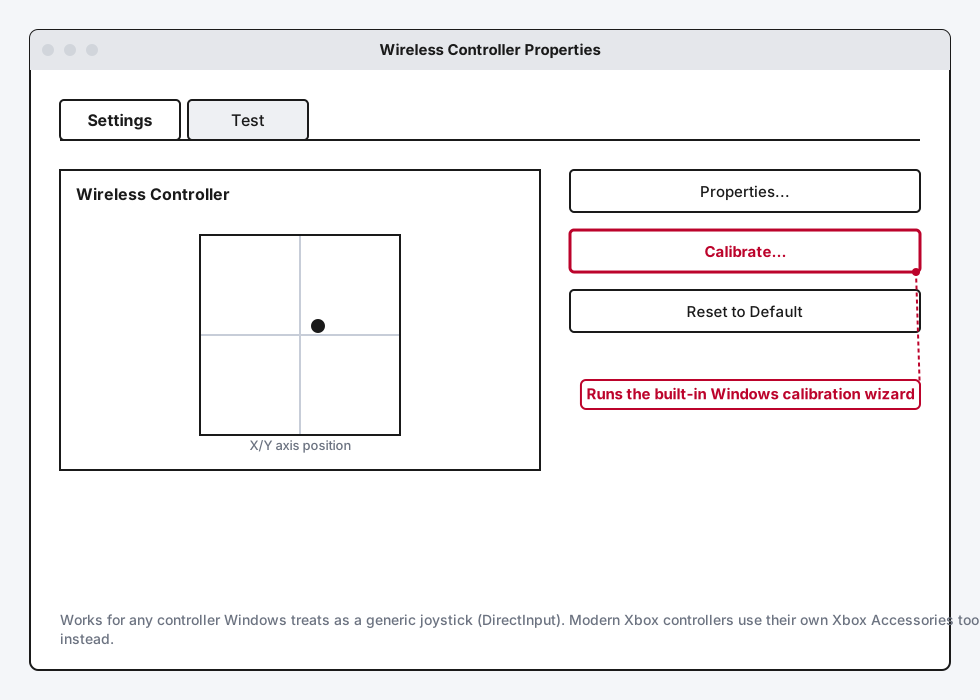
If you connect the DualSense to a Windows PC over USB or Bluetooth, Windows treats it as a generic joystick, and the old Game Controllers control panel still works on it. Press Windows key + R, type joy.cpl, and hit enter. Select the Wireless Controller entry, open Properties, go to the Settings tab, and click Calibrate. It runs a short wizard: center the stick, push it to its extremes in a full circle, and confirm. This recalibrates the reported center and range, the same underlying fix Xbox's tool does, just through Windows' own joystick subsystem instead of a controller-specific app.
Step 4: Use Steam Input's Deadzone Slider for Steam Games
If the drift only bothers you inside Steam-launched games, this is the fastest fix on this list. In Steam, go to Settings > Controller > General Controller Settings and make sure PlayStation Configuration Support is checked. Then, per game, right-click it in your library, open Properties > Controller, and edit or create a Custom configuration. Under the stick settings, raise the deadzone slider slightly, starting around 0.08, until the drift stops registering at rest. Don't push it much higher than that. A deadzone set too aggressively starts eating real stick movement near center, which feels just as bad as the drift you're trying to fix.
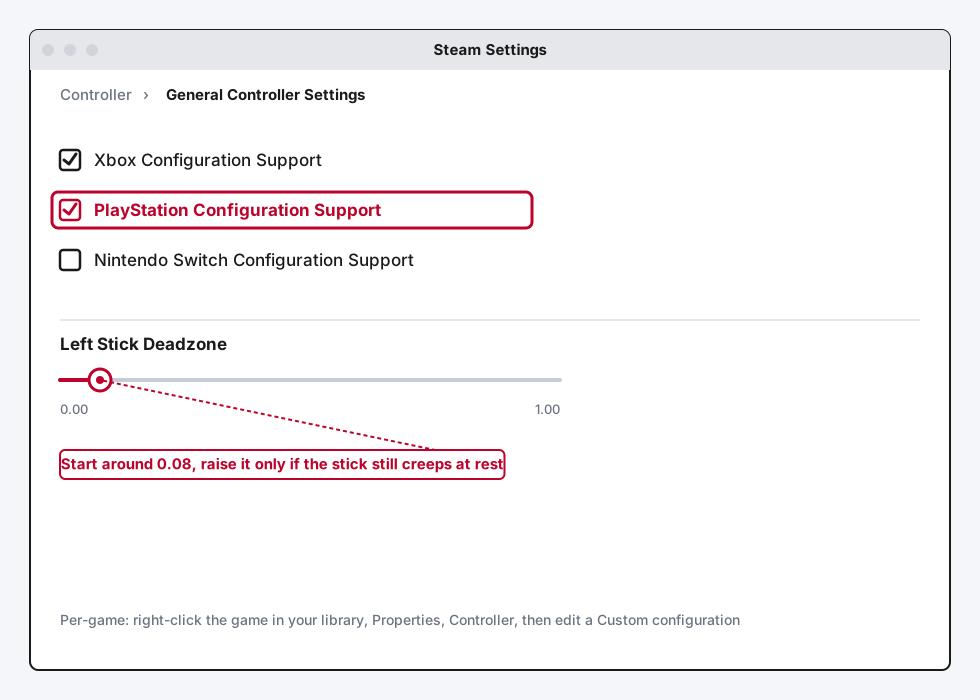
One real limitation worth knowing: Steam Input only applies inside games actually launched through Steam. Epic Games Store, GOG, and anything you run standalone won't see this setting at all.
Step 5: DualSense Edge Owners, Use Custom Profiles Instead
If you specifically bought a DualSense Edge rather than the standard controller, you actually do get an official calibration-adjacent option. Go to Settings > Accessories > DualSense Edge Wireless Controller > Custom Profiles, create or edit a profile, and adjust the Sensitivity Curve and Deadzone settings for either stick. This is the one case where Sony genuinely built in what you're looking for, it's just gated to the Edge model specifically.
Step 6: Know What Third-Party Tools Can and Can't Do
You'll find browser-based and standalone tools online that write a new stick center directly to the DualSense's hardware over USB. They're real and they do work for light drift, generally anything in the milder range of stick readings at rest. What they can't do is fix a stick whose internal contacts are actually worn down. If a controller's resting reading is way off rather than just slightly off, that's wear, and a hardware-level calibration write will not undo it. Treat these as a PC-only, USB-required option worth knowing exists, not a replacement for the fixes above.
What Calibration Can't Fix
Every method above resets a baseline reading, center point, outer range, or deadzone threshold. None of them repair a stick whose internal contacts have physically worn down, which is the other major cause of drift and a completely different problem. If you've recalibrated (Xbox) or gone through the PC-based options (PS5) and the stick still drifts noticeably, or it feels loose or gritty when you move it, that's wear, not a calibration issue, and our PS5 Controller Drift guide covers the cleaning and repair path for exactly that, including Sony's official repair program and its warranty coverage.
Still Not Working?
For Xbox, Xbox Support's controller hardware page covers repair requests and known issues by controller model if recalibration doesn't resolve it. For PlayStation, PlayStation's hardware and repairs support page is the right next step for a DualSense that's still drifting after everything above, whether that means a warranty repair or confirming the controller needs replacing.
Frequently Asked Questions
Does the PS5 have a controller calibration setting?
No. The standard DualSense has no calibration menu anywhere in the PS5's system settings. The only controller-related maintenance option is a firmware update under Settings > Accessories > Controllers (General).
Can I calibrate a PS5 controller on a Windows PC?
Yes. Connect it over USB or Bluetooth, open the Game Controllers panel by pressing Windows key + R and typing joy.cpl, then use the Calibrate button under Properties > Settings. Windows treats the DualSense as a generic joystick, so this works even though Sony doesn't offer anything equivalent on PS5 itself.
Which Xbox controllers support the official recalibration tool?
The Xbox Wireless Controller (the standard pad included with Xbox One S and later, and every Series X|S console) and the Xbox Elite Wireless Controller Series 2 both support it through the Xbox Accessories app, on console or Windows.
Will recalibrating fix stick drift permanently?
Only if the cause was a centering or range issue in the first place. If the drift comes back shortly after calibrating, or it was severe to begin with, that usually means worn internal contacts, which calibration can't repair. Cleaning, a hard reset, or a repair are the next steps at that point.
Does calibration fix trigger problems too?
For Xbox, yes, Microsoft's trigger calibration tool handles minor issues like a trigger not reading as fully released. For PS5, there's no dedicated trigger calibration tool, though a general controller reset and firmware update are worth trying first.
Is there any downside to setting the Steam deadzone too high?
Yes. Push it too far and the controller stops responding to small, precise stick movements near center, which shows up as sluggish aiming or steering. Start around 0.08 and only raise it in small steps if drift is still getting through.
Quick Summary
Xbox actually has a real calibration tool. Open the Xbox Accessories app, connect over USB, check for a firmware update, then use Recalibrate options to reset the stick or trigger that's acting up. PS5 doesn't have an equivalent anywhere in its own settings, so your real options are Windows' built-in joy.cpl calibration wizard if you're on PC, Steam Input's deadzone slider for Steam games specifically, or Custom Profiles if you own a DualSense Edge. Whichever platform you're on, calibration only fixes a shifted center point or range, not worn-out hardware, so if the drift survives all of this, that's a sign to move on to cleaning, resetting, or an actual repair instead.
Related Articles
How to Fix PS5 Controller Stick Drift
PS5 controller stick drift is usually dust, wear, or a software glitch, not a dead controller. Here's the real fix order, from a free reset to Sony's repair program.
How to Fix Nintendo Switch Joy-Con Drift (2026 Guide)
Joy-Con drift comes down to dust or worn contacts under the stick's rubber flap. Here's how to calibrate, clean, and get it repaired for free.
Xbox Controller Not Connecting to PC? How to Fix It
Xbox controller not connecting to PC usually comes down to Bluetooth vs. the proper Xbox Wireless protocol, a driver issue, or a cable that only charges. Here's how to work through all of them.