

How to Fix Nintendo Switch Joy-Con Drift (2026 Guide)

Nintendo Switch Joy-Con drift is when the analog stick registers movement you never made, a character walking on its own in the menu, a cursor creeping sideways, an aim that won't sit still. It's one of the most widely reported hardware issues in gaming, and it's not something you did wrong. The good news is there's an actual order of operations here: a free 30-second fix that solves it more often than people expect, a couple of DIY steps after that, and a genuinely free repair option from Nintendo itself if none of it sticks.
I've had drift show up on three different Joy-Con over the years, and the pattern that trips people up is assuming it means the controller is dead. Most of the time it doesn't. It usually means dust or wear has changed what "centered" looks like to the stick's internal sensor, and there's a real fix for that before you write the thing off.
Quick answer: start by recalibrating the stick in System Settings > Controllers and Sensors > Calibrate Control Sticks. If that doesn't hold, clean underneath the stick's rubber flap with a few short bursts of compressed air. If it's still drifting after that, Nintendo will repair it for free regardless of your warranty status, no receipt required.
Key takeaways:
- Calibration is free, takes under a minute, and genuinely fixes a real share of drift cases, not just a placebo step.
- The usual physical cause is dust trapped under the rubber flap around the stick's base, not a dead controller.
- Nintendo repairs Joy-Con drift free of charge even outside warranty, and in the EEA, UK, and Switzerland it's committed to in writing regardless of cause.
- The paper-under-the-stick trick that circulates online is a temporary workaround at best, not a real fix, and I wouldn't rely on it.
- Switch 2's Joy-Con still don't use drift-resistant Hall effect sticks, so this isn't strictly a first-generation Switch problem.
Prefer an interactive walkthrough? Try our Joy-Con Drift Troubleshooter →
Quick Diagnostic: What's Actually Going Wrong?
| What you're seeing | Likely cause | Try this first |
|---|---|---|
| Character or cursor drifts in one direction on its own | Miscalibrated stick, dust under the flap, or worn contacts | Method 1 |
| Stick feels physically fine but input still creeps | Calibration is off, no cleaning needed yet | Method 1 |
| Drift started after months of regular use | Dust buildup under the rubber flap | Method 2 |
| Drift is severe, jumpy, or the stick feels loose/wobbly | Worn internal contacts, cleaning likely won't fully fix it | Method 4 or 5 |
| Only one Joy-Con drifts, the other is fine | Isolated wear on that specific stick | Any method, applied to just that Joy-Con |
| You've tried calibrating and cleaning and it's still drifting | The stick itself needs replacing | Method 5 |
What Actually Causes Joy-Con Drift
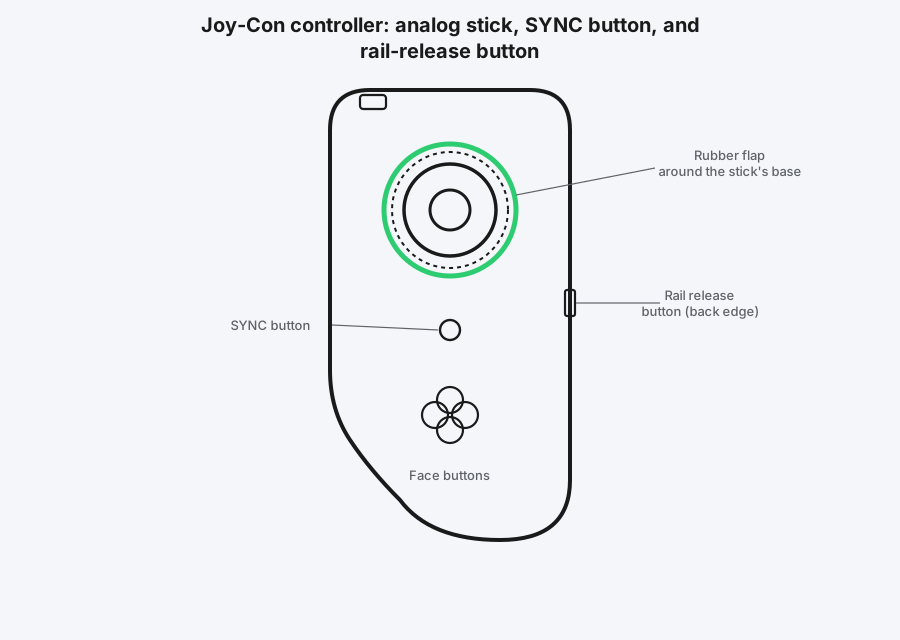
The analog stick sits under a small rubber flap that's meant to keep dust out while still letting the stick move freely. In practice, fine dust and lint work their way in anyway, especially after months in a pocket, a bag, or just sitting on a shelf collecting household dust. Once enough builds up around the stick's contacts, the controller can start reading a resting position as slightly off-center, which shows up as constant, unwanted input in one direction.
Over a longer timeline, the same thing can happen from ordinary mechanical wear rather than dust: the stick's internal contacts (the part that senses exactly how far and which way it's tilted) wear down from being moved thousands of times, and a worn contact can't report a clean, accurate center anymore either. Dust-related drift usually responds to cleaning. Wear-related drift usually doesn't, and that's the case where a repair or replacement stick is the real fix, not another round of compressed air.
Nintendo's own support documentation avoids assigning a single cause and refers to the issue neutrally as "responsiveness syndrome," but the dust-and-wear explanation above matches what independent repair shops and iFixit's own teardowns have consistently found when they've opened up affected Joy-Con.
Method 1: Recalibrate Your Joy-Con First (Free, Takes 30 Seconds)
This is the step people skip because it sounds too simple to matter, and it's genuinely the first thing worth trying. Calibration doesn't fix physical wear or dust, but a surprising number of "drifting" complaints turn out to be the stick's stored center point drifting out of alignment on the software side, which recalibrating resets instantly.
Step 1: Open Controllers and Sensors
From the HOME Menu, go to System Settings, then select Controllers and Sensors.
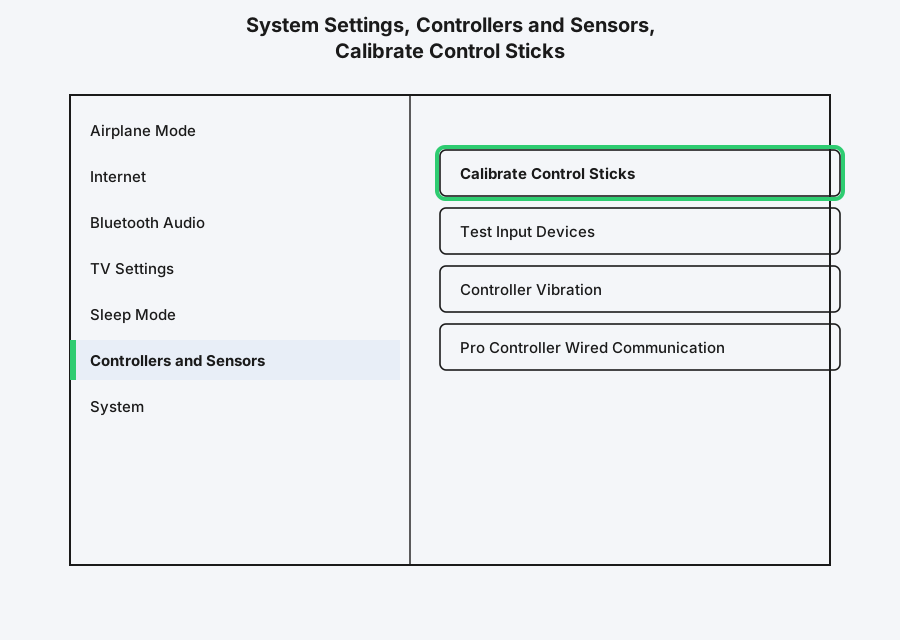
Step 2: Select Calibrate Control Sticks
Choose the Joy-Con or Pro Controller you want to calibrate, then select Calibrate Control Sticks.
Step 3: Fully Tilt the Stick as Instructed
Follow the on-screen prompt to fully tilt the control stick in a single direction and hold it there for a few seconds, then let the on-screen instructions walk you through confirming it.
Step 4: Force the Change to Take Effect
If the drift doesn't seem to have improved right away, either put the console to sleep and wake it back up, or press the SYNC button on the controller and press any other button to reconnect it. Calibration changes sometimes don't visibly apply until one of those two things happens.
Method 2: Test the Drift to Confirm What You're Dealing With
Before cleaning anything, it's worth confirming exactly how bad the drift is and whether it's isolated to one stick, since that changes what's worth trying next.
Step 1: Open Test Input Devices
Go to System Settings > Controllers and Sensors > Test Input Devices, then select Test Controller Buttons.
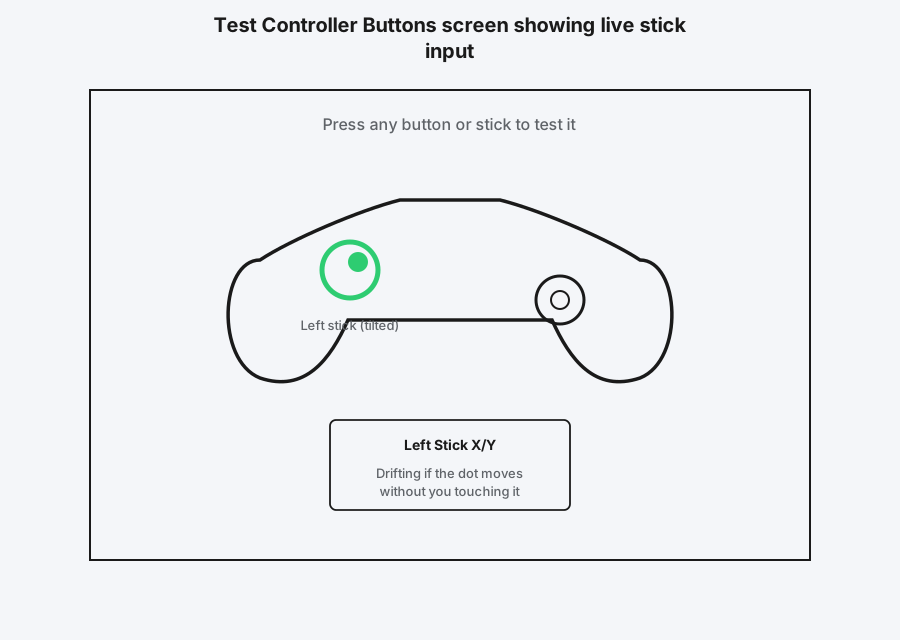
Step 2: Watch the Stick Without Touching It
Set the controller down without touching the sticks and watch the on-screen indicator. If it stays dead center, the drift may only show up under specific conditions (heat, a certain angle) worth noting. If it visibly creeps on its own, that confirms real drift rather than something you're misreading in-game.
Step 3: Press and Hold Any Button to End the Test
This is the only way out of the test screen, a small detail that trips people up the first time.
Method 3: Clean Under the Stick With Compressed Air
If calibration alone didn't fully resolve it, dust under the rubber flap is the next most likely cause, and compressed air is the safest way to clear it without opening the controller.
Step 1: Get a Can of Compressed Air
The kind sold for cleaning keyboards works fine. Skip anything liquid, no cleaning sprays or alcohol directly on the controller, since that risks getting moisture into the electronics rather than just clearing dust.
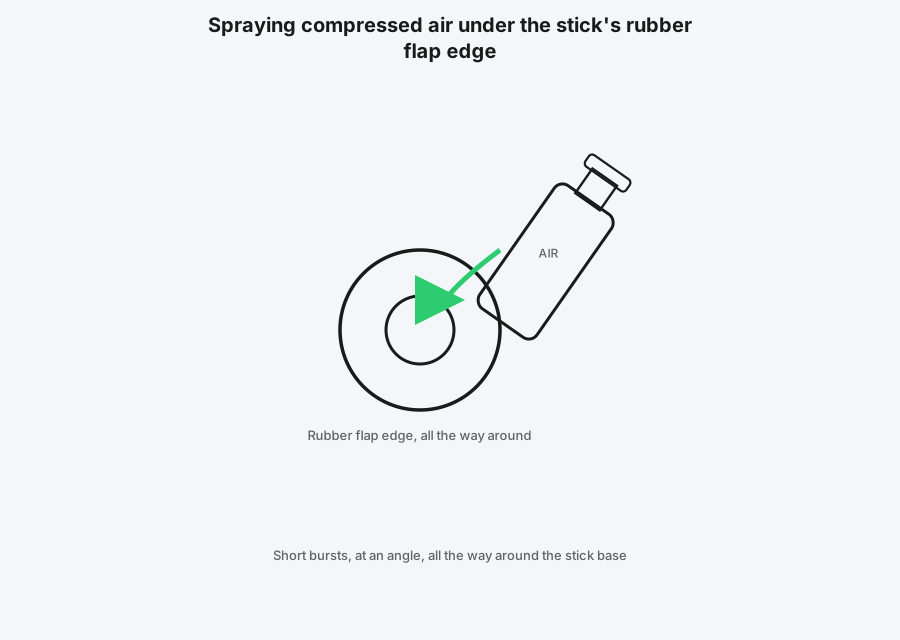
Step 2: Angle the Nozzle Under the Flap Edge
Gently lift or angle the nozzle toward the thin gap where the rubber flap meets the stick's housing, not straight down onto the stick itself.
Step 3: Use Short Bursts, All the Way Around
Work around the stick's base in short one-second bursts rather than one long spray, rotating the stick gently with your other hand as you go so trapped dust has somewhere to escape.
Step 4: Recalibrate Afterward
Run Method 1 again once you've cleaned it. Cleaning changes the physical situation, but the stored calibration should still be refreshed to match.
This is genuinely worth trying before assuming your Joy-Con needs to go in for repair. It won't fix everything, wear-based drift doesn't respond to cleaning at all, but for dust-based drift it works often enough to be worth the two minutes.
A quick honest note on the paper trick: you'll see videos of people folding a small piece of paper and wedging it under the stick to stop drift. It can temporarily mask certain kinds of drift by physically limiting how far the stick can move, but it's not fixing anything, and I wouldn't treat it as a real solution. Use it as an emergency workaround if you're mid-match and stuck, not as your actual fix.
Method 4: Update Your System and Controller Firmware
Less common as a cause, but worth ruling out since it costs nothing to check.
Step 1: Update Your Switch's System Software
From the HOME Menu, go to System Settings > System > System Update.
Step 2: Check for Controller Firmware Updates
Controller firmware updates automatically when a Joy-Con is connected and there's a pending update, usually shown as a brief notification. If you suspect it's out of date, disconnect and reconnect the controller to prompt a check.
Step 3: Confirm In-Game Sensitivity Settings Aren't the Real Cause
Some games have their own stick sensitivity or dead-zone settings, and a badly configured one can feel exactly like hardware drift. If the issue only shows up in one specific game, check that game's own control settings before blaming the Joy-Con itself.
Method 5: Get It Repaired Free Through Nintendo
If calibration and cleaning haven't fixed it, this is the fix I'd actually recommend before spending money or opening the controller yourself.
Nintendo has confirmed it repairs Joy-Con drift free of charge in the US regardless of warranty status, and internal guidance reported at the time removed the requirement to show proof of purchase specifically for this issue. In the European Economic Area, UK, and Switzerland, Nintendo states this directly on its own support site: it "will not charge you... for the repair of the responsiveness syndrome irrespective of whether this is caused by a defect or by wear and tear." That's about as clear a commitment as a manufacturer gets, and it applies even after the standard warranty period has ended.
Step 1: Start a Repair Request
Go to Nintendo's official support site and start a repair request for the affected Joy-Con, describing the drift symptom specifically so it's flagged correctly.
Step 2: Ship It In (Or Use an Authorized Repair Center, Where Available)
Follow the shipping instructions Nintendo provides. In some regions Nintendo also offers in-person repair at authorized locations, worth checking if you'd rather not mail it.
Step 3: Know What Can Disqualify Free Repair
Nintendo can decline free repair if the damage stems from a non-Nintendo accessory, commercial use, accidental physical damage, unauthorized modification, or a tampered serial number. Ordinary drift from normal use isn't any of those.
This is the option I'd point most people toward if cleaning didn't fix it. It costs nothing, and it doesn't require you to open a controller you might not want to take apart yourself.
Method 6: Replace the Analog Stick Yourself (Most Involved, Most Permanent)
If you'd rather fix it immediately instead of waiting on a mail-in repair, or you're dealing with an older Joy-Con Nintendo won't service anymore, replacing the stick module yourself is the most durable fix, short of the official repair.
Replacement stick kits are widely available, and iFixit publishes a full disassembly guide for exactly this repair. I'll be straightforward about the tradeoff: it involves opening the controller, disconnecting a small ribbon cable, and reassembling everything correctly, which is genuinely fiddly work on something this small. If you've never opened electronics like this before, Nintendo's free repair is the lower-risk option. If you're comfortable with a screwdriver and a steady hand, a self-installed replacement stick is a real, lasting fix and typically costs less than a full replacement Joy-Con.
Does the Nintendo Switch 2 Have Joy-Con Drift Too?
Worth addressing directly since it comes up a lot: yes, it can. Ahead of the Switch 2's release, Nintendo confirmed its Joy-Con 2 controllers do not use Hall effect sticks, the magnetic sensor design that several third-party and competitor controllers have adopted specifically because it doesn't wear down the same way physical contacts do. That means the Switch 2 uses the same general contact-based stick design as the original Switch, and reporting since launch has shown it isn't immune to the same drift issue. Everything in this guide, calibration, cleaning, Nintendo's repair policy, applies the same way to Switch 2 Joy-Con.
Still Not Working?
If you've calibrated, cleaned, and updated everything and the drift is still there, or it's gotten worse rather than better, that's a strong sign it's worn contacts rather than dust, and no amount of cleaning is going to fix that. Nintendo's official Joy-Con support page covers the repair request process and what to expect, and is the right next step rather than continuing to troubleshoot something that's a hardware fault at this point.
Frequently Asked Questions
Is Joy-Con drift covered under warranty?
Yes, and in most cases it's covered even after your standard warranty has expired. Nintendo has stated it repairs this specific issue free of charge regardless of warranty status, and in the EEA, UK, and Switzerland it's committed to that in writing on its own support site.
Can I fix Joy-Con drift without opening the controller?
Often, yes. Recalibrating in System Settings and cleaning under the stick's rubber flap with compressed air both work without any disassembly, and one or both resolves a real share of cases. Opening it up is only necessary if those don't hold.
Does Joy-Con drift get worse over time?
It can, especially if the underlying cause is worn contacts rather than dust. Dust-based drift can stay mild for a long time or clear up entirely with cleaning. Wear-based drift tends to get more noticeable the longer you keep using the same stick without repair.
Will a screen protector or grip case prevent drift?
Not directly, since drift originates inside the stick mechanism, not on the outside of the controller. A case can reduce dust exposure somewhat by keeping the controller cleaner overall, but it's not a targeted fix.
Is it worth buying a new Joy-Con instead of repairing the old one?
Usually not as the first move. A new Joy-Con costs more than either the free official repair or a replacement stick kit, and it doesn't address the fact that any Joy-Con can eventually develop the same issue. Repair first, replace only if you decide it's genuinely not worth the wait.
Does the Pro Controller get drift too?
Yes, it uses a similar stick mechanism and can develop the same issue, though it's reported less often, likely because it sees less regular handling wear than a Joy-Con that's constantly being slid on and off the console. The same calibration and testing steps in this guide apply to it directly.
Quick Summary
Start with calibration in System Settings > Controllers and Sensors, since it's free and fixes more cases than people expect. If that doesn't hold, clean under the stick's rubber flap with short bursts of compressed air, then recalibrate again. If the drift survives both of those, it's almost certainly worn contacts rather than dust, and Nintendo's free repair program, regardless of your warranty status, is the fix I'd actually use next rather than spending money on a replacement controller.
Related Articles
How to Calibrate Your PS5 or Xbox Controller
Xbox has a real built-in recalibration tool for stick and trigger drift. PS5 doesn't, so here's exactly what actually works on a DualSense instead.
How to Fix PS5 Controller Stick Drift
PS5 controller stick drift is usually dust, wear, or a software glitch, not a dead controller. Here's the real fix order, from a free reset to Sony's repair program.
Xbox Controller Not Connecting to PC? How to Fix It
Xbox controller not connecting to PC usually comes down to Bluetooth vs. the proper Xbox Wireless protocol, a driver issue, or a cable that only charges. Here's how to work through all of them.