

How to Fix PS5 Controller Stick Drift

PS5 controller drift is when the DualSense's analog stick reports movement you never made, a camera that won't sit still, a character that drifts left in the menu, an aim that creeps off target on its own. It's one of the most common DualSense complaints out there, and it doesn't mean the controller is dead. Most of the time it's dust, a worn internal contact, or a stuck firmware glitch, and there's a real order to work through before you spend money on anything.
I've had drift show up on two DualSense controllers now, one from regular wear after about a year, one that turned out to just need a firmware update. They looked identical from the couch. Only one of them actually needed fixing.
Quick answer: start by restarting the console and controller and checking for a software update, since a surprising number of drift complaints are actually a stuck firmware glitch. If that doesn't do it, hard-reset the controller using the small pinhole button on the back, then clean around the thumbstick with compressed air. If it's still drifting after that, Sony's official repair program covers the fix, free within the first year, paid after that.
Key takeaways:
- A restart and firmware update fixes more drift complaints than people expect, since it costs nothing and takes under a minute.
- The physical reset button lives in a small hole on the back of the controller, next to the Sony logo, and needs a pin or paperclip to press.
- Dust under the thumbstick's rubber skirt is the most common physical cause, and compressed air clears it without opening anything.
- Sony's DualSense doesn't have a built-in stick calibration menu the way some other consoles do, which is worth knowing before you go hunting for a setting that isn't there.
- Sony's standard controller warranty runs one year in the US, and drift repairs outside that window are billed to you, shipping included.
Prefer an interactive walkthrough? Try our PS5 Controller Drift Troubleshooter →
If you haven't connected the controller to a PC yet, or you're dealing with pairing and setup issues rather than drift specifically, our guide to connecting a PS5 controller to PC covers that separately.
Quick Diagnostic: What's Actually Going Wrong?
| What you're seeing | Likely cause | Try this first |
|---|---|---|
| Drift started recently, out of nowhere | Firmware or software glitch | Method 1 |
| Character or camera creeps in one direction | Dust under the thumbstick, or a worn contact | Method 3 |
| Drift is mild and the controller is under a year old | Software or light dust, unlikely to be worn hardware yet | Methods 1 to 3 |
| Drift is severe, or the stick feels loose or gritty | Worn internal contacts, cleaning may not fully fix it | Method 4 or 6 |
| You've cleaned it and it's still drifting | Internal wear on the stick module itself | Method 5 or 6 |
| Only one stick drifts, the controller is otherwise fine | Isolated wear or debris on that one stick | Any method, applied to that stick |
Why DualSense Sticks Drift At All
Each analog stick on a DualSense sits on top of a small mechanism that reads exactly how far and which direction it's tilted, using tiny conductive contacts that sweep across a resistive pad as the stick moves. That's the actual physical thing wearing out over time, not the plastic stick cap itself. After enough movement, thousands of hours of nudging a stick in every direction, those contacts wear a track into the pad, and a worn track can't report a clean, accurate center position anymore. The controller reads that inaccuracy as constant, unwanted input in one direction, which is what you feel as drift.
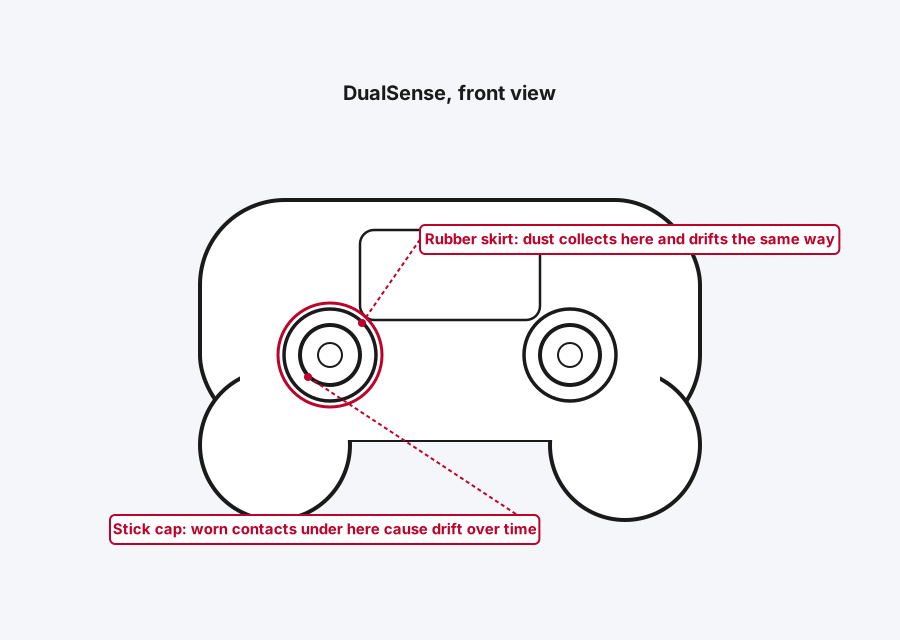
Dust causes the same symptom through a different path. A thin rubber skirt around the base of the stick is meant to keep debris out while still letting the stick move freely, but fine dust and lint get past it anyway, especially after months in a bag or sitting out collecting household dust. Enough buildup around the contacts and the stick can't return cleanly to center either, which looks and feels exactly like wear-based drift even though the fix is completely different.
There's also a real software layer to this that's easy to overlook. DualSense firmware occasionally ships with input-related bugs, and PS5 system software updates have fixed reported controller issues before. Before you touch a screwdriver or a can of compressed air, it's worth ruling out the possibility that nothing is physically wrong at all.
Method 1: Restart and Update Before Anything Else
This is the step people skip because it feels too simple to matter, and it's genuinely worth doing first since it costs nothing and takes under a minute.
Step 1: Turn the Controller Off and Back On
Hold the PS button for a few seconds until the controller powers down, then press it again to reconnect.
Step 2: Update the PS5 System Software
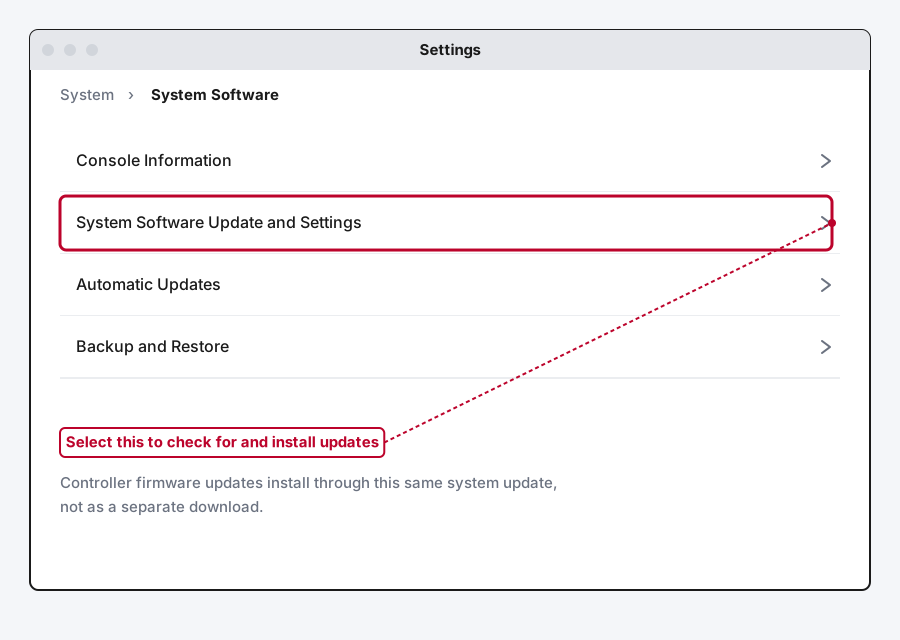
From the PS5 home screen, go to Settings > System > System Software > System Software Update and Settings, and install anything pending. Controller firmware updates are delivered through this same system update, not as a separate download.
Step 3: Confirm the Controller Firmware Actually Updated
Firmware updates for a connected controller install automatically in the background the next time it connects after a system update. If you're not sure it applied, disconnect and reconnect the controller (unplug and replug over USB, or turn Bluetooth off and back on) to prompt a check.
A stuck firmware glitch is a genuinely common enough cause that I wouldn't skip this step even if the drift feels obviously physical. It costs nothing to rule out.
Method 2: Hard-Reset the Controller
If a restart and update didn't help, a hard reset clears the controller's internal state completely, which is different from just powering it off.
Step 1: Power the Controller Off
Hold the PS button until it shuts down.
Step 2: Find the Reset Button
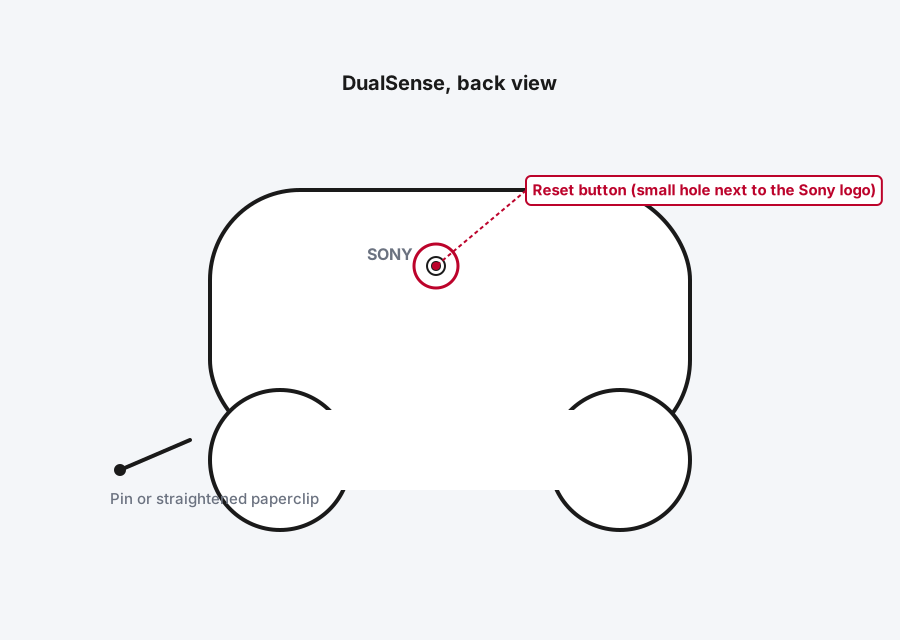
It's inside a small hole on the back of the controller, next to the Sony logo, not anywhere on the front or top.
Step 3: Press and Hold It With a Pin
Use a straightened paperclip or a SIM-eject tool, not anything sharp enough to damage the hole. Press and hold for about 5 seconds. You'll feel a small click when the pin makes contact with the actual switch inside.
Step 4: Reconnect and Re-Pair
Plug the controller into the console with a USB-C cable and press the PS button to start pairing again from scratch.
Method 3: Clean Around the Thumbstick
If the drift survives a reset, dust trapped under the stick's rubber skirt is the next most likely cause, and this clears it without opening the controller.
Step 1: Get a Can of Compressed Air
The kind sold for cleaning keyboards works fine. Skip anything liquid sprayed directly at this stage.
Step 2: Angle the Nozzle Into the Gap Around the Base
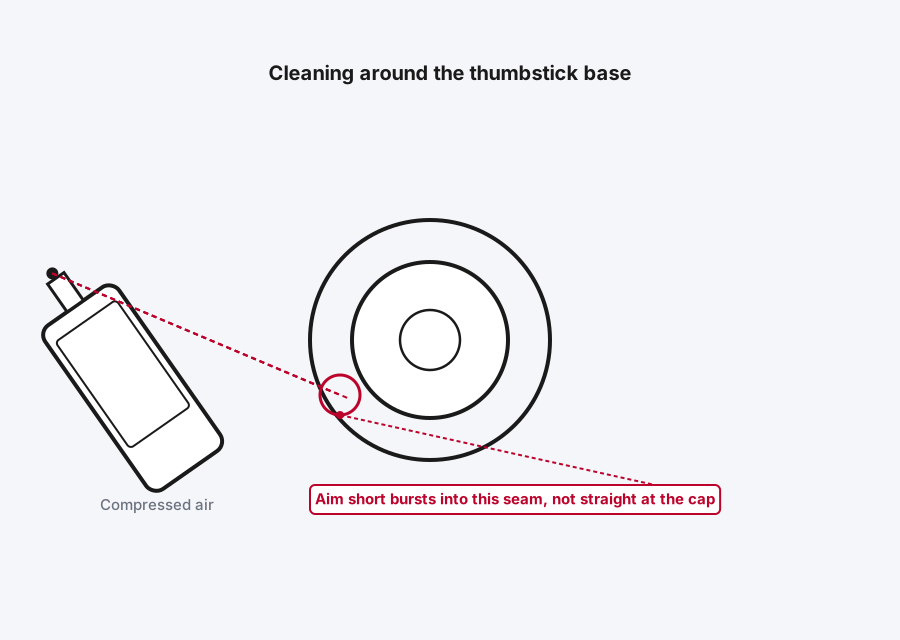
Aim at the thin seam where the rubber skirt meets the stick's housing, not straight down onto the stick cap itself.
Step 3: Use Short Bursts While Moving the Stick
Work around the base in short one-second bursts, gently rotating the stick with your other hand as you go so any dust that gets dislodged has somewhere to go.
Step 4: Follow Up With Isopropyl Alcohol If It's Still Sticky
Dampen a cotton swab with 90% isopropyl alcohol, not anything wetter, and gently run it around the base of the stick where it meets the housing. Let it dry fully before using the controller again.
This is genuinely worth trying before assuming the controller needs to be opened up. It won't fix wear-based drift, cleaning can't repair a worn contact, but for dust-based drift it resolves things often enough to be worth the few minutes.
Method 4: Deep-Clean the Internals (More Involved)
If external cleaning didn't hold, the dust or residue may be further inside than compressed air alone can reach. This step requires opening the controller partially, and it's a fair bit more involved than anything above.
Step 1: Remove the Back Cover
This needs a small screwdriver and some care, and it's the same access point used for a full joystick module replacement, so it's worth looking up a real disassembly guide for your specific DualSense revision before starting, since Sony has shipped a few internal hardware revisions with slightly different screw layouts.
Step 2: Spray Electronics Contact Cleaner Into the Stick Mechanism
A non-residue contact cleaner, not a general household spray, sprayed directly into the internals of the stick module.
Step 3: Move the Stick Through Its Full Range
Work the cleaner into the mechanism by moving the stick in every direction several times, then let it dry completely before reassembling.
I'll be honest about this one: it's a real fix for genuinely dirty internals, but it's fiddly work on something this small, and if you've never opened a game controller before, it's reasonable to skip straight to Method 5 or 6 instead.
Method 5: Replace the Stick Module Yourself
If cleaning didn't fix it and the controller is out of warranty, replacing the analog stick module directly is the most permanent DIY fix, and it's what a lot of repair shops actually do rather than just cleaning.
Replacement modules are widely available, including Hall-effect versions that use magnetic sensing instead of the wear-prone contact design DualSense ships with, which means they don't develop this same kind of drift over time. The tradeoff is real: this repair usually needs basic soldering, since the stick module connects to the controller's board rather than just clipping in, and it typically runs one to a few hours of careful work depending on your experience. If you're comfortable with a soldering iron, it's a genuinely lasting fix. If you're not, this is the point where Method 6 is the better call.
Method 6: Get It Repaired Through Sony
This is the option I'd point most people toward if nothing above fixed it, and it's worth understanding exactly how it works before you start.
Step 1: Start a Request Through PlayStation Repairs
Sony's official hardware support site has a self-service repair tool that walks you through selecting your device and the specific issue, including a stick or button problem.
Step 2: Ship the Controller In
You'll need to cover the cost of shipping the controller to Sony yourself. Sony covers return shipping once the repair is done.
Step 3: Know What This Costs, and When
If the controller is still within its one-year US warranty, drift caused by normal wear is generally treated as a covered defect, and the repair itself is free, you're only out the cost of shipping it in. Once you're past that window, the repair becomes a paid service, and the price depends on what's actually wrong with it.
Worth knowing: DualSense drift was significant enough that a group of PS5 owners filed a proposed class action against Sony over it back in 2021, alleging Sony knew about the defect and made repairs unnecessarily costly and slow. The case was voluntarily dismissed in 2023 before reaching a verdict, so it settled nothing and proved nothing either way, but it's a decent sign that this isn't just a handful of unlucky controllers, it's a widely reported hardware issue.
Why There's No Calibration Menu Like You Might Expect
If you've fixed drift on a different console before, you might go looking for a stick calibration option in PS5's settings the way you would on some other systems. It isn't there. The standard DualSense doesn't have a built-in stick calibration or deadzone adjustment menu at the system level. The closest thing PS5 offers is the Access controller profile system under Settings > Accessibility, but that's built around Sony's separate adaptable Access controller accessory, not a deadzone or sensitivity fix for a standard DualSense. If a specific game has its own in-game deadzone or sensitivity slider, that can mask mild drift, but it's a per-game workaround, not a system-level fix, and it won't help at all outside that one game. There are real PC-based options though, Windows' own joystick calibration wizard, Steam Input's deadzone slider, and DualSense Edge Custom Profiles, all covered in our PS5 / Xbox Controller Calibration guide.
Still Not Working?
If you've restarted, reset, cleaned, and it's still drifting, or it's gotten worse rather than better, that points to worn internal contacts that cleaning genuinely can't fix. PlayStation's hardware and repairs support page is the right next step from here, whether that means starting a paid repair, checking if you're still inside warranty, or getting a straight answer on whether the controller is worth fixing versus replacing.
Frequently Asked Questions
Is PS5 controller drift covered under warranty?
Yes, within Sony's standard one-year US warranty period, drift from normal use is generally treated as a covered defect and repaired free, though you still cover the cost of shipping the controller in. Outside that window, repairs are a paid service.
Can I fix PS5 controller drift without opening the controller?
Often, yes. A restart and firmware update, a hard reset through the pinhole button, and cleaning around the stick with compressed air all work without any disassembly, and one of those three resolves a real share of cases. Opening the controller is only necessary if none of those hold.
Does PS5 have a built-in stick calibration setting?
No. Unlike some other consoles, the standard DualSense doesn't have a system-level calibration or deadzone menu. The Access controller profile system in Accessibility settings is for Sony's separate adaptable controller accessory, not a fix for a standard DualSense.
Will a new DualSense just drift again eventually?
It's possible, since the standard stick design is the same across every DualSense unit, worn contacts are a function of the mechanism itself, not a specific bad unit. A Hall-effect replacement stick, or a controller built around Hall-effect sticks from the start, avoids this specific wear pattern, but the standard DualSense doesn't ship with them.
Is stick drift more common on the DualSense than older PlayStation controllers?
It's been widely reported enough to draw a class-action lawsuit, though the underlying mechanism, contact wear inside the stick, isn't new to the DualSense specifically. The DualShock 4 had the same category of complaint before it.
Should I buy a new controller instead of fixing this one?
Usually not as the first move. A new DualSense costs more than either a free in-warranty repair or a self-installed replacement stick, and it doesn't change the fact that any standard DualSense can eventually develop the same issue. Try the fixes above first, and treat a new controller as the last option, not the first one.
Quick Summary
Start with a restart and a system software update, since a stuck firmware glitch causes more of this than people expect. If that doesn't fix it, hard-reset the controller using the pinhole button next to the Sony logo on the back, then clean around the thumbstick with compressed air. If the drift survives all of that, it's most likely worn internal contacts, and Sony's official repair program is the fix I'd actually use next, free if you're still inside the one-year warranty, paid if you're not. Skip looking for a calibration setting in PS5's system menu. There isn't one.
Related Articles
How to Calibrate Your PS5 or Xbox Controller
Xbox has a real built-in recalibration tool for stick and trigger drift. PS5 doesn't, so here's exactly what actually works on a DualSense instead.
How to Fix Nintendo Switch Joy-Con Drift (2026 Guide)
Joy-Con drift comes down to dust or worn contacts under the stick's rubber flap. Here's how to calibrate, clean, and get it repaired for free.
Xbox Controller Not Connecting to PC? How to Fix It
Xbox controller not connecting to PC usually comes down to Bluetooth vs. the proper Xbox Wireless protocol, a driver issue, or a cable that only charges. Here's how to work through all of them.