

How to Fix Buffering on Any Streaming App (2026)

How to fix buffering on streaming apps is a slightly different question depending on which app you mean, but the underlying causes overlap across almost all of them. If you've already been through a Netflix-specific guide and you're still stuck, or you're dealing with Hulu, Disney+, Prime Video, or something else entirely, this covers the fixes that apply regardless of which app is doing it.
I wrote a Netflix-focused version of this before, and kept getting the same question afterward: does this work for Hulu too? Mostly yes, but there are a few fixes that only make sense once you stop treating it as an app problem and start treating it as a network problem.
Quick answer: if buffering happens across multiple different streaming apps at the same time, it's your network, not any one app, and the fixes below (DNS, cache, network congestion) apply no matter which service you're watching. If it only happens on one specific app, that app's own quality settings and cache are the more likely fix.
Key takeaways:
- Buffering that follows you between apps points to your network. Buffering that's isolated to one app points to that app specifically.
- Manually lowering an app's video quality is a real fix, not a workaround, and every major streaming app has this option somewhere in its settings.
- Switching your DNS servers to a faster public option is a genuinely underused fix that helps more than people expect, especially on older or poorly maintained ISP-provided routers.
- Clearing an app or browser's cache resolves buffering caused by corrupted or bloated local data, which is a different problem than bandwidth entirely.
Prefer an interactive walkthrough? Try our Streaming App Buffering Troubleshooter →
Is It Your Network or the App? Quick Diagnostic
| What you're seeing | Likely cause | Try this first |
|---|---|---|
| Buffering happens on every streaming app you try | Your network or ISP | Method 2 (DNS) or Method 4 |
| Only one specific app buffers, others are fine | That app's cache or its own quality setting | Method 1 or Method 3 |
| Started after a browser or app update | Corrupted cache or outdated app | Method 3 |
| Fine at home, buffers on public Wi-Fi | Shared or throttled public bandwidth | Method 5 |
| Fine most of the time, buffers during peak evening hours | ISP congestion or throttling | Method 4 |
Why You Can Fix Buffering on Streaming Apps the Same Way, Regardless of Which One
Every major streaming app relies on the same basic pipeline: your device requests video data from a content delivery network, and buffering happens whenever that data can't arrive fast enough to stay ahead of playback. The app itself is rarely the actual bottleneck. What differs between services is mostly how each one's app handles a slow connection, some degrade video quality automatically and gracefully, others just stall and spin.
That's why a fix that's specific to your network, not any single app, tends to have the biggest impact across the board, and it's also why troubleshooting one app in isolation sometimes misses the real cause entirely.
Method 1: Manually Lower the App's Video Quality
Every major streaming app has a manual quality setting buried somewhere, and using it deliberately, rather than trusting automatic quality selection, is one of the most reliable fixes there is.
Step 1: Find the Quality Setting
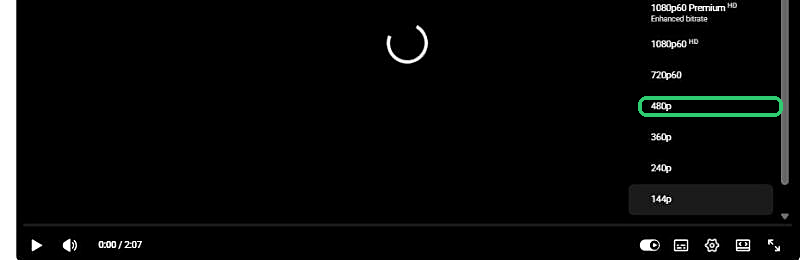
On YouTube, click the gear icon in the video player and select Quality. Hulu, Disney+, and Prime Video have similar options under a settings or account menu, usually labeled "Video Quality" or "Data Usage."
Step 2: Choose a Lower Resolution Manually
Selecting something like 480p instead of Auto forces a lower, more consistent bitrate instead of letting the app repeatedly try and fail at a higher one.
Step 3: Test Before Assuming It Didn't Help
Give it a full minute of playback. A quality change doesn't retroactively fix an already-stalled buffer, it only helps going forward.
I'll be honest about the trade-off here, same as I was in the Netflix-specific piece: picture quality drops. But a slightly softer picture that plays smoothly is a better experience than a sharp picture that stops every thirty seconds, and you can always switch it back once you've resolved the underlying cause.
Method 2: Switch to a Faster Public DNS Server
This is the fix most people skip because it sounds more technical than it actually is, and it's specifically useful when buffering happens across multiple apps, not just one.
Step 1: Open Network Connections
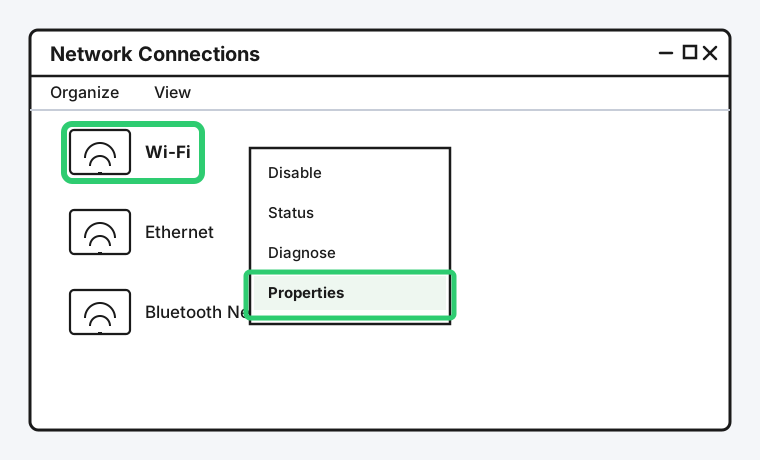
Press Windows key + R, type ncpa.cpl, and press Enter. Right-click your active connection, usually Wi-Fi, and choose Properties.
Step 2: Open IPv4 Settings
Select "Internet Protocol Version 4 (TCP/IPv4)" from the list and click Properties.
Step 3: Set a Custom DNS Server
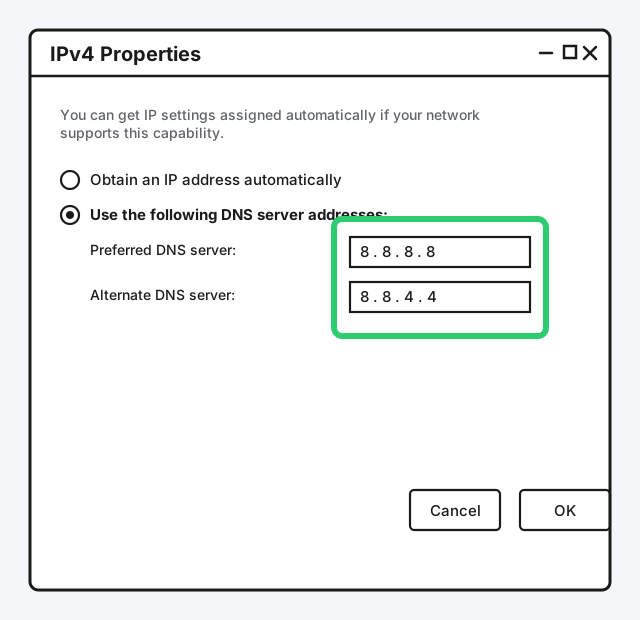
Choose "Use the following DNS server addresses" and enter 8.8.8.8 as the preferred server and 8.8.4.4 as the alternate. These are Google's free public DNS servers, though Cloudflare's 1.1.1.1 and 1.0.0.1 work just as well.
Step 4: Save and Restart Your Browser or App
DNS changes apply to new connections, so fully close and reopen whatever you were streaming from.
What this actually fixes: your ISP's default DNS server resolves the address of the streaming service's content servers slower or less reliably than it should, which can add delay before playback even starts, and in some cases affects which regional CDN server you get routed to. A faster, more reliable DNS server doesn't increase your bandwidth, but it can meaningfully cut down on the stalls that happen right at the start of playback or during a quality switch.
Method 3: Clear the App or Browser's Cache
A bloated or corrupted cache is a genuinely different problem from bandwidth, and it's often the actual cause when buffering is isolated to a single app that used to work fine.
Step 1: Clear Browser Cache (If Streaming Through a Browser)
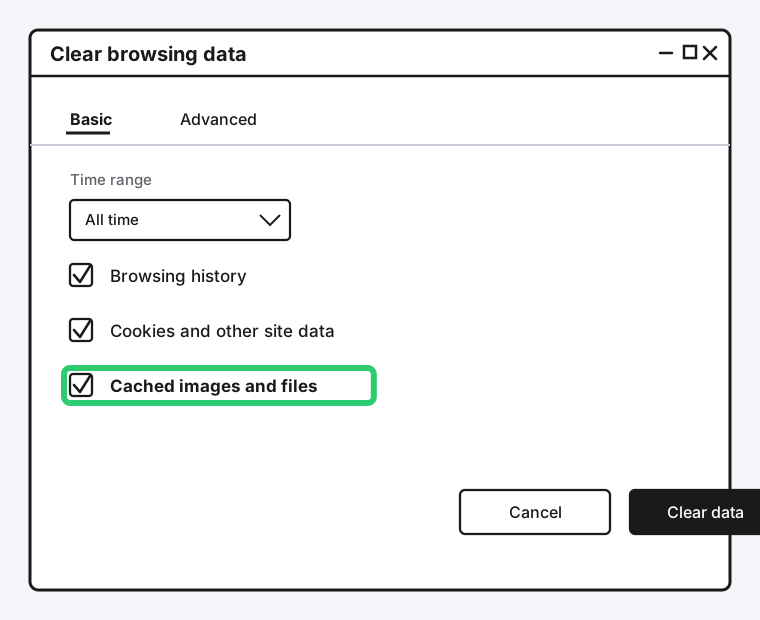
In Chrome, go to Settings and search for "Clear browsing data," or use the keyboard shortcut Ctrl + Shift + Delete. Select "Cached images and files" specifically, you don't need to clear your history or saved passwords for this.
Step 2: Clear an App's Cache on Mobile or Smart TV
On Android, go to Settings > Apps, select the streaming app, and choose Storage > Clear Cache, not Clear Data, which would sign you out. On a smart TV or streaming stick, the equivalent is usually under Settings > Apps > [app name] > Clear Cache, though the exact path varies by manufacturer.
Step 3: Restart the App Completely
Fully close it, not just back out of it, and reopen before testing again.
Method 4: Rule Out ISP Congestion or Throttling
If buffering is worse at a specific, consistent time of day, especially evenings when everyone in your area is streaming at once, that's a real, well-documented pattern called peak-time congestion, and it's on your ISP's end, not yours or the app's.
Run a speed test at the time buffering happens and again at a quiet time, like early morning. A significant, consistent gap between the two is a strong sign of time-based congestion, and it's worth raising directly with your ISP armed with those two numbers rather than guessing.
Method 5: Treat Public Wi-Fi as a Different Problem Entirely
Buffering on coffee shop, hotel, or workplace Wi-Fi usually isn't fixable the way home network buffering is, because you don't control the router, the DNS, or how many other people are sharing that same connection. If it's consistently bad on public Wi-Fi specifically, switching to mobile data for that session is often the more realistic fix than troubleshooting a network you don't own.
Still Not Working?
If you've worked through all of this and buffering is still happening across multiple apps and multiple times of day, it's worth a direct conversation with your ISP about your actual plan speed versus what you're measuring, and each individual streaming service's own help center can rule out an account-specific or regional server issue on their end. Speedtest by Ookla and fast.com are both good independent ways to double-check your numbers before that call.
Frequently Asked Questions
Does changing my DNS server actually make my internet faster?
Not your raw bandwidth, no, but it can reduce the delay involved in looking up where to actually connect, which shows up as fewer stalls at the start of playback or right after a quality change.
Is it safe to use Google's or Cloudflare's DNS instead of my ISP's?
Yes, both are long-established, free, public DNS services used by millions of people specifically for this kind of troubleshooting, and switching is easily reversible if you want to go back to your ISP's default.
Why does only one streaming app buffer while the others work fine?
That points to something specific to that app, usually a bloated cache, an outdated app version, or that particular app's own quality setting, rather than your connection as a whole.
How do I know if my ISP is throttling streaming specifically?
Compare a speed test result against your actual streaming performance at the same time. If your speed test looks fine but a specific app still buffers badly, some ISPs do apply traffic-shaping specifically to recognized video-streaming traffic, though this varies a lot by provider and isn't something you can diagnose with total certainty from home.
Should I clear my cache regularly to prevent buffering?
Not on a fixed schedule, but if you notice buffering creeping in on an app that used to run fine, it's a reasonable first thing to try before assuming something bigger is wrong.
Quick Summary
If buffering happens on every streaming app you use, treat it as a network issue: switch your DNS servers to a public option like Google's or Cloudflare's, and check whether it's specifically tied to peak evening hours, which points to ISP congestion. If it's isolated to one specific app, clear that app's cache first, then manually lower its video quality rather than trusting automatic quality selection. Public Wi-Fi buffering is its own category and often isn't worth troubleshooting the way home network issues are.
Related Articles

Can You Share YouTube TV in Different Houses?
YouTube TV lets you share a login across devices, but its free Family Group feature is built for one household. Here's what actually works across two houses.

Why Is Disney+ Not Working? Common Fixes
Disney+ not working almost always traces back to one of three things: a stuck app cache, a numbered error code that tells you exactly what broke, or a connection that can't keep up.

Why Is Hulu Not Working? Common Fixes
Hulu not working usually comes down to a stuck app cache, a specific numbered error code, or an old device Hulu no longer trusts. Here's how to fix all three.