

Why Is Disney+ Not Working? Common Fixes

Why is Disney+ not working when it was fine yesterday? Most of the time it's not one mysterious problem, it's one of three specific things: the app's cache has gotten stuck, you're looking at a numbered error code that actually tells you the exact failure if you read it right, or your connection genuinely can't keep up with whatever you're trying to stream.
I've had Disney+ throw a blank white screen on an old Fire TV Stick mid-episode more than once, and every single time the fix was the same thirty-second cache clear, not the router restart I kept reaching for first. Once you know which of the three buckets you're actually in, the fix usually takes under a minute.
Quick answer: if Disney+ is frozen, stuck loading, or showing a blank or black screen with no error code, start with a full restart of the app and clear its cache. If you're seeing an actual numbered error code, skip straight to that code's specific fix below, it'll save you from guessing.
Key takeaways:
- Disney+'s numbered error codes point to different failures. Error 42 and 142 mean a connection problem, Error 83 means a device or playback compatibility issue, and Error 73 means a regional content restriction, usually from a VPN.
- Clear Cache and Clear Storage are two different options on Android and Fire TV, and they're easy to mix up: Clear Cache keeps you signed in, Clear Storage wipes everything including your login.
- Disney+ doesn't let you remove individual devices from your account, its only option is signing out of every device at once, which is worth knowing before you go looking for a "remove this device" button that doesn't exist.
- Disney+ recommends at least 5.0 Mbps for HD and 25 Mbps for 4K Ultra HD, per stream. If you're below that and trying to watch in 4K, that alone explains the stuttering.
Prefer an interactive walkthrough? Try our Disney+ Troubleshooter →
Quick Diagnostic: What's Actually Going Wrong?
| What you're seeing | Likely cause | Try this first |
|---|---|---|
| Frozen, blank, or black screen, no error code | Stuck app or device cache | Method 1 or Method 2 |
| A numbered error code on screen | Something specific Disney+ is telling you | Method 3 |
| Constant stuttering, quality keeps dropping | Your connection is below Disney+'s real minimum | Method 4 |
| Signed out unexpectedly, or an old device still shows as active | Account-level device session issue | Method 5 |
| Nothing plays after a recent app or TV software update | Outdated app, worth a clean reinstall | Method 6 |
| Happens on other streaming apps too, not just Disney+ | Your network, not Disney+ specifically | See the cross-link below |
Why "Disney+ Not Working" Is Rarely One Problem
Disney+'s app has to do three separate things before anything actually plays: confirm your device and account are allowed to stream, negotiate a license to decrypt the video, and then pull the video data itself fast enough to keep up with playback. Each of those steps fails differently. A stuck cache usually breaks the third step and shows up as generic freezing with no error code at all. A device or app compatibility problem breaks the first step and throws something like Error 83. A weak or interrupted connection breaks the third step in a more specific way and throws Error 42 or 142.
That's the actual reason a numbered error code is worth reading closely rather than skipping past. It's telling you which of the three steps failed, so you're not stuck trying a fix aimed at the wrong one.
Method 1: Do the Restart Sequence in the Right Order
This clears more Disney+ problems than it probably should, mostly because it resets three separate potential stuck states in one pass instead of just one.
Step 1: Fully Close the Disney+ App
Don't just back out of it. On a phone or a streaming device, swipe it away from your recent apps or hold to close it completely, then relaunch it fresh.
Step 2: Power Cycle the Device It's Running On
For a smart TV, Fire TV Stick, or Roku, unplug it from the wall (not just a soft power-button restart) for a full minute, then plug it back in and let it fully boot before opening Disney+ again.
Step 3: Restart Your Home Network
Unplug your modem and router, wait a full minute, plug the modem back in first, let it fully reconnect, then plug the router back in. This is the slowest step, so try it last, only if the first two didn't do it.
Method 2: Clear Disney+'s Cache (Not Its Storage)
A bloated or corrupted cache is one of the most common reasons Disney+ just sits there frozen or endlessly spinning with no error message, and the menu path is different depending on your device.
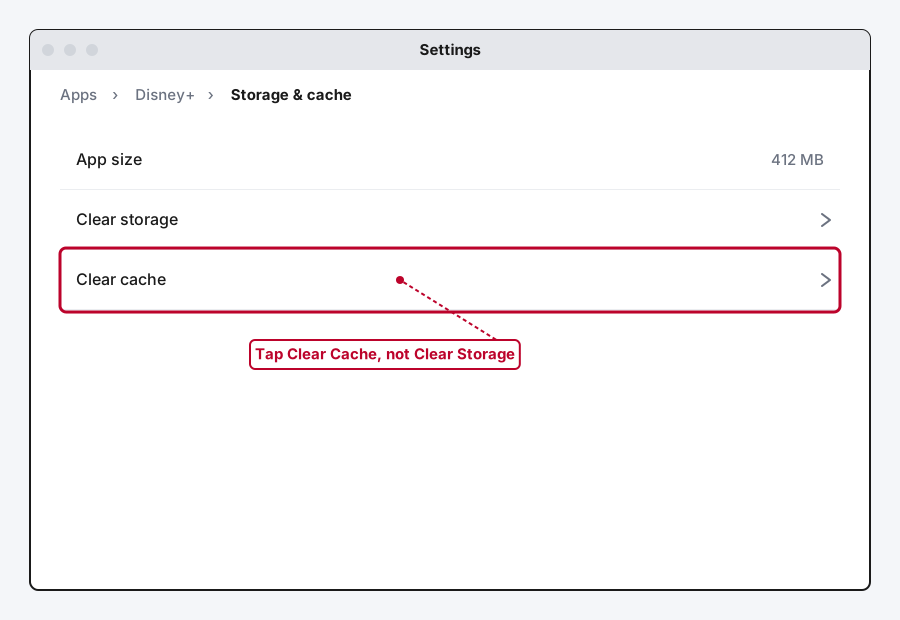
Clear Cache and Clear Storage aren't the same button, and mixing them up costs you your login. Clear Cache wipes temporary files and leaves you signed in. Clear Storage (sometimes labeled Clear Data) wipes everything the app has saved locally, including your session, so you'll have to sign back in from scratch. Always try Clear Cache first.
On Android
Go to Settings, tap Apps, find Disney+, tap Storage & Cache, then tap Clear Cache specifically, not Clear Storage.
On Fire TV
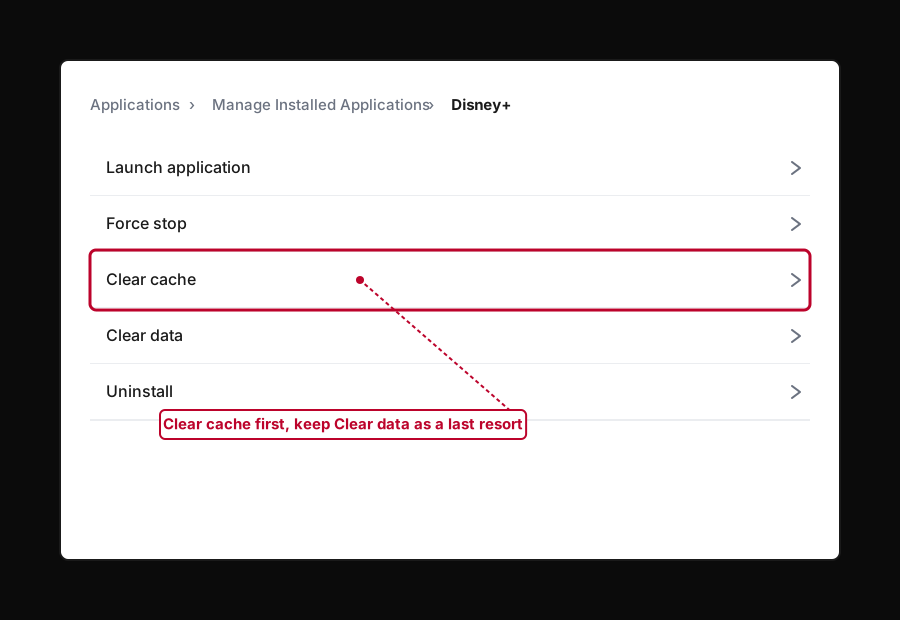
Go to Settings > Applications > Manage Installed Applications, select Disney+, and choose Clear Cache. Clear Data sits right below it and does the same full wipe as Android's Clear Storage, so it's worth double-checking which one your remote actually lands on.
On iOS
iOS doesn't expose a direct cache-clear button the way Android does. Instead, go to Settings > General > iPhone Storage, select Disney+, and tap Offload App. This clears the app's stored data without touching your account, and reinstalling afterward is quick since iOS keeps your documents in place unless you delete the app outright.
On Roku and Samsung/LG Smart TVs
Neither platform exposes a per-app cache-clear menu. The real equivalent is a full power-unplug reboot of the TV or streaming stick itself: unplug it from the wall for a full 60 seconds, then plug it back in and reopen Disney+.
Method 3: Decode the Actual Error Code
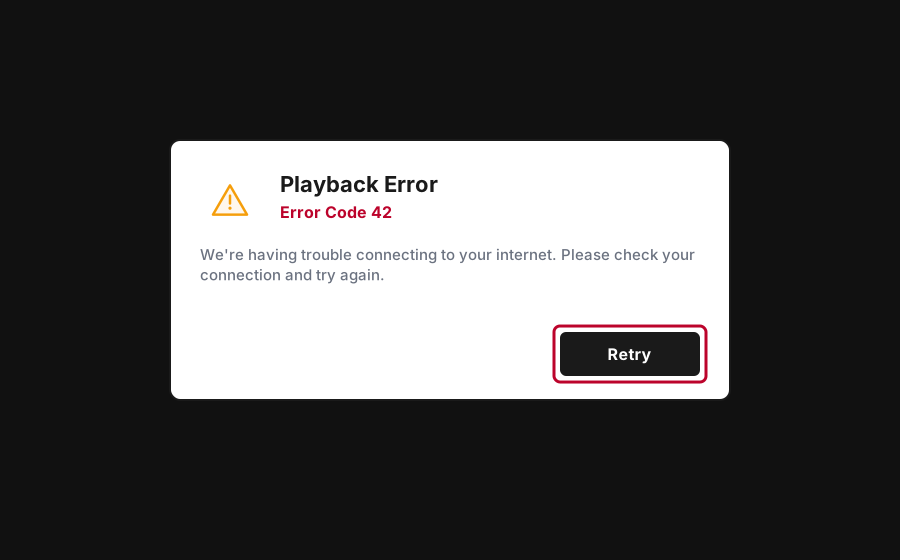
If Disney+ is showing you a code instead of just freezing, that code tells you which of the three failure points actually broke. Here's what the ones you'll actually run into mean, and what to do about each.
| Error code | What it actually means | Fix |
|---|---|---|
| Error 42 | A weak connection or a timeout while loading the video | Check your connection, restart your router, then restart the app |
| Error 142 | Disney+ can't connect to its own servers, usually a Wi-Fi or ISP issue | Same as Error 42, plus try a different device to isolate whether it's your network |
| Error 83 | A device compatibility issue, often from an unsupported browser or outdated app | Update the app, confirm your device is officially supported, or try a different device |
| Error 73 | Content isn't available in your current region | Disable any VPN or proxy and reload |
| Error 14 | An incorrect password at sign-in | Use "Forgot Password?" to reset it, this isn't a device or app problem |
| Error 1026 | An authentication service failure on your device | Restart the device, confirm your connection is stable, then reinstall the app if it recurs |
| Error 39 or 41 | The specific video you're trying to play is temporarily unavailable, often from high traffic | Relaunch the app and try again in a few minutes |
| Error 91 or 92 | Disney+ has temporarily throttled traffic from your IP address, sometimes tied to a VPN or shared network | Confirm your payment method is valid, restart your connection, and avoid a VPN while streaming |
A couple of these are worth flagging directly, since the obvious fix isn't always the right one. Error 14 has nothing to do with your device or connection, it's a straightforward password mismatch, so skip straight to resetting it rather than restarting anything. And Error 73 almost always means a VPN or proxy is active, even one you forgot was running in the background, not that Disney+ itself is broken in your region.
Method 4: Check Your Speed Against Disney+'s Real Minimums
Not every stutter is a stuck cache. Sometimes your connection genuinely isn't fast enough for the quality you're trying to watch, and Disney+'s own published minimums are worth knowing exactly:
- HD (1080p): 5.0 Mbps
- 4K Ultra HD: 25 Mbps
If you're closer to the HD number than the 4K one and you're trying to stream in 4K, that gap is your actual answer, no cache clear or app reinstall fixes a connection that's genuinely too slow for the quality you've selected. Run a real speed test, and if the result comes back below what you need, either drop the stream quality where Disney+ lets you, move closer to your router, or switch to a wired connection for that device.
Method 5: Sign Out of All Devices
This is worth doing if Disney+ keeps signing you out unexpectedly, or if you suspect an old device, a phone you sold, a streaming stick you replaced, is still holding a session open and eating into your simultaneous-stream limit.
Step 1: Open Account Settings
Sign in at disneyplus.com on a browser, hover your profile avatar in the top right, and select Account.
Step 2: Find Log Out of All Devices
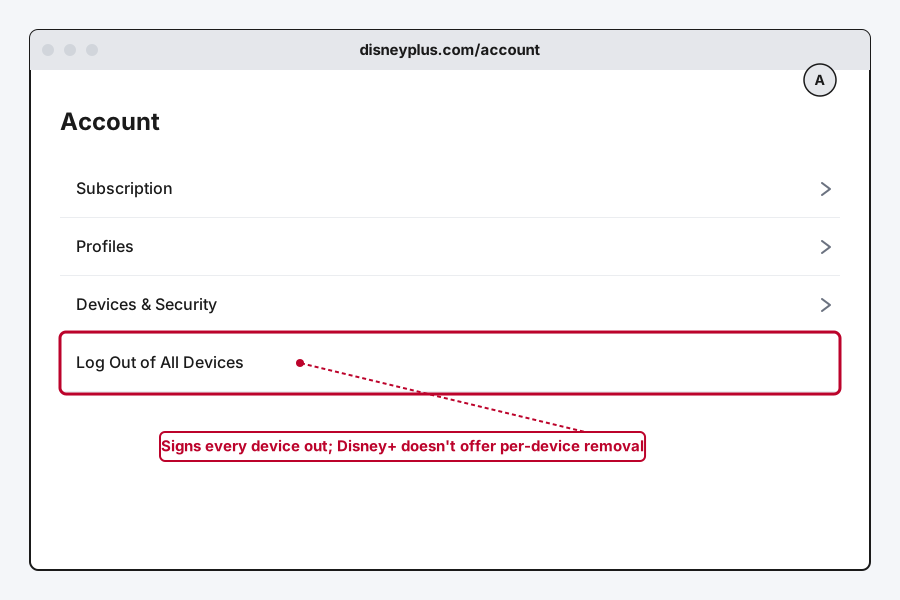
Scroll to the security section and select Log Out of All Devices.
Step 3: Confirm and Sign Back In
You'll be asked to confirm, and every device signed into your account gets logged out at once, including the one you're using right now. Sign back in on whichever devices you actually use.
Worth being direct about a real limitation here: Disney+ doesn't offer a way to remove one specific device the way some other services do. It's all-or-nothing, so if you're trying to kick a single old device off your account, this is the only lever available, and it means re-signing in everywhere else too.
Method 6: Reinstall the App
If nothing above has worked, especially right after a device or app update, a clean reinstall clears out anything a cache clear alone couldn't touch.
On Fire TV or Android TV
Go to Settings > Applications > Manage Installed Applications, highlight Disney+, and choose Uninstall. Reinstall it from the app store afterward.
On Roku
Press Home, highlight the Disney+ channel, press the Star (*) button on the remote, and choose Remove channel. Reinstall it from the Channel Store.
On Apple TV
Highlight the Disney+ app on the home screen, press and hold on the touch surface until the icons jiggle, then press Play/Pause and choose Delete.
If It's Not Just Disney+
If buffering or freezing happens on other streaming apps too, not only Disney+, the cause is almost certainly your network rather than anything specific to Disney+'s app. Our general streaming buffering guide covers the network-side fixes that apply everywhere, DNS changes, ISP peak-hour congestion, and why public Wi-Fi buffers differently than home Wi-Fi, so it's not worth repeating step by step here.
Still Not Working?
If you've worked through all of this and Disney+ still isn't cooperating, Disney+'s own help center has device-specific troubleshooting articles and a support line (888-905-7888 in the US) for account or billing issues that go beyond what's covered here. Worth noting honestly: Disney+ doesn't currently publish a live, automated "is Disney+ down" status page, so if you suspect a widespread outage rather than a device-specific issue, checking social media or a third-party outage tracker is a more useful gut check than looking for an official Disney+ status feed, because there isn't one to check.
Frequently Asked Questions
What's the difference between Clear Cache and Clear Storage on Disney+?
Clear Cache removes temporary files that build up over time and doesn't touch your login, it's the safe, always-try-first option. Clear Storage (Clear Data on some devices) wipes everything the app has saved locally, including your session, so you'll need to sign back in afterward.
Why do I keep getting Error 42 or 142 on Disney+?
Both point to a connection problem, either your Wi-Fi is too weak or unstable, or something briefly interrupted the app's connection to Disney+'s servers. Restart your router, restart the app, and if it keeps happening, test on a different device to confirm whether it's your network or the one device.
Can I remove just one device from my Disney+ account?
No. Disney+ only offers Log Out of All Devices, there's no per-device removal option the way some other streaming services provide. Signing out everything and signing back in on the devices you use is the only real workaround.
Does Disney+ have an official status page I can check during an outage?
No, not a live automated one. Disney+ doesn't publish anything comparable to what some other services offer, so a third-party outage tracker or checking whether others are reporting problems is the more realistic option during a genuine widespread outage.
How much internet speed do I actually need for Disney+?
5.0 Mbps for HD and 25 Mbps for 4K Ultra HD, per Disney+'s own published minimums, per stream. If multiple people in your household are streaming at once, that bandwidth isn't shared, each stream needs its own share of that number.
Quick Summary
If Disney+ is just frozen or spinning with no error code, start with a full restart of the app, the device, and your network in that order, then clear the app's cache using whichever method matches your device, Roku and Samsung/LG TVs need a full power-unplug reboot instead of a menu option. If you're looking at an actual numbered error code, skip straight to decoding it: Error 42 and 142 point to your connection, Error 83 points to device compatibility, and Error 73 almost always means a VPN is active. If you're being signed out unexpectedly or suspect an old device is still active, Log Out of All Devices is the only lever Disney+ gives you, there's no per-device removal. And if the problem follows you to other streaming apps too, it's your network, not Disney+, worth checking our general streaming buffering guide instead.
Related Articles

Can You Share YouTube TV in Different Houses?
YouTube TV lets you share a login across devices, but its free Family Group feature is built for one household. Here's what actually works across two houses.

Why Is Hulu Not Working? Common Fixes
Hulu not working usually comes down to a stuck app cache, a specific numbered error code, or an old device Hulu no longer trusts. Here's how to fix all three.
How to Fix Buffering on Any Streaming App (2026)
Buffering on streaming apps isn't unique to any one service. Here's how to fix it on Hulu, Disney+, Prime Video, YouTube, or any other app, using fixes that go beyond a basic router restart.