

Can You Share YouTube TV in Different Houses?

Can you share YouTube TV in different houses? Technically yes, in a limited way, but not the way most people assume, and the confusion is understandable because YouTube TV actually tracks three separate "home" settings, not one, and mixes them up depending on what you're trying to do.
I got asked this by my sister last month, who wanted to split a YouTube TV subscription with our parents two towns over. The honest answer took longer than "yes" or "no," because what she actually needed depended on whether she wanted everyone streaming under one login, or whether she wanted our parents to get their own free Family Group slot, which is a completely different feature with a completely different set of rules.
Quick answer: you can log into the same YouTube TV account from two different houses and stream, since nothing physically blocks it, but you're capped at three streams at once from anywhere, and if you're trying to use the free Family Group feature specifically, Google expects everyone in it to primarily live in the same household and periodically connect from that household's network to keep their spot. Split a Family Group permanently across two houses and Google can eventually flag it and cut a member's access, even though nothing stops a single stream from working the moment you log in.
Key takeaways:
- Just sharing the login works for casual use since YouTube TV doesn't block sign-ins by location, but you're limited to 3 concurrent streams total, from anywhere, on the base plan.
- The free Family Group feature (up to 5 extra members, no added cost) is explicitly meant for people in one household, and members need to periodically stream from that home network to hold onto their spot.
- Your account's "home area" (for local channels) is a separate setting from a Family Group's "home household," which is separate again from the "home network" used for 4K Plus's unlimited-streams perk. Mixing these three up is where most of the confusion comes from.
- You can update your home area up to twice in a rolling 12 months, but only while you're physically standing in the new location.
- Family Group members can only switch to a different family once every 12 months, so this isn't something to set up casually and rearrange later.
Prefer an interactive walkthrough? Try our YouTube TV Sharing Troubleshooter →
The Three "Home" Settings YouTube TV Actually Tracks
| Setting | What it controls | How often you can change it | Where to find it |
|---|---|---|---|
| Home area | Which local channels and local recordings you get | Twice per rolling 12 months, only while physically there | Profile photo → Location → Home area |
| Family Group household | Who gets a free extra member slot on your plan | Members can switch groups once per 12 months | Settings → Family Sharing |
| Home network (streaming limits) | Unlimited concurrent streams for 4K Plus subscribers | Up to 3 times within 30 days, only while connected to it | Settings → Streaming limits |
None of these three settings talk to each other, which is exactly why "can I share this in two houses" doesn't have one answer. It depends on which of the three you're actually asking about.
Method 1: Just Share the Login
This is what most people mean when they ask the question, and it's the simplest case. YouTube TV doesn't check where you're physically located when you sign in, so logging into the same account from a phone in one house and a TV in another works exactly the way logging into any streaming account from two places works.
The real limit isn't location, it's concurrency. The base YouTube TV plan allows 3 streams at the same time, from anywhere, whether that's three people in one house or three people spread across three different houses. If a fourth device tries to start a stream while three are already running, that one gets blocked, not because of where it is, but because the account is already at its cap.
This is genuinely fine for a lot of situations: a parent who wants to watch a game at their own place while their kid streams something at college, a couple who split time between two homes, a family member checking in on a show while visiting relatives. Nobody's account gets flagged for this. What you don't get this way is a second, independent profile with its own free access, which is the thing people are usually actually hoping for when they ask about "sharing" the subscription.
Method 2: Set Up a Family Group the Right Way
If what you actually want is for someone else to have their own login and profile on your plan at no extra cost, that's the Family Group feature, and it comes with real requirements worth knowing up front rather than finding out about later.
Step 1: Confirm You Qualify to Be the Family Manager
You need to be at least 18, have a Google Account, live in the United States, and not already belong to someone else's family group. Only the family manager can invite members or manage the group.
Step 2: Open Family Sharing Settings
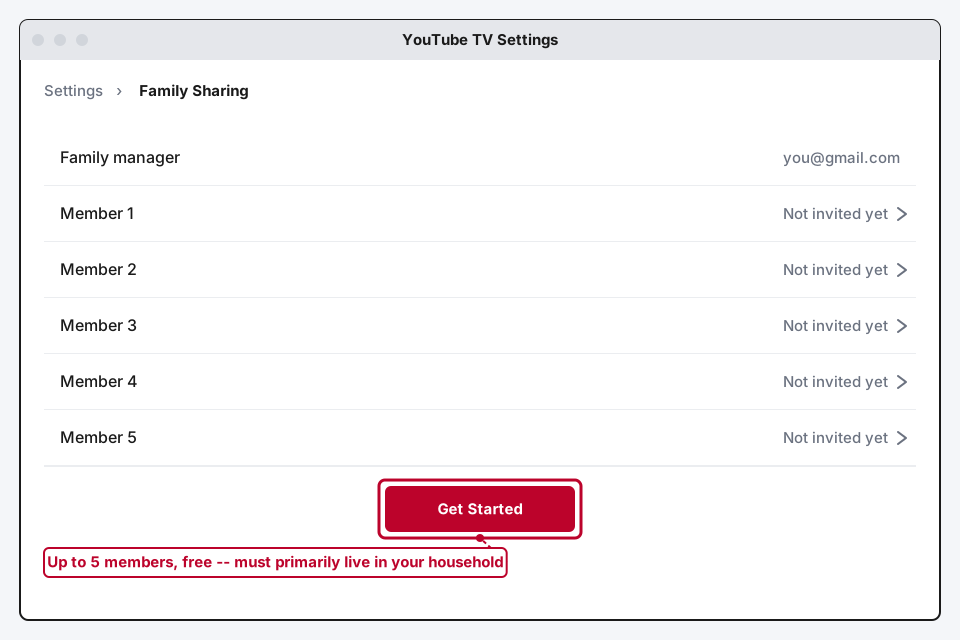
Go to your profile photo, then Settings, then Family Sharing, and select Get Started.
Step 3: Invite Up to 5 Members
You can add up to 5 additional people, for 6 total including yourself, at no extra cost beyond your existing subscription. Each invited member needs to be 13 or older with their own Google Account, and not already part of another family group.
Step 4: Understand the "Same Household" Expectation
This is the part that trips people up. Google's own terms describe Family Group members as people who primarily live in the same household as the manager. It's not enforced on every single sign-in the way a concurrent-stream cap is, but members are expected to periodically use YouTube TV while connected to that household's home network to maintain their access. Set it up for someone who lives somewhere else entirely, and it may work fine for weeks, then eventually get flagged.
What Actually Happens If You Live in Two Different Houses
Here's the honest, unglamorous version: nothing stops the sign-in itself, and nothing stops a Family Group from technically functioning for a while across two houses. What can happen is slower and less dramatic than an instant block. If a family member essentially never connects from the manager's home network, Google can eventually treat that as evidence the household requirement isn't being met and restrict that member's access to the group.
There's no published exact countdown for how long "a while" is, and Google doesn't advertise a specific trigger, which honestly makes sense: publishing the exact threshold would just tell people exactly how to game it. What is published is the expectation itself, "periodically use YouTube TV in their home location to maintain access," which is Google's own phrasing, not a guess.
If your actual situation is two households that are genuinely one family living in two places, casually sharing the plain login (Method 1) is the more honest and durable option, since it's not making a claim about a single household that isn't true. If it's genuinely one household that just happens to include a member who's away part of the time, like a kid at college or a parent who splits time between two homes, the Family Group is designed for exactly that, since "primarily" leaves room for someone who's away sometimes, just not someone who's never actually there.
How to Update Your Home Area If You've Moved
Your home area is a separate setting from either of the above, and it's what determines which local broadcast channels and local DVR recordings you get, based on your actual physical location, not who's sharing your account.
Step 1: Go to Your Location Settings
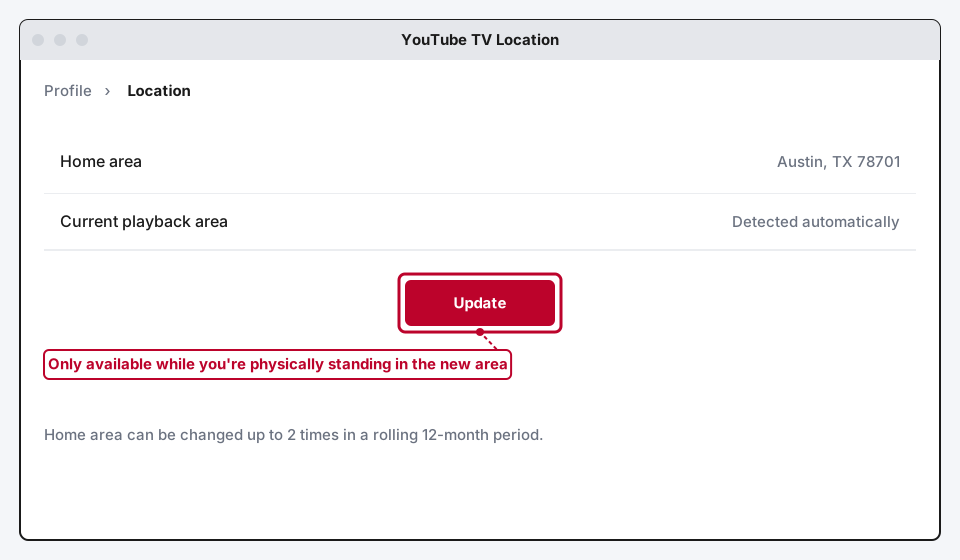
On a computer, go to tv.youtube.com, select your profile photo, then Location. On mobile or TV apps, the path is similar: profile photo, then Settings, then Location.
Step 2: Select Update Next to Home Area
You'll only see this option available if you're physically standing in the location you're trying to set as your new home area. YouTube TV won't let you set a home area for a place you're not currently in, which is a deliberate anti-abuse measure, not a bug.
Step 3: Know the Limit
You can change your home area up to twice within a rolling 12-month period. If you've already used both changes, you'll need to wait out the window before updating it again.
If You're Just Traveling, Don't Change This
If you're temporarily away and want local channels for wherever you are right now, YouTube TV already shows you programming local to your current location automatically. You just won't be able to record, or watch a recording of, a channel that's local only to your actual home area while you're away. Changing your home area setting is for a genuine, lasting move, not a trip, and using YouTube TV at least once every three months from your real home area is what keeps that home area status intact.
Understanding the Separate "Home Network" Streaming Limit
This third setting gets confused with the other two constantly, and it only matters at all if you're on the 4K Plus add-on. The base plan's 3-stream limit applies everywhere, at home or away, full stop. What 4K Plus adds is unlimited simultaneous streams, but only for devices connected to whichever network you've designated as home.
Step 1: Go to Streaming Limits
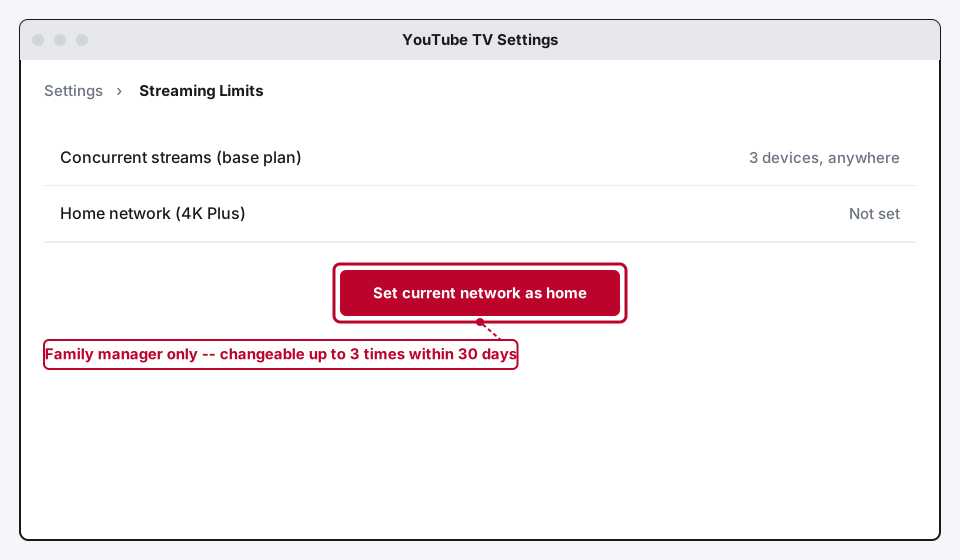
Profile photo, then Settings, then Streaming Limits.
Step 2: Set Your Current Network as Home
Only the family manager can set this on a shared plan. You have to be connected to the network you're designating, and you can change it up to 3 times within any 30-day window.
Step 3: Know What Happens Away From It
Step outside that home network, even with 4K Plus active, and the standard 3-concurrent-stream limit comes back. There's no way to designate two separate home networks at once for unlimited streams in two houses simultaneously, even on 4K Plus.
If You're Getting an Error
Occasionally trying to update one of these settings throws a generic "Couldn't update. Try again" message instead of a clear explanation. That's usually one of the location or connection issues above, not a separate bug: you're not physically at the location you're trying to set, you've already hit the twice-per-year or three-times-per-month change limit, or you're not the account's designated manager for a shared plan. Working through the requirements in the matching section above, rather than repeatedly tapping Try Again, is the faster fix.
Still Not Working?
If you've confirmed you meet the requirements above and something still isn't updating or a family member's access is still getting flagged, YouTube TV's own help center has account-specific support, including a path to talk to a real person for billing or membership issues that go beyond a settings mismatch.
Frequently Asked Questions
Can two houses share one YouTube TV login at the same time?
Yes, logging in from two houses isn't blocked. You're limited to 3 concurrent streams total on the base plan, from anywhere, so it works fine as long as you're not trying to stream on more than 3 devices at once across both houses.
Will my family member's Family Group access get shut off immediately if they live somewhere else?
No, not instantly. It's not a per-stream location check. Google expects members to periodically connect from the shared household's home network to maintain access, and a member who essentially never does that risks eventually losing their spot in the group, not on the very first sign-in from elsewhere.
How many people can be in a YouTube TV Family Group?
Up to 6 total: the family manager plus up to 5 invited members, at no extra cost on top of the existing subscription.
Can I just change my home area every time I visit a second house?
You can, up to twice within a rolling 12-month period, but it's meant for genuine moves, not routine back-and-forth. You also have to be physically standing in the new location to set it, so it isn't something you can flip remotely before a trip.
Does the 4K Plus unlimited-streams feature work in two houses at once?
No. You can only designate one home network at a time for the unlimited-streaming perk, and it can be changed up to 3 times within 30 days. Away from whichever network is currently set as home, the standard 3-stream limit applies, even with 4K Plus active.
What's the actual difference between home area and home network?
Home area controls which local broadcast channels and recordings you get, tied to your physical location and changeable twice a year. Home network is a completely separate setting that only matters for 4K Plus's unlimited concurrent streams, tied to a specific Wi-Fi network and changeable up to three times a month. Mixing the two up is the single most common source of confusion in this whole topic.
Quick Summary
Sharing a YouTube TV login across two houses works for casual use, capped at 3 streams total from anywhere on the base plan. The free Family Group feature is a different thing entirely, built for one household, capped at 6 people, and it expects members to periodically connect from that household's home network to keep their access, not to be enforced instantly but not indefinitely ignorable either. Your home area (local channels) and home network (4K Plus's unlimited streams) are two more separate settings people mix up with Family Group's household requirement, each with its own change limits and its own physical-presence requirement. Know which of the three you're actually trying to solve for before you go looking for a fix.
Related Articles

Why Is Disney+ Not Working? Common Fixes
Disney+ not working almost always traces back to one of three things: a stuck app cache, a numbered error code that tells you exactly what broke, or a connection that can't keep up.

Why Is Hulu Not Working? Common Fixes
Hulu not working usually comes down to a stuck app cache, a specific numbered error code, or an old device Hulu no longer trusts. Here's how to fix all three.

How to Fix Buffering on Any Streaming App (2026)
Buffering on streaming apps isn't unique to any one service. Here's how to fix it on Hulu, Disney+, Prime Video, YouTube, or any other app, using fixes that go beyond a basic router restart.