

Why Is Hulu Not Working? Common Fixes

Hulu not working is rarely one single problem wearing different disguises. It's usually one of three separate things: the app itself has gotten stuck with a bloated cache, you're staring at a specific numbered error code that actually tells you what's wrong if you know how to read it, or Hulu's own device list has gone stale and started rejecting a device it used to trust fine.
I've chased a blank, endlessly-spinning Hulu screen on a Fire TV for a good ten minutes once, convinced it was my Wi-Fi, before realizing the actual fix was a thirty-second cache clear buried three menus deep. That's the pattern worth knowing before you start troubleshooting: Hulu tells you a lot more than it looks like it does, you just have to know where to look.
Quick answer: if Hulu is frozen, stuck loading, or showing a blank screen with no error code, start with a full restart of the app and the device it's on, then clear Hulu's cache if that doesn't fix it. If you're seeing an actual numbered error code, skip straight to that code's specific fix below, since guessing at a general fix wastes time a lookup would've saved.
Key takeaways:
- Hulu's numbered error codes aren't generic. Error 400 means a device auth problem, p-dev320 means a console-specific issue, and codes in the 2200 to 3300 range point to a protected-content (HDCP) handshake failure, not a bandwidth problem.
- Clearing Hulu's cache and clearing its data are two different buttons that do very different things: Clear Cache is safe and won't sign you out, Clear Data wipes your login entirely.
- Roku doesn't have a visible "clear cache" menu for individual channels. Its fix is a specific secret remote-button sequence instead.
- If buffering happens across other apps too, not just Hulu, the cause is almost certainly your network, not Hulu itself. That's a different article, linked below, not something worth re-solving here.
Prefer an interactive walkthrough? Try our Hulu Troubleshooter →
Quick Diagnostic: What's Actually Going Wrong?
| What you're seeing | Likely cause | Try this first |
|---|---|---|
| Frozen, endless spinner, blank screen, no error code | Stuck app or device cache | Method 1 or Method 2 |
| A numbered error code on screen | Something specific Hulu is telling you | Method 3 |
| "Error 400" or app rejects a device that used to work | Hulu's device list has a stale entry | Method 4 |
| Constant stuttering during playback, quality keeps dropping | Your connection is below Hulu's own minimum for that quality | Method 5 |
| Nothing plays after a recent app or TV software update | Outdated app, worth a clean reinstall | Method 6 |
| Happens on other streaming apps too, not just Hulu | Your network, not Hulu specifically | See the cross-link below |
Why "Hulu Not Working" Usually Isn't One Problem
Hulu's app is a fairly thin client. It has to authenticate your account and device, pull a license to decrypt whatever you're watching, and then stream the actual video, and each of those three steps fails in a completely different way. A stuck cache breaks the third step and shows up as generic freezing or spinning with no error code at all. A rejected device breaks the first step and throws Error 400 specifically. A blocked HDCP handshake breaks the second step and throws one of a specific cluster of codes in the 2200 to 3300 range, not a random one.
That's the whole reason a numbered error code is worth reading closely instead of skipping past: it's telling you which of those three steps actually failed, which saves you from trying fixes aimed at the wrong one.
Method 1: Do the Restart Sequence in the Right Order
This resolves more Hulu problems than it should, mostly because it clears three separate potential stuck states at once, not just one.
Step 1: Fully Close the Hulu App
Don't just back out of it. On a phone or Fire TV, swipe it away from your recent apps or press and hold to close it completely, then reopen it from scratch.
Step 2: Power Cycle the Device It's Running On
For a smart TV or streaming stick, unplug it from power (not just the remote's power button) for about a full minute, then plug it back in and let it fully boot.
Step 3: Restart Your Home Network
Unplug your modem and router, wait a full minute, plug the modem back in first, let it reconnect fully, then plug the router back in. This is the slowest step, so it's worth trying last, only if the first two didn't fix it.
Method 2: Clear Hulu's Cache (Not Its Data)
A bloated or corrupted app cache is one of the most common causes of Hulu just sitting there spinning with no error message at all, and the fix varies by device since the menu path isn't the same everywhere.
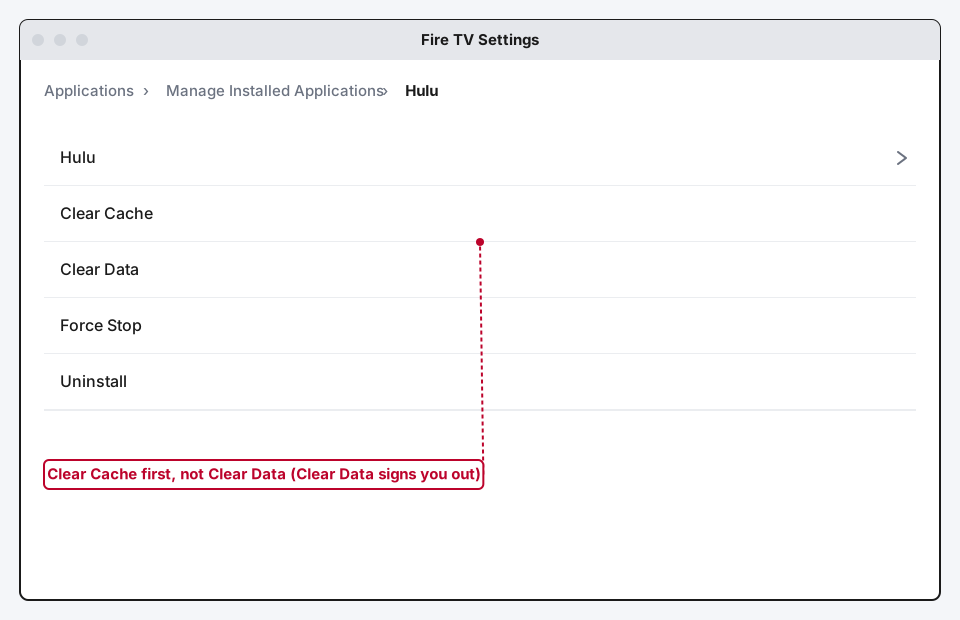
Clear Cache and Clear Data are not the same button. Clear Cache wipes temporary files and leaves you signed in. Clear Data wipes everything, including your login, which means you'll have to sign back in from scratch. Always try Clear Cache first.
On Android
Go to Settings > Apps, find Hulu, tap Storage & Cache, and tap Clear Cache specifically, not Clear Storage.
On Fire TV
Go to Settings > Applications > Manage Installed Applications, select Hulu, and choose Clear Cache.
On iOS
There's no direct cache-clear button in iOS the way Android has one. Instead, go to Settings > General > iPhone Storage, select Hulu, and tap Offload App. This clears the app's stored data without deleting your account, and reinstalling it afterward is quick since iOS keeps your documents and data by default unless you also delete the app entirely.
On Roku
Roku doesn't expose a per-channel cache-clear option in its menus at all, which trips people up since they go looking for one that doesn't exist. Instead, there's a specific secret remote sequence that restarts the Roku's channel-loading system: from the Home screen, press the Home button five times, then Up once, then Fast Forward twice, then wait 20 to 30 seconds without touching anything.
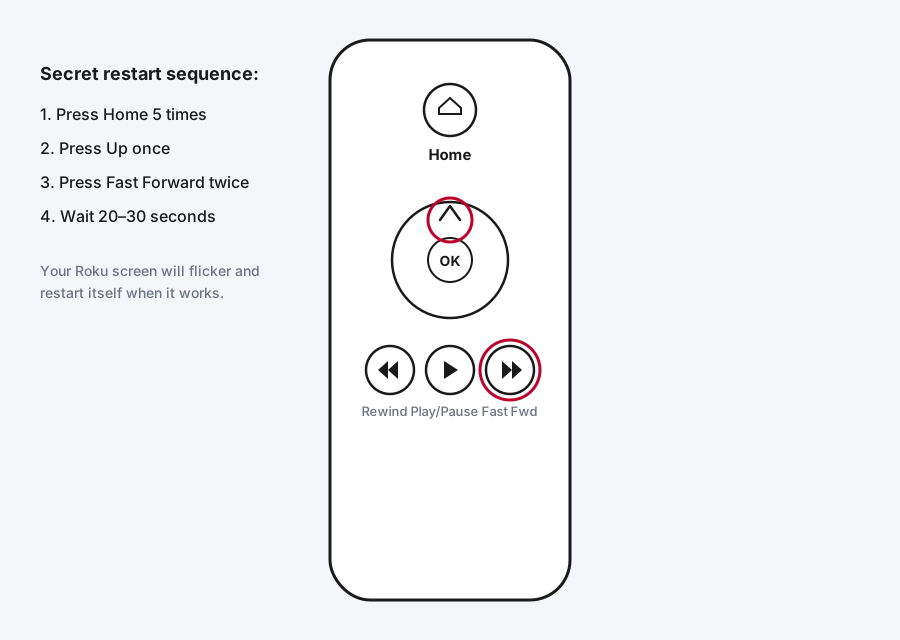
Your Roku's screen will flicker and restart itself if the sequence worked. If nothing happens after 30 seconds, you likely mistimed one of the presses, just start the sequence over.
On Samsung Smart TVs
Samsung's smart TV platform doesn't have an app-level cache clear either. The equivalent fix is a full power-unplug soft reboot: unplug the TV itself from the wall for a full 60 seconds, then plug it back in.
Method 3: Decode the Actual Error Code
If Hulu is showing you a specific code instead of just freezing, that code tells you exactly which of the three failure points (device trust, content license, or the video stream itself) actually broke. Here's what the most common ones mean and what to do about each.

| Error code | What it actually means | Fix |
|---|---|---|
| Error 16 | Hulu detected a VPN or proxy and blocked the connection for region reasons | Turn off any VPN or proxy and reload |
| Error 400 | Device authentication failed, usually a stale device on your account | Remove the device from Manage Devices (Method 4) and reinstall |
| p-dev320, p-dev323 | Console-specific playback errors, common on game consoles | Remove and re-add the device on your account, same as Error 400 |
| 5003, rununk13 | Playback engine errors | Update both the Hulu app and your device's system software |
| 2203, 3307, 3321, 3322, 3336, 3343, 0326 | HDCP handshake failure, the copy-protection check between Hulu and your screen failed | Update your browser if streaming on a computer, or reseat/replace the HDMI cable if on a TV |
A couple of these are worth calling out specifically, since the obvious-looking fix isn't the right one. Error 400 is not a password problem, resetting your password won't touch it, since the failure is about the specific device, not your account credentials. And the HDCP-cluster codes (the 2200 to 3300 range) aren't a bandwidth issue at all, even though they show up looking exactly like a stalled stream, so don't waste time on a speed test for one of these specifically, go straight to the cable or browser update instead.
Method 4: Remove Stale Devices From Your Account
This is the direct fix for Error 400, and it's also worth doing preventively if you've replaced a streaming device recently and never removed the old one.
Step 1: Open Manage Devices
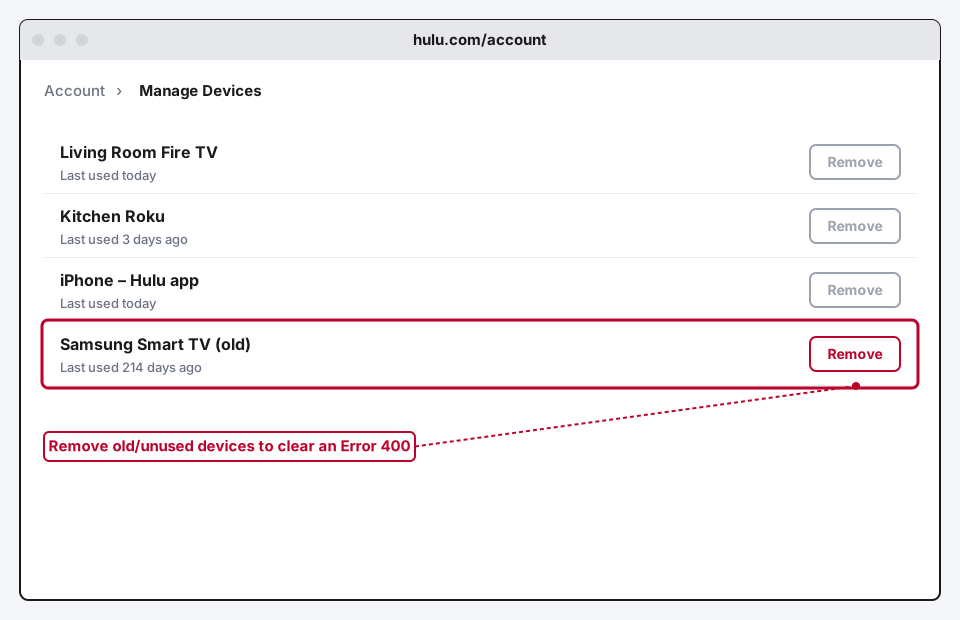
Sign in at hulu.com, go to your Account page, and select Manage Devices.
Step 2: Find the Device Causing Trouble
Look for the device throwing the error, or any device you no longer actually use, an old TV, a streaming stick you replaced, a phone you don't own anymore.
Step 3: Remove It, Then Reinstall on the Current Device
Click Remove next to that device. If the device you're actually trying to fix is the one you removed, reinstall the Hulu app on it fresh and sign back in, that clears whatever stale authentication token was causing the rejection.
Method 5: Check Your Speed Against Hulu's Real Minimums
Not every stutter is a stuck cache or a bad device pairing. Sometimes your connection genuinely isn't fast enough for the quality you're trying to stream, and Hulu's own published minimums are more granular than most people assume:
- Standard definition: 1.5 Mbps
- 720p HD: 3.0 Mbps
- 1080p HD: 6.0 Mbps
- 4K: 13 Mbps
- Hulu + Live TV: 8.0 Mbps recommended
If a speed test comes back close to or below whatever quality you're trying to watch, that's your actual answer, no cache clear or device removal is going to fix a connection that's genuinely too slow for 4K. Dropping to a lower quality in Hulu's own playback settings, where available, or moving closer to your router, are the real fixes at that point.
Method 6: Reinstall the App
If nothing above has worked, especially right after a device software update, a clean reinstall clears out anything a cache clear alone couldn't touch.
On Roku
Press Home, highlight the Hulu channel, press the Star (*) button on the remote, and choose Remove channel. Reinstall it from the Channel Store afterward.
On Fire TV
Go to Settings > Applications > Manage Installed Applications, highlight Hulu, and choose Uninstall.
On Apple TV
Highlight the Hulu app on the home screen, hold down on the touch surface until the icons start to jiggle, then press Play/Pause and choose Delete.
If It's Not Just Hulu
If buffering or freezing happens on other streaming apps too, not only Hulu, the cause is almost certainly your network rather than anything specific to Hulu's app. Our general streaming buffering guide covers the network-side fixes that apply across every app, switching your DNS server, isolating ISP peak-hour congestion, and why public Wi-Fi buffering is its own separate category, so it's not worth repeating here.
Still Not Working?
If you've worked through all of this and Hulu still isn't cooperating, Hulu's own help center has device-specific troubleshooting articles and a support contact option for account-level issues that go beyond what's covered here, like billing or region-locked content. Worth noting honestly: Hulu doesn't currently publish a live, automated "is Hulu down" status page the way some services do, so if you suspect a widespread outage rather than a device-specific issue, checking social media or a third-party outage tracker is a more useful gut check than looking for an official Hulu status feed, because there isn't one.
Frequently Asked Questions
What's the difference between Clear Cache and Clear Data on Hulu?
Clear Cache removes temporary files that build up over time and doesn't touch your login, it's the safe, always-try-first option. Clear Data wipes everything the app has stored locally, including your session, so you'll need to sign back in afterward.
Why does Hulu keep giving me Error 400?
Error 400 means Hulu's device authentication is failing for that specific device, usually because it's an old or stale entry in your account's device list. Removing it from Manage Devices and reinstalling the app fixes it in almost every case, and resetting your password won't help since it's not a credentials problem.
Does Hulu have an official status page I can check during an outage?
No, not a live automated one. Hulu doesn't publish anything comparable to what some other services offer here, so a third-party outage tracker or checking whether others are reporting issues is the more realistic option during a genuine widespread outage.
Why does Roku not have a cache-clear button for Hulu?
Roku's platform doesn't expose per-channel cache management the way Android or Fire TV do. Its equivalent is a specific secret remote sequence (Home x5, Up, Fast Forward x2) that restarts the channel-loading system instead.
Is a numbered error code more useful than just "Hulu isn't working"?
Genuinely, yes. Hulu's codes map to specific failure points, device trust, content licensing, or the video stream itself, so looking one up gets you straight to the right fix instead of working through a generic checklist that might not even apply to what actually broke.
Quick Summary
If Hulu is just frozen or spinning with no error code, start with a full restart of the app, the device, and your network in that order, then clear Hulu's cache using whichever method matches your device (Roku's is the secret remote sequence, not a menu option). If you're looking at an actual numbered error code, skip straight to decoding it: Error 400 and the p-dev codes mean a stale device needs removing from Manage Devices, while codes in the 2200 to 3300 range point to an HDCP handshake issue that needs a cable or browser fix, not a bandwidth fix. And if the problem follows you to other streaming apps too, it's your network, not Hulu, worth checking our general streaming buffering guide instead.
Related Articles

Can You Share YouTube TV in Different Houses?
YouTube TV lets you share a login across devices, but its free Family Group feature is built for one household. Here's what actually works across two houses.

Why Is Disney+ Not Working? Common Fixes
Disney+ not working almost always traces back to one of three things: a stuck app cache, a numbered error code that tells you exactly what broke, or a connection that can't keep up.

How to Fix Buffering on Any Streaming App (2026)
Buffering on streaming apps isn't unique to any one service. Here's how to fix it on Hulu, Disney+, Prime Video, YouTube, or any other app, using fixes that go beyond a basic router restart.