

Samsung TV Won't Turn On? How to Fix It

A Samsung TV that won't turn on looks like one problem from the couch, but it's really three or four different problems wearing the same disguise: a dead outlet, a remote that's lost its pairing, a power supply that's actually failed, or a screen that's black for a reason that has nothing to do with power at all. The fastest way to tell them apart is the small red light on the TV itself, and most people never even look at it before reaching for the manual reset.
I've talked more than one person through this over the phone, and every single time the first question I ask is "is the little light on, off, or blinking?" Once I know that, I usually know which of the next few sections actually applies to them, and which ones to skip entirely.
Quick answer: check the red standby light on the bottom edge or bezel of the TV first. Solid red means the TV has power and the problem is the remote or the power button. No light at all means the TV isn't getting power, so check the outlet and do a full power reset. A blinking light points to an internal fault that a power reset can sometimes clear, but often can't.
Key takeaways:
- The standby light is the single most useful diagnostic tool you have here, and it's completely free to check.
- A solid red light with nothing else happening is usually a remote problem, not a TV problem.
- No light at all means no power is reaching the set. Rule out the outlet before assuming the TV itself is broken.
- A blinking light is the one case where a simple reset might not be enough, and it's worth trying anyway before assuming the worst.
- A completely black screen that still has sound is a different issue than a TV that won't turn on at all. Don't confuse the two, they have different fixes.
Prefer an interactive walkthrough? Try our Samsung TV Power Troubleshooter →
What the Standby Light Is Actually Telling You
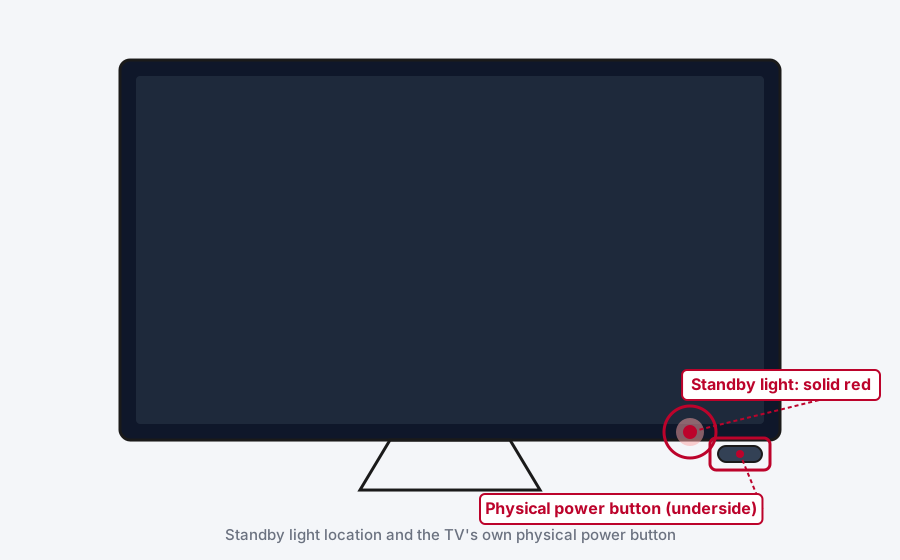
Samsung TVs, going back years across both older Smart Hub models and current Tizen ones, keep a small red LED near the bottom edge of the screen or on the bezel that reports the TV's power state even when the screen itself shows nothing. Learn to read it before you do anything else.
| Standby light | What it means | What to do |
|---|---|---|
| Solid red | TV has power, is in standby, and should respond to a power-on command | Method 1 |
| Off entirely | TV isn't receiving power at all | Method 2 |
| Blinking | Power is reaching the TV, but something is going wrong internally | Method 3 |
| Screen black, but you can hear sound | Not actually a power problem, the TV is on | Method 4 |
Why This Happens
Most "won't turn on" reports break down the same way once you separate them out. A remote that's out of batteries or has lost its Bluetooth pairing to the TV will leave the TV sitting in standby forever, since nothing is actually reaching it to wake it up. A dead outlet, a loose power cable, or a One Connect Box that's come unseated does the same thing from the power side instead of the remote side. And a genuine internal fault, most often in the power supply board, shows up as a blinking or flickering standby light rather than a clean on or off. Knowing which bucket you're in before you start saves you from unplugging the TV five times when the real fix was replacing two AA batteries.
Before You Start: Two Things Worth Checking First
Test the outlet with something else. Plug a lamp or your phone charger into the exact same outlet the TV uses. If that doesn't power on either, you've found your problem and it has nothing to do with the TV.
Check what's plugged into the TV's HDMI ports. This sounds unrelated, but a games console or soundbar with HDMI-CEC enabled can occasionally hold a TV in a state where it won't respond normally to power commands. Unplug anything connected by HDMI, try powering the TV on with nothing attached, and add devices back one at a time if that works.
Method 1: Fix It When the Standby Light Is Solid Red
A solid, steady red light means the TV itself has power and is simply waiting for a signal to wake up. This is good news, it's very likely the remote, not the television.
Step 1: Try the Physical Power Button on the TV
Skip the remote for a second and press the power button located directly on the TV, usually on the underside of the bezel or the back edge near the bottom right. If the TV turns on this way, the television is fine and the remote is what needs fixing.
Step 2: Replace the Remote's Batteries
It's the most boring possible answer and also the most common one. Swap in a fresh pair and try again before doing anything more involved.
Step 3: Re-Pair the Samsung Smart Remote
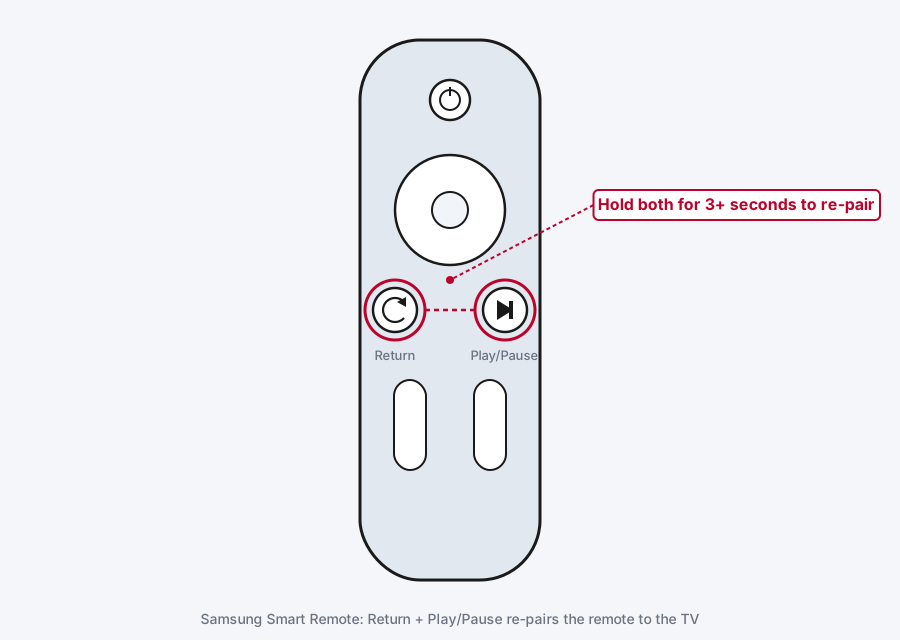
Modern Samsung Smart Remotes connect over Bluetooth, and that pairing can drop the same way a Bluetooth mouse or headset does. Point the remote at the front of the TV and press and hold the Return and Play/Pause buttons together for at least 3 seconds. Watch for the TV to respond, a brief on-screen message or the picture coming up confirms it worked.
If the physical button on the TV does nothing either, the problem isn't the remote at all, skip ahead to Method 2 or 3 depending on what the standby light does next.
Method 2: Fix It When the Standby Light Is Off Entirely
No light at all means the TV isn't getting power, full stop. This is a wiring and outlet problem before it's ever a TV problem.
Step 1: Check the Physical Connection
Make sure the power cord is fully seated at both ends, into the wall and into the TV or, on models that use one, the One Connect Box. A cable that's even slightly loose at the TV end can look connected while making no actual contact.
Step 2: Do a Full Power Reset
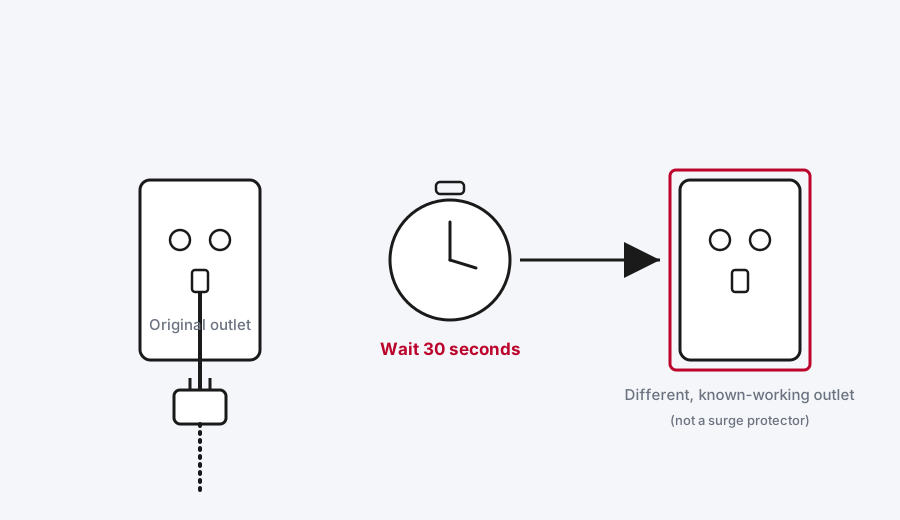
Unplug the TV (and the One Connect Box, if your model has one) from the wall entirely and leave it unplugged for a full 30 seconds. This isn't a superstition, it gives any residual charge in the power supply time to fully drain before it reboots.
Step 3: Plug Into a Different, Known-Working Outlet
Avoid the surge protector or power strip you were using and plug directly into a wall outlet you've already confirmed works, using the lamp or phone-charger test from earlier. Surge protectors occasionally fail quietly, cutting power without tripping anything visible, and ruling that out here saves a lot of guessing later.
Step 4: Power On and Watch the Light
If the standby light comes back on, solid, you're back to Method 1. If it stays off entirely after a confirmed-good outlet and a full 30-second reset, that points to a genuine internal power supply fault, and it's time to contact Samsung support (see below) rather than keep unplugging and replugging.
Method 3: Fix It When the Standby Light Is Blinking
A blinking standby light means power is reaching the TV, but something inside isn't completing its startup sequence correctly. It's the least convenient of the three states because a reset sometimes clears it and sometimes doesn't, and there's no way to know which without trying.
- Unplug the TV (and One Connect Box, if applicable) and leave it unplugged for a full 30 seconds, same as Method 2.
- Plug back into a confirmed-good outlet, not a surge protector.
- Power the TV on and watch the light again.
If it's still blinking after this, the number of blinks and the pattern between them can sometimes point to a specific internal fault, similar to how a blinking check-engine light works on a car, but decoding those patterns reliably enough to be worth publishing needs its own dedicated breakdown rather than a guess here. If a reset doesn't clear a blinking light, that's a strong signal of a hardware fault on the power supply board rather than anything you can fix with a settings change, and it's a genuine candidate for a service request.
Method 4: Rule Out a Backlight Failure, Which Isn't a Power Problem At All
Here's the one that trips people up the most: a completely black screen with the standby light showing normal and sound still playing isn't a "won't turn on" problem in the first place. The TV is on, it just isn't showing a picture, and that's a backlight issue, not a power issue.
Step 1: Confirm the TV Is Actually On
Turn the volume up or down. If you hear the volume change sound effect, or you can hear whatever was already playing, the TV is powered on and responding normally. This alone rules out everything in Methods 1 through 3.
Step 2: Run the Flashlight Test
Turn the room lights off, hold a flashlight (your phone's flashlight works fine) close to the screen, and look closely at the lit area. If you can make out a faint, dim image of whatever should be showing, the backlight itself has failed while the rest of the display panel is still working.
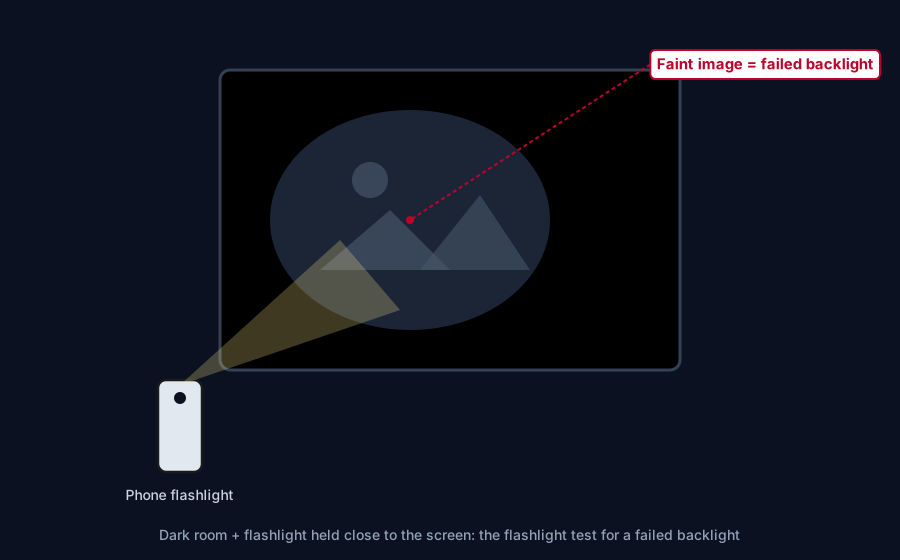
A failed backlight is a hardware repair, not something a reset or settings change fixes, and depending on your TV's age it's worth weighing against the cost of a replacement set. It's a genuinely different problem from anything else in this article, so don't spend time redoing Methods 1 through 3 once you've confirmed this is what's actually happening.
Still Not Working?
If you've checked the standby light, confirmed the outlet, done a full 30-second power reset, and tried both the remote and the physical button with no change, that's the point to stop troubleshooting on your own and get Samsung involved. Samsung's official support page for a TV that won't turn on walks through the same standby-light diagnosis with model-specific detail, and their support team can set up a repair or confirm whether your TV is still under warranty before you pay for anything out of pocket.
Frequently Asked Questions
Why is my Samsung TV standby light on but the TV won't respond to the remote?
That's almost always the remote, not the TV. Replace the batteries first, then re-pair it by holding Return and Play/Pause together for 3 seconds while pointing it at the TV. If the physical power button on the TV itself doesn't turn it on either, the problem has shifted from the remote to the TV, and it's worth moving on to a full power reset.
How long should I leave a Samsung TV unplugged to reset it?
A full 30 seconds. That's Samsung's own stated minimum, and it's enough time for the power supply's capacitors to actually discharge, which is the entire point of doing this rather than just switching the outlet off and back on instantly.
My Samsung TV screen is black but I can still hear sound. Is that the same problem?
No, and this trips a lot of people up. If you're hearing sound, the TV is on and working. What's failed is the backlight specifically, not the power system, and the fix is the flashlight test in Method 4, not another power reset.
Does a blinking standby light always mean I need a repair?
Not always, try the same 30-second unplug and known-good-outlet test from Method 2 or 3 first, since that clears it in a real number of cases. But if the light keeps blinking after a proper reset, that's a strong sign of an internal fault that a reset alone won't fix, and it's worth reaching out to Samsung support rather than repeating the reset over and over.
Will a power reset delete my Samsung TV's settings or apps?
No. A power reset just cycles the power supply, it doesn't touch anything stored on the TV, your apps, your Wi-Fi connection, or your settings will all be exactly as you left them once it powers back on.
Quick Summary
Check the standby light before doing anything else, it tells you which of four completely different problems you're actually dealing with. Solid red means it's the remote, so replace the batteries and re-pair it. No light at all means no power is reaching the TV, so check the outlet and do a full 30-second reset. A blinking light might clear with that same reset, but if it doesn't, that's a real hardware fault worth involving Samsung support over. And if the screen's black but you can still hear sound, skip all of that entirely, it's a backlight problem, and the flashlight test confirms it in under a minute.
Related Articles

Developer Options on Firestick: Find It and Use It
Developer Options is hidden on every Fire TV by default. Here's the tap sequence to reveal it, what each toggle does, and which current models even have it.
How Does a Firestick Actually Work?
A Fire TV Stick is a tiny standalone computer that takes over your TV's smart features. Here's what's actually inside one, how it streams, and why 2026's new models work differently.
How to Clear Cache on an LG Smart TV
Clearing cache on an LG webOS TV means something different depending on your model: a one-tap Memory Optimizer on OLED sets, manual steps on everything else.