

Roku Remote Not Working? Try This

A Roku remote that's stopped responding is rarely actually broken. It's almost always one of a short list of things: batteries that are dead, backward, or just not seated right, a voice remote that's lost its pairing with the box, or, if you've got the simple remote, something blocking the infrared signal between the remote and the player. None of that means you need a new remote, and most of it takes less time to fix than it took you to notice something was wrong.
I once spent a good ten minutes mashing buttons at my TV convinced the remote had died, only to find I'd put the batteries in backward after a battery swap in a dark room. It happens more than you'd think, and it's the first thing worth ruling out before you assume the worst.
Quick answer: figure out which kind of remote you have first. Roku's simple remote is infrared and needs a clear line of sight to the player, it never pairs with anything. Roku's voice remote uses RF (or Bluetooth on some models) and works from anywhere in the room, but it does need to be paired, and that pairing can drop. Once you know which one you're holding, the fix is usually a battery reset or a re-pair away.
Key takeaways:
- Roku makes two genuinely different remotes: the simple IR remote (no pairing, needs line of sight) and the voice remote (RF/Bluetooth, needs pairing, works around corners).
- A stuck or dead-feeling voice remote can almost always be fixed by removing the batteries, pressing any two buttons to drain residual charge, and reinserting them, or by holding the pairing button for a fresh re-pair.
- If your remote works for navigation but the TV power or volume buttons don't, that's a separate setup step, not a broken remote.
- The free Roku mobile app is a full working remote over your Wi-Fi network, worth having installed before you need it, since it also lets you reach Settings to run these fixes if your physical remote is completely unresponsive.
Prefer an interactive walkthrough? Try our Roku Remote Troubleshooter →
Quick Diagnostic: What's Actually Going Wrong?
| What you're seeing | Likely cause | Try this first |
|---|---|---|
| Nothing happens at all, no light, no response | Dead or misaligned batteries | Method 1 |
| Simple remote works sometimes, only up close and pointed right at the TV | IR line of sight is blocked | Method 2 |
| Voice remote won't respond and the status light never flashes | Needs a fresh pairing | Method 3 |
| Navigation works, but voice search or shortcut buttons don't | Outdated Roku software | Method 4 |
| Navigation works fine, but TV power or volume does nothing | TV control isn't set up, or the wrong code was chosen | Method 5 |
| Remote connects, then randomly drops out mid-use | Low battery or 2.4GHz interference | Method 6 |
| You need a remote right now and don't have time to troubleshoot | Use the Roku app as a stand-in | Method 7 |
Two Very Different Remotes, Two Very Different Fixes
This is the part that trips people up most: Roku doesn't ship one kind of remote, it ships two, and they fail in completely different ways. The simple remote that comes with entry-level players is infrared, the same technology as basically every TV remote since the 1980s, so it needs a clear, direct line to the sensor on the front of your Roku device. It never pairs with anything, so "re-pair your simple remote" isn't a real step.
The voice remote uses RF (and Bluetooth on some newer models), which is why it works from another room or with something sitting in front of the player. That flexibility comes with a real pairing relationship between remote and box, and like any paired device, that relationship can get lost after a battery change, a software update, or the box losing power unexpectedly.
No pairing button under the cover and no microphone button means you've got the simple remote, skip to Method 2. A pairing button, or a rechargeable model with no removable cover at all, means it's the voice remote, and Methods 1 and 3 are your starting point.
Method 1: Reset the Remote With Fresh (or Recharged) Batteries
This resolves more "dead" remotes than anything else on this list, and it's worth doing properly rather than just swapping in new batteries and hoping.
Simple Remote
Remove the batteries completely, then press any two buttons on the remote at the same time. This drains any residual charge sitting in the remote's circuitry, which is a more thorough reset than just pulling batteries out and back in. Insert a fresh, matching pair of batteries and replace the cover.
Battery-Powered Voice Remote
Same process as above: pull both batteries, press any two buttons to fully discharge it, then reinsert the batteries negative end first. It's an easy detail to get backward, especially in a dimly lit room, and it's the single most common reason a "dead" voice remote turns out to be fine.
Rechargeable Voice Remote
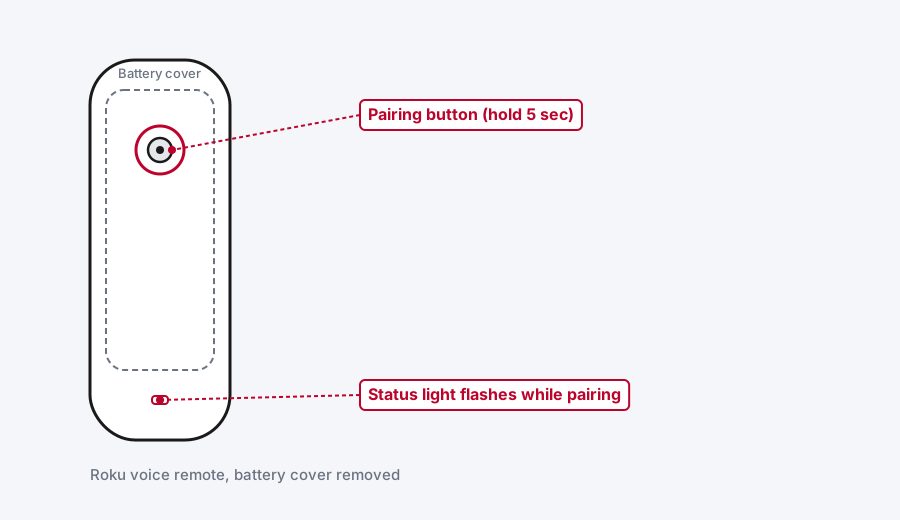
If your remote has no battery cover at all, it's rechargeable, and the reset is a little different. Hold the pairing button for a full 20 seconds (or Back plus Home together, if there's no separate pairing button on your model) and wait for the status light to stop flashing. Then plug it in and let it charge for at least 5 hours before trying it again. A remote that's been sitting dead for a while sometimes needs that full charge before it'll respond to anything, even the reset itself.
While you're in there, it's worth checking the battery level directly: Settings > Remotes & Devices > Remotes > [Your Remote] > About shows it on screen, so you're not guessing.
Method 2: Fix a Simple (IR) Remote With No Line of Sight
If you've got the simple remote and it's inconsistent, only working up close or pointed dead-on at the TV, this is almost never the remote's fault.
Step 1: Clear the Line of Sight
Check what's actually in front of your Roku device's sensor. A soundbar, a stack of mail, a cabinet door, anything between the remote and that front panel will cause exactly this kind of intermittent failure. If your Roku device is tucked behind the TV or inside an enclosed cabinet, that's very likely the whole problem, and moving it to a more open spot fixes it outright.
Step 2: Try Different Angles and Distances
IR remotes have a wider effective cone than people expect, but it's not infinite. Try holding the remote higher, lower, or off to the side rather than assuming you have to be dead-center.
Step 3: Confirm the Remote Is Actually Sending a Signal
Here's a genuinely useful trick straight from Roku's own support docs: open your phone's camera app, point the remote at the lens (not the screen, the actual camera), and press a button while watching the screen. Infrared light is invisible to your eyes but most phone camera sensors pick it up as a faint white or purple flash at the remote's tip.
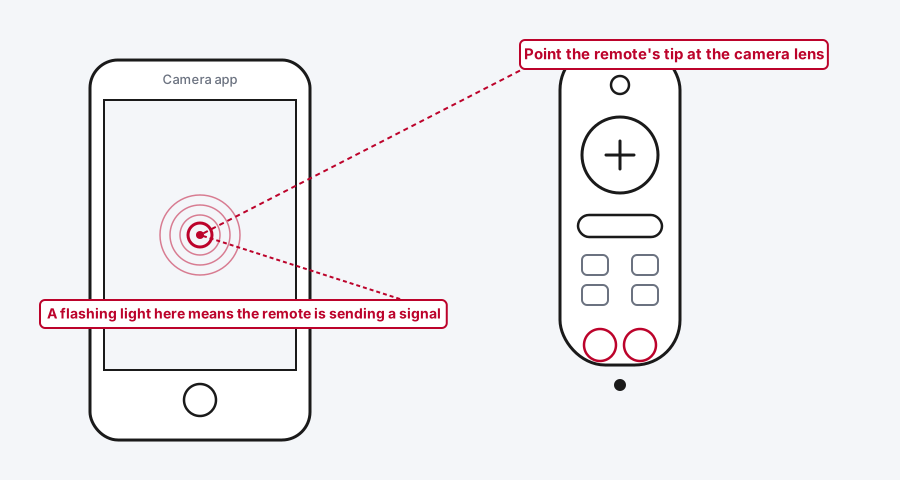
If you see the flash every time you press a button, the remote itself is working and the problem really is obstruction or distance. If you never see a flash no matter the angle, the remote's transmitter itself has likely failed, and a replacement remote (any Roku-compatible IR remote, not necessarily an official one) is the practical next step.
One safety note directly from Roku: if the remote ever feels warm or hot to the touch during normal use, stop using it and set it on a non-flammable surface to cool before doing anything else.
Method 3: Re-Pair a Voice Remote From Scratch
If Method 1's battery reset didn't bring the voice remote back, the pairing itself is the likely culprit, not the hardware.
Step 1: Restart the Roku Device
Unplug your Roku player or TV from power, wait at least 5 seconds, then plug it back in. On most setups, the Home screen will prompt you to pair a remote automatically the moment it finishes booting, no button-pressing on the remote required at all.
Step 2: Or Trigger Pairing Manually From the Remote
Find the pairing button, it's on the back of the remote or hidden under the battery cover on most models, and hold it for 5 seconds until the status light starts flashing. If your remote doesn't have a dedicated pairing button, hold Back and Home together for 5 seconds instead. Watch the TV screen for a pairing confirmation message once the light starts flashing.
Step 3: Or Start It From the Menu, If You Have Another Working Remote
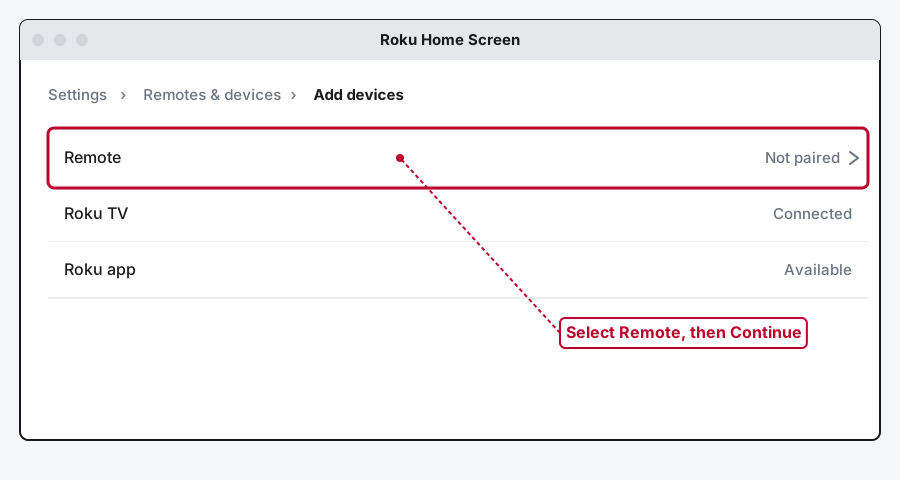
If you've got a second remote or the Roku mobile app handy, go to Settings > Remotes & devices > Add devices > Remote > Continue and follow the on-screen instructions from there.
Step 4: If Pairing Keeps Failing
Make sure the device and remote both enter pairing mode at roughly the same time, a remote that's already given up waiting won't catch a box that starts pairing a few seconds late. Restarting the device and immediately retrying the pairing button clears up most stubborn cases. Still stuck? Move other RF or Bluetooth devices, cordless phones, wireless keyboards, a little further away and try again, since 2.4GHz interference is a real if less common cause. The Roku app (Method 7) keeps you going in the meantime.
Method 4: Update Roku's Software
An outdated software build on the Roku device itself is a genuine, if less obvious, cause when a remote pairs fine but behaves oddly, buttons that work sometimes, voice search that never triggers, that sort of thing.
Go to Settings > System > System update > Check Now. If your remote is too unresponsive to navigate there, this is exactly the situation the Roku app (Method 7) is built for, use it to get into Settings and run the update, then come back to the physical remote once it's done.
Method 5: Fix TV Power and Volume Buttons That Won't Work
This is a genuinely different problem from the rest of this list. If you can navigate menus and pick shows just fine but the power and volume buttons do nothing, the remote isn't broken, TV control just hasn't been configured, or the wrong control code got selected.
Step 1: Open the TV Control Setup
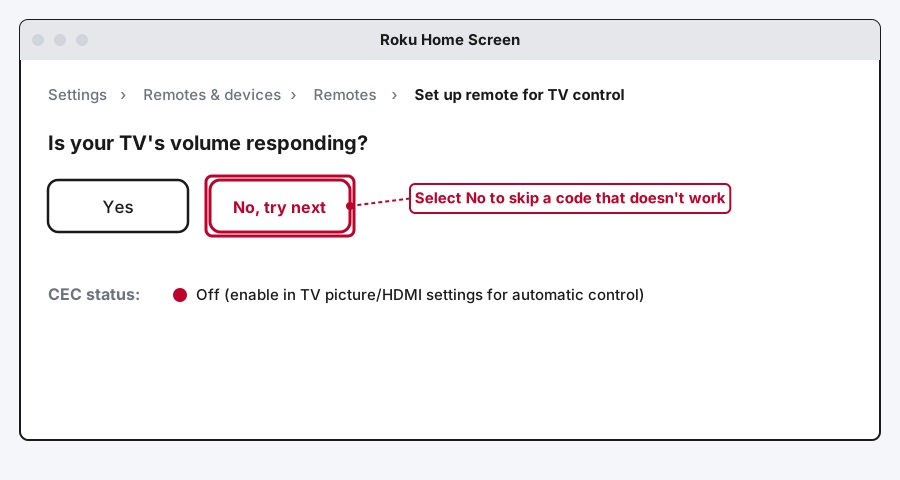
Go to Settings > Remotes & devices > Remotes > [Your remote] > Set up remote for TV control.
Step 2: Work Through the Sound Test
Roku plays a short sound and asks whether your TV's volume actually responded. If it did, confirm Yes and you're done. If it didn't, select No and it'll cycle to the next code automatically. This is genuinely trial and error on Roku's end, since it's testing your TV's actual control code against a list, and it usually only takes a few tries.
Step 3: If Only Power or Only Volume Works, Not Both
Repeat the sound test, but deliberately skip past the code that's already working for the one that isn't, rather than starting over.
Step 4: If Control Only Works Sometimes
That usually means you're on an infrared-based control code when your TV supports something more reliable. Check your TV's settings for an HDMI-CEC option (Anynet+ on Samsung, SimpLink on LG, BRAVIA Sync on Sony), turn it on, then go back to Settings > Remotes & devices > Remote > Add a new remote to reconfigure with that instead.
Step 5: If Neither Power Nor Volume Works at All
Update the Roku software (Method 4), then reconfigure TV control fresh after the restart. Also worth checking: your Roku device should be plugged into a wall outlet, not a USB port on the back of the TV, since some TVs' ports don't supply enough consistent power for it to run everything correctly.
Method 6: Fix Random Disconnects
If the remote pairs and works, then drops out unpredictably during use, that's a different symptom from anything else here.
Step 1: Check the Battery Level
A battery that's getting low causes exactly this kind of intermittent behavior well before it dies outright. Check Settings > Remotes & Devices > Remotes > [Your Remote] > About, or just swap in a fresh pair if you're not sure.
Step 2: Reduce Interference
Move other 2.4GHz devices, routers, cordless phones, USB 3.0 hubs, a little further from the Roku device and see if the dropouts stop. This is a documented, real source of RF interference, not a long shot.
Method 7: Use the Roku App as a Backup Remote While You Troubleshoot
This is worth setting up before you need it, not after. The free Roku mobile app (iOS and Android) turns your phone into a full working remote, navigation, voice search, and TV power and volume, as long as your phone is on the same Wi-Fi network as the Roku device. It doesn't fix the physical remote, but it gets you into Settings to run every method above without being stuck waiting on a dead remote to come back to life first.
Still Not Working?
If you've worked through all of this and the remote genuinely won't respond to anything, including the phone-camera IR test or a full battery reset, it's likely a hardware failure rather than a settings problem. Roku's own remote troubleshooting page covers model-specific quirks worth checking before you buy a replacement, since exact steps vary slightly across Roku's remote lineup. A genuine replacement remote, official or a compatible third-party one, is a normal, inexpensive fix at that point, not a sign anything else is wrong with your setup.
Frequently Asked Questions
Why won't the status light flash when I hold the pairing button?
Usually a battery problem: dead batteries, batteries in backward, or on a rechargeable remote, too low a charge to power even the pairing attempt. Try a full battery reset (Method 1) first, and if there's no separate pairing button, hold Back and Home together instead.
Can I control my Roku with my phone while I fix the remote?
Yes. The free Roku app gives you a full remote, including voice search, as long as your phone and Roku device share the same Wi-Fi network. Worth installing before you need it, not just as an emergency fallback.
Does the Roku simple remote need to be paired?
No. It's infrared and works purely on line of sight to the sensor on the Roku device, the same way an old TV remote works. Pairing only applies to the voice remote.
Why do only some buttons work on my voice remote?
More often a software issue than a hardware one. Check for a pending Roku update (Method 4) first, and if that doesn't fix it, a fresh re-pair (Method 3) resolves most of what's left.
Will factory resetting my Roku device fix a broken remote?
Rarely, and it shouldn't be your first move. A factory reset wipes channels, settings, and sign-ins back to defaults, a much bigger step than most remote problems actually need. A simple restart (unplug, wait 5 seconds, plug back in) does almost everything a factory reset would for pairing specifically, without the cleanup after.
Quick Summary
Figure out which remote you actually have first, since the IR remote and the voice remote fail in completely different ways. For either one, a proper battery reset, out, two buttons pressed to drain residual charge, back in correctly, solves more cases than anything else here. From there, a simple remote's problems are almost always about line of sight, while a voice remote's problems are almost always about pairing. If navigation works but TV power and volume don't, that's a separate setup step under Remotes & Devices, not a broken remote. And if you're stuck waiting on a truly dead one, the Roku app gets you back into Settings to run every fix above without it.
Related Articles
Developer Options on Firestick: Find It and Use It
Developer Options is hidden on every Fire TV by default. Here's the tap sequence to reveal it, what each toggle does, and which current models even have it.
How Does a Firestick Actually Work?
A Fire TV Stick is a tiny standalone computer that takes over your TV's smart features. Here's what's actually inside one, how it streams, and why 2026's new models work differently.
How to Clear Cache on an LG Smart TV
Clearing cache on an LG webOS TV means something different depending on your model: a one-tap Memory Optimizer on OLED sets, manual steps on everything else.