

How to Fix Netflix Buffering (Real Fixes That Work)

How to fix Netflix buffering usually starts in the wrong place. Most people restart the app, restart the router, and hope, without ever checking whether their connection can actually support what they're trying to stream in the first place. Once you know your real numbers, the fix is usually obvious.
I stream on a connection that's been "fine" for years and still buffered constantly for a week straight last winter, and it turned out to be a single background download I'd completely forgotten was running.
Quick answer: run a real speed test first (fast.com is Netflix's own, and it's the most relevant one to use), since buffering is almost always a bandwidth problem, not a Netflix problem. If your speed checks out fine, the next most common cause is something else on your network quietly eating your bandwidth, not Netflix itself.
Key takeaways:
- A speed test takes fifteen seconds and tells you immediately whether this is a Netflix problem or a connection problem, which changes everything else you should try.
- Netflix recommends at least 3 Mbps for standard definition and 15 Mbps for 4K per stream. If you're below that and streaming in 4K, that alone explains the buffering.
- Lowering Netflix's own data usage setting temporarily is a genuinely underused fix, and it takes less time than any troubleshooting step.
- Wi-Fi congestion and other devices on your network competing for bandwidth cause more buffering than a slow internet plan does.
Prefer an interactive walkthrough? Try our Netflix Buffering Troubleshooter →
Which Fix Should You Try First?
| What your speed test shows | Likely cause | Try this first |
|---|---|---|
| Speed is well below what you're paying for | Wi-Fi congestion, router issue, or ISP problem | Method 4 |
| Speed looks fine but buffering still happens | Something else on your network using bandwidth | Method 3 |
| Speed is fine, but you're streaming in 4K on a modest connection | Playback quality set higher than your connection supports | Method 2 |
| Buffering started suddenly, everything else seems normal | Worth a quick server-side check | Method 6 |
| Only happens on one specific device (smart TV, stick, console) | App cache or device-specific issue | Method 7 |
Why You Need to Fix Netflix Buffering at the Network Level, Not Just Restart the App
Buffering happens when your device can't download video data as fast as it's playing it back, so it pauses to let the buffer refill. That gap almost always traces back to available bandwidth at the exact moment you're streaming, not your internet plan's advertised maximum. A connection rated for 100 Mbps can still buffer if something else on the network is using 80 of those megabits right when you sit down to watch something.
The other major cause is Wi-Fi itself, not your internet connection. A crowded 2.4GHz band, too many walls between you and the router, or a router that's been running for months without a restart can all quietly cut your real usable speed well below what a wired connection to the same modem would get you.
Before You Start: Run a Real Speed Test
This is the step that tells you which direction to go, so don't skip it even if you're tempted to jump straight to restarting things.
Go to fast.com, Netflix's own speed test tool, and let it run. Click "Show more info" for the full picture: download speed, upload, and latency.
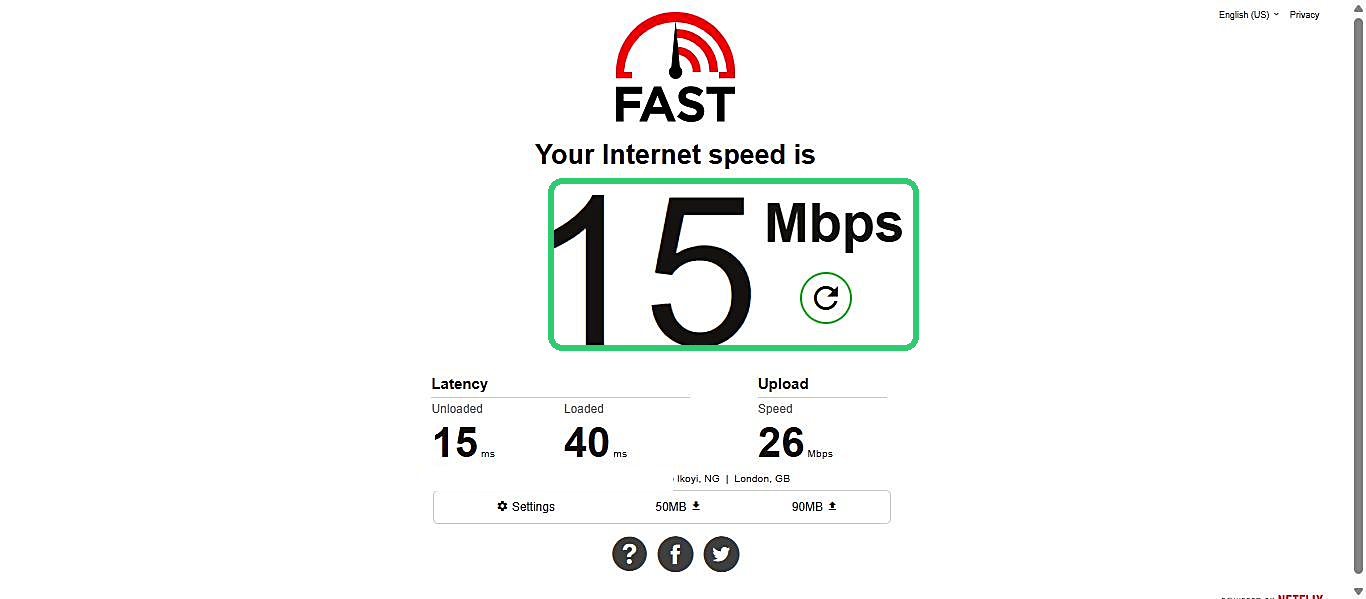
Compare what you see against Netflix's own minimums: 3 Mbps for SD, 5 Mbps for HD, and 15 Mbps for 4K, per stream. If two people in your house are both streaming HD at the same time, you need roughly double that number available, not just the number on your bill.
Method 1: Restart Your Router and Modem Properly
This fixes more than it should, mostly because most people don't actually do it correctly. A quick unplug-and-immediately-replug doesn't give the equipment enough time to fully release its connection.
Unplug both the modem and router, wait a full 30 seconds, then plug the modem back in first and let it fully reconnect before plugging the router back in. Give the whole thing two full minutes before testing again.
Method 2: Lower Netflix's Playback Data Usage Setting
This is the fix I mentioned in the quick answer, and it's genuinely underused because it feels counterintuitive to lower quality on purpose.
Step 1: Open Playback Settings
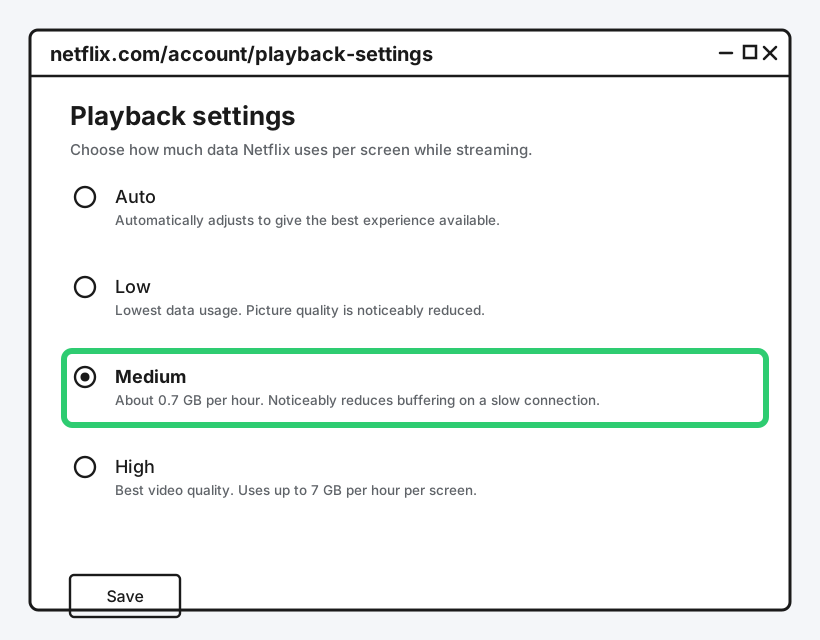
Sign in to Netflix on a web browser, go to Account, and find "Playback settings" under your profile.
Step 2: Choose a Lower Data Usage Option
Select Medium instead of Auto or High. This caps how much data each stream pulls per hour, which directly reduces how often your connection has to keep up with a demanding stream.
Step 3: Save and Reload Netflix
The change applies to new playback sessions, so refresh or restart whatever you were watching.
This drops picture quality slightly, and I'll be direct about that trade-off: it's a genuinely worthwhile one when you're mid-buffering on a connection that can't reliably sustain High or Auto's default demands, and you can always switch it back once the real cause (usually something else covered below) is fixed.
Method 3: Find Out What Else Is Using Your Bandwidth
A slow speed test result explains buffering on its own, but a fine speed test result with ongoing buffering usually means something else on your network is actively competing for bandwidth at the same time you're streaming.
Step 1: Open Task Manager
Press Ctrl + Shift + Esc, or right-click the taskbar and choose Task Manager.
Step 2: Sort by the Network Column
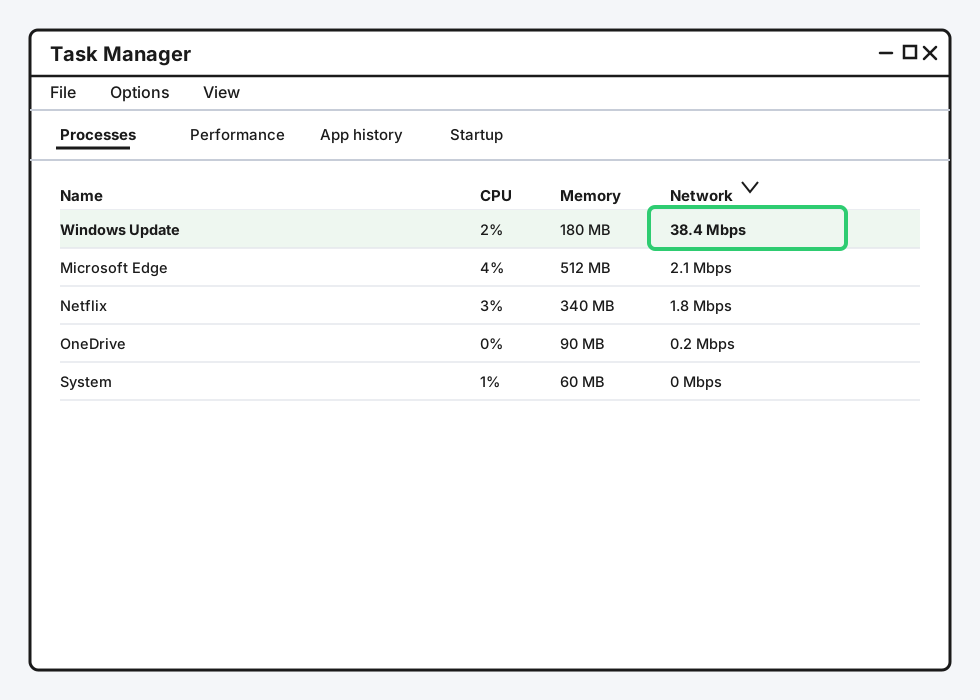
Click "More details" if you're in the compact view, go to the Processes tab, and click the Network column header to sort by usage.
Step 3: Close Whatever's Actually Eating It
Windows Update, a cloud backup service, a game download, or another device entirely on the same Wi-Fi network are the usual culprits. Pause or close it, then try streaming again.
Method 4: Move Closer to the Router or Go Wired
If your speed test result varies wildly between attempts, or is much lower on your streaming device than on your phone standing next to the router, that's a Wi-Fi signal problem, not an internet problem.
An Ethernet cable from your router straight to your streaming device, smart TV, or a PC eliminates Wi-Fi variability completely, and it's worth doing even temporarily just to confirm whether Wi-Fi was the actual cause before you buy anything or call your ISP.
Method 5: Turn Off Any VPN or Proxy While Streaming
A VPN routes your traffic through an extra server before it reaches you, and that extra hop adds latency and often caps your effective speed well below your real connection, especially on a free or overloaded VPN server. If you're running one, disable it and re-test. Streaming without it, when privacy isn't the priority in that moment, is a legitimate and simple fix, not a compromise.
Method 6: Rule Out a Netflix-Side Issue
This is genuinely rare compared to the causes above, but worth a fifteen-second check before you spend more time on your own network.
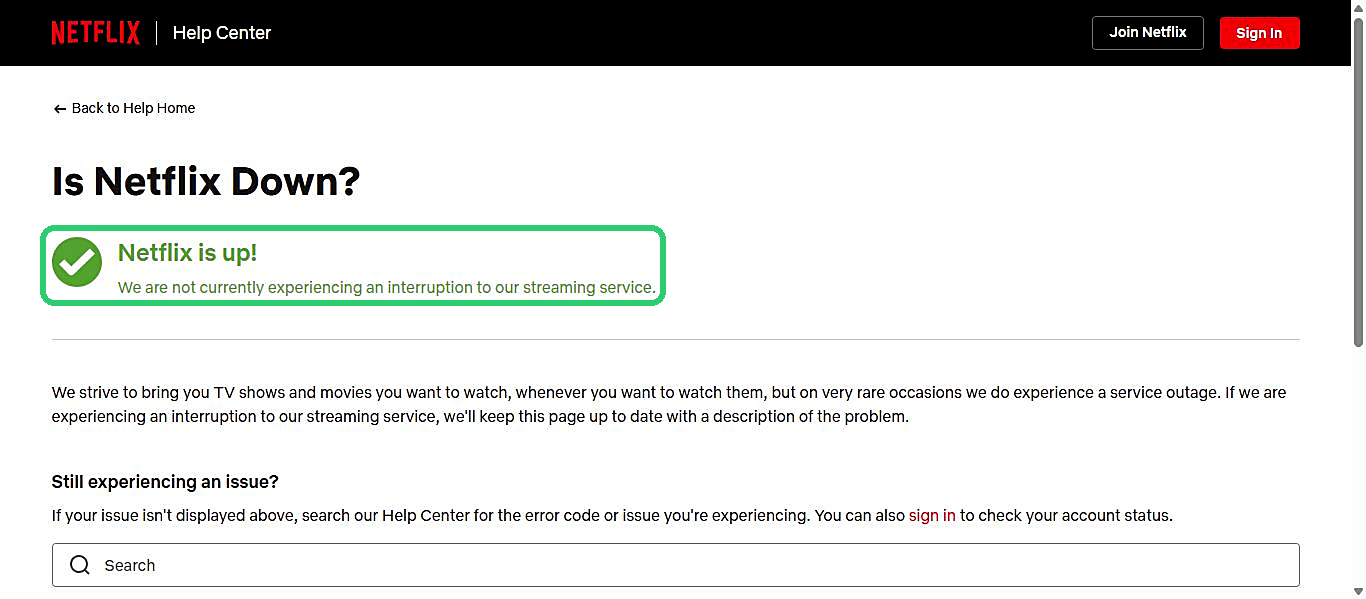
Netflix's own "Is Netflix Down" page shows whether they're aware of a current service interruption. Being direct about what this page actually is: it's a static status message Netflix updates manually during real outages, not a live automated feed, so an all-clear here means no known widespread issue, not a guaranteed clean bill of health for your specific connection.
Method 7: Device-Specific Fixes for Smart TVs and Streaming Sticks
If the buffering only happens on one specific device, restart that device fully (unplug it, not just a soft restart from its menu) and check for a pending firmware or app update, since an outdated streaming app is a surprisingly common, easy-to-miss cause on smart TVs and older streaming sticks specifically.
Still Not Working?
If you've run through all of this and buffering is still happening consistently, especially at the same time every evening, that's often a sign your ISP is throttling or your connection is genuinely oversubscribed for your household's actual usage, which is worth a direct conversation with your provider armed with your actual speed test numbers. Netflix's own help center also has device-specific buffering guidance worth checking if you've isolated the problem to one particular TV or streaming box.
Frequently Asked Questions
How much internet speed do I actually need for Netflix?
3 Mbps for standard definition, 5 Mbps for HD, and 15 Mbps for 4K, per stream, according to Netflix's own stated minimums. Multiple simultaneous streams in the same house need that much bandwidth each, not shared.
Does lowering Netflix's video quality really help with buffering?
Yes, directly. A lower data usage setting means less data has to arrive per second to keep playback smooth, which is exactly what a buffering connection is struggling with.
Why does Netflix buffer on my TV but not my phone?
Usually a Wi-Fi signal difference between the two devices' locations, or the TV app itself needing an update. Test your TV's actual connection speed separately rather than assuming it matches your phone's.
Can too many devices on my Wi-Fi cause buffering?
Yes, definitely. Every connected device shares the same available bandwidth, and background activity you're not actively watching (updates, backups, another person's stream) counts just as much as your own.
Is it my internet plan or my router causing the problem?
A speed test run from a device connected directly to your router by Ethernet tells you which one it is. If that wired test is fast and clean, the problem is Wi-Fi or router placement, not your plan itself.
Quick Summary
Start with a real speed test at fast.com so you know whether this is a bandwidth problem before you troubleshoot blind. If your speed is genuinely low, restart your router properly and consider a wired connection. If your speed looks fine but buffering continues, check Task Manager for something else quietly using your bandwidth, and lower Netflix's own data usage setting as a fast, effective stopgap either way. Turn off any VPN while streaming, and if none of that explains it, a quick check of Netflix's own status page and a call to your ISP with real numbers in hand are the honest next steps.
Related Articles

Can You Share YouTube TV in Different Houses?
YouTube TV lets you share a login across devices, but its free Family Group feature is built for one household. Here's what actually works across two houses.

Why Is Disney+ Not Working? Common Fixes
Disney+ not working almost always traces back to one of three things: a stuck app cache, a numbered error code that tells you exactly what broke, or a connection that can't keep up.

Why Is Hulu Not Working? Common Fixes
Hulu not working usually comes down to a stuck app cache, a specific numbered error code, or an old device Hulu no longer trusts. Here's how to fix all three.