

How to Reinstall Your Bluetooth Driver (Windows)

Reinstalling your Bluetooth driver on Windows means going further than the usual "turn it off and on again" advice: you're telling Windows to throw out the current driver entirely and either pull down a fresh copy automatically or install one yourself from Intel, Realtek, or your laptop manufacturer. It's the fix that actually works when a Bluetooth adapter is sitting in Device Manager with a yellow warning triangle on it, or when Bluetooth vanished from your PC completely after an update.
One thing worth knowing before we get into steps: if your Bluetooth toggle is on, Windows can see the adapter, and it just won't pair with one specific device, a driver reinstall probably isn't your fix. That's a pairing problem, and I'd send you to our Bluetooth Pairing Issues guide instead. Same goes if Bluetooth just seems randomly off or the toggle won't stick, our Bluetooth Not Working article covers that with faster fixes. This guide is specifically for when the driver itself is the suspect: a warning icon in Device Manager, Bluetooth disappearing after a Windows update, or a stuck driver that survives a restart of the Bluetooth service.
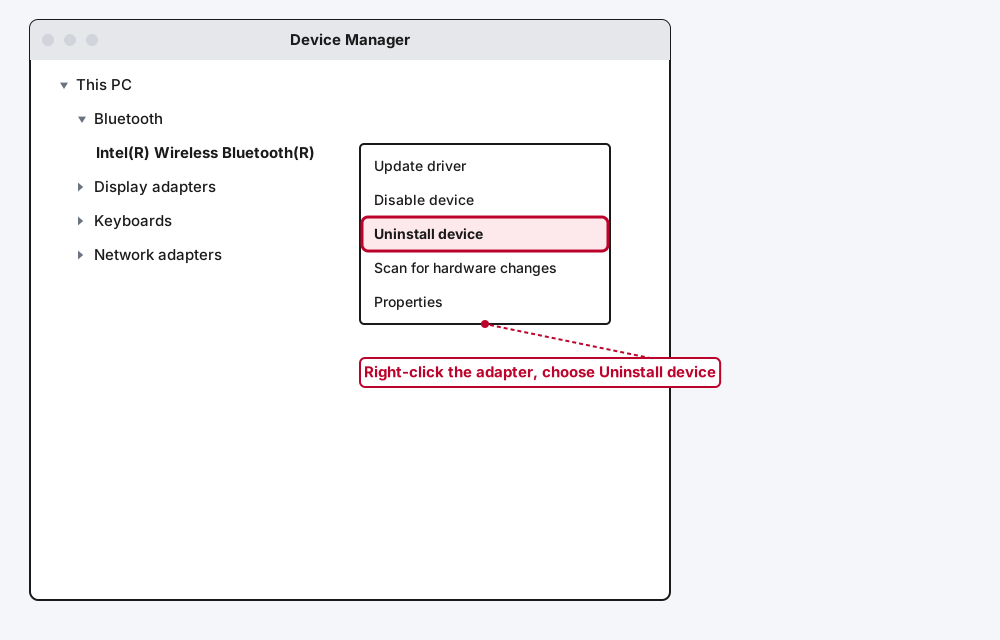
Quick answer: open Device Manager, expand Bluetooth, right-click your adapter, and choose Uninstall device. Check "Attempt to remove the driver for this device," confirm, then restart your PC. Windows reinstalls a fresh copy of the driver automatically on boot, and this alone clears out most corrupted-driver problems without you needing to download anything.
Key takeaways:
- Uninstalling through Device Manager and letting Windows reinstall on restart is the fastest method, and it solves this more often than manually hunting for a driver download.
- If your PC doesn't redetect Bluetooth automatically after a restart, "Scan for hardware changes" in Device Manager's Action menu will force it.
- Windows Update's Optional Updates section often has a newer driver than what Device Manager finds on its own, and it's easy to miss since it doesn't install automatically.
- Going straight to Intel, Realtek, or your laptop manufacturer's own download page gets you a driver written for your exact chipset, which sometimes performs better than Windows' generic one.
- If the problem started right after a Windows update, check whether "Roll Back Driver" is available before you reinstall anything. It's a one-click undo, when Windows has kept the old version.
Prefer an interactive walkthrough? Try our Bluetooth Driver Reinstall Troubleshooter →
Which Method Should You Use?
| Your situation | Try this first |
|---|---|
| You just want the fastest, most reliable fix | Method 1: Uninstall and let Windows reinstall it |
| You uninstalled it and now Bluetooth is just gone | Method 2: Scan for hardware changes |
| Method 1 didn't help, or you want the newest driver Microsoft has | Method 3: Windows Update's Optional Updates |
| You want the manufacturer's own driver, not Windows' generic one | Method 4: Download it directly from Intel/Realtek/your PC maker |
| This started right after a Windows update | Method 5: Roll back to the previous driver first |
| Bluetooth isn't in Device Manager at all, not even with a warning icon | Skip to "If Bluetooth Has Disappeared From Device Manager Entirely" |
Why Reinstalling the Driver Fixes What Restarting Doesn't
Restarting the Bluetooth Support Service, the first thing worth trying for most Bluetooth problems, only resets the software process that manages Bluetooth. It doesn't touch the driver files themselves. If those files are what's actually corrupted, damaged during a Windows update, or just an old, buggy version, restarting the service is restarting a broken thing and expecting different results.
A full driver reinstall is a more forceful reset. Uninstalling through Device Manager removes the current driver's registration with Windows, and reinstalling, whether Windows does it automatically or you do it manually, writes a clean copy back in. This is what actually works for a Bluetooth adapter showing a yellow warning triangle, an adapter that disappeared entirely after an update, or Bluetooth that reconnects fine after a service restart but breaks again within a day or two, a classic sign of a driver that's degrading rather than a service that's just stuck.
Before You Start: Two Things Worth Doing First
Check Device Manager for a warning icon before you do anything else. Press Windows key + R, type devmgmt.msc, hit Enter, and expand Bluetooth. A yellow warning triangle on the adapter confirms this actually is a driver problem, not a hardware failure or something disabled in Airplane Mode. If Bluetooth doesn't show up in the list at all, skip ahead to the section on that scenario near the bottom of this guide, since the steps are a little different.
Note your current driver version first. In Device Manager, right-click the adapter, choose Properties, then the Driver tab, and jot down the version number and date. It takes a few seconds, and it means you'll actually know whether a "fix" changed anything, or whether you've just reinstalled the exact same driver you started with.
Method 1: Uninstall the Device and Let Windows Reinstall It Automatically
This is the one to try first. It's fast, it doesn't require finding or downloading anything, and it resolves more driver-level Bluetooth problems than any other method on this list.
Step 1: Open Device Manager
Right-click the Start button and choose Device Manager, or press Windows key + R, type devmgmt.msc, and press Enter.
Step 2: Expand Bluetooth and Find Your Adapter
Click the arrow next to Bluetooth to expand it. Your adapter is usually named after its manufacturer, Intel, Realtek, Qualcomm, or Broadcom are the most common, followed by "Bluetooth" somewhere in the name.
Step 3: Right-Click and Choose Uninstall Device
Step 4: Confirm the Uninstall
A dialog appears with a checkbox. Check "Attempt to remove the driver for this device," then click Uninstall.
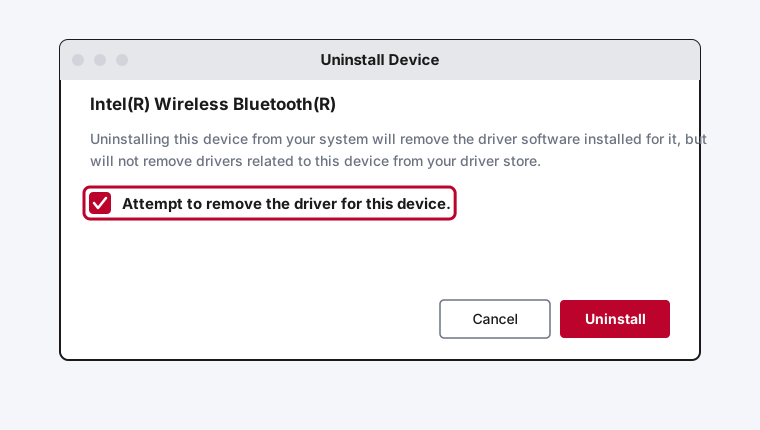
This checkbox matters. Without it, Windows removes the device but leaves the actual driver files sitting in your driver store, which means restarting might just reinstall the same broken version. Checking it is what forces a genuinely clean reinstall.
Step 5: Restart Your PC
This step isn't optional. Windows detects the "missing" Bluetooth hardware during boot and installs a fresh driver automatically, but that happens at startup, not the moment you uninstall. Skipping the restart is the single most common reason people think this method "didn't work" when it just hadn't finished yet.
Method 2: Force Windows to Redetect It (Scan for Hardware Changes)
Almost every time, restarting after Method 1 is enough. Occasionally it isn't, usually because Windows' hardware detection during boot missed it for some unrelated reason. Rather than restarting again and hoping, you can trigger the same redetection manually.
Open Device Manager, right-click anywhere in the device list (clicking your PC's name at the top works well), and choose "Scan for hardware changes." Windows re-scans everything connected to your system and should immediately find the Bluetooth adapter and reinstall its driver, no restart required this time.
Method 3: Get the Driver Through Windows Update's Optional Updates
Windows Update's main "Check for updates" button pulls in security and feature updates, but driver updates, including a newer Bluetooth driver than the one Device Manager's own "Update driver" search finds, often live in a separate section that most people never open.
Step 1: Open Windows Update Settings
Go to Settings, then Windows Update, then Advanced options.
Step 2: Open Optional Updates
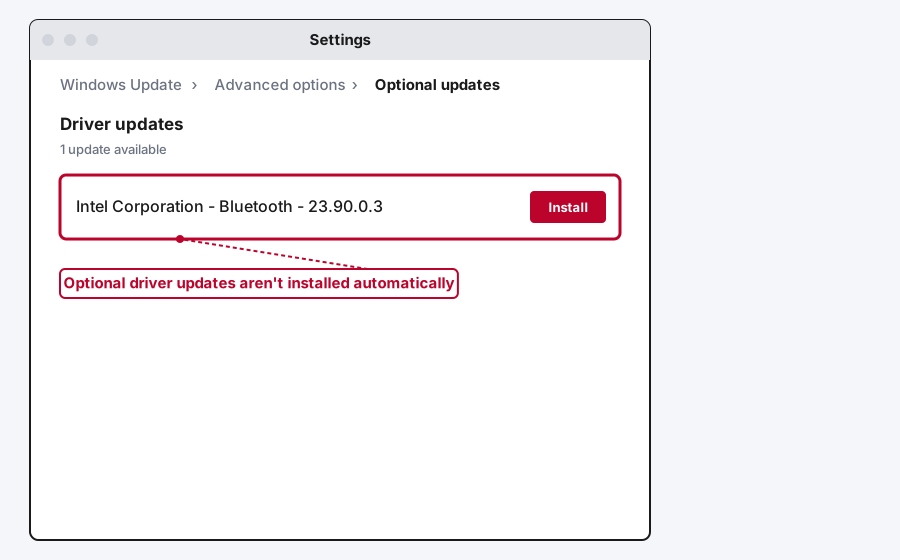
Under Additional options, select Optional updates. If there's a driver update available, it'll be listed under "Driver updates" with the manufacturer and version number shown.
Step 3: Select and Install It
Check the box next to the Bluetooth driver entry and click Download and install. Restart once it finishes.
Optional driver updates genuinely aren't installed automatically, which is exactly why they're worth checking manually even if Windows Update says you're fully up to date otherwise. I've seen a Bluetooth driver sit here for weeks on a machine that showed "You're up to date" the entire time.
Method 4: Download the Driver Directly From Your Manufacturer
If Methods 1 through 3 haven't fixed it, or you just want the most current, chipset-specific driver rather than whatever Windows' automatic search turns up, going to the source is worth the extra few minutes.
First, confirm your adapter's chipset. Device Manager's Bluetooth entry usually names the manufacturer directly, Intel, Realtek, Qualcomm/Atheros, and Broadcom cover most laptops. Intel's own Wireless Bluetooth driver download page covers Windows 10 and 11 directly, but Realtek and Qualcomm/Atheros adapters ship almost exclusively through your laptop or motherboard manufacturer's own support site instead. That's actually the better first stop regardless of chipset: search Dell, HP, Lenovo, or ASUS support by your exact model number, not just the brand, find Drivers & Downloads, filter to your Windows version, and look for Bluetooth in the list. A manufacturer's own installer is tested against your specific model, which a generic chipset-maker download sometimes isn't.
Download the installer, run it directly rather than routing it through Device Manager's "Update driver" browse option, and restart once it completes.
Method 5: Roll Back to the Previous Driver
If Bluetooth was working fine right up until a specific Windows update, rolling back is often faster than reinstalling forward, and it's worth checking before you go hunting for a new driver at all.
Step 1: Open the Adapter's Properties
In Device Manager, right-click your Bluetooth adapter and choose Properties, then click the Driver tab.
Step 2: Check for Roll Back Driver
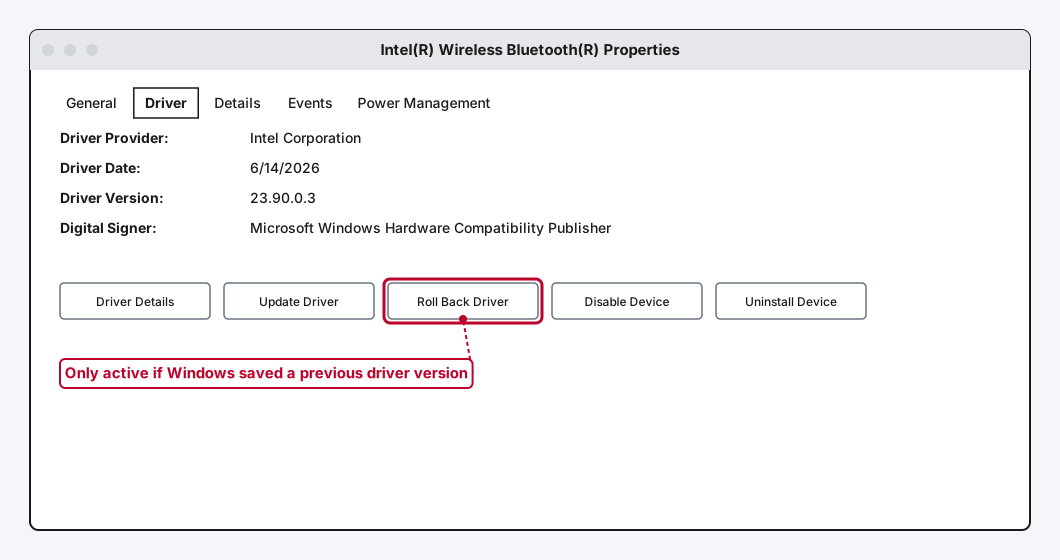
If "Roll Back Driver" is available, click it and follow the prompts. If it's grayed out, Windows didn't keep a copy of the previous driver, and this option isn't available for this particular update. That's not a bug or something you did wrong, Windows only retains the prior driver for a limited window after certain kinds of updates, and it doesn't always apply. Move on to Method 1 instead.
Step 3: Restart and Confirm
Restart your PC and check Settings > Bluetooth & devices to confirm Bluetooth is working again on the older driver version.
If Bluetooth Has Disappeared From Device Manager Entirely
This is a step beyond a driver problem you can see, since there's no warning triangle to point at, just an empty spot where Bluetooth used to be listed.
First, check View > Show hidden devices from Device Manager's menu bar. Sometimes an uninstalled Bluetooth entry sticks around as a grayed-out, hidden device rather than disappearing cleanly, and reinstalling from there works the same way as Method 1. If that turns up nothing, try Action > Scan for hardware changes (the same option from Method 2), which forces Windows to re-enumerate every piece of connected hardware and catches cases where the adapter simply didn't get redetected during your last restart.
It's also worth checking Network adapters, not just the Bluetooth category. On some laptops, particularly ones with a combo Wi-Fi/Bluetooth card, Windows occasionally lists the Bluetooth radio there instead of under its own Bluetooth section, especially right after a driver removal.
If none of that surfaces it, confirm Bluetooth isn't disabled somewhere outside Windows entirely: check Airplane Mode is off, and if your laptop has a physical wireless switch or function-key toggle, make sure it hasn't been flipped. Beyond that, an adapter Windows genuinely cannot detect even after a hardware rescan starts pointing toward a hardware failure rather than a driver one, which is where it's worth calling your manufacturer's support line instead of reinstalling software again.
Still Not Working?
If you've worked through all five methods and Bluetooth still won't come back, or Device Manager still shows a warning icon after a genuinely clean reinstall, the driver almost certainly isn't the problem anymore. At that point, Microsoft's own Bluetooth troubleshooting support page is a reasonable next stop, and if your laptop or PC is still under warranty, your manufacturer's support line can check whether the Bluetooth hardware itself has actually failed, something no amount of driver reinstalling can fix.
Frequently Asked Questions
Will reinstalling my Bluetooth driver delete my paired devices?
No. Your paired device list is stored separately from the driver, so headphones, keyboards, and anything else you've paired should reconnect automatically once the driver's back, no re-pairing needed.
Is it safe to check "Attempt to remove the driver for this device"?
Yes. It only removes this specific driver installation, not your entire driver store or anything else on your system, and Windows reinstalls a clean copy automatically the next time it starts.
How do I know if I actually need to reinstall the driver, versus just restarting the Bluetooth service?
Check Device Manager first. A yellow warning triangle on the adapter is a genuine driver-level problem worth reinstalling over. No warning icon, and Bluetooth just seems off or won't pair with one device? A full reinstall is more than you need, start with our Bluetooth Not Working or Bluetooth Pairing Issues guides instead.
Why does "Roll Back Driver" sometimes not work?
Windows only keeps a copy of your previous driver for a limited time after certain updates, and it doesn't always keep one at all, especially if you've already reinstalled or updated since. If it's grayed out, that copy isn't available anymore, and Method 1 is the next best option.
Should I download from Intel's site or my laptop manufacturer's site?
Your laptop manufacturer's site, when a driver is listed there, since it's tested against your exact model. Intel's own page is the better fallback when your manufacturer's support site doesn't have one, or hasn't updated it recently.
Quick Summary
Start with uninstalling the device through Device Manager, checking "Attempt to remove the driver for this device," and restarting, since it solves this more often than any other method here. If Bluetooth doesn't come back on its own, force a redetection with Scan for hardware changes rather than restarting again and hoping. Check Windows Update's Optional Updates section next, since it often has a newer driver than what shows up automatically, and if you want the most reliable option, go straight to your manufacturer's own download page rather than a generic driver search. If this started right after a Windows update, check whether Roll Back Driver is available before you reinstall anything forward. And if Bluetooth has vanished from Device Manager completely, check hidden devices and the Network adapters category before assuming it's a hardware failure.
Related Articles
Bluetooth Mouse or Headphones Not Connecting? Fix It
Bluetooth mouse not connecting, or headphones stuck mid-pair? These two device types fail in their own specific ways. Here's exactly what to check for each.
How to Fix Bluetooth Pairing Issues (Windows, 2026)
Bluetooth pairing issues usually come down to one of five specific causes. Here's how to diagnose which one you've got and fix it, from stuck pairing codes to devices that won't connect.
Bluetooth Not Working? How to Fix It (Windows, 2026)
Bluetooth stopped working on your Windows PC? Here are six real fixes, starting with the one that solves it most often: restarting the Bluetooth service.