

Bluetooth Not Working? How to Fix It (Windows, 2026)

Bluetooth not working usually isn't a hardware problem, even though it feels like one when your headphones won't pair and the Bluetooth icon has quietly vanished from your taskbar. Most of the time, Windows' own Bluetooth service has stalled in the background, and the fastest fix is restarting that service directly rather than restarting your whole PC and hoping.
I've had this happen on three different laptops now, and it's almost never the adapter itself that's actually broken.
Quick answer: open the Services app, find "Bluetooth Support Service," and restart it. That alone fixes Bluetooth-not-working issues more often than any other single step. If that doesn't do it, work down through the methods below in order. They're sorted from fastest to most involved, not randomly.
Key takeaways:
- Restarting the Bluetooth Support Service fixes this more often than reinstalling drivers or restarting your PC.
- A recent Windows update is a common trigger. If this started right after an update, jump to Method 5.
- Device Manager will show you immediately if Windows has actually lost the Bluetooth adapter, which changes which fix applies.
- Removing and re-pairing a single stubborn device is often faster than troubleshooting Bluetooth as a whole.
Prefer an interactive walkthrough? Try our Bluetooth Troubleshooter →
Which Fix Should You Try First?
| If this describes your situation | Try this first |
|---|---|
| Bluetooth worked yesterday, nothing changed that you know of | Method 1: Restart the Bluetooth service |
| Bluetooth icon is missing entirely from Settings and the taskbar | Method 4: Check Device Manager for the adapter |
| This started right after a Windows update | Method 5: Check for a follow-up update, or roll back the driver |
| Everything else works, but one specific device won't connect | Method 6: Remove and re-pair that device |
| You just want to try the fastest thing first | Method 2: Toggle Bluetooth off and on |
Why Does Bluetooth Randomly Stop Working on Windows?
Windows manages Bluetooth through a background process called the Bluetooth Support Service, and that service can hang or stop responding without anything actually being wrong with your Bluetooth hardware. It's a Windows-side glitch, not a radio failure, which is why the fix is almost always software, not a new adapter.
The other common cause is a driver that got overwritten or disabled during a Windows update. Updates occasionally reset Bluetooth driver settings or install a generic driver in place of your laptop manufacturer's version, and the generic one sometimes doesn't play well with the exact chipset in your machine. Both causes point to the same conclusion: check software before you assume hardware.
Before You Start: Two Things Worth Checking
Two things take fifteen seconds and rule out the simplest explanations:
First, check Airplane Mode. It's easy to bump the keyboard shortcut for this by accident, and Airplane Mode disables Bluetooth along with Wi-Fi. Open the Action Center (click the network/sound/battery icons in the taskbar) and make sure Airplane Mode is off.
Second, if you're on a laptop, check for a physical Bluetooth or wireless switch. Older ThinkPads and some Dell models have a dedicated hardware switch or function-key toggle, and it's a genuinely common false alarm.
Method 1: Restart the Bluetooth Support Service
This is the fix that solves it most often, and it takes under a minute.
Step 1: Open the Services App
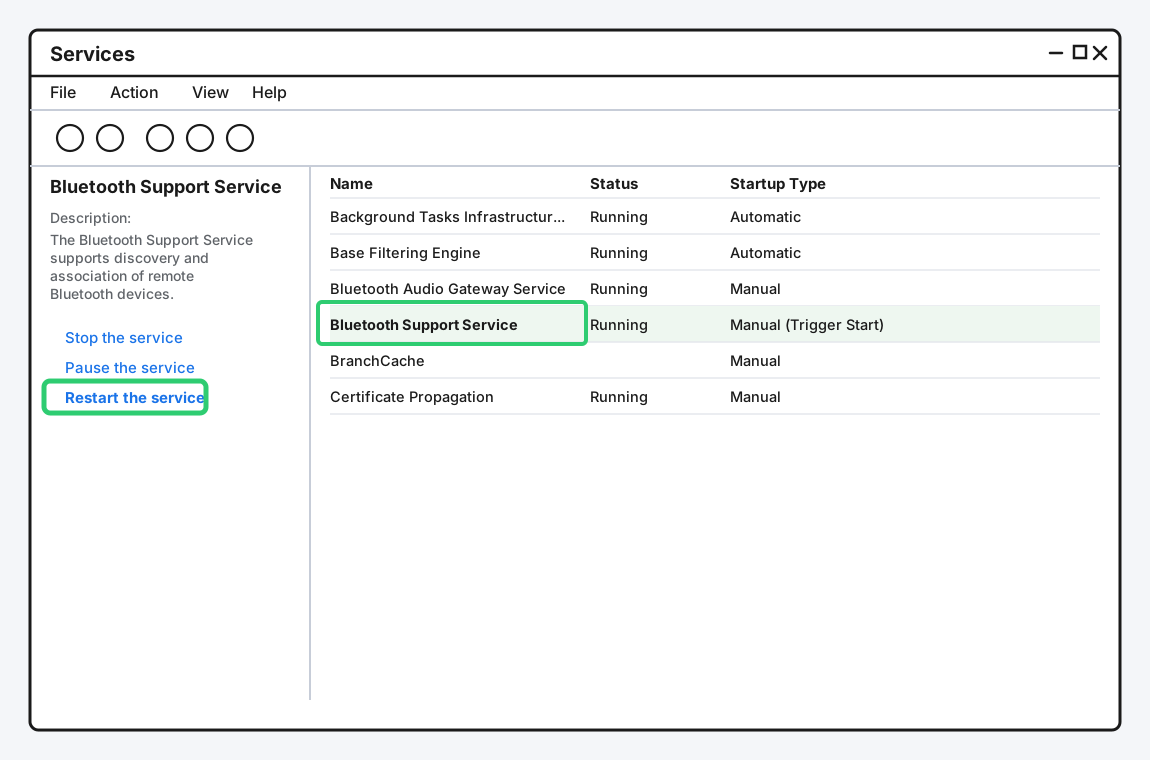
Press Windows key + R to open Run, type services.msc, and press Enter.
Step 2: Find Bluetooth Support Service
Scroll down the list until you find "Bluetooth Support Service." Click it once to select it.
Step 3: Restart the Service
With the service selected, click "Restart" in the panel on the left, or right-click it and choose Restart. If the service was already stopped, you'll see "Start" instead, so click that.
Step 4: Check Bluetooth Again
Open Settings > Bluetooth & devices and confirm Bluetooth shows as on. Try pairing or reconnecting your device.
Method 2: Turn Bluetooth Off and Back On
Obvious, but worth doing properly rather than just glancing at the icon.
Step 1: Open Bluetooth Settings
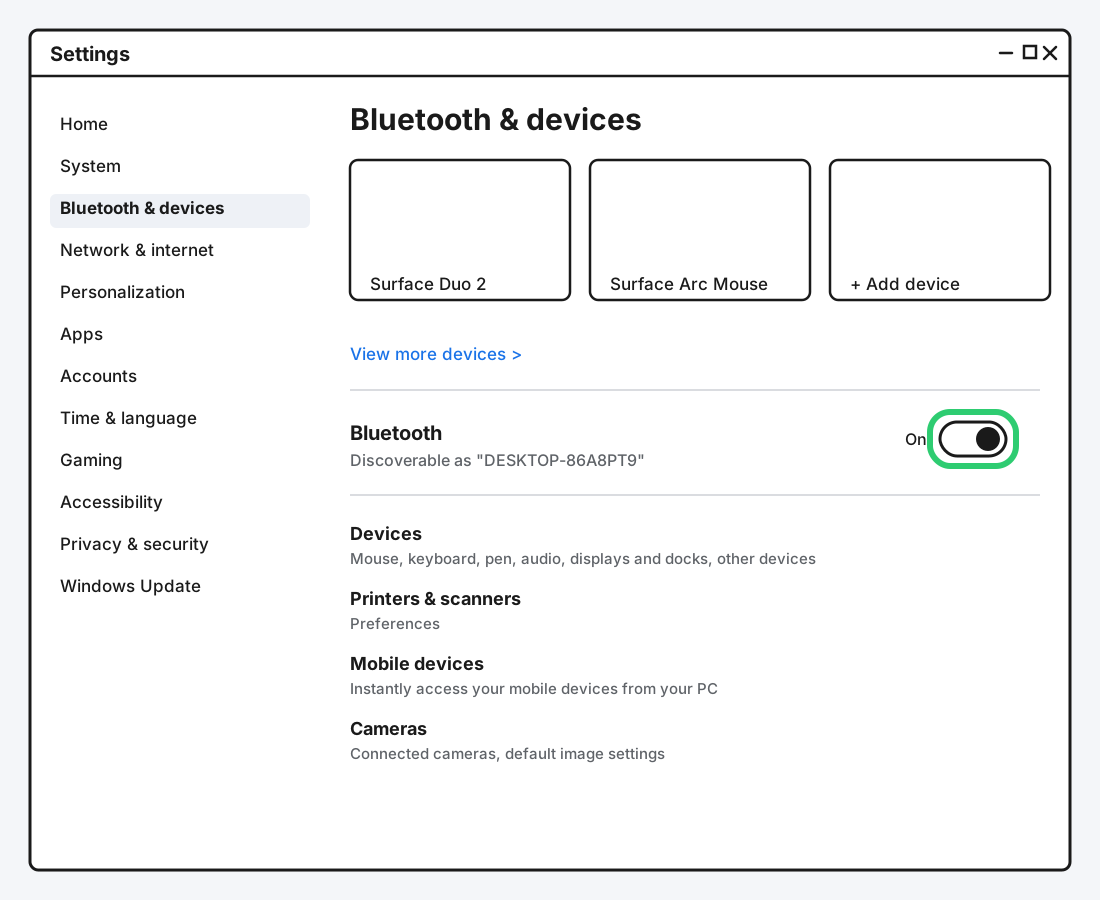
Open Settings, then go to Bluetooth & devices.
Step 2: Toggle Bluetooth Off
Switch the Bluetooth toggle at the top of the page off. Wait about ten seconds. This matters more than it sounds like it should, since it gives Windows time to actually release the radio instead of just flipping a switch.
Step 3: Toggle Bluetooth Back On
Switch it back on and give it a few seconds to initialize before trying to pair anything.
Method 3: Run the Windows Bluetooth Troubleshooter
Windows has a built-in troubleshooter that checks for the most common configuration problems automatically, and it's worth running even if you're skeptical it'll find anything.
Step 1: Open Troubleshoot Settings
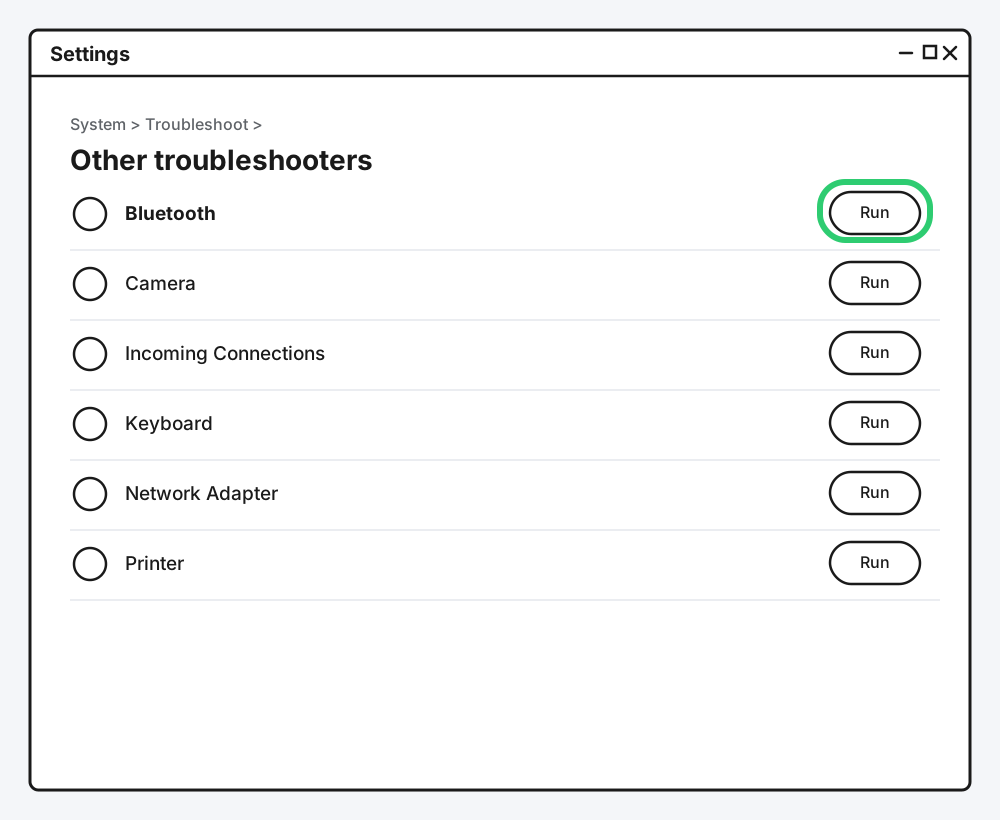
Go to Settings > System > Troubleshoot > Other troubleshooters.
Step 2: Run the Bluetooth Troubleshooter
Find Bluetooth in the list and click Run. Let it finish scanning.
Step 3: Apply Any Fix It Suggests
If it finds something, apply the fix and restart Bluetooth from Settings to confirm.
Method 4: Update or Reinstall the Bluetooth Driver
If the icon is missing entirely, or the first three methods didn't help, the driver itself is the more likely culprit.
Step 1: Open Device Manager
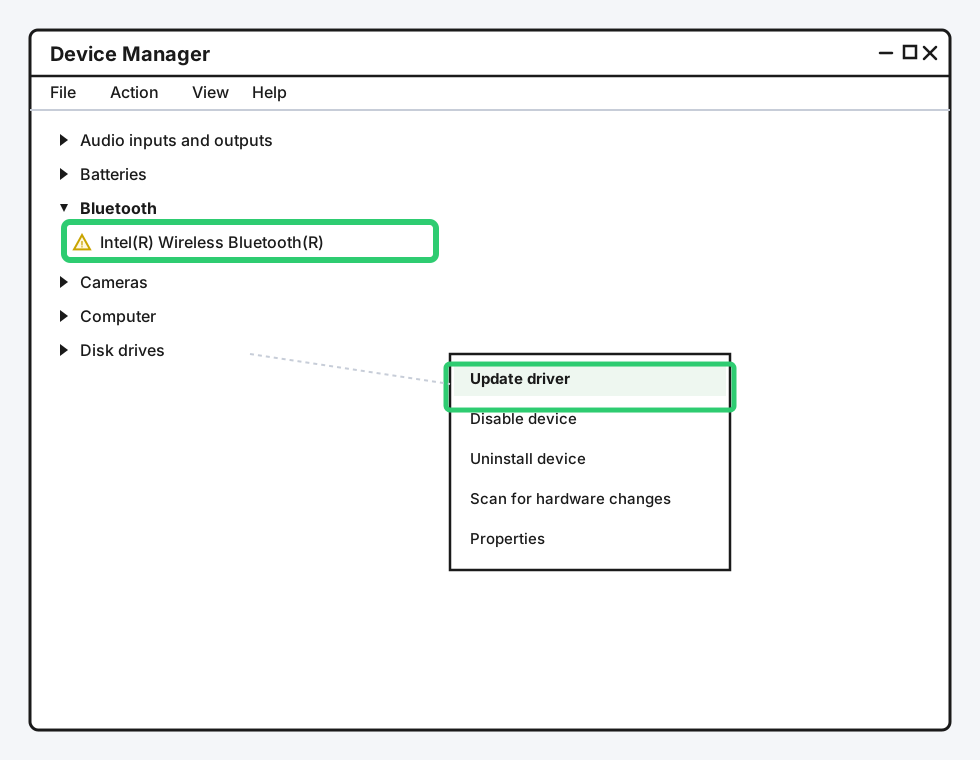
Right-click the Start button and choose Device Manager.
Step 2: Find Your Bluetooth Adapter
Expand the "Bluetooth" category. If you see a yellow warning triangle on the entry, that confirms Windows has detected a driver problem, not a missing-hardware problem.
Step 3: Update the Driver
Right-click your Bluetooth adapter and choose "Update driver," then "Search automatically for drivers." If Windows says you already have the best driver installed and it's still not working, go back and choose "Uninstall device" instead, then restart your PC. Windows will reinstall a fresh copy of the driver automatically on boot.
For a full walkthrough of this, including what to do if Bluetooth disappears from Device Manager entirely, getting the driver through Windows Update's Optional Updates, downloading straight from Intel or your laptop manufacturer, and rolling back after a bad update, see our How to Reinstall Your Bluetooth Driver guide.
Step 4: Confirm It's Working
Check Settings > Bluetooth & devices again once your PC restarts.
Method 5: Check for Windows Updates
If this started right after your PC updated itself, Microsoft may already have shipped a fix, or the update may have installed a generic driver over your manufacturer's version.
Go to Settings > Windows Update and check for new updates first. If none are available and the problem started immediately after the last update, go back to Method 4 and reinstall the driver rather than update it, since a clean reinstall often clears out whatever the update changed.
Method 6: Remove and Re-Pair the Problem Device
If Bluetooth itself is working fine but one specific device refuses to connect, the device's pairing record is the more likely problem, not Bluetooth as a whole.
Step 1: Remove the Device
In Settings > Bluetooth & devices, find the problem device, click the three-dot menu next to it, and choose Remove device.
Step 2: Restart Bluetooth on the Device Itself
Turn the device off and back on, or put it back into pairing mode per its own manual.
Step 3: Pair It Again From Scratch
Click "Add device" in Windows and go through pairing again as if it were new.
Still Not Working?
If you've worked through all six methods and Bluetooth still isn't behaving, the remaining possibilities are a genuinely failed adapter or a deeper Windows configuration issue that's outside what a support article can safely walk you through blind. At that point, Microsoft's own Bluetooth troubleshooting support page is the right next stop, and if your PC is still under warranty, your manufacturer's support line can check whether the adapter itself has failed.
Frequently Asked Questions
Why did my Bluetooth stop working after a Windows update?
Windows updates occasionally overwrite a manufacturer-specific Bluetooth driver with a generic one, or reset Bluetooth settings during the update process. Reinstalling the driver (Method 4) usually resolves it.
Do I need to restart my whole PC to fix Bluetooth?
No, usually not. Restarting the Bluetooth Support Service (Method 1) fixes most cases without a full restart, and it's faster.
How do I know if it's a driver problem versus a hardware problem?
Open Device Manager and check the Bluetooth category. A yellow warning triangle means Windows sees the hardware but has a driver problem, and that's fixable. If Bluetooth doesn't appear in Device Manager at all, even after restarting, that points toward a hardware or BIOS-level issue instead.
Can a Windows Bluetooth problem affect just one device and not others?
Yes. If other devices pair fine and only one won't connect, the issue is almost always that one device's saved pairing record, not Bluetooth itself. Removing and re-pairing it (Method 6) is the fix.
Is it safe to uninstall the Bluetooth driver?
Yes. Uninstalling it through Device Manager doesn't remove Bluetooth permanently. Windows automatically reinstalls a fresh copy of the driver the next time your PC starts.
Quick Summary
Start with restarting the Bluetooth Support Service through services.msc, since it resolves this more often than any other fix. If that doesn't work, toggle Bluetooth off and on properly, run the built-in troubleshooter, then check Device Manager for a driver problem. If the issue started right after a Windows update, reinstalling the driver is usually the answer. And if only one device is affected, skip straight to removing and re-pairing it instead of troubleshooting Bluetooth as a whole.
Related Articles
How to Reinstall Your Bluetooth Driver (Windows)
A full walkthrough for reinstalling your Bluetooth driver on Windows: uninstall and redetect, grab it from Windows Update, or pull it straight from Intel, Realtek, or your PC maker.
Bluetooth Mouse or Headphones Not Connecting? Fix It
Bluetooth mouse not connecting, or headphones stuck mid-pair? These two device types fail in their own specific ways. Here's exactly what to check for each.
How to Fix Bluetooth Pairing Issues (Windows, 2026)
Bluetooth pairing issues usually come down to one of five specific causes. Here's how to diagnose which one you've got and fix it, from stuck pairing codes to devices that won't connect.