

Bluetooth Mouse or Headphones Not Connecting? Fix It

A Bluetooth mouse not connecting and a pair of Bluetooth headphones stuck mid-pair look like the same problem from the outside, but they're usually not. A mouse is a tiny, low-power HID device with a physical switch on the bottom. Headphones are an audio device juggling two Bluetooth profiles at once, sometimes across two separate earbuds. The general "restart Bluetooth" advice helps both, but it doesn't explain why a mouse shows connected with a cursor that won't move, or why only one earbud ever makes it into your ear.
I keep three cheap Bluetooth mice and a pair of budget earbuds around specifically to break in new ways, and between them they've hit almost every failure mode in this article at some point.
Quick answer: for a mouse, the single most common issue isn't Bluetooth at all, it's that the mouse actually uses a proprietary 2.4GHz USB dongle, not Bluetooth, so it'll never show up in Bluetooth settings no matter what you try. For headphones and earbuds, the most common issue is a stale pairing record fighting with a phone or laptop it's already connected to. This article covers both device types on their own terms. For the broader "Bluetooth just won't turn on" or "pairing fails with an error" causes that apply to any device, see our Bluetooth Not Working and Bluetooth Pairing Issues guides. This one is about what's specific to mice and to headphones.
Key takeaways:
- Check whether your mouse uses a USB receiver instead of real Bluetooth before troubleshooting Bluetooth at all. It's a genuinely common mix-up.
- A mouse that shows "Connected" but won't move the cursor almost always needs to be removed and re-paired, not restarted.
- True wireless earbuds where only one side connects is usually a battery or case-contact issue, not a Bluetooth failure.
- Most Bluetooth accessories can only stay actively paired to one device at a time, which explains a lot of "it won't connect to my PC" reports where the device is quietly still connected to a phone.
Prefer an interactive walkthrough? Try our Bluetooth Mouse & Headphones Troubleshooter →
Bluetooth Mice: What's Actually Different
Is Your Mouse Even Using Bluetooth?
This is worth ruling out first, because it wastes more time than anything else on this list. A lot of wireless mice, especially gaming mice and anything from Logitech's Bolt or Unifying lineup, ship with a small USB receiver instead of connecting over Bluetooth, even though the box says "wireless." That receiver talks to the mouse over its own proprietary 2.4GHz protocol, and it will never appear in Settings > Bluetooth & devices, because as far as Windows is concerned it's just a regular USB input device, not a Bluetooth one.
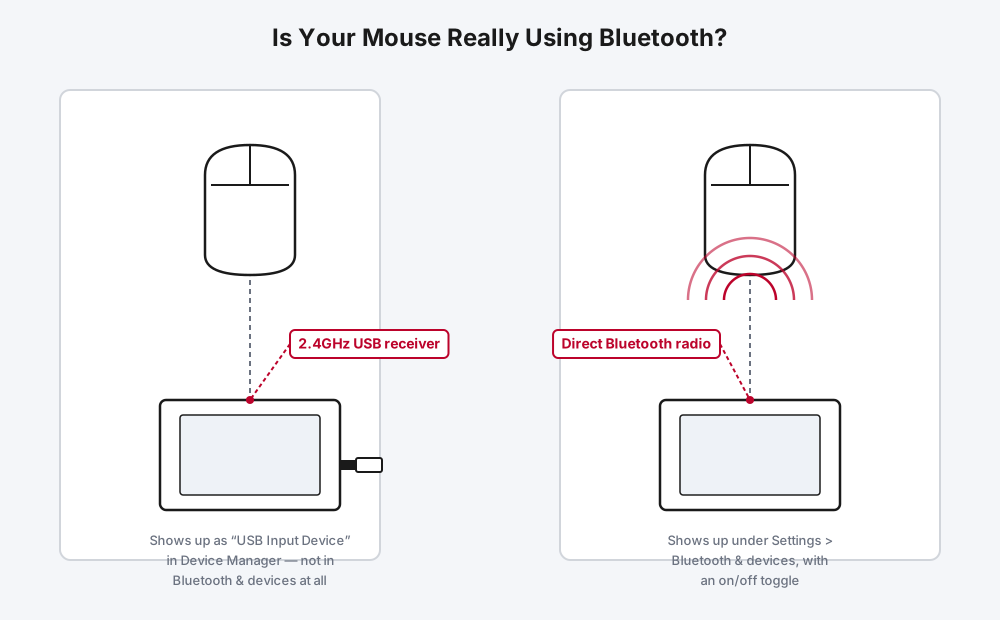
If your mouse came with a small USB dongle, plug that in and you're done. There's no pairing step in Windows at all. Some higher-end mice actually support both: a receiver for a permanent desktop setup, and true Bluetooth for switching between a laptop and a tablet, with a physical switch on the underside to pick which mode is active. If you've been trying to "pair" a mouse that only has a receiver, that's the whole problem, and no amount of restarting Bluetooth will fix it, because Bluetooth was never involved.
Finding the Actual Pairing Button
Once you've confirmed it's real Bluetooth, the next most common snag is not actually putting the mouse into pairing mode. Unlike headphones, which often start pairing automatically the first time they're powered on, most Bluetooth mice need a dedicated step.
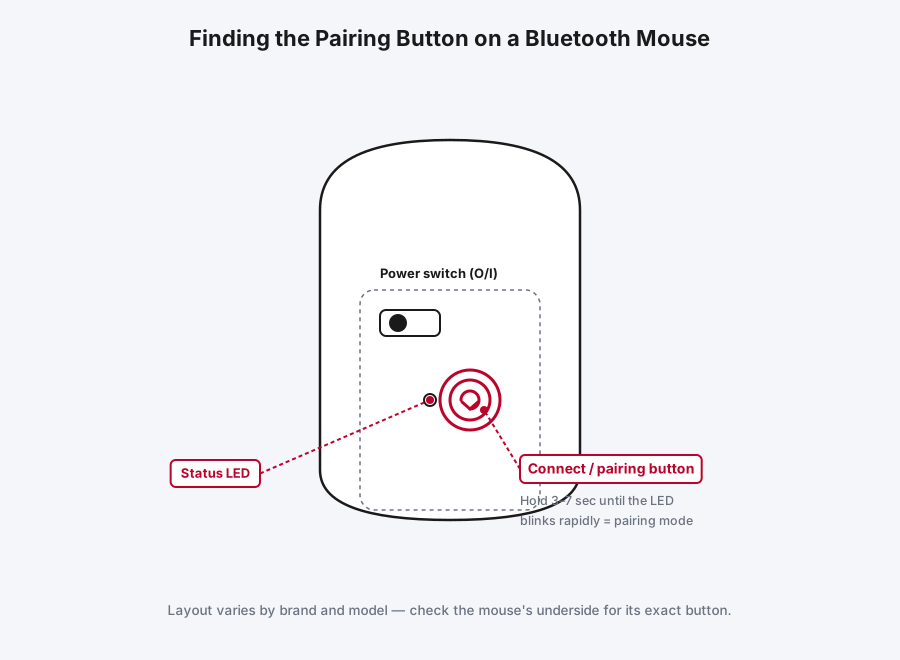
Flip the mouse over and look for a small recessed button, usually separate from the power switch, sometimes marked with a Bluetooth symbol or a small connection icon. Hold it for three to seven seconds until the status LED starts blinking fast. A slow, occasional blink usually means "on but not in pairing mode." A steady, unblinking light usually means "already connected to something." Only the fast blink means Windows will actually be able to find it. Once it's blinking, go to Settings > Bluetooth & devices > Add device > Bluetooth, and it should show up within about ten seconds.
The Cursor Doesn't Move, Even Though It Says Connected
This one trips people up because it doesn't look like a connection problem. Windows shows the mouse as paired and connected, sometimes even shows the battery percentage, and the cursor still won't budge. What's actually happened is that the Bluetooth link itself succeeded, but the HID (human interface device) profile underneath it, the part that actually carries the movement data, never established properly. Restarting Bluetooth doesn't fix this, since Bluetooth itself isn't broken.
Remove the mouse entirely from Settings > Bluetooth & devices, turn it off and back on, and pair it again from scratch. This forces Windows to renegotiate the HID profile instead of reusing whatever handshake failed the first time. If it happens repeatedly with the same mouse, check Device Manager for a "HID-compliant mouse" entry with a warning icon, and update or reinstall that driver specifically rather than the general Bluetooth adapter driver.
The Mouse Falls Asleep and Won't Wake Up
Bluetooth mice sleep aggressively to save battery, and occasionally they sleep deeply enough that a single click doesn't wake them, which looks identical to a dead connection. Click twice, or move the mouse firmly for a second, before assuming anything's actually disconnected. If it still doesn't respond, check the battery. A mouse running low enough to drop its radio connection but not low enough to fully die is a surprisingly common false alarm, and it's worth swapping the battery (or giving it 20 minutes on a charger for rechargeable models) before troubleshooting Bluetooth at all.
Switching a Mouse Between Two Computers
If your mouse has a channel button (often labeled 1/2/3, sometimes called Easy-Switch or similar depending on the brand), it can hold separate pairings for up to three devices and switch between them with a press, without ever unpairing. If yours doesn't have that button, you'll need to remove it from one computer's Bluetooth settings before it'll reliably show up as available on the other, since most budget mice only maintain one active connection at a time regardless of how many devices it's been paired to in the past.
Bluetooth Headphones and Earbuds: What's Actually Different
Only One Earbud Connects, or Only One Has Sound
This is specific to true wireless earbuds and doesn't have a real equivalent on the mouse side. Most true wireless designs have a "primary" earbud that connects to your phone or PC directly, and a "secondary" one that connects to the primary earbud, not to your device. If the secondary earbud's battery runs down faster (which is common, since it often does more of the radio work) or its contacts in the case get dirty, it can silently fail to link up while the primary earbud works fine on its own.
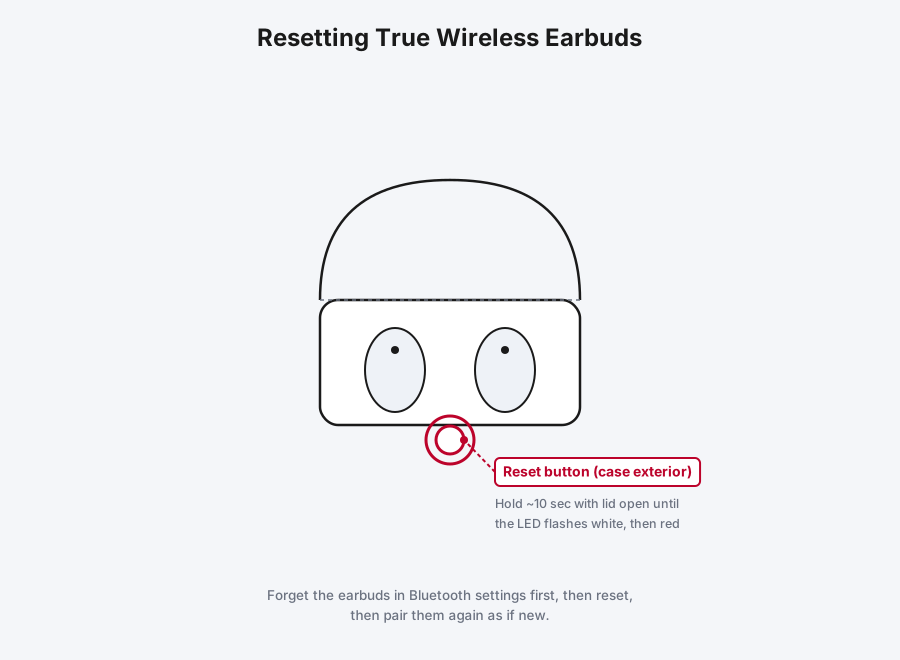
Start by wiping the metal charging contacts on both earbuds and inside the case with a dry cloth or a cotton swab, since a surprising number of "one side won't connect" reports are actually a bad charging contact, not a Bluetooth fault. Then charge both earbuds fully, together, for at least 15 minutes before testing again. If that doesn't fix it, forget the earbuds from your device's Bluetooth list, then do a full reset: with both earbuds in the case and the lid open, press and hold the reset button on the case exterior for about ten seconds until the LED flashes white, then red. Put the earbuds back in your ears, open the case near your device, and let them pair as if new.
They Pair Fine, But No Sound Plays
This almost always comes down to Windows still routing audio to a different output, not the headphones actually failing to connect. Right-click the speaker icon in the taskbar and confirm your Bluetooth headphones are selected as the output device, not just shown as "connected." It's also worth checking Settings > System > Sound for an app-specific volume override, since some apps remember an old output device independently of your system-wide default.
Audio Quality Drops the Moment You Join a Call
If your headphones sound noticeably worse the second a microphone gets involved, that's not a bug, it's how Bluetooth audio works. Most headsets have two audio profiles: a high-quality one (A2DP) used for music playback, and a lower-quality one (HFP or HSP) that kicks in automatically whenever the microphone is active, because the protocol can't push high-fidelity audio and a live mic signal through the same connection at once. This is a hardware and protocol limitation, not something a driver update fixes. If call audio quality genuinely matters to you, a wired headset or your PC's built-in microphone paired with Bluetooth for playback only will sound better than any Bluetooth headset's calling mode.
Windows Can't Find Them at All
Check whether the headphones are already connected to something else first, most commonly a phone. Many headphones only broadcast themselves as available when nothing else is actively connected, so a phone holding the connection in the background is one of the most common reasons "Add device" on your PC comes up empty. Disconnect or turn off Bluetooth on the other device, then trigger pairing mode again, usually by holding the power button for several seconds until you hear a voice prompt or see a flashing light, and try again from Settings > Bluetooth & devices on the PC.
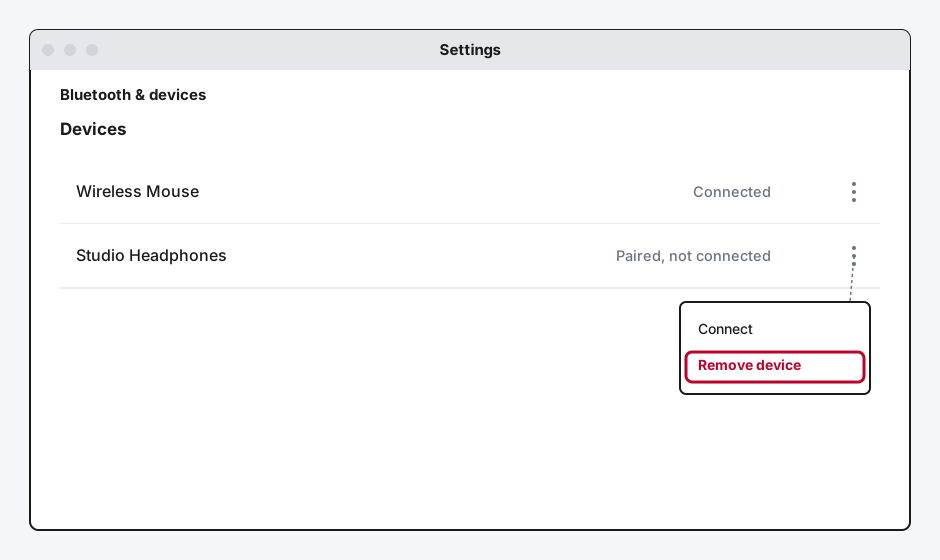
If the headphones show up in your list already but sit on "Paired, not connected," open the three-dot menu next to them and remove the device before trying to reconnect, rather than repeatedly clicking Connect. A stale pairing record is a more common cause of a stuck reconnect than anything actually wrong with the headphones themselves.
Still Not Working?
If you've worked through the fixes specific to your device and it's still not cooperating, the underlying Bluetooth radio or driver on your PC may be the real issue rather than the mouse or headphones themselves. Our Bluetooth Not Working guide covers restarting the Bluetooth Support Service and fixing driver problems, and Bluetooth Pairing Issues covers stuck handshakes and pairing codes in more depth than this article does. If neither helps, Microsoft's own Bluetooth troubleshooting support page is the right next stop, and for a specific accessory, the manufacturer's own support site often documents model-specific quirks a general guide can't cover.
Frequently Asked Questions
Why does my wireless mouse not show up in Bluetooth settings at all?
It probably isn't using Bluetooth. Many wireless mice connect through a small proprietary USB receiver instead, which shows up as a generic USB input device in Device Manager, not in Bluetooth & devices. Check for a small dongle before troubleshooting Bluetooth itself.
My headphones show as connected but there's no sound. What's wrong?
This is almost always a Windows output-routing issue, not a Bluetooth problem. Right-click the speaker icon in the taskbar and confirm your headphones are actually selected as the audio output, not just listed as connected.
Why does only one of my earbuds work?
True wireless earbuds usually have a primary earbud that connects to your device and a secondary one that connects through the primary. A weak battery or dirty charging contact on the secondary earbud is the most common cause. Clean the contacts, fully charge both earbuds together, and reset the pair if that doesn't fix it.
Do I need to hold a special button to pair a Bluetooth mouse?
Usually, yes. Most Bluetooth mice need a dedicated pairing button held for three to seven seconds until the LED blinks rapidly, separate from the power switch. Just turning the mouse on typically isn't enough to trigger pairing mode.
Why does audio quality get worse during a video call on Bluetooth headphones?
Bluetooth switches to a lower-quality audio profile automatically whenever the microphone is active, since the protocol can't carry full-quality audio and a live mic signal at the same time. It's a known limitation of Bluetooth headsets, not a sign anything's broken.
Quick Summary
For a mouse, check whether it's actually using Bluetooth at all before troubleshooting anything else, since a proprietary USB receiver is a common and totally unrelated setup. If it is real Bluetooth, find the dedicated pairing button and hold it until the LED blinks fast, and if the cursor won't move despite showing connected, remove and re-pair rather than restart. For headphones and earbuds, a stuck reconnect is usually a stale pairing record, one dead earbud is usually a battery or contact issue rather than Bluetooth itself, and a quality drop during calls is a normal protocol limitation, not a fault. When the problem turns out to be Bluetooth itself rather than the device, our general Bluetooth Not Working and Bluetooth Pairing Issues guides pick up from there.
Related Articles
How to Reinstall Your Bluetooth Driver (Windows)
A full walkthrough for reinstalling your Bluetooth driver on Windows: uninstall and redetect, grab it from Windows Update, or pull it straight from Intel, Realtek, or your PC maker.
How to Fix Bluetooth Pairing Issues (Windows, 2026)
Bluetooth pairing issues usually come down to one of five specific causes. Here's how to diagnose which one you've got and fix it, from stuck pairing codes to devices that won't connect.
Bluetooth Not Working? How to Fix It (Windows, 2026)
Bluetooth stopped working on your Windows PC? Here are six real fixes, starting with the one that solves it most often: restarting the Bluetooth service.