

How to Fix Windows Wi-Fi Connection Issues

Windows Wi-Fi connection issues cover a lot more ground than the "connected but nothing loads" problem most people picture first. This is about the layer underneath that: Windows refusing to connect at all, throwing "Windows couldn't connect to this network," dropping a connection that was working fine ten minutes ago, or losing the adapter entirely after an update. Different symptoms, but a short list of real causes sits behind almost all of them.
I replaced a laptop's Wi-Fi driver three separate times over one bad week before I finally checked the Power Management tab and found Windows had been quietly switching the adapter off to save battery every time the screen dimmed. The driver was never the problem.
Quick answer: if Windows won't connect to a specific network at all, or throws an error the moment you try, start by deleting that network's saved profile and reconnecting from scratch, that clears out more of these than anything else. If Wi-Fi connects fine but keeps dropping or slows to nothing a few minutes in, the adapter's power management settings are the more likely culprit. If the adapter has vanished from your network list entirely, or Device Manager shows a warning icon next to it, that's a driver problem specifically.
Key takeaways:
- If your device says "connected" but nothing actually loads, that's a different problem with its own article, see the cross-link below.
- A corrupted saved network profile is one of the most common causes of a flat "can't connect" error, and it's a two-minute fix once you know where to look.
- Windows will silently power down your Wi-Fi adapter to save battery unless you turn that setting off yourself, and it's a genuinely common cause of random drops.
- A driver problem shows up as a missing network list, a yellow warning icon in Device Manager, or Wi-Fi that vanished right after a Windows update.
Prefer an interactive walkthrough? Try our Windows Wi-Fi Troubleshooter →
If what you're actually dealing with is Wi-Fi showing as connected while nothing loads, that's covered in full in Wi-Fi Connected But No Internet? Here's Why, this article is about Windows failing to connect, or hold a connection, in the first place.
Quick Diagnostic: What's Actually Going Wrong?
| What you're seeing | Likely cause | Try this first |
|---|---|---|
| "Windows couldn't connect to this network" the moment you try | A corrupted saved network profile | Method 1 |
| Wi-Fi toggle is greyed out, or no networks show up at all | Airplane Mode on, or the adapter is disabled | Method 2 |
| Yellow warning icon on the adapter in Device Manager | A driver problem | Method 3 |
| Connects fine, then drops or slows down a few minutes later | Power management switching the adapter off | Method 4 |
| Only sees some networks, or can't see your 5GHz network at all | Wireless mode or band mismatch | Method 5 |
| Wi-Fi worked before a restart, doesn't reconnect after | Fast Startup interfering with the adapter | Method 6 |
| Wi-Fi vanished from Settings entirely after a Windows update | Driver broken by the update | Method 3 |
Why These Are Different Problems, Even Though They Feel the Same
"My Wi-Fi isn't working" covers at least three genuinely different failure points, and mixing them up is why a fix that worked for a friend does nothing for you. A flat refusal to connect is almost always Windows itself, a bad saved profile, a security mismatch, or the adapter being disabled. A connection that drops or degrades after working fine is usually a power or driver issue, something interrupting a link that was never actually broken to begin with. And a network that's connected but useless once you're on it, the "connected, no internet" case, isn't a Windows-adapter problem at all, it's what's happening past your device, which is why it gets its own article.
Working through these in the wrong order wastes time. Reinstalling a driver won't fix a corrupted network profile, and deleting a profile won't stop an adapter that keeps powering itself down. The methods below are roughly ordered from fastest-to-check to most involved, but jump straight to whichever one matches what you're actually seeing in the table above.
Method 1: Delete the Corrupted Network Profile
This clears more of these than anything else here, and it takes under a minute.
Step 1: Open Command Prompt as Administrator
Search for "Command Prompt" in Start, right-click it, and choose "Run as administrator."
Step 2: List Your Saved Wi-Fi Profiles
netsh wlan show profiles
This lists every network Windows has ever saved a password for on this machine.
Step 3: Delete the Problem Network's Profile
netsh wlan delete profile name="YourNetworkName"
Use the exact name as it appeared in the list, quotes included if the name has spaces.
Step 4: Reconnect From Scratch
Go back to your Wi-Fi list, select the network, and enter the password again as if connecting for the first time. A stale profile most often has a mismatched security type or a corrupted stored key left over from a router that's since changed its settings, and starting fresh sidesteps both.
If you'd rather not use the command line, the same result comes from Settings > Network & internet > Wi-Fi > Manage known networks, selecting the network, and choosing Forget, then reconnecting.
Method 2: Confirm Wi-Fi Is Actually Allowed to Turn On
Before anything more involved, rule out the simplest explanation: Windows itself is blocking the radio.
Step 1: Check Airplane Mode
Go to Settings > Network & internet > Airplane mode and make sure it's off. A greyed-out Wi-Fi toggle in the quick settings panel is almost always this, even when nothing on screen explicitly says "Airplane Mode."
Step 2: Check That the Adapter Isn't Disabled in Device Manager
Right-click Start, choose Device Manager, and expand Network adapters. If your Wi-Fi adapter shows a down-arrow icon or the word "Disabled," right-click it and choose Enable device.
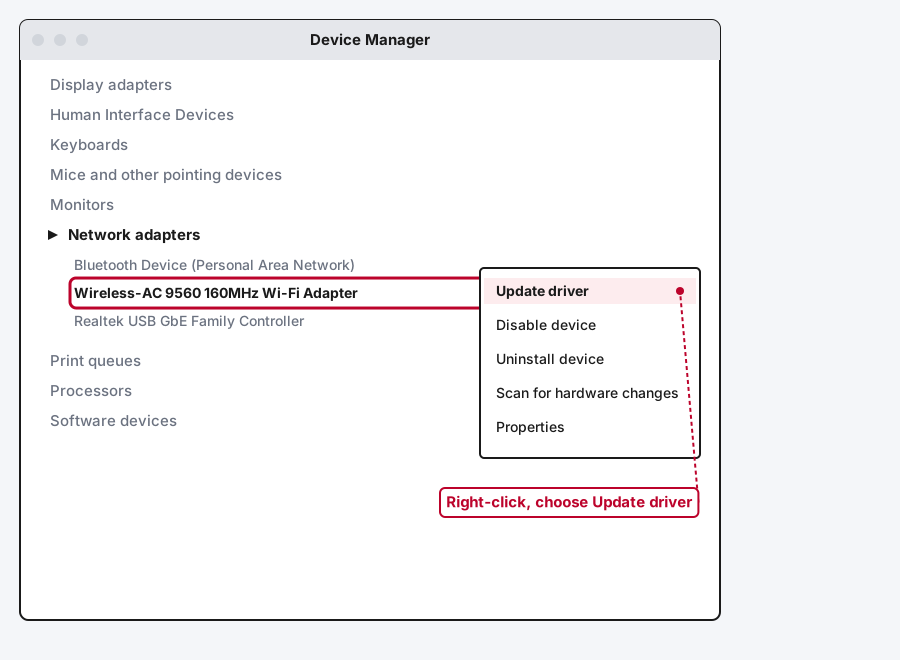
Method 3: Fix It From Device Manager: Update, Roll Back, or Reinstall the Driver
A yellow warning triangle on the adapter, a network list that's gone completely empty, or Wi-Fi that disappeared right after a Windows update all point here.
Step 1: Try Updating the Driver First
In Device Manager, right-click your Wi-Fi adapter and choose Update driver, then Search automatically for updated driver software. If Windows finds something, let it install and restart.
Step 2: If Wi-Fi Broke Right After an Update, Roll Back Instead
Right-click the adapter, choose Properties, open the Driver tab, and select Roll Back Driver if it's available. This only shows up when Windows has a previous driver version on file, which it usually does right after a fresh update installs a new one. This is the more targeted fix when the timing lines up with a specific update rather than a driver going bad on its own.
Step 3: Full Uninstall and Reinstall as a Last Resort
Right-click the adapter, choose Uninstall device, and check "Delete the driver software for this device" before confirming. Restart your PC, Windows will usually detect the adapter and reinstall a driver automatically. If it doesn't, download the correct driver directly from your laptop or Wi-Fi card manufacturer's support page rather than a generic driver site, before you uninstall is the smart time to grab that download since you'll be offline once the adapter's gone.
Method 4: Stop Wi-Fi From Dropping on Its Own
If the connection works, then quietly degrades or disconnects a few minutes in, this is the single most common cause, and it's a setting most people never knew existed.
Step 1: Turn Off Power Saving on the Adapter
In Device Manager, right-click your Wi-Fi adapter, choose Properties, and open the Power Management tab. Uncheck "Allow the computer to turn off this device to save power" and click OK.
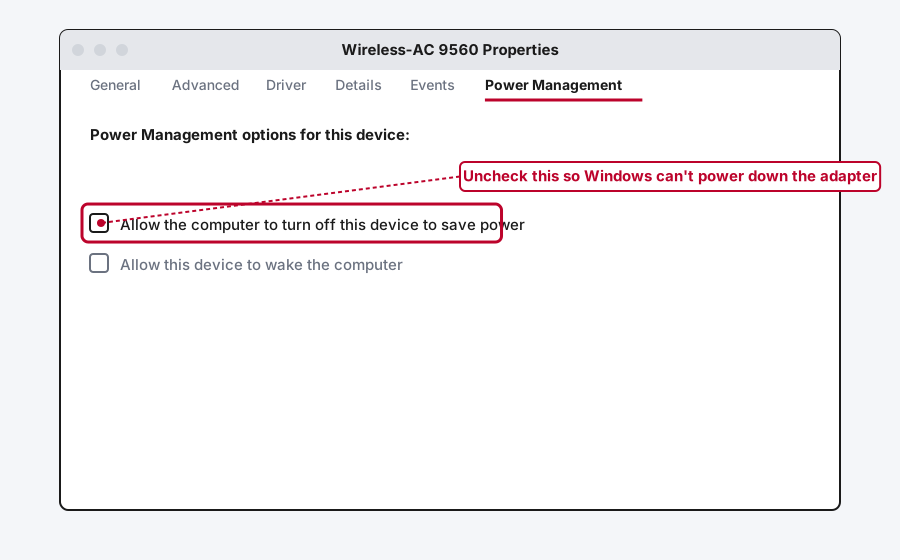
This one setting is responsible for a genuinely large share of "works fine, then randomly drops" reports, since it lets Windows cut power to the radio the same way it would for an idle USB device.
Step 2: If You're Using a USB Wi-Fi Adapter, Also Disable USB Selective Suspend
External USB Wi-Fi adapters have a second, separate power-saving setting layered on top of the one above. Open Control Panel, go to Power Options, click "Change plan settings" next to your active plan, then "Change advanced power settings." Expand "USB settings," then "USB selective suspend setting," and set both On battery and Plugged in to Disabled.
Method 5: Check for a Wireless Mode or Band Mismatch
If you can see some networks but not others, particularly a 5GHz network that should be well within range, this is worth checking before assuming it's a router problem.
Step 1: Open the Adapter's Advanced Properties
In Device Manager, right-click your Wi-Fi adapter, choose Properties, and open the Advanced tab.
Step 2: Find the Wireless Mode or Band Setting
Look for a property named something like "Wireless Mode," "802.11 Band," or "Preferred Band," the exact wording varies by adapter manufacturer. Its value determines which frequency bands the adapter will actually scan for.
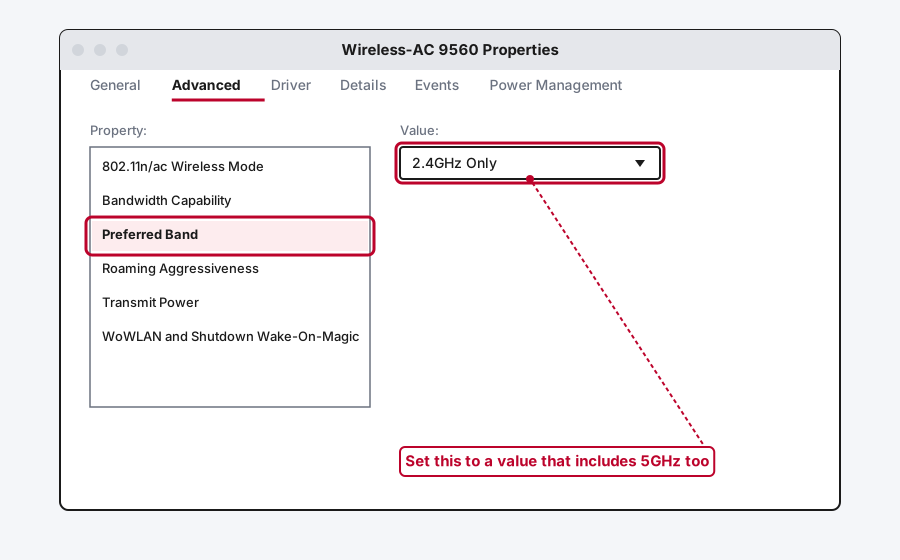
Step 3: Set It to Match Your Router
If it's locked to 2.4GHz only, or to an older 802.11 standard, and your router is broadcasting 5GHz on a separate network name, that mismatch alone explains why you can't see it. Setting the property to a value that includes both bands, if the adapter offers one, is usually the fix.
Method 6: Fast Startup Can Stop Wi-Fi From Reconnecting
If Wi-Fi worked fine before a restart and just won't come back afterward, even though the adapter looks fine in Device Manager, Fast Startup is worth ruling out. It's a Windows feature that hibernates the kernel session instead of doing a full shutdown, and it can leave a wireless adapter in a half-initialized state on the next boot.
Step 1: Open Power Options From Control Panel
Search for Control Panel, not Settings, since this option only lives in the older Control Panel interface. Go to Hardware and Sound > Power Options.
Step 2: Open Choose What the Power Button Does
Click "Choose what the power button does" in the left sidebar, then click "Change settings that are currently unavailable" near the top, this unlocks the greyed-out checkboxes below it.
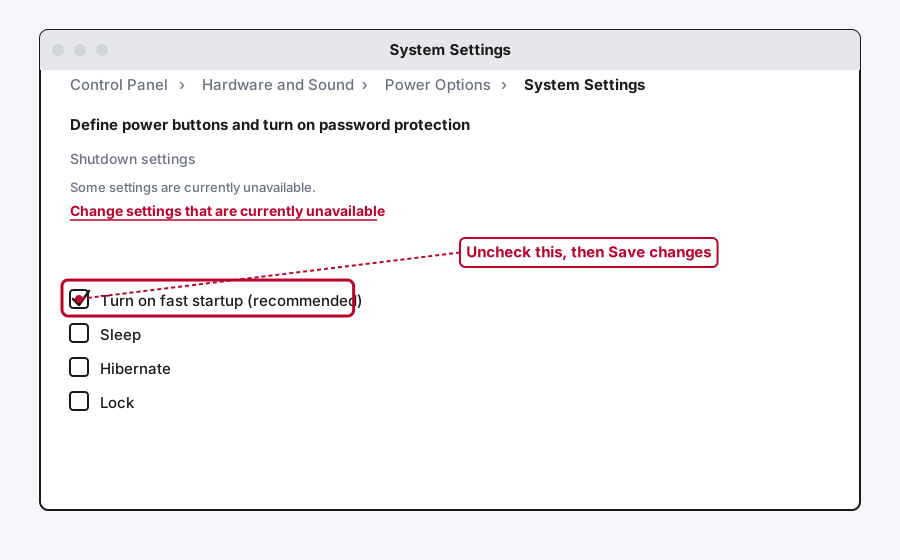
Step 3: Uncheck Turn On Fast Startup
Uncheck it and click Save changes. Your PC will now do a genuine full shutdown instead of a hybrid hibernate, which takes a few seconds longer to boot but resolves a real class of post-restart hardware weirdness that Fast Startup can cause, Wi-Fi included.
Method 7: Full Network Reset as a Last Resort
If nothing above has worked, this rebuilds every network adapter and setting on the machine from scratch.
Go to Settings > Network & internet > Advanced network settings and select Network reset, then Reset now. This removes every saved Wi-Fi network, VPN, and adapter configuration on the PC, so you'll be re-entering Wi-Fi passwords afterward, but it clears out corruption that none of the more targeted fixes above reach.
Still Not Working?
If you've worked through all of this and Wi-Fi still won't behave, it's worth checking whether the issue is actually your adapter's hardware rather than anything software can fix, a wireless card that's physically failing shows a lot of the same symptoms as a driver problem. Microsoft's own Wi-Fi troubleshooting guide covers a few additional adapter-specific and enterprise-network edge cases beyond what's here. And if your device is showing as connected but nothing actually loads once you're on the network, that's a separate problem covered start to finish in Wi-Fi Connected But No Internet? Here's Why.
Frequently Asked Questions
Why does Windows say "couldn't connect to this network" for a network I've used before?
This almost always means the saved profile for that network has gone stale, usually because the router's password or security type changed since Windows last saved it. Deleting the profile with netsh wlan delete profile and reconnecting from scratch clears it.
Why does my Wi-Fi disconnect a few minutes after connecting?
The most common cause is Windows' own power management switching the adapter off to save battery. Check the Power Management tab on the adapter in Device Manager and uncheck "Allow the computer to turn off this device to save power."
Should I update or roll back my Wi-Fi driver?
If Wi-Fi has been unreliable for a while with no clear trigger, try updating the driver first. If it broke suddenly right after a Windows update installed, rolling back to the previous driver version is the more targeted fix, since the timing points at the update itself rather than the driver degrading on its own.
Why can't I see my router's 5GHz network?
Some adapters ship with their wireless mode or band setting locked to 2.4GHz only, or to an older 802.11 standard that doesn't include 5GHz. Check the adapter's Advanced properties in Device Manager for a Wireless Mode or Band setting and change it to include both bands if the option exists.
Is a full network reset safe to do?
Yes, it just removes every saved Wi-Fi network, VPN, and adapter configuration so Windows rebuilds them from scratch. You'll need to re-enter Wi-Fi passwords afterward, but no files or apps are affected.
Quick Summary
Start with what you're actually seeing: a flat refusal to connect points at a corrupted saved network profile, which a quick netsh wlan delete profile and reconnect usually clears. A connection that drops or degrades after working fine points at power management, both the adapter's own Power Management tab and, for USB adapters, the separate USB selective suspend setting. A missing network list or a warning icon in Device Manager points at the driver, update it if the problem's been ongoing, roll it back if it started right after a Windows update. A network that won't reconnect specifically after a restart is worth checking against Fast Startup. And if none of that fits because you're actually connected but nothing loads, that's a different article entirely, see the cross-link above.
Related Articles
Wi-Fi Connected But No Internet? Here's Why
Wi-Fi connected but no internet almost always comes down to your router losing its connection to your ISP, a DNS problem, or a device stuck on a bad IP address. Here's how to work through all of them.