

Wi-Fi Connected But No Internet? Here's Why

Wi-Fi connected but no internet is one of the more confusing errors your devices can throw at you, because the connected part is telling the truth. Your phone or laptop really has joined the network, handshake and all, it's just that the network itself has stopped actually reaching the internet somewhere upstream, or your device got handed a broken address to work with.
I've lost a good twenty minutes to this exact thing sitting in a coffee shop once, convinced my laptop was broken, before realizing the Wi-Fi icon was connected to a network that needed a login page I'd never actually opened.
Quick answer: if every device in your house has lost internet at the same time, it's almost always your router or modem, and a proper restart in the right order fixes it more often than anything else on this page. If it's just one device while everything else is fine, the problem is local to that device, usually a bad DNS setting, a stuck IP address, or a saved network profile that's gone stale.
Key takeaways:
- "Connected" only means your device successfully joined the Wi-Fi network itself, it says nothing about whether that network can actually reach the internet.
- If one device is affected and everything else in the house is fine, restarting your router won't help, the fix is on that device.
- An IP address starting with 169.254 means your device never got a real address from your router at all, and that's a very specific, very fixable problem.
- Public Wi-Fi at a cafe, hotel, or airport often shows "connected" while you're still stuck behind a login page you haven't opened yet.
Prefer an interactive walkthrough? Try our Wi-Fi Troubleshooter →
If Windows won't connect to a network at all, throws a "couldn't connect" error, or keeps dropping the connection outright, that's a different problem covered in How to Fix Windows Wi-Fi Connection Issues, this article is specifically about a network that connects fine but doesn't reach the internet.
Quick Diagnostic: What's Actually Going Wrong?
| What you're seeing | Likely cause | Try this first |
|---|---|---|
| Every device in the house lost internet at the same time | Router or modem lost its connection upstream | Method 1 |
| Only one device shows "no internet," everything else is fine | A problem local to that one device | Method 2 |
| Windows shows "No internet, secured" or "Limited" | DNS, IP address, or network adapter issue | Method 3 |
| iPhone or Android shows a connected Wi-Fi icon but nothing loads | Stale network profile, captive portal, or DNS | Method 5 |
ipconfig shows an IP starting with 169.254 |
Device never got a real address from the router | Method 6 |
| You're on public Wi-Fi at a cafe, hotel, or airport | A login page you haven't opened yet | Method 7 |
| Keeps happening every few days, even after restarting | Aging router hardware or outdated firmware | Method 8 |
Why "Connected" Doesn't Mean "Working"
Joining a Wi-Fi network and reaching the internet are two completely separate steps, and Windows, iOS, and Android all report them separately even though the wording doesn't always make that obvious. The first step is your device authenticating to your router, handshake, password, assigned local address, done. The second step is your router actually being able to reach your internet service provider and pass traffic back and forth. When the second step fails, your device is still connected in every sense that matters to it locally, it just has nowhere to send anything.
That's the reason a router restart fixes some of these and does nothing for others. If your router itself lost its upstream connection, restarting it re-establishes that link. If the problem is specific to your one device, like a bad DNS setting or a corrupted local network profile, your router was never the issue, and no amount of unplugging it will change anything.
Method 1: Restart Your Modem and Router the Right Way
This solves more of these cases than everything else on this page combined, and it's worth doing properly rather than just flipping the router off and on.
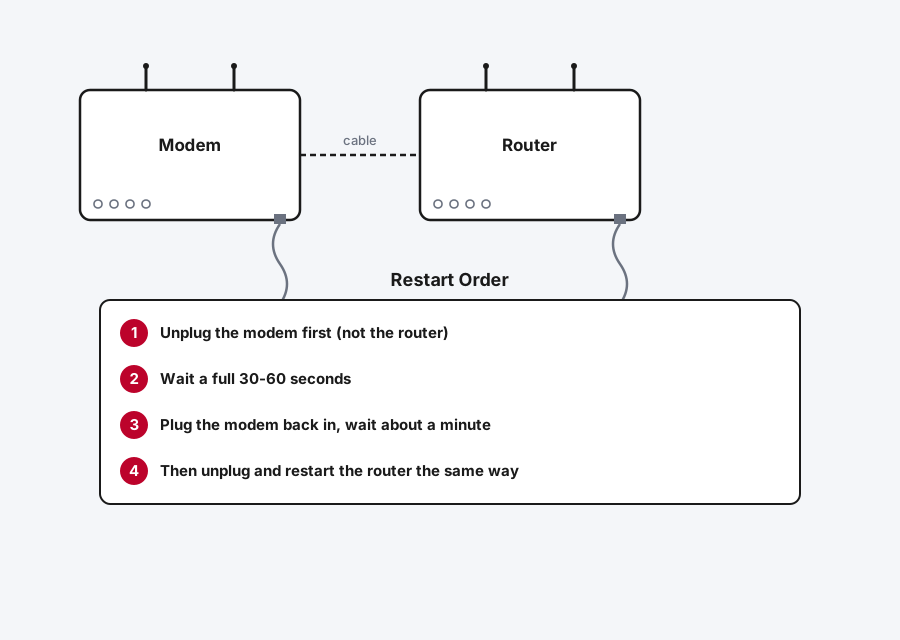
Step 1: Unplug the Modem First
If you have a separate modem and router, unplug the modem's power first, not the router. Wait a full 30 to 60 seconds, this isn't a formality, it gives your ISP's equipment time to fully release the connection instead of picking up a half-finished session when it comes back.
Step 2: Power the Modem Back On and Wait
Plug it back in and wait about a minute for its status lights to settle into their normal pattern before touching the router. Rushing this step is the most common reason a restart "doesn't work," the modem hasn't actually finished reconnecting to your ISP yet.
Step 3: Restart the Router the Same Way
Unplug the router, wait 30 seconds, plug it back in, and give it a minute or two to fully boot and re-establish its own connection to the modem.
Step 4: If You Have a Combined Modem-Router, Same Idea
A single combo unit gets the same treatment, unplug it, wait a full 30 seconds (don't rush this), and plug it back in.
Method 2: Figure Out If It's One Device or Everything
Before troubleshooting further, this single check saves you from fixing the wrong thing entirely.
Grab a second device, your phone if you were on a laptop, or vice versa, and check whether it has internet on the same Wi-Fi network. If the second device works fine, the problem is local to your first device and you want Method 3, 5, or 6 below depending on what platform it's on. If the second device has the exact same problem, your router or your ISP connection is the actual issue, and Method 1 or Method 8 is where to spend your time.
Method 3: Fix It on Windows
Windows is usually the most explicit about this, showing "No internet, secured" or a "Limited" label right on the Wi-Fi icon itself rather than leaving you guessing.
Step 1: Run the Windows Network Troubleshooter
Go to Settings and search for "Network Troubleshooter," or open Settings > System > Troubleshoot > Other troubleshooters and run the one for Network & Internet. It checks your adapter, DNS, and IP configuration automatically and fixes a real chunk of these cases without you touching a command line at all.
Step 2: Forget and Rejoin the Network
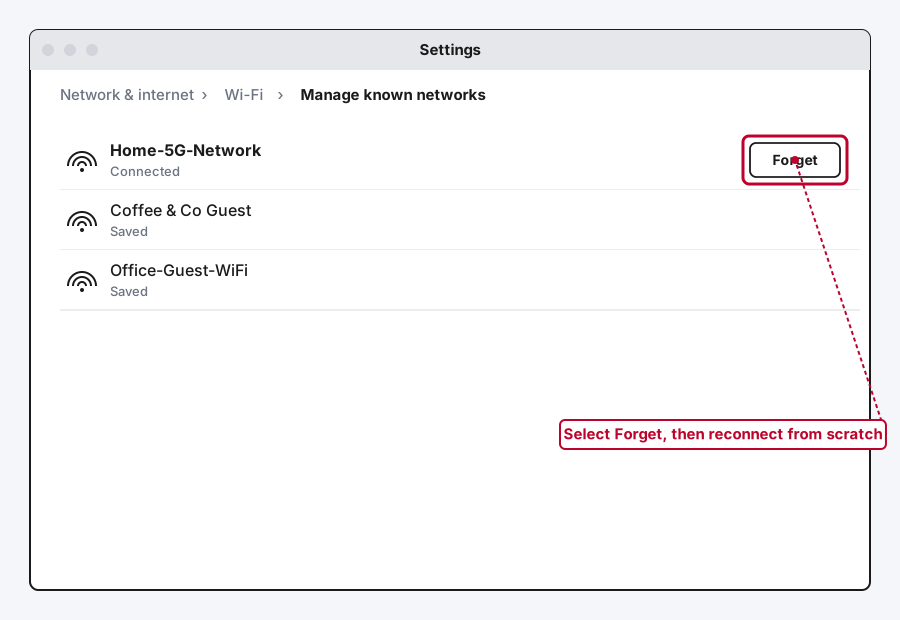
Go to Settings > Network & internet > Wi-Fi > Manage known networks, select your network, and choose Forget. Reconnect from scratch and re-enter the password. This clears out a stale or corrupted network profile, which is a more common cause than it sounds like.
Step 3: Release and Renew Your IP Address
Open Command Prompt as Administrator and run these in order:
ipconfig /release
ipconfig /renew
ipconfig /flushdns
This drops whatever address your device currently has and asks your router for a fresh one, clearing out a bad or expired lease along with any cached DNS lookups that might be pointing at a dead end.
Step 4: Reset the Network Adapter Entirely
If the steps above don't help, a full reset goes further. Still in an elevated Command Prompt, run:
netsh winsock reset
netsh int ip reset
Then restart your PC. This rebuilds Windows' entire network stack from scratch, which resolves corruption that a simple release/renew doesn't touch. As a last resort, Settings > Network & internet > Advanced network settings > Network reset does the same thing through the Settings app instead of the command line, though it removes all your saved Wi-Fi networks and adapters in the process, so you'll be re-entering passwords afterward.
Method 4: Change Your DNS Server
DNS is the part of the internet that translates a website name into the actual address your device needs to reach it, and it's a surprisingly common single point of failure, your connection can be completely fine while DNS itself is broken or being blocked, which looks identical to "no internet" from where you're sitting.
Step 1: Open Your Network's DNS Settings
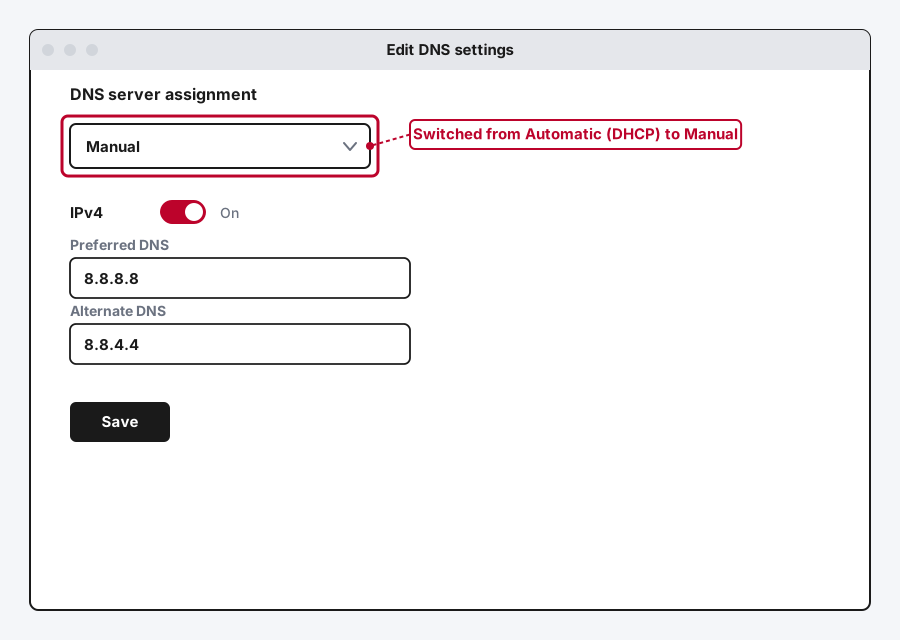
On Windows, go to Settings > Network & internet > Wi-Fi, click your connected network, scroll to "DNS server assignment," and select Edit.
Step 2: Switch From Automatic to Manual
Change the dropdown from Automatic (DHCP) to Manual, turn on IPv4, and enter a public DNS server. Google's (8.8.8.8 and 8.8.4.4) and Cloudflare's (1.1.1.1 and 1.0.0.1) are both free, reliable, and work regardless of who your ISP is.
Step 3: Save and Test
Save the settings and try loading a website again. If pages suddenly load that wouldn't before, your ISP's own DNS servers were the actual problem the whole time, not your Wi-Fi at all.
Method 5: Fix It on iPhone or Android
Phones give you less manual control than Windows, but the same underlying fixes apply.
Step 1: Forget the Network and Rejoin
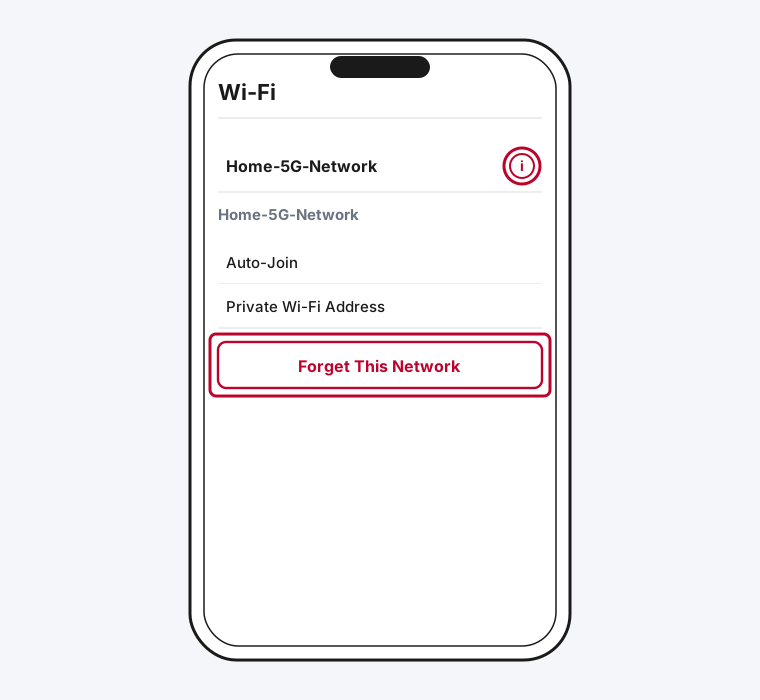
On iPhone, go to Settings > Wi-Fi, tap Edit in the corner, tap the info button next to the network, and choose Forget This Network. On Android, long-press the network name in Wi-Fi settings and choose Forget. Reconnect from scratch afterward.
Step 2: Toggle Airplane Mode
This sounds too simple to matter, but it forces a full re-negotiation of the Wi-Fi connection in a way that a plain disconnect-and-reconnect sometimes doesn't. Turn Airplane Mode on for ten seconds, then off again.
Step 3: Check for a Private DNS or Custom DNS Setting
Android has a "Private DNS" option under Settings > Network & internet > Private DNS that occasionally gets set to a provider hostname that's no longer responding. Switching it to Automatic (or Off) rules this out as the cause. iPhone doesn't expose DNS as directly, but a misconfigured VPN profile can have the same effect, worth checking Settings > VPN if you have one installed.
Method 6: Fix a 169.254 IP Address
If you ran ipconfig on Windows (or checked your IP address on any device) and it starts with 169.254, this is a specific, well-understood problem, not a vague glitch.
An address in that range is called an APIPA address, and it means your device gave up waiting for your router to assign it a real one and picked a placeholder that only works for talking to other devices on the same local segment, not the internet. The fix is almost always the same release/renew steps from Method 3, since the real cause is usually your router's DHCP service being temporarily unresponsive or your device's cached lease pointing at a router that's since restarted with a different configuration.
If release and renew doesn't clear a 169.254 address, restart the router itself, since this specific symptom, one device stuck on a placeholder address while others connect fine, sometimes means the router's own DHCP pool briefly ran into trouble handing out addresses.
Method 7: Deal With a Captive Portal on Public Wi-Fi
Cafes, hotels, airports, and a lot of office guest networks use what's called a captive portal, a login or terms-of-service page you're supposed to see the moment you connect, before you actually get real internet access. Your phone or laptop can report "connected" the entire time you're stuck in front of that unopened page.
Step 1: Open a Browser Manually
Most phones and laptops detect a captive portal and pop the login page up automatically, but it doesn't always trigger. Open a browser yourself and try to go to any plain website, this often forces the portal page to appear.
Step 2: Check for a Notification You Might Have Dismissed
Both iPhone and Android show a notification when a login page is available and it's easy to swipe away without noticing. Pull down your notification shade and look for anything mentioning the network name.
Step 3: Try a Different Browser If the Page Won't Load
Some captive portals don't play well with certain in-app browsers or ad blockers. If your regular browser hangs on a blank page, try a different one, or briefly disable an ad blocker for that one connection.
Method 8: Rule Out Aging Router Hardware
If this keeps happening every few days despite everything above working temporarily, the router itself may be the actual long-term problem, not any single setting.
Routers running for four or five years without a restart accumulate memory issues that a quick power cycle only clears out temporarily. Check your router's admin panel or companion app for a firmware update, manufacturers do occasionally patch exactly this kind of stability bug. If updates are current and the problem still recurs on a predictable cycle, that's a stronger signal pointing at hardware wearing out than at anything you can fix through settings.
Still Not Working?
If you've worked through everything above and you're still stuck, the most reliable next step is confirming whether it's actually an outage on your internet provider's end rather than anything in your house. Check your phone's cellular data or a neighbor's connection if you can, and most ISPs post real-time outage status through their own app or support site. Microsoft's own Wi-Fi troubleshooting guide is worth a look too, since it covers a few adapter-specific edge cases this guide doesn't get into in as much depth.
Frequently Asked Questions
Why does my phone say connected but nothing loads?
Your phone successfully joined the Wi-Fi network itself, which is all "connected" actually confirms, but something past that point is broken: the router's link to your ISP, a bad DNS setting, or a captive portal login page you haven't opened yet.
Will restarting my router fix a problem on just one device?
No. If a second device on the same network has internet just fine, your router isn't the issue, and restarting it won't change anything. The fix belongs on the one affected device.
What does a 169.254 IP address mean?
It means your device never received a real address from your router and fell back to a placeholder that only works for local network traffic, not the internet. Releasing and renewing your IP address, or restarting the router if that doesn't help, almost always clears it.
Is changing my DNS server actually safe?
Yes. Switching to a public DNS server like Google's (8.8.8.8) or Cloudflare's (1.1.1.1) just changes which service translates website names into addresses, it doesn't affect your privacy any more than your ISP's own DNS already does, and it's fully reversible by switching back to Automatic.
Why does this happen more on public Wi-Fi than at home?
Public networks almost always use a captive portal login page that your device is supposed to open before you get real access, and it's easy to connect, get distracted, and never actually see or complete that page, leaving you technically connected with nowhere to go.
Quick Summary
Start by checking whether it's just one device or every device in your house, since that single check tells you where to actually spend your time. If everything's affected, restart the modem first, then the router, waiting a full 30 to 60 seconds between unplugging and plugging back in. If it's just one device, work through forgetting and rejoining the network, releasing and renewing its IP address, and switching to a public DNS server like 8.8.8.8 or 1.1.1.1. A 169.254 IP address points specifically at a DHCP problem, and public Wi-Fi trouble is very often just an unopened captive portal login page rather than anything actually broken. If none of that clears it and the problem keeps recurring, aging router hardware is worth a closer look.
Related Articles
How to Fix Windows Wi-Fi Connection Issues
Windows Wi-Fi connection issues almost always trace back to one of three things: a corrupted network profile, an outdated or misbehaving driver, or a power-saving setting cutting the adapter off. Here's how to work through all of them.