

Android Auto Wireless Adapter: What It Is & How to Set It Up

An Android Auto wireless adapter is a small dongle that plugs into your car's USB port and converts a wired-only Android Auto connection into a wireless one, with no changes to the car itself and no aftermarket head unit required. If your car only ever offered Android Auto through a cable, one of these is the cheapest way to stop plugging in every time you get in.
I'll be upfront about the one thing that trips people up before they even buy one: this only works if your car already supports Android Auto over a cable. The adapter doesn't add Android Auto to a car that never had it, it just removes the wire from a car that already does.
Quick answer: plug the adapter into your car's USB port with the engine running, pair it to your phone over Bluetooth the first time, and Android Auto should launch on its own within a few seconds once the adapter and phone finish exchanging Wi-Fi credentials. After that first pairing, it reconnects automatically every time you start the car, no cable involved.
Key takeaways:
- These adapters only work if your car already supports wired Android Auto. Plug in a cable and confirm Android Auto launches before you buy anything.
- Your phone needs Android 11 or newer and 5 GHz Wi-Fi support, not just Bluetooth. Older or budget phones sometimes only have 2.4 GHz Wi-Fi, which isn't enough.
- Setup is genuinely just plug in, pair over Bluetooth once, and let it reconnect on its own after that, across every major adapter brand.
- A few specific vehicles and aftermarket head units (certain Mitsubishi models, BMW's factory system, Sony aftermarket units) are known incompatible with one or more of these adapters, so it's worth a quick check before ordering.
Prefer an interactive walkthrough? Try our Android Auto Wireless Adapter Troubleshooter →
If your Android Auto connection is actually broken rather than just wired, our Android Auto Not Connecting guide covers cables, Play Services updates, and connection records, this article is specifically about going wireless with an adapter, not fixing a connection that's already failing.
What Is a Wireless Android Auto Adapter, Exactly?
It's a small box, usually a bit bigger than a USB thumb drive, that sits between your phone and your car. You plug it into the same USB port you'd normally run an Android Auto cable into, and it presents itself to the car as if a wired phone were connected, while actually talking to your real phone over Bluetooth and Wi-Fi.
That's the whole trick. Your car's infotainment system doesn't know the difference, doesn't need a firmware update, and doesn't need to already support wireless Android Auto natively. The adapter does the translating.
Do You Actually Need One?
Before spending anything, rule out two things that make this purchase pointless.
Check whether your car already has wireless Android Auto built in. A growing number of newer vehicles support it natively, no adapter needed, and if yours already does, buying a dongle just adds a redundant piece of hardware. Check your infotainment settings for a wireless Android Auto or "Android Auto Wireless" option before assuming you need one.
Confirm your car supports wired Android Auto at all. Plug your phone in with a real USB cable first. If Android Auto launches on the dash, your car qualifies and an adapter will work. If nothing happens, the adapter won't fix that, since it converts an existing wired connection to wireless, it doesn't create Android Auto support from scratch.
| Your situation | Do you need an adapter? |
|---|---|
| Car has wireless Android Auto already | No, you're set |
| Car launches Android Auto over a cable, no wireless option | Yes, this is exactly what these adapters are for |
| Car doesn't launch Android Auto even with a cable plugged in | No adapter will fix this, the car doesn't support Android Auto period |
| Phone is older than Android 11, or has no 5 GHz Wi-Fi | Check your specific phone model first, this is the most common phone-side dealbreaker |
How These Adapters Actually Work
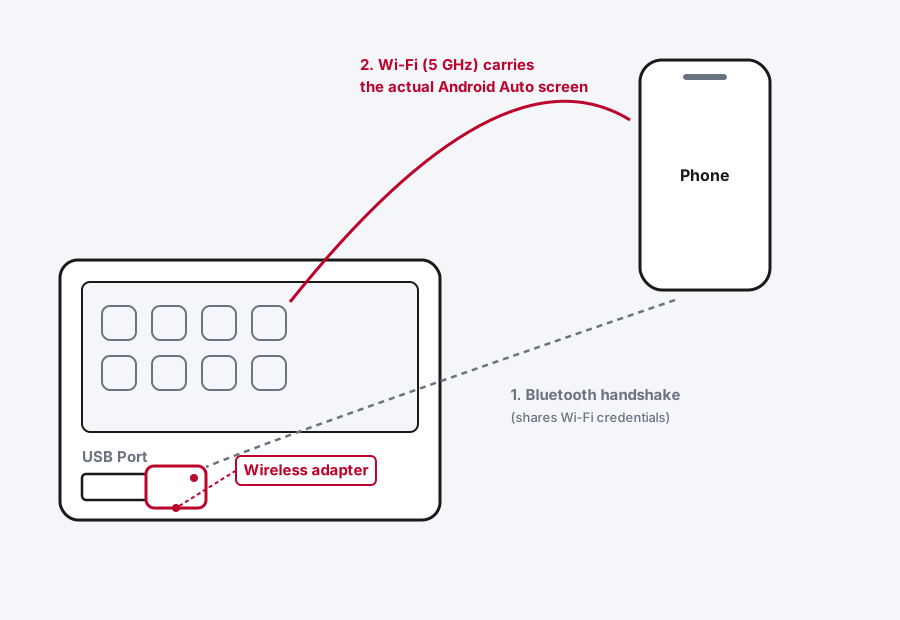
The handshake happens in two stages, and it's worth understanding because it explains almost every setup quirk you'll run into.
First, Bluetooth. When you pair the adapter to your phone the first time, Bluetooth is just there to let the two identify each other and exchange Wi-Fi credentials, essentially introducing them so they can set up a private Wi-Fi network between themselves.
Then Wi-Fi takes over. Once that handshake finishes, the actual screen mirroring, the video, the touch input, all of it runs over a direct 5 GHz Wi-Fi connection between your phone and the adapter, not your home network or mobile data. Bluetooth stays connected in the background for things like phone call audio, but it's not doing the heavy lifting anymore.
This is also exactly why your phone's 5 GHz Wi-Fi support matters so much. A phone that only has 2.4 GHz Wi-Fi can still pair over Bluetooth just fine, and then the video connection either never establishes or connects and immediately drops, which looks like a broken adapter when it's actually a hardware limitation on the phone's side.
Which Adapter Should You Buy?
Three real options come up consistently, and they're priced closely enough that the differences that matter are compatibility and whether you also want wireless CarPlay for an iPhone in the house.
| Adapter | Price | Notes |
|---|---|---|
| AAWireless Two+ | $64.99 (regularly discounted, seen as low as $55) | The only one of these three that officially supports both Android Auto and CarPlay on the same device, with a physical button to switch between them. Good pick if your household has both an Android phone and an iPhone sharing one car. |
| Motorola MA1 | $69.99 | Android Auto only, straightforward three-step setup, no companion app strictly required to function. Motorola specifically calls out Mitsubishi vehicles as incompatible. |
| Ottocast Mini Wireless Adapter | $79.99 (frequently discounted) | Also supports both Android Auto and CarPlay. Ottocast's own compatibility notes list BMW, Sony aftermarket head units, and certain Mitsubishi models as unsupported. |
I'd start with whichever one your specific car and phone combination is confirmed to work with, since all three do the same basic job at a similar price, and the real differentiator between them is compatibility with your exact hardware, not a meaningful difference in day-to-day performance.
All three ship with a short USB-C to USB-A cable and a quick-start guide in the box, and all three are designed to just sit plugged into the port permanently rather than being unplugged between drives.
How to Set Up a Wireless Android Auto Adapter
Step 1: Confirm Your Car and Phone Qualify First
Don't skip this. Plug your phone into your car with a real cable and confirm Android Auto launches, and check your phone's Android version (Settings > About phone) is 11 or newer. This takes two minutes and saves you from troubleshooting a device that was never going to work in your specific car.
Step 2: Plug the Adapter Into Your Car's USB Port
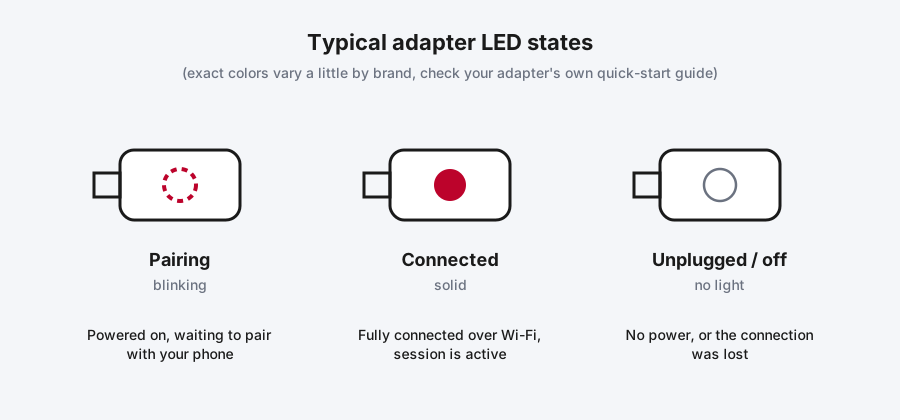
With the engine running, plug the adapter directly into the same USB port you'd normally use for a wired Android Auto connection. You should see an LED light up on the adapter within a few seconds, that's your sign it's powered and ready to pair.
Step 3: Turn On Bluetooth and Wi-Fi on Your Phone
Both need to be on. Bluetooth handles the initial pairing, Wi-Fi carries the actual Android Auto session once pairing finishes.
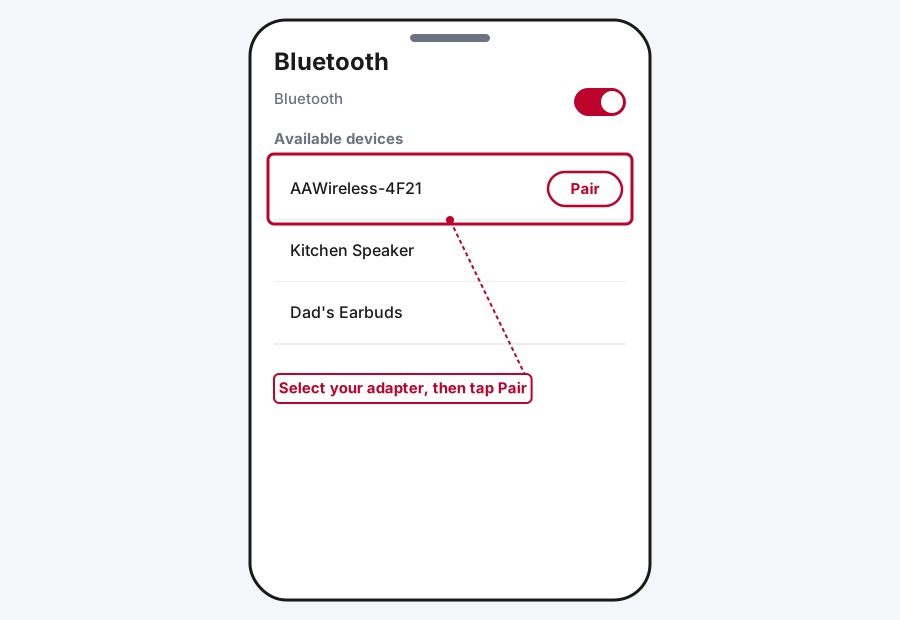
Step 4: Pair the Adapter From Your Phone's Bluetooth Settings
Open your phone's Bluetooth settings, look for the adapter in the list of available devices (it'll show a manufacturer-specific name), and select it to pair. Some adapters also offer a companion app for extra configuration, but pairing itself happens through your phone's normal Bluetooth settings, not inside an app.
Step 5: Let Android Auto Launch on Its Own
Once pairing completes, Android Auto should appear on your car's screen automatically within a few seconds, no need to select anything manually on most systems. If your specific head unit does need a manual selection, it'll be a "Android Auto" or "Wireless Android Auto" option in the source menu.
After this first setup, the adapter remembers your phone and reconnects on its own every time you start the car, the same way wireless Android Auto works on cars that have it built in natively.
Reading the LED: What the Light Actually Means
Every adapter brand handles this slightly differently, but the general pattern holds across all three: a blinking or pulsing light usually means it's powered on and waiting to pair, and a solid light (blue, on the models that use blue) means it's fully connected over Wi-Fi and actively running the Android Auto session. Check your specific adapter's quick-start guide for its exact color meanings, since this is one detail that genuinely does vary by brand rather than being standardized.
If It Won't Pair or Android Auto Doesn't Launch
Most first-time setup problems trace back to one of a few things, roughly in order of how often they actually turn out to be the cause:
- The phone isn't actually 5 GHz Wi-Fi capable. This is the single most common silent failure. Bluetooth pairs fine, but the Wi-Fi handoff never completes, and there's no clear error message, it just doesn't launch.
- The USB port itself doesn't carry data, if your car has multiple USB ports and only one is wired for Android Auto. Check your car's manual for which port is the right one.
- Another phone is still paired to the adapter from a previous setup. Forget the old pairing on both the adapter (if it has a reset button or app-based reset) and your phone's Bluetooth settings, then pair again fresh.
- The adapter's firmware is out of date. AAWireless and Ottocast both push updates through their companion apps, and an outdated adapter is a real, if less common, cause of intermittent connection failures.
If you've worked through all of that and it's still not connecting, or if the connection drops mid-drive rather than failing to establish at all, that points to a broader Android Auto issue rather than something specific to the adapter, and our Android Auto Not Connecting guide covers those causes in depth, including the Google Play Services bug that's caused a lot of random disconnects in 2026.
Still Not Working?
Each manufacturer maintains its own support channel, and it's worth going straight to them for a hardware-specific issue: AAWireless's support and troubleshooting page, Motorola Sound's product support, and Ottocast's own support contact linked from their product pages. Google's Android Auto Help Center is the right place for issues that trace back to Android Auto itself rather than the adapter hardware.
Frequently Asked Questions
Do I need a data plan for the adapter to work?
No additional data plan beyond what your phone already has. The video and audio between your phone and the adapter run over a direct Wi-Fi connection, not your mobile data. Individual apps you use through Android Auto, like streaming music or navigation traffic data, still use your regular data connection the same as they would without an adapter.
Can I use one of these adapters if my car already has wireless Android Auto?
You can, but there's usually no reason to. If your car already supports wireless Android Auto natively, an adapter is solving a problem you don't have. The one exception is a car whose built-in wireless Android Auto has become unreliable, where some owners have found a dedicated adapter connects more consistently, though that's a workaround, not the intended use case.
Will an adapter drain my phone's battery faster?
Somewhat, yes, since your phone is running both Bluetooth and Wi-Fi radios continuously during the drive, plus the screen-mirroring load itself. It's a similar drain to using wireless Android Auto on a car that has it built in, and most cars still charge your phone over the same USB port the adapter is plugged into, which usually offsets it.
Does the adapter work with an iPhone?
Only if you buy one of the models that explicitly supports CarPlay too, like the AAWireless Two+ or the Ottocast Mini. A dongle marketed as Android Auto only, like the Motorola MA1, won't do anything for an iPhone since CarPlay and Android Auto are different systems entirely.
Why does my adapter pair over Bluetooth but Android Auto never actually opens?
This is almost always the 5 GHz Wi-Fi requirement not being met on the phone side. Bluetooth pairing succeeding doesn't confirm your phone can handle the Wi-Fi half of the connection, so double check your phone model actually supports 5 GHz Wi-Fi before assuming the adapter itself is defective.
Quick Summary
A wireless Android Auto adapter is a genuinely simple fix for a car that only offers Android Auto over a cable: confirm your car already launches Android Auto wired and your phone runs Android 11 or newer with 5 GHz Wi-Fi, then plug the adapter into your car's USB port, pair it once over Bluetooth, and let it reconnect automatically from then on. AAWireless, Motorola's MA1, and Ottocast's Mini adapter all do this job well for around $60 to $80, with AAWireless and Ottocast adding CarPlay support if your household needs both. Most setup failures trace back to a phone that doesn't actually support 5 GHz Wi-Fi rather than a defective adapter, so that's the first thing worth double-checking if pairing succeeds but Android Auto itself never launches.
Related Articles
Android Auto Not Connecting? Here's How to Fix It (2026)
Android Auto not connecting usually comes down to a charge-only cable, a wireless setting that's off, or a stale Google Play Services build. Here's how to work through all of them.