

Android Auto Not Connecting? Here's How to Fix It (2026)

Android Auto not connecting almost always comes down to one of a short list of causes: a cable that only charges instead of carrying data, a wireless requirement that's quietly not met, a stuck "previously connected car" record, or, more often than people expect, an outdated Google Play Services build. None of these are exotic, and none of them require a factory reset to fix.
I've had Android Auto connect fine one morning and refuse to show up the next, on the exact same phone and the exact same car, with nothing I could point to as having changed. It turned out to be a pending Google Play Services update sitting in the background, not doing anything until I actually let it install.
Quick answer: start with the basics that cause most cases, a data-only USB cable or the wrong port for wired Android Auto, or Wi-Fi and Bluetooth both needing to be on for wireless. If the connection itself checks out, the next most common fix is forgetting the car under Android Auto's connection settings and reconnecting fresh, since a corrupted "previously connected car" record is a genuinely common silent cause.
Key takeaways:
- A USB cable that charges your phone just fine can still be incapable of Android Auto's data connection, and the two look identical from the driver's seat.
- Wireless Android Auto needs a phone with 5 GHz Wi-Fi support and Android 11 or newer, not just Bluetooth turned on.
- Google shipped several Google Play Services updates through 2026 specifically targeting a widespread Android Auto disconnection bug, so an outdated Play Services build is a real, current cause worth ruling out.
- Android Auto stores a separate connection record per car, and "Forget all cars" under Connection preferences clears out a corrupted one without touching anything else on your phone.
Prefer an interactive walkthrough? Try our Android Auto Troubleshooter →
Quick Diagnostic: What's Actually Going Wrong?
| What you're seeing | Likely cause | Try this first |
|---|---|---|
| Wired connection charges the phone but Android Auto never opens | Charge-only cable or the wrong USB port | Method 1 |
| Wireless Android Auto won't connect at all | Wi-Fi off, phone too old, or car doesn't support wireless | Method 2 |
| Used to work in this car, now nothing happens on connect | A corrupted "previously connected car" record | Method 3 |
| Connects, then disconnects a few seconds later, on repeat | Outdated Google Play Services | Method 4 |
| Android Auto is slow to open, glitchy, or freezes mid-drive | A stale app cache | Method 5 |
| Doesn't open automatically, or won't launch when the phone is locked | An in-app setting turned off | Method 6 |
| Random disconnects during driving, not right at connection | Interference or another paired device | Method 7 |
Why "Android Auto Not Connecting" Usually Isn't a Software Problem
Android Auto itself is just the layer that mirrors your phone's apps onto your car's screen. It rides on top of a physical USB connection, or a Bluetooth-then-Wi-Fi handshake for wireless, and most of what looks like "Android Auto is broken" is actually one of those two things failing to hold a connection, not Android Auto's own code misbehaving.
That's the order worth troubleshooting in too: check the connection itself first, wire or wireless, before touching any Android Auto setting specifically. A flaky cable or an unmet wireless requirement looks exactly like a software bug from where you're sitting.
Method 1: Check Your Cable and USB Port (Wired Android Auto)
This is the single most common cause, and the fastest one to rule out.
Step 1: Confirm the Cable Actually Carries Data
Plenty of USB-C cables, especially the free ones that come bundled with chargers or sit loose in a glovebox, are wired for power only. Google's own guidance is specific here: use a certified cable under 3 feet long, and skip USB hubs or extension cables entirely, since both can quietly break the data connection even when charging still works fine.
Step 2: Try the Cable That Came With Your Phone
If you've got the original cable your phone shipped with, swap it in. It's the one most likely to actually be certified for both power and data.
Step 3: Check the Port Itself
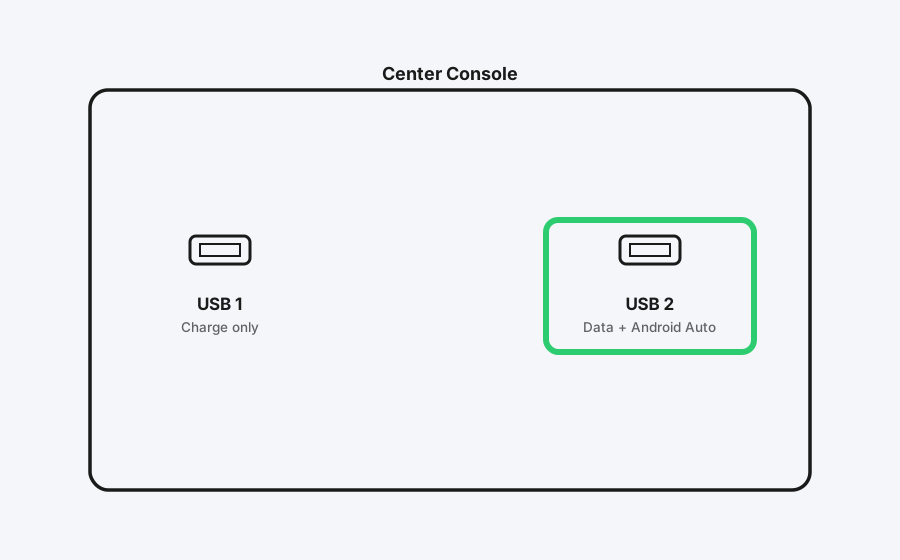
Some cars, especially ones with multiple USB ports in the console or back seat, wire only one of them for data. Check your car's manual for which port is actually meant for phone projection, and make sure both ends of the cable are firmly seated, a loose connection at either end causes the exact same symptom as a bad cable.
Method 2: Fix Wireless Android Auto Specifically
Wireless Android Auto has requirements wired doesn't, and missing any one of them is enough to stop it connecting.
Step 1: Confirm Your Phone Actually Supports It
Wireless projection needs Android 11 or newer and a phone with 5 GHz Wi-Fi support, not just any Wi-Fi radio. Older or budget phones sometimes only support 2.4 GHz, which isn't enough for wireless Android Auto even if Bluetooth pairs without issue.
Step 2: Turn On Both Bluetooth and Wi-Fi
Bluetooth handles the initial handshake with the car, but the actual screen mirroring runs over a direct Wi-Fi connection afterward. If Wi-Fi is off, or your phone has a battery-saver mode disabling it in the background, wireless Android Auto won't establish even though Bluetooth pairs fine.
Step 3: Disconnect Other Paired Phones First
If more than one phone has been used with wireless Android Auto in that car, an old connection sometimes takes priority. Turn off Bluetooth on any other phone that's been paired with the car before trying to connect the one you actually want to use.
If your car doesn't have wireless Android Auto built in at all, and never has, that's a different situation than a wireless connection that's failing. A cheap wireless adapter can add it, see our Android Auto Wireless Adapter guide for how those work and how to set one up.
Method 3: Forget the Car and Reconnect From Scratch
If Android Auto used to work in this specific car and now just does nothing when you plug in or try to connect, the stored connection record for that car is the likely cause, not your phone's Android Auto setup as a whole.
Step 1: Open Connection Preferences
Open your phone's Settings, then go to Connected devices, Connection preferences, and Android Auto.
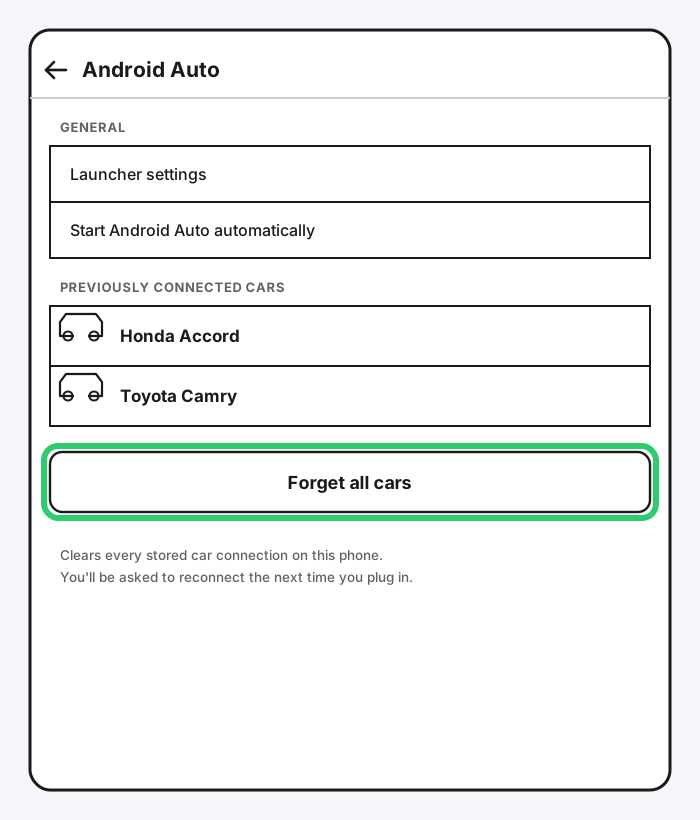
Step 2: Forget All Previously Connected Cars
Tap Previously connected cars, then Forget all cars. This clears every stored car connection on your phone, not just the one giving you trouble, so you'll need to go through the initial connection prompt again next time.
Step 3: Reconnect as If It's New
Plug the cable back in, or reconnect wirelessly if that's how you normally use it, and treat it like the first time. You'll likely see the same permission prompts you saw during original setup.
Method 4: Update Google Play Services
This one's worth taking seriously in 2026 specifically. Starting in early 2026, a real, widely reported bug caused Android Auto to connect and then repeatedly disconnect on a number of phones, Samsung's Galaxy S26 line and several Pixel models among the most reported. Google shipped fixes for it through Google Play Services over the following months rather than through Android Auto's own app updates, which is an easy place to miss if you're only checking the Android Auto app itself for updates.
Step 1: Check for a Pending Google Play Services Update
Open Settings, then Google, then All services, then System Services. If Google Play Services shows an available update, tap it and update.
Step 2: Update Android Auto and Google Play Services Through the Play Store Too
Search for both apps in the Play Store and confirm they're current. Play Services updates in the background most of the time, but it can sit pending for a while if your phone isn't set to auto-update apps.
Step 3: Restart After Updating
A phone restart after a Play Services update clears out whatever was holding the old, broken connection behavior in memory.
Method 5: Clear Android Auto's Cache
A stale cache is a common cause of Android Auto being slow to open, glitchy once connected, or freezing mid-drive, distinct from a connection that fails outright.
Step 1: Find Android Auto in Your App List
Go to Settings, then Apps, and find Android Auto (search for it if your phone has a long app list).
Step 2: Clear Its Cache, Not Its Data
Tap Storage, then Clear cache. Clearing cache alone doesn't touch your saved settings or paired car list, clearing data would, so stick to cache first.
Step 3: Reconnect and Test
Plug in or reconnect wirelessly and see if the issue clears up. If it doesn't, that at least rules cache out as the cause.
Method 6: Check Android Auto's In-App Settings
If Android Auto doesn't open automatically when you connect, or won't launch while your phone is locked, this is usually a setting rather than a connection failure.
Step 1: Open Android Auto's Own Settings
Open the Android Auto app directly, or search "Android Auto" from your phone's main Settings app.
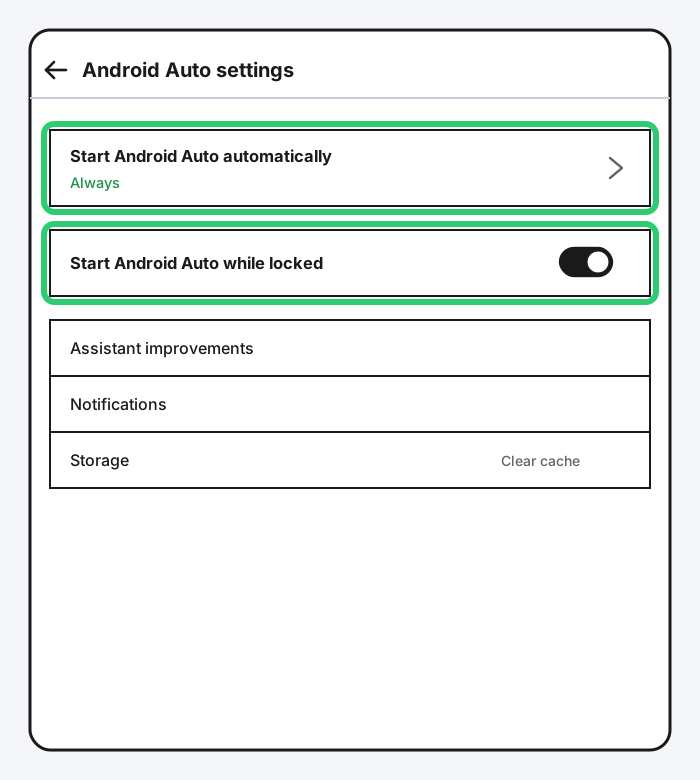
Step 2: Check "Start Android Auto Automatically"
Make sure this is set to Always rather than Only when connected to Wi-Fi or a more restrictive option, depending on how your phone labels it.
Step 3: Turn On "Start Android Auto While Locked"
If your phone sits locked in a cupholder or mount before you plug it in, this setting is what allows Android Auto to launch without you unlocking it first.
Method 7: Rule Out Interference and Random Disconnects
If Android Auto connects fine and then drops out later, mid-drive rather than right at connection, treat it as a separate issue from the ones above.
Step 1: Check for Other Bluetooth Devices Competing for the Connection
Wireless earbuds, a smartwatch, or another phone actively paired to the car can all interfere with a wireless Android Auto session. Disconnect anything you're not actively using.
Step 2: Rule Out a Battery Optimization Setting
Some phones aggressively restrict background battery use for apps by default, which can interrupt Android Auto mid-session. Check your battery settings for Android Auto and set it to unrestricted if that option exists on your phone.
Step 3: Try a Different USB Port or Cable If You're Wired
The same charge-only or damaged cable and port issues from Method 1 can cause intermittent drops rather than a total failure to connect, especially if a cable is slightly worn rather than fully broken.
Still Not Working?
If you've worked through all of this and Android Auto still won't hold a connection, Google's own Android Auto Help Center covers phone- and car-specific quirks that go beyond what fits here, and it's the place Google itself posts updates when a known bug like the 2026 disconnection issue is confirmed. Your phone manufacturer's support line is also worth a call if the problem tracks specifically to your phone model rather than the car.
Frequently Asked Questions
Why does Android Auto work with one car but not another?
Android Auto stores connection information per car, similar to how Bluetooth pairing works, so it's possible for one car to connect without issue while a completely different one, even the exact same make and model, needs its own troubleshooting.
Does a cheap USB cable actually make a difference for Android Auto?
Yes. Android Auto needs a cable capable of carrying data, not just power, and a charge-only cable can charge your phone perfectly well while being completely unable to carry the data connection Android Auto requires.
Is the 2026 Android Auto disconnection bug actually fixed now?
Google shipped several Google Play Services updates through 2026 targeting this issue, and most affected phones stopped disconnecting after updating. If you're still seeing it, confirm Google Play Services is fully current before assuming it's a different problem.
Does wireless Android Auto use my mobile data?
No, the screen mirroring itself runs over a direct Wi-Fi connection between your phone and the car, not your mobile data plan. Individual apps you use through Android Auto, like streaming music or live traffic, still use your regular data connection the same as they would anywhere else.
Why does my phone show it's connected but the car screen stays blank?
This is usually a cache or a stuck previously-connected-car record rather than a true connection failure. Try clearing Android Auto's cache first, and forgetting the car under Connection preferences if that doesn't clear it.
Quick Summary
Start with the physical connection: a certified, data-capable cable in a port your car actually supports, or Wi-Fi and Bluetooth both on for wireless. If that checks out, forget the car under Settings > Connected devices > Connection preferences > Android Auto > Previously connected cars and reconnect fresh, since a corrupted connection record is a common, easy-to-miss cause. Given the widely reported Android Auto disconnection issue that ran through 2026, checking that Google Play Services is fully updated is worth doing early rather than as a last resort. Clearing Android Auto's cache and checking its in-app "Start automatically" settings cover most of what's left, and a restart of both your phone and your car's infotainment system resolves a fair share of whatever's still hanging on after that.
Related Articles
Android Auto Wireless Adapter: What It Is & How to Set It Up
An Android Auto wireless adapter turns a wired-only car into a cable-free setup. Here's how the adapters actually work, which one to buy, and the real setup steps.