

Personal Hotspot Greyed Out? How to Fix It (iPhone)

Personal Hotspot greyed out on iPhone almost always comes down to one of a handful of causes, and none of them mean your phone is broken. The toggle under Settings > Personal Hotspot can go grey (or the whole screen can turn into a "Set Up Personal Hotspot" prompt instead of real controls) because Cellular Data itself is off, your carrier plan doesn't include tethering, a dual-SIM line is set up wrong, or a carrier setting is missing entirely. It looks like one problem from the Settings app, but it's really four or five different possible causes wearing the same grey toggle.
I've had this happen right after switching to a new SIM, and the fix turned out to be a completely empty carrier field buried two menus deeper than where I was looking. It wasn't obvious from the greyed-out toggle itself, which is exactly why this is worth working through in order rather than guessing.
Quick answer: check that Cellular Data itself is turned on first, since Personal Hotspot can't function without it and this is the single most common cause. If Cellular Data is already on and the toggle is still greyed out (or you're seeing "Set Up Personal Hotspot" instead of a normal toggle), the next most likely cause is your carrier plan not including tethering, which needs a call to your carrier rather than any setting on your phone.
Key takeaways:
- Personal Hotspot literally cannot turn on while Cellular Data is off, and checking this takes ten seconds.
- Seeing "Set Up Personal Hotspot" instead of a toggle means your carrier hasn't enabled tethering on your specific plan, not that something's broken on your phone.
- If you use two lines (a physical SIM plus an eSIM, or dual physical SIMs), Personal Hotspot only works through whichever line currently has Cellular Data turned on.
- A carrier settings update, found under Settings > General > About, fixes a real share of Personal Hotspot issues that show up after a SIM swap or a plan change.
- If this started right after updating to iOS 26, you're not imagining it. Several real, documented fixes exist for that specific case.
Prefer an interactive walkthrough? Try our Personal Hotspot Troubleshooter →
Quick Diagnostic: What's Actually Going Wrong?
| What you're seeing | Likely cause | Try this first |
|---|---|---|
| Toggle is grey, phone otherwise works fine | Cellular Data is turned off | Method 1 |
| You see "Set Up Personal Hotspot" instead of a toggle | Carrier hasn't provisioned tethering on your plan | Method 2 |
| You have two lines (SIM + eSIM, or dual SIM) | Hotspot follows the wrong line, or the active line has data off | Method 3 |
| Recently swapped a SIM or switched carriers | Carrier settings need updating, or APN fields are empty | Methods 4 and 5 |
| Started right after updating iOS | A software bug tied to a specific iOS version | Method 6 |
| Managed by work or school | An MDM configuration profile restricts it | Method 7 |
| Phone shows "SOS," "No Service," or "Searching" | No cellular signal at all, hotspot can't work regardless of settings | Check signal first |
| Nothing above explains it | Corrupted network configuration | Method 8 |
Why a Greyed-Out Toggle Doesn't Mean Something's Broken
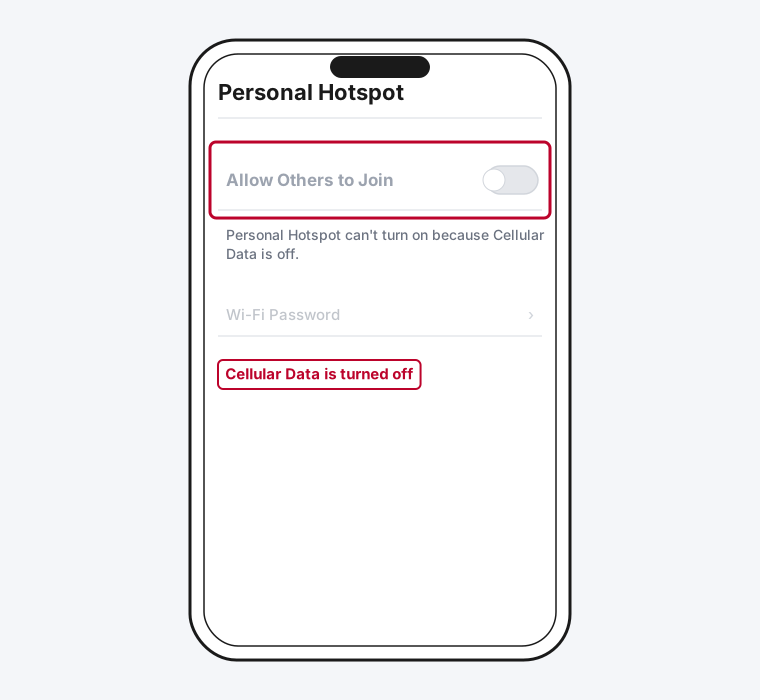
Personal Hotspot isn't its own independent feature sitting off to the side. It's entirely dependent on your iPhone's cellular data connection, since that's the actual internet connection it shares with other devices over Wi-Fi, Bluetooth, or USB. When Apple greys out the toggle, iOS is telling you, in its own indirect way, that some layer underneath Personal Hotspot isn't ready yet: data itself might be off, the connection might not be provisioned for tethering, or a required setting further down the chain might be missing.
That's the mental model worth keeping as you work through this: every fix below is really about getting one specific layer of that chain into the right state, not about repairing Personal Hotspot itself, which doesn't have much to break on its own.
Method 1: Turn On Cellular Data
This is the single most common cause, and it's worth ruling out first every time, even if you're fairly sure it's already on.
Step 1: Check Cellular Data Directly
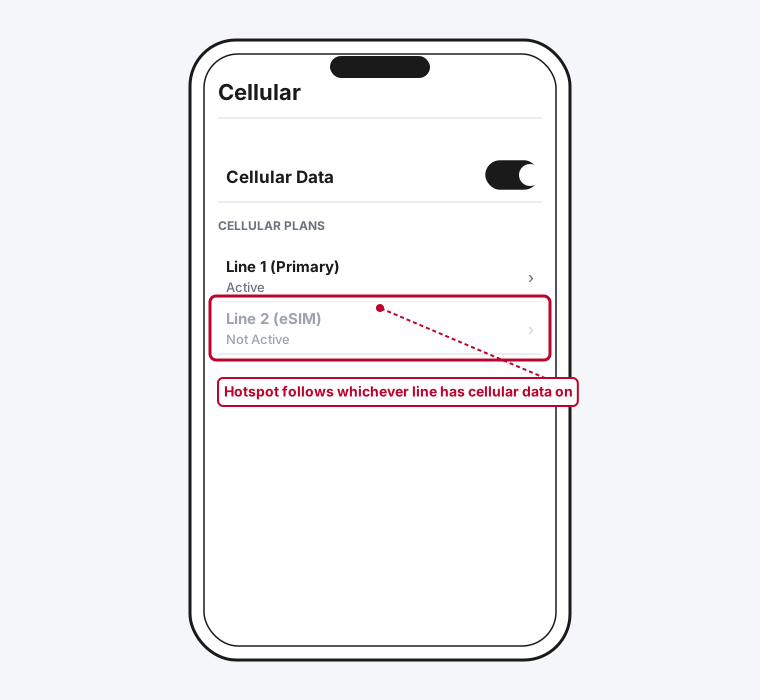
Go to Settings > Cellular (or Settings > Mobile Data, depending on your region), and check that the Cellular Data toggle at the top is switched on.
Step 2: Go Back and Check Personal Hotspot Again
If Cellular Data was off, turning it on is frequently the entire fix. Go back to Settings > Personal Hotspot (or Settings > Cellular > Personal Hotspot, depending on iOS version) and check whether the toggle is now available.
Method 2: Confirm Your Carrier Actually Supports Tethering
If Cellular Data is already on and you're seeing "Set Up Personal Hotspot" instead of a working toggle, this points somewhere else entirely: your carrier's own systems, not anything on your phone.
Step 1: Look for the Exact Wording
"Set Up Personal Hotspot" (rather than a plain toggle) specifically means iOS is waiting on your carrier's network to confirm tethering is allowed on your account. This is different from a toggle that's simply switched off.
Step 2: Contact Your Carrier Directly
Ask specifically whether your plan includes Personal Hotspot or tethering. Some prepaid plans, older grandfathered plans, and certain business or restricted plans exclude it entirely, and no setting on your iPhone can override that from your side.
Step 3: Ask Them to Re-Provision the Line if It Should Be Included
If tethering should already be part of your plan, it's occasionally a provisioning gap on the carrier's end rather than an actual plan restriction, something they can typically push to your line remotely without you needing to do anything on the phone itself.
Method 3: Check Which Line Has Cellular Data On (Dual SIM or eSIM)
If your iPhone has two lines active, physical SIM plus eSIM, or two eSIMs, Personal Hotspot doesn't work independently of them. It follows whichever line is currently handling cellular data.
Step 1: Open Your Cellular Plans
Go to Settings > Cellular and look under your list of lines.
Step 2: Confirm the Right Line Has Data Turned On
If the line you actually want to hotspot from shows as "Not Active," or Cellular Data is assigned to your other line instead, Personal Hotspot will follow whichever line currently has data enabled, not necessarily the one you expect.
Step 3: Switch the Active Data Line If Needed
Tap the line you want to use and confirm Cellular Data is turned on for that specific line rather than the other one.
Method 4: Check for a Carrier Settings Update
Carriers occasionally push small configuration updates that fix exactly this kind of issue, especially after a SIM swap, a plan change, or simply because you haven't restarted your phone in a while.
Step 1: Go to Settings > General > About
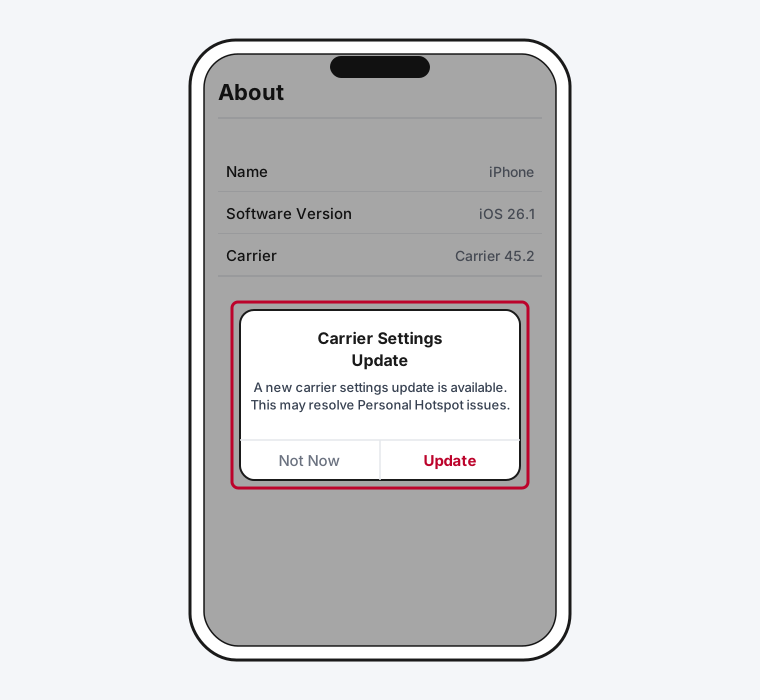
Just opening this screen and waiting a few seconds is enough to trigger a check. If an update is available, iOS shows a prompt on its own.
Step 2: Install It If Prompted
Tap Update if the prompt appears. This installs in the background and typically takes under a minute, no restart required.
Step 3: Recheck Personal Hotspot
Go back to Settings > Personal Hotspot afterward. A surprising number of tethering issues that show up right after a SIM change trace back to exactly this.
Method 5: Fill In Missing Carrier Info Under Personal Hotspot's Own APN Fields
This one is genuinely easy to miss, because it's a separate, second set of fields from the ones most people think of as "APN settings," and Apple splits them by purpose rather than showing one shared set.
Step 1: Go to Settings > Cellular > Cellular Data Network
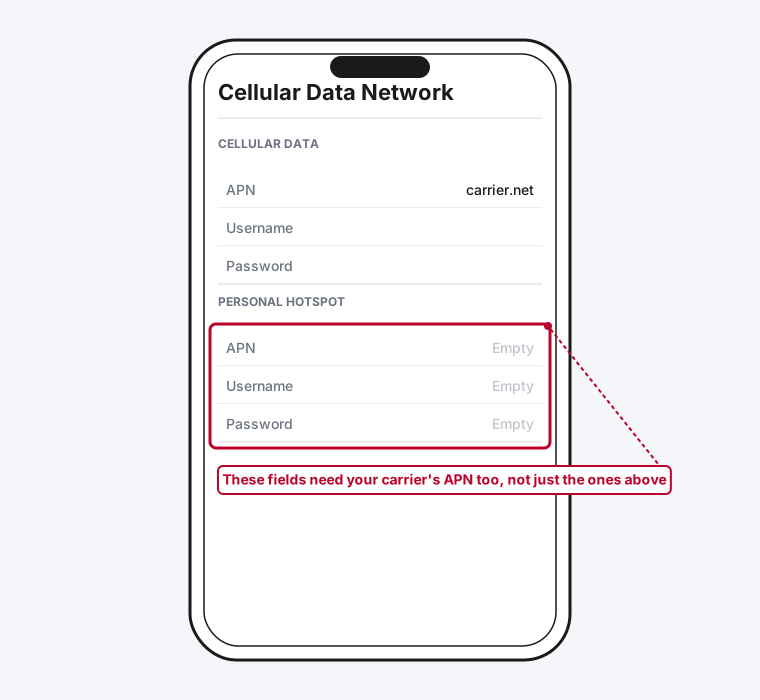
This screen has two separate sections: one for Cellular Data itself, and a second, separate one specifically labeled Personal Hotspot.
Step 2: Check the Personal Hotspot Section Specifically
If your regular Cellular Data APN fields are filled in but the Personal Hotspot section below them is empty, that mismatch alone can be the entire cause. iOS treats these as two separate configurations, even though they're both about the same cellular connection underneath.
Step 3: Enter Your Carrier's Info, Not a Value You Found Online
Only fill these in with your specific carrier's actual APN, username, and password, information you get directly from your carrier's support site or by asking them. Copying APN values from a random website or forum post is a common way to make cellular data stop working entirely, not fix it, since carriers use different values even for the same underlying network.
Method 6: If This Started Right After Updating to iOS 26
If Personal Hotspot worked fine before an iOS 26 update and started greying out immediately after, you're dealing with a real, reported issue rather than a coincidence. It's shown up specifically on some iPhone 16 Pro Max units, though reports suggest it's carrier- and device-specific rather than universal, so not everyone on iOS 26 hits it.
A few fixes have worked for different people, roughly in order of how invasive they are:
- Manually set your carrier's APN in both places. Go to Settings > Cellular > Cellular Data Network, turn off "Use carrier settings" if that option is present, and manually enter your carrier's APN under both the Cellular Data and Personal Hotspot sections.
- Toggle Maximize Compatibility, then restart. Under Settings > Personal Hotspot, toggling Maximize Compatibility off and back on, followed by a restart, has resolved it temporarily for some users.
- Remove and reinstall your carrier profile. Under Settings > General > About > Carrier, removing and reinstalling the carrier profile has given some people at least temporary relief.
- Delete any third-party VPN profile entirely, not just disable it. A few reports point to VPN configuration profiles specifically conflicting with Personal Hotspot on iOS 26.
None of these are guaranteed, since Apple hasn't shipped a confirmed permanent fix as of this writing, but they're real fixes other people have reported working, not guesses.
Method 7: Check for a Work or School Device Restriction
If your iPhone is managed by an employer or a school, through what's called Mobile Device Management (MDM), Personal Hotspot can be restricted at a level no setting on your own phone can override.
Step 1: Check for a Management Profile
Go to Settings > General > VPN & Device Management. If you see a profile listed there under a company or institution's name, your phone is under some level of management.
Step 2: Contact Your IT Administrator
If Personal Hotspot is restricted by that profile, only whoever manages the device can lift that restriction, and it's not something you can work around from the Settings app.
Worth knowing: Screen Time's own Content & Privacy Restrictions don't include a dedicated Personal Hotspot toggle the way they do for many other features. Screen Time does have a setting that locks changes to cellular data settings generally, so if a device is under strict parental controls and Personal Hotspot behaves unexpectedly, it's worth checking whether that broader cellular-data lock is on, rather than looking for a setting specifically named Hotspot.
Method 8: Reset Network Settings (Last Resort)
If you've worked through everything above and it's still greyed out, resetting network settings clears out any corrupted configuration that might be causing it, though it's a broader reset than anything else on this list.
Step 1: Know What This Actually Resets
This clears saved Wi-Fi networks and passwords, Bluetooth pairings, VPN and APN settings you've previously configured, and cellular settings generally. It does not erase your photos, apps, or personal data.
Step 2: Go to Settings > General > Transfer or Reset iPhone
Choose Reset, then Reset Network Settings, and confirm.
Step 3: Set Up Wi-Fi and Recheck Personal Hotspot
You'll need to rejoin your Wi-Fi networks afterward. Once that's done, check Settings > Personal Hotspot again.
Still Not Working?
If you've been through everything above and Personal Hotspot is still greyed out, Apple's own Personal Hotspot support page is worth a direct check for anything specific to your iPhone model or iOS version. At that point, it's also worth a direct call to your carrier with a specific question: whether Personal Hotspot is actually enabled and provisioned on your line, since that's the one cause on this list that genuinely can't be fixed from your phone at all.
Frequently Asked Questions
Why is my Personal Hotspot toggle grey but everything else on my phone works fine?
This almost always means Cellular Data itself is off, since Personal Hotspot depends entirely on it and can't function independently. Check Settings > Cellular first before looking anywhere else.
Does my carrier plan need to specifically include hotspot or tethering?
Yes. Some plans, particularly certain prepaid, business, or older grandfathered plans, don't include tethering at all, and seeing "Set Up Personal Hotspot" instead of a normal toggle is the usual sign of this specific situation.
I have an eSIM and a physical SIM. Why does Personal Hotspot keep switching which line it uses?
Personal Hotspot follows whichever line currently has Cellular Data turned on, not a fixed line you choose separately. If you want it to consistently use one specific line, make sure Cellular Data itself is assigned to that line under Settings > Cellular.
Can Screen Time block Personal Hotspot?
Not through a dedicated Personal Hotspot toggle, since Content & Privacy Restrictions doesn't have one specifically for it. Screen Time does have a broader setting that can lock changes to cellular data settings generally, which is worth checking on a heavily restricted device.
Will resetting network settings delete my photos or apps?
No. Resetting network settings only clears Wi-Fi networks and passwords, Bluetooth pairings, and cellular/VPN/APN configurations. Your photos, apps, and personal data are unaffected.
Is this a known bug in a specific iOS version?
There's a documented pattern of Personal Hotspot breaking specifically after updating to iOS 26 on some devices, most notably reported on iPhone 16 Pro Max units, though it doesn't affect every device or carrier. See the iOS 26-specific fixes above if that matches your situation.
Quick Summary
Start with Cellular Data itself under Settings > Cellular, since Personal Hotspot can't function at all while it's off, and this alone resolves the majority of cases. If Cellular Data is already on and you're seeing "Set Up Personal Hotspot" instead of a toggle, that's a carrier-provisioning issue that needs a call to your carrier, not a setting on your phone. From there, check which line has data enabled if you're on dual SIM or eSIM, look for a carrier settings update under Settings > General > About, and check the often-missed Personal Hotspot section of Settings > Cellular > Cellular Data Network, which is separate from your regular APN fields. If this started right after an iOS 26 update, the dedicated fixes above are worth trying before anything else. A managed work or school device and a full network settings reset are the last two things to check if everything above comes up empty.