

Is Discord Down? How to Check + Fix Your Connection

Is Discord down right now, or is the problem sitting on your own machine? That's the first thing to settle before you touch a single setting, because the two situations need completely different fixes, and I've watched people spend twenty minutes reinstalling the app for a problem that was Discord's servers the whole time.
Quick answer: check Discord's own live status first, since that takes about ten seconds and immediately tells you whether you're wasting time troubleshooting your own setup. If Discord itself is fine, the most common real causes are a stuck proxy setting, a firewall or antivirus rule blocking Discord, or (for voice and video specifically) a bad voice region.
Key takeaways:
- Discord's real status comes from its own official status page, not guesswork or crowdsourced reports, and checking it takes seconds.
- A green "All Systems Operational" status doesn't rule out a problem on your end. Most Discord connection issues are local, not Discord-wide.
- Proxy settings, firewall rules, and VPNs are the three most common culprits for "Discord won't connect at all."
- Voice and video problems (bad audio, endless "RTC Connecting," choppy calls) usually have a different fix than a general connection failure, and Discord's voice region setting is the one most people never touch.
- A handful of countries block or restrict Discord outright, and no amount of troubleshooting on your end will fix that.
Just want the live status right now? Try our Discord Status Checker →
Discord Status vs. Your Own Connection: Which One Is It?
| What you're seeing | Likely cause | Where to look |
|---|---|---|
| Nothing loads, spinning forever, on multiple devices | Discord-wide outage | Check status first |
| Only you are affected, everyone else on the server is fine | Your connection, not Discord | Skip to the fixes below |
| Text works fine, but voice/video won't connect or drops | Voice region or network-specific | Voice and Video Fixes section |
| Discord loads but takes forever to send messages or load images | Local network congestion or DNS | DNS and network fixes |
| Discord won't load at all, on any network you try | Regional restriction | See the country-restriction section |
Check Discord's Live Status First
This is the step almost everyone skips, and it's the one that actually saves the most time. Discord runs a real public status page at discordstatus.com, tracking the API, Gateway, voice servers, push notifications, and every client (desktop, web, iOS, Android) separately, not just one big up-or-down indicator.

I built a live version of this same data right into this site, since refreshing a third-party page manually gets old fast: our Discord Status Checker pulls straight from Discord's own feed and refreshes on its own about once a minute, so you can just leave it open in a tab while you troubleshoot everything else.
If something's actually broken on Discord's end, it'll show up here as a specific component (Voice, Gateway, API, whatever's affected) rather than the whole platform, and there'll usually be an active incident listed with real details, not just a color change.
Why Discord Still Breaks Even When Status Says Everything's Fine
Here's the part that trips people up: Discord being fully operational and Discord not working for you are both completely true at the same time, constantly. Discord serves hundreds of millions of people through your specific ISP, your specific router, your specific antivirus software, and any one of those can quietly break the connection without Discord's servers ever noticing.
That's not a dodge. It's just how it actually works, and it's why the rest of this article is about your setup, not Discord's.
Fix 1: Restart Discord Completely, Not Just the Window
Closing the Discord window doesn't close Discord. On desktop, it keeps running in the system tray, and a half-stuck background process is a genuinely common cause of connection weirdness that a simple restart clears up.
Right-click the Discord icon in your system tray (bottom-right on Windows, top-right on Mac) and choose Quit, then reopen the app fresh. If Discord's own restart doesn't feel like it actually took, open Task Manager (Ctrl + Shift + Esc), find every Discord.exe process, and end them manually before relaunching.
Fix 2: Turn Off Any Proxy Settings
This is the exact fix Discord's own support team points to for a client stuck on the main connecting screen, and it's more common than you'd think, especially on a work laptop or a PC that's had other software touch its network settings at some point.
On Windows, go to Control Panel > Network and Internet > Internet Options > Connections > LAN Settings, and make sure "Use a proxy server for your LAN" is unchecked.
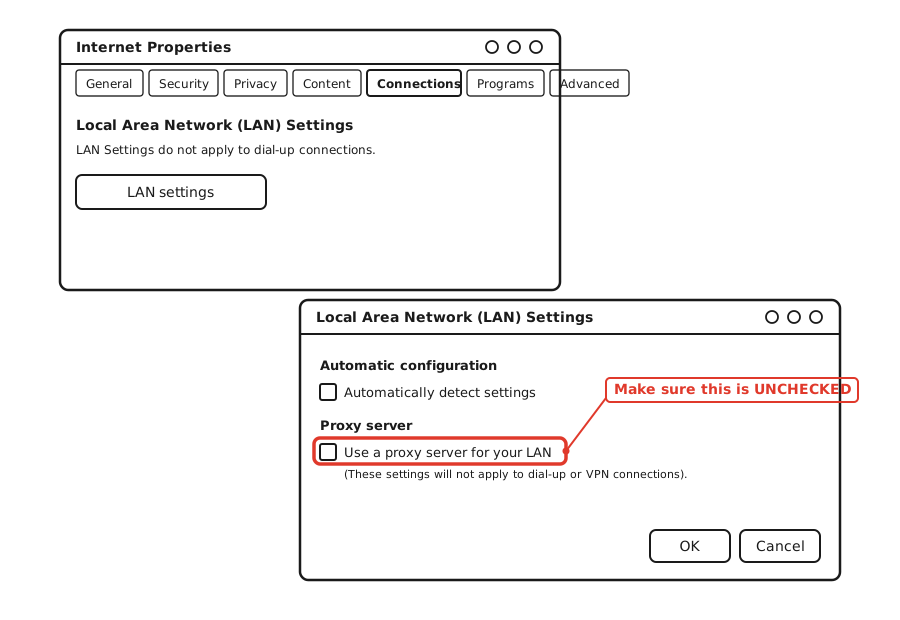
On a Mac, it's System Preferences > Network > Advanced > Proxies, and you want every proxy option there unchecked too. Save, restart Discord, and try again.
Fix 3: Clear Discord's Cache
A corrupted cache is a genuinely underrated cause of Discord acting broken in ways that look like a connection problem but aren't. This is quick and doesn't touch your login or your settings.
On Windows, close Discord completely, then delete everything inside %appdata%/discord/Cache. On Mac, the same folder lives at ~/Library/Application Support/discord/Cache. Relaunch Discord afterward and let it rebuild that folder from scratch, which happens automatically.
Fix 4: Check Your Firewall and Antivirus Aren't Blocking Discord
Firewalls and antivirus software occasionally decide Discord's network traffic looks suspicious, especially right after an update to either program, and silently block it instead of asking you first.
Open your firewall or antivirus software's settings and look for an allowed-apps or exceptions list. Make sure Discord (and specifically Discord.exe) is on it. If you're not sure which security software is actually active on your machine, temporarily disabling it and testing Discord is the fastest way to confirm whether it's the cause, before you go digging through menus for the exact setting.
Fix 5: Turn Off Any VPN or Proxy App
A VPN routes every bit of your traffic through an extra server first, and that detour can break Discord's connection outright on some VPN providers, not just slow it down. If you're running one, turn it off completely (not just switch servers) and test Discord again. Streaming or gaming without it, when privacy isn't the priority in that specific moment, is a reasonable trade-off for actually being able to connect.
Fix 6: Try a Different DNS Server
If Discord is slow to load, connects inconsistently, or times out more on some networks than others, your ISP's default DNS server is a common, easy-to-miss culprit. Switching to a public DNS server like Cloudflare (1.1.1.1) or Google (8.8.8.8) is free, takes about a minute in your router or network adapter settings, and fixes this specific flavor of flakiness surprisingly often.
Voice and Video Fixes (Different Problem, Different Fixes)
If text chat works fine but calls won't connect, drop constantly, or sound broken, you're dealing with a voice-specific issue, and none of the fixes above are really aimed at that. These are.
Change Your Voice Region
Every voice channel picks a region to route your call through, and "Automatic" doesn't always pick the closest or least congested one. Right-click any voice channel, choose Edit Channel, and under Region Override, pick a region that's actually near you.
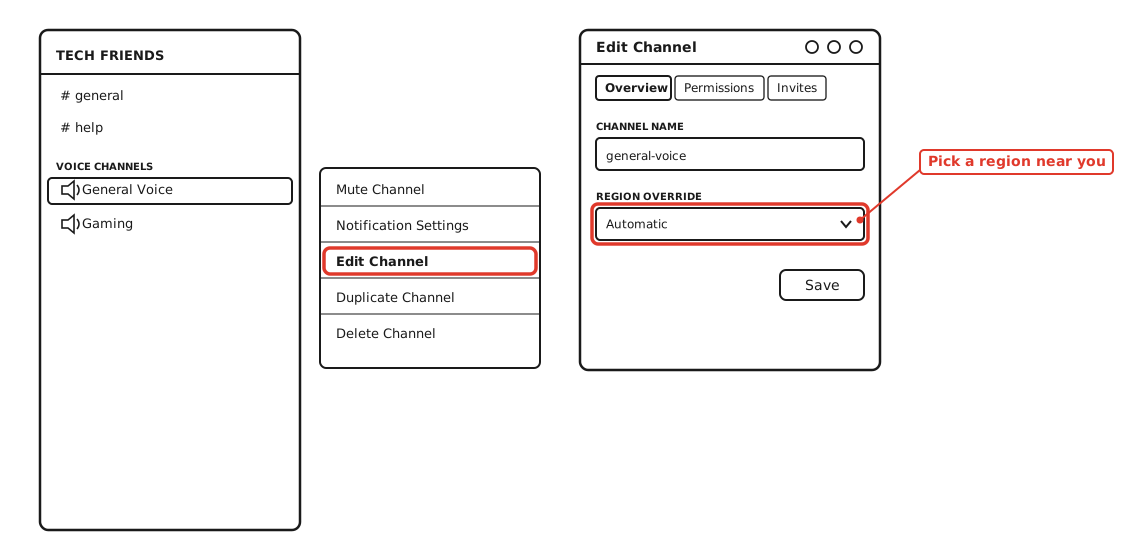
This one fix alone has cleared up more "endless RTC Connecting" reports than anything else I've tried, and it takes ten seconds.
Turn On Quality of Service High Packet Priority
Buried in User Settings > Voice & Video is a toggle most people never touch: Quality of Service High Packet Priority. It asks your network to treat Discord's voice data as high priority over everything else competing for your bandwidth, which matters a lot if someone else in the house is streaming or downloading while you're on a call.
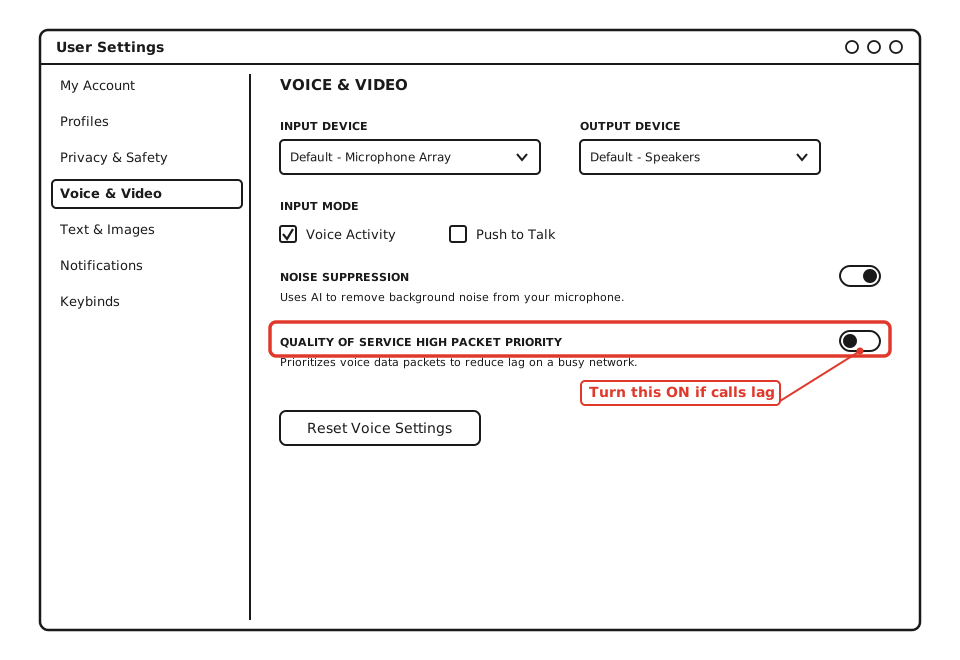
It won't fix a genuinely slow connection, but on an otherwise decent connection that's just being shared badly in the moment, it's a real, noticeable improvement.
Disable Hardware Acceleration for Video Issues
If your camera feed specifically is choppy, freezing, or crashing Discord, hardware acceleration is worth turning off. It's under User Settings > Voice & Video, in the Video section. Disabling it shifts video processing off your graphics card and onto your CPU instead, which is slower in theory but noticeably more stable on some hardware and driver combinations.
If You're in a Country That Restricts Discord
A small number of countries, including mainland China, Iran, and North Korea, block or heavily restrict Discord at the network level, and no cache clear or proxy setting on your end changes that. Reports about a few other countries (the UAE and Oman come up most often) are inconsistent depending on the source and have shifted over time, so if you're in one of those and Discord genuinely won't load on any network you try, including mobile data, that's worth treating as a possible restriction rather than assuming it's a setting you missed.
Still Not Working?
If you've gone through all of this and Discord still won't cooperate, Discord's own support team has a full troubleshooting section with device-specific guidance, and their known issues page is worth a check in case it's a known bug they're already tracking rather than something on your end at all.
Frequently Asked Questions
How do I know if Discord is down for everyone or just me?
Check Discord's official status page or our own Discord Status Checker. If it shows all systems operational and other people on your server are connecting fine, the problem is local to your setup, not Discord-wide.
Why does Discord say I'm connected but I can't hear anyone?
That's almost always an input/output device or voice region issue, not a connection failure. Check your Input and Output Device dropdowns under Voice & Video first, then try changing the voice channel's Region Override.
Does restarting my router actually fix Discord problems?
Sometimes, mostly for general slowness or intermittent drops rather than a full connection failure. Unplug both your modem and router, wait a full 30 seconds, then power the modem back on first and give it a minute before reconnecting the router.
Is it safe to disable my antivirus to test Discord?
Briefly, for testing purposes only, and reconnect to the internet carefully while it's off. If disabling it fixes Discord immediately, the real fix is adding Discord as an exception in your antivirus settings, not leaving your antivirus off long-term.
Can my ISP block Discord specifically?
It's uncommon for a home ISP to block Discord outright, but some networks (schools, workplaces, certain mobile carriers in specific regions) do restrict it deliberately. If Discord fails on one network but works fine on mobile data or a different Wi-Fi network, that's a strong sign it's being blocked at the network level, not a Discord problem at all.
Quick Summary
Check Discord's real status first, either on discordstatus.com or our own Discord Status Checker, since that instantly tells you whether you're troubleshooting the right thing. If Discord itself is fine, work through proxy settings, cache, firewall exceptions, and VPN as the most common causes of a full connection failure, and treat voice or video problems as their own separate issue, starting with the voice region and Quality of Service toggle. If none of it works and Discord fails on every network you try, a regional restriction is worth ruling out before you assume it's something you did wrong.